
Before creating your content or customizing your website, start by configuring your LearnWorlds school's essential settings.
In this guide, you'll learn how to add your school information, choose your site language, configure privacy settings, and manage how learners sign up and log in.
These initial settings help you establish your school's identity, communicate with learners, and prepare a secure learning environment.
Step 1: Add your school information
Start by adding your school's basic information so learners can recognize your brand and receive communications from your school.
Go to Settings → School Settings → School Info. Fill in the following:
School name: This appears on your site and emails.
School description: A short description to get potential students excited. That information will show up when you use the variable {{school.description}} in your pages.
Company name: Useful for official communication.
Time zone and date format. This controls course deadlines, scheduling, and certificates. Choose the zone most relevant to your learners.
Contact email: This email address will be used as the reply-to when your learners receive e-mail notifications.
Support and Sales email.
Contact info and Social media links.
Save your changes before exiting the page.

Advanced Tip: Want your domain and logo-only branding? You can white label your school (Learning Center +) and use a custom domain (available in all paid plans) for a fully professional presence.
How to edit your school info »
Step 2: Set your site language
Choose the default language that your learners will see across the platform interface. Go to Settings → School Settings → Site Language.
What you can do:
Select the platform language (e.g., English, Spanish, German, etc.)
Translate or edit interface text if needed (e.g., Enroll Now → Start Learning)

Advanced Tip: Want a multilingual experience? Consider our native integration with Weglot to offer your school in multiple languages!
How to edit the site language & translate interface texts »
Step 3: Review your privacy and GDPR settings
LearnWorlds provides privacy settings to help you manage personal data and configure consent options for your school.
Before welcoming learners, review these settings to make sure they align with your school's privacy requirements.
- Navigate to Settings → School Settings → Privacy / GDPR.
- Review the available personal data and privacy settings.
- Configure the appropriate consent options for your school.
- Make sure your school has an accessible Privacy Policy explaining how personal data is collected and used.
- Review your cookie consent settings and configure the appropriate notice and consent options.

Make sure you collect explicit learner consent when required (e.g., during sign-up or before using features like AI feedback).
Advanced Tip: Privacy requirements vary depending on your location, audience, and how you process personal data. Review the applicable regulations and configure your school accordingly.
How to make your school GDPR compliant »
AI Evaluation systems in education: Learner consent and GDPR obligations »
Step 4: Configure sign-up and login settings
Decide how learners can register and log in to your school, and configure the security settings that best suit your needs.
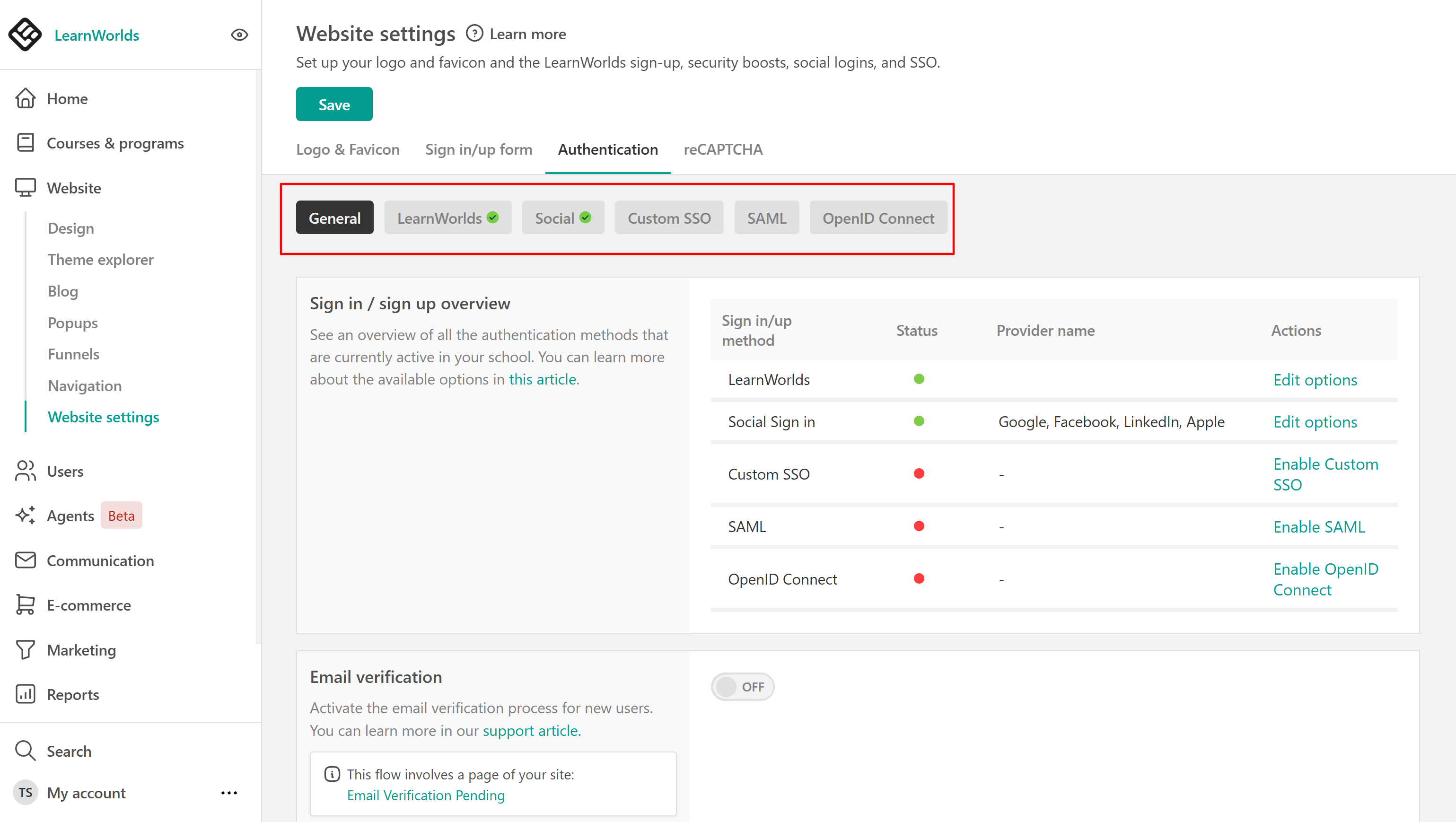
1. Navigate to Website → Website settings.
2. Open the Sign in/up form tab to customize your registration form and the information collected from learners.
3. Switch to the Authentication tab to review and configure the available login methods, including LearnWorlds login, social login, and Single Sign-On (SSO).
4. Under General, review additional settings such as:
- Email verification: Require new users to verify their email addresses.
- Email domain rules: Allow registration from all email domains, restrict registration to specific domains, or block selected domains.
- Force logout: Automatically log out inactive learners after a specified period.
- Multiple Sessions: Decide whether learners can remain logged in from multiple devices or sessions.
5. Click Save to apply your changes.
When to use these options:
- Social login: Best for public schools where learners want quick access.
- SSO: Ideal for corporate/internal training academies where learners use company accounts.
- 2FA & session rules: Great for academies that need extra data security.
Advanced Tip: Running internal training? For security, disable public sign-ups and use invitation-only access or enable SSO (Single Sign-On) (Learning Center +).
How to manage your sign-in/up settings »
How to enable email address verification for new users »
How to set up your social logins »
How to set up the two-factor authentication (2FA) »
Quick recap checklist
| Setup Tasks | |
|---|---|
| Update School Info | ✔️ |
| Select Site Language | ✔️ |
| Review GDPR/privacy settings | ✔️ |
| Customize Sign-in/up settings | ✔️ |
What’s next?
You've completed the first step toward launching your LearnWorlds school!
Now head over to: Quick Start Guide 2: Add Team Members
You’ll learn how to add instructors, admins, or collaborators to help manage your school.