
The Revenue Overview in Sales Analytics gives you a complete picture of your school’s financial performance. It helps you understand how much revenue you generate, how much you actually keep, and where it comes from.
With clear breakdowns by gross vs net revenue, refunds, pricing models, payment methods, and countries, you can confidently monitor performance and make informed business decisions.
In this article, we will learn how to access Revenue Overview, apply filters, interpret each available dashboard, and export data.
What is Revenue overview
Revenue overview is a collection of dashboards inside sales analytics that allow you to track revenue and payments over time. You can break down data by:
- Pricing model (one-time, subscriptions, installments)
- Payment method
- Geography
Use cases
Here are some practical ways to use revenue overview:
- Compare Gross Revenue vs Net Revenue over the last 30 or 90 days to see if your school is truly growing.
- Identify whether a drop in revenue is caused by an increase in refunds.
- Check if subscriptions are becoming a larger part of your revenue compared to one-time purchases.
- Discover which countries generate the highest revenue to optimize localization and marketing campaigns.
- Analyze which payment methods learners prefer (e.g., Card vs Apple Pay) to optimize checkout options.
How to open revenue overview
From your admin dashboard, go to Reports → Sales Analytics.
Inside the revenue overview section, choose the dashboard you want to view:
- Gross vs Net Revenue
- Pricing models performance
- Refunds
- Commissions
- Payment Methods
- Geographies
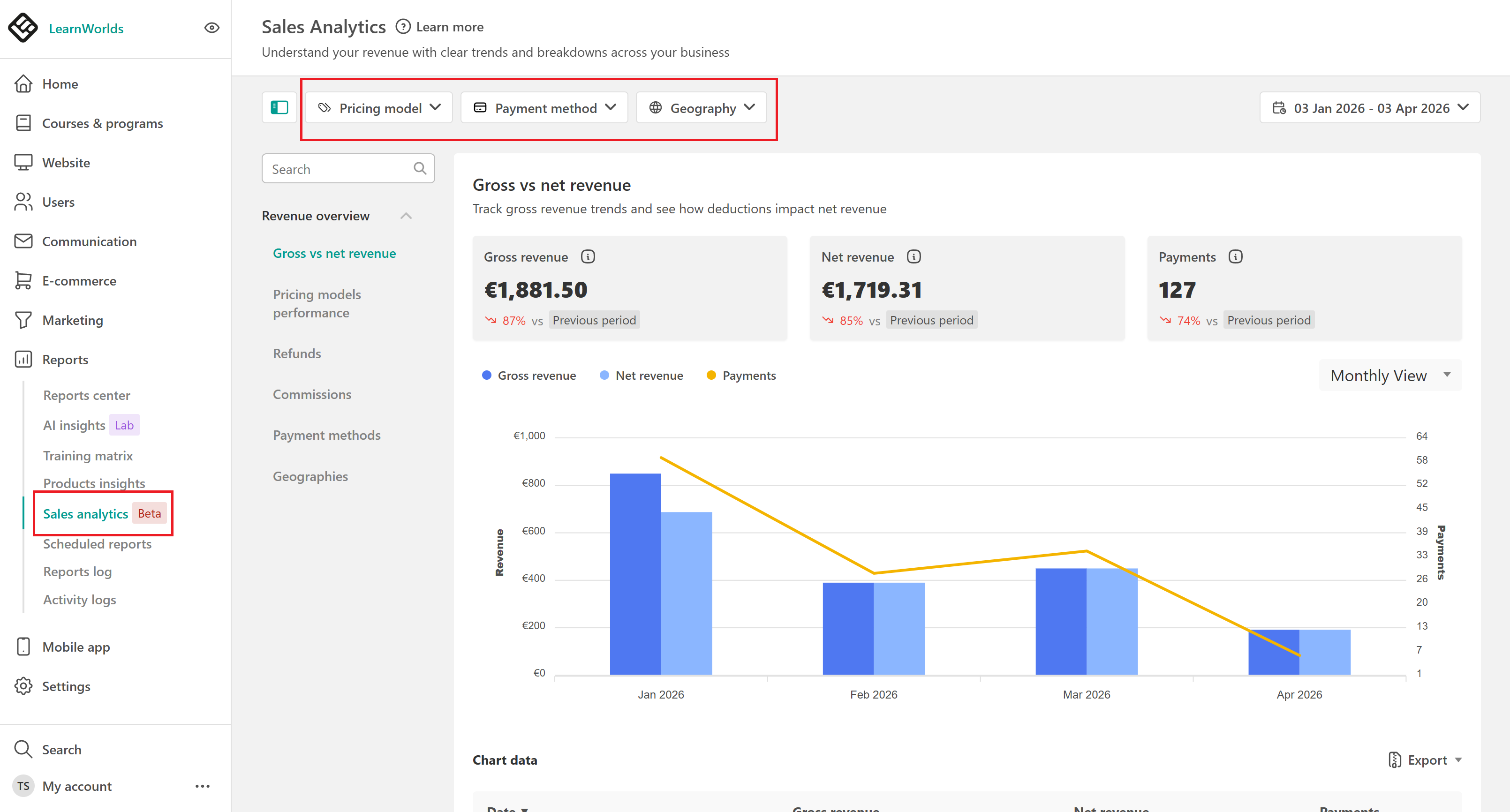
At the top of the page, you can refine your data using the following filters:
- Date range
- Pricing model (installment, one-off, subscription)
- Payment method
- Geography
 Currency filter behavior
- If your school has used only one currency since day 1, the Currency filter will not appear.
- If your school uses multiple currencies, the Currency filter will be visible.
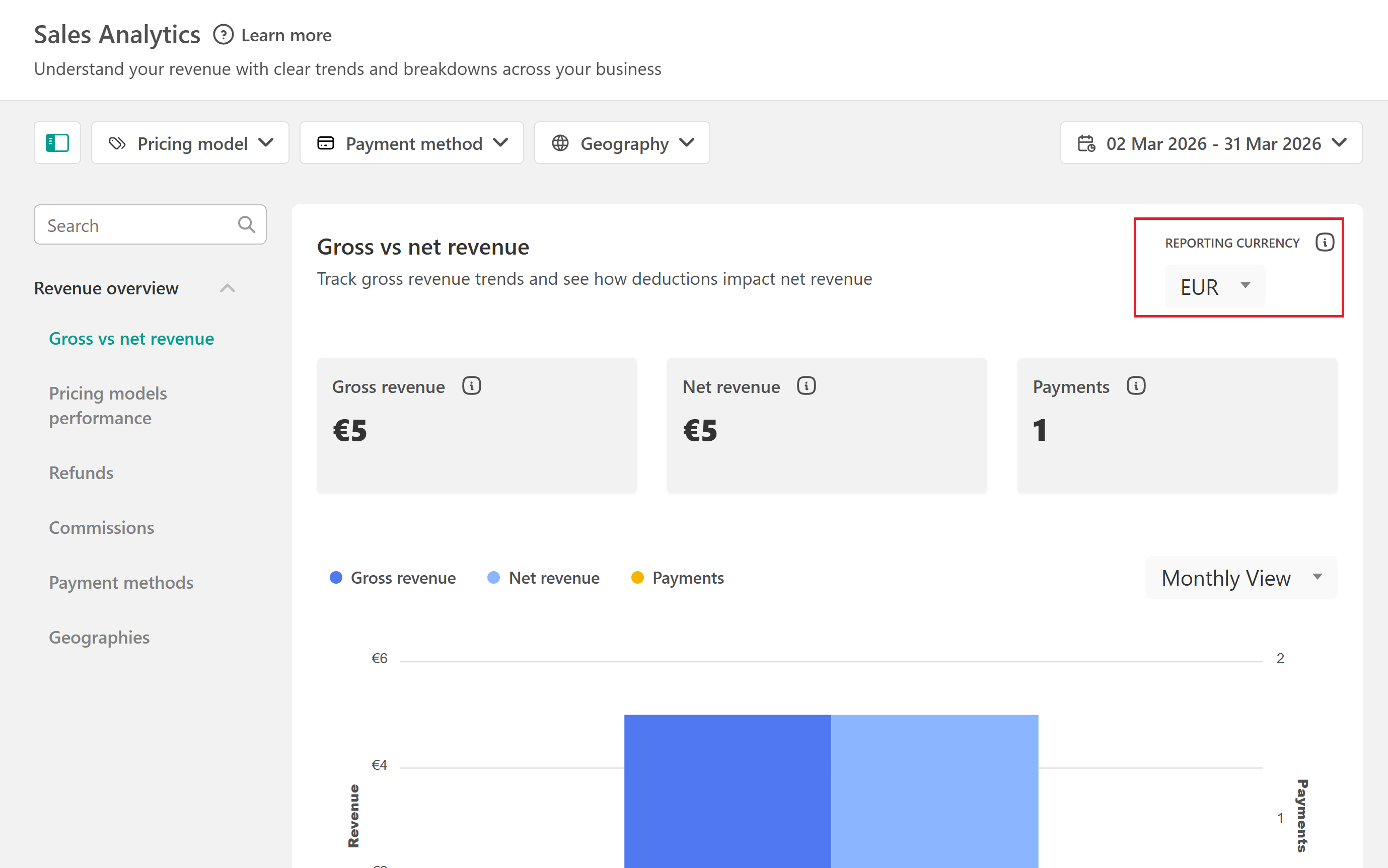
- When you select a currency, totals include only payments made in that currency. No currency conversion is applied.
View Gross vs Net revenue
To access this report, go to Revenue Overview → Gross vs Net Revenue to track your revenue flow over time.
What’s the Difference?
- Gross Revenue: Total revenue generated in a selected period. Discounts are already deducted, but taxes, refunds, affiliate commissions, and instructor revenues are not deducted.
- Net Revenue: Revenue after subtracting discounts, taxes, refunds, affiliate commissions, and instructor revenues.
There, you will find:
- Summary scorecards for Gross Revenue, Net Revenue, and Payments
- A time-series chart showing how each metric evolves over time where you can toggle between:
-Gross Revenue
-Net Revenue
-Payments - A table with a row per time period, based on the selected time granularity.
You can adjust how data is grouped over time:
- Daily: totals per day (best for short ranges and spotting sudden changes)
- Weekly: totals grouped by week (best for smoothing day-to-day changes)
- Monthly: totals grouped by month (best for higher-level reporting)
To change time granularity, open the dropdown on the right side of the chart and select your preferred option.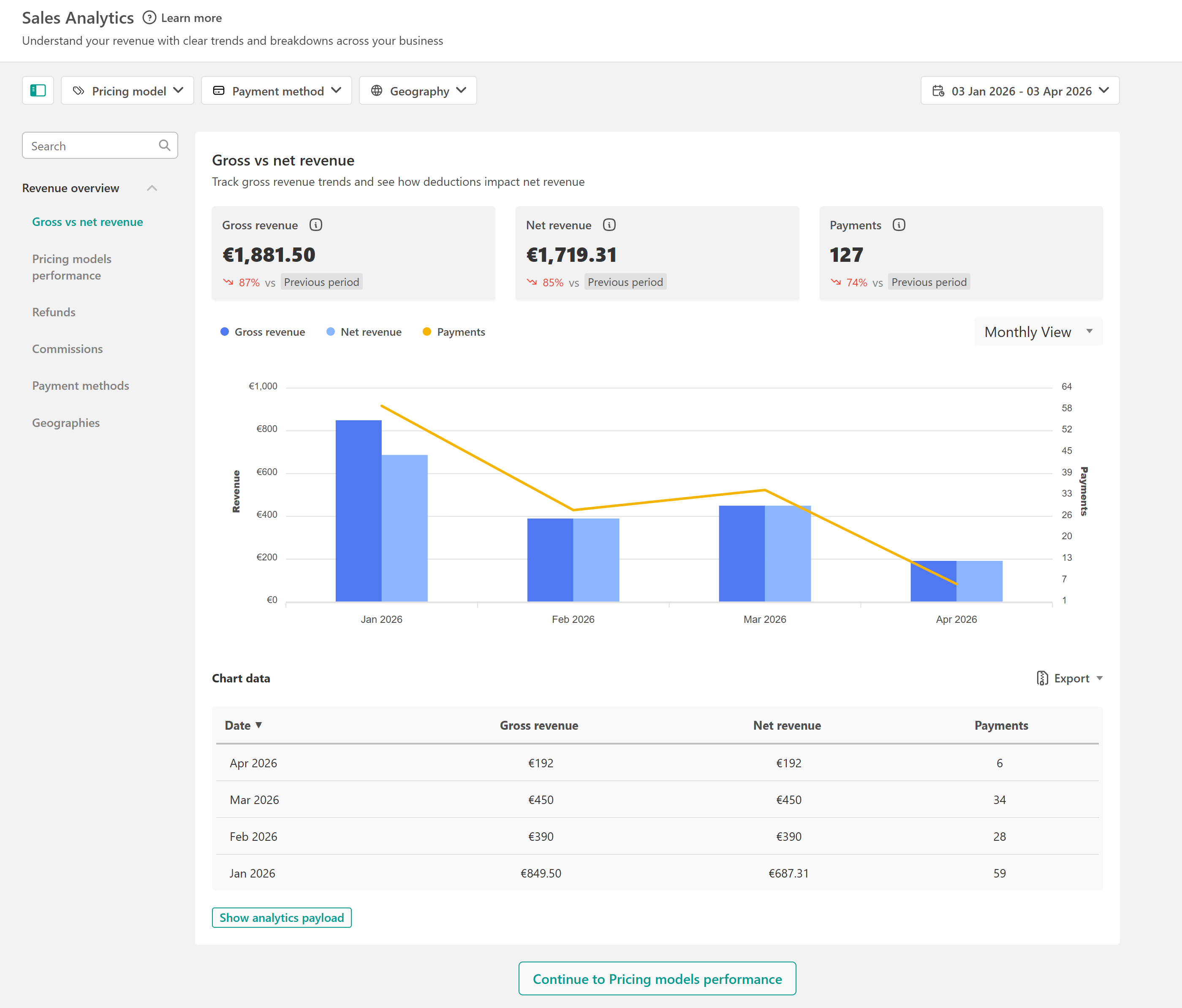
View pricing models' performance
Go to Revenue overview → Pricing models performance to compare how your pricing models perform. There you will see:
- Revenue summary for One-time, Installments, and Subscriptions
- A stacked column chart showing revenue by pricing model over time
- A table with a row per time period
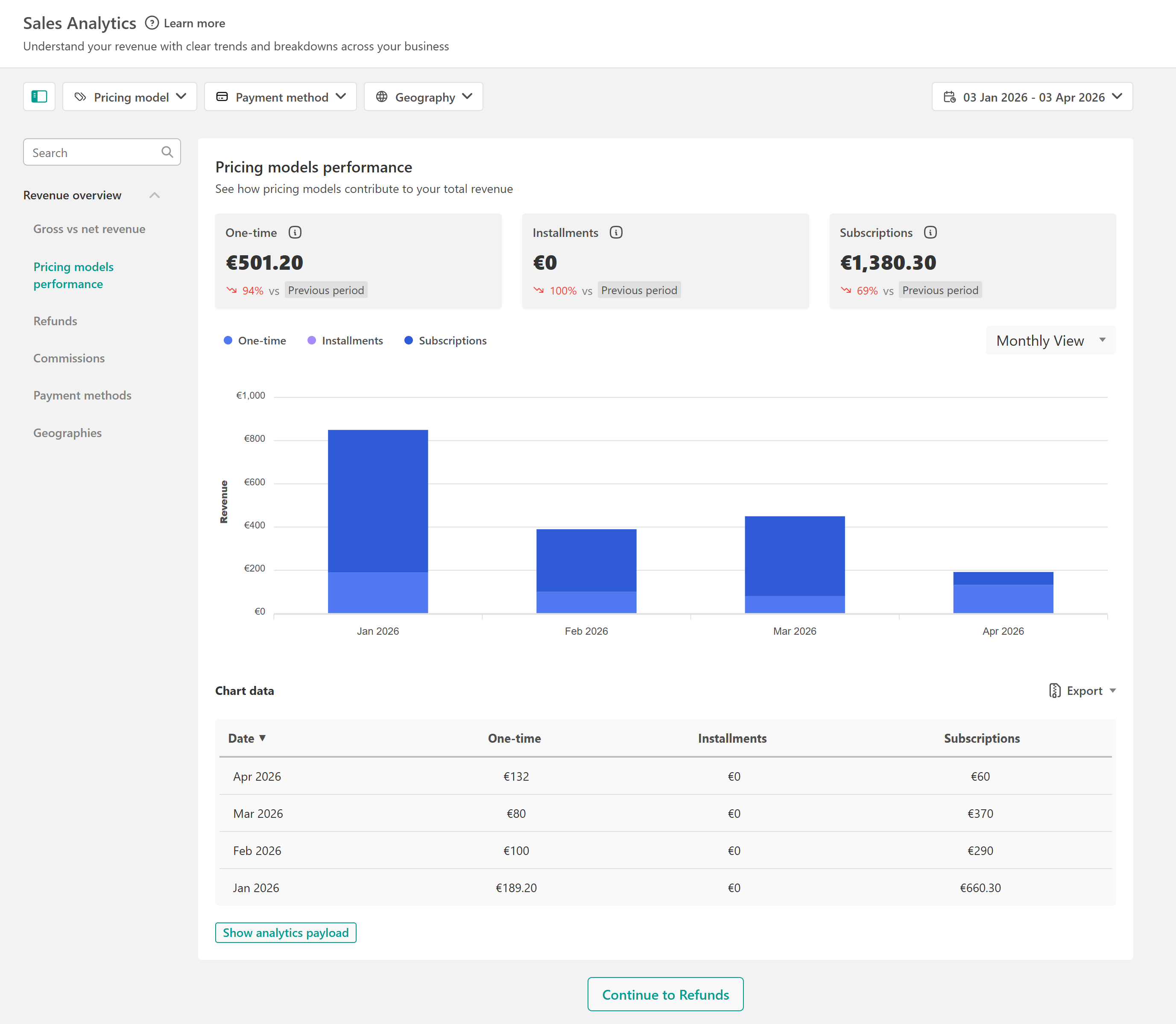
Payments by pricing model may not match the total number of payments because a single payment can include multiple products with different pricing models (e.g., one-time, installments, and subscriptions) and may be counted under each of themView refunds
To access this report, go to Revenue Overview → Refunds to monitor refund activity. There you will find info about:
- Refunded Revenue
- Refunds count
- A time-series chart plus a data table
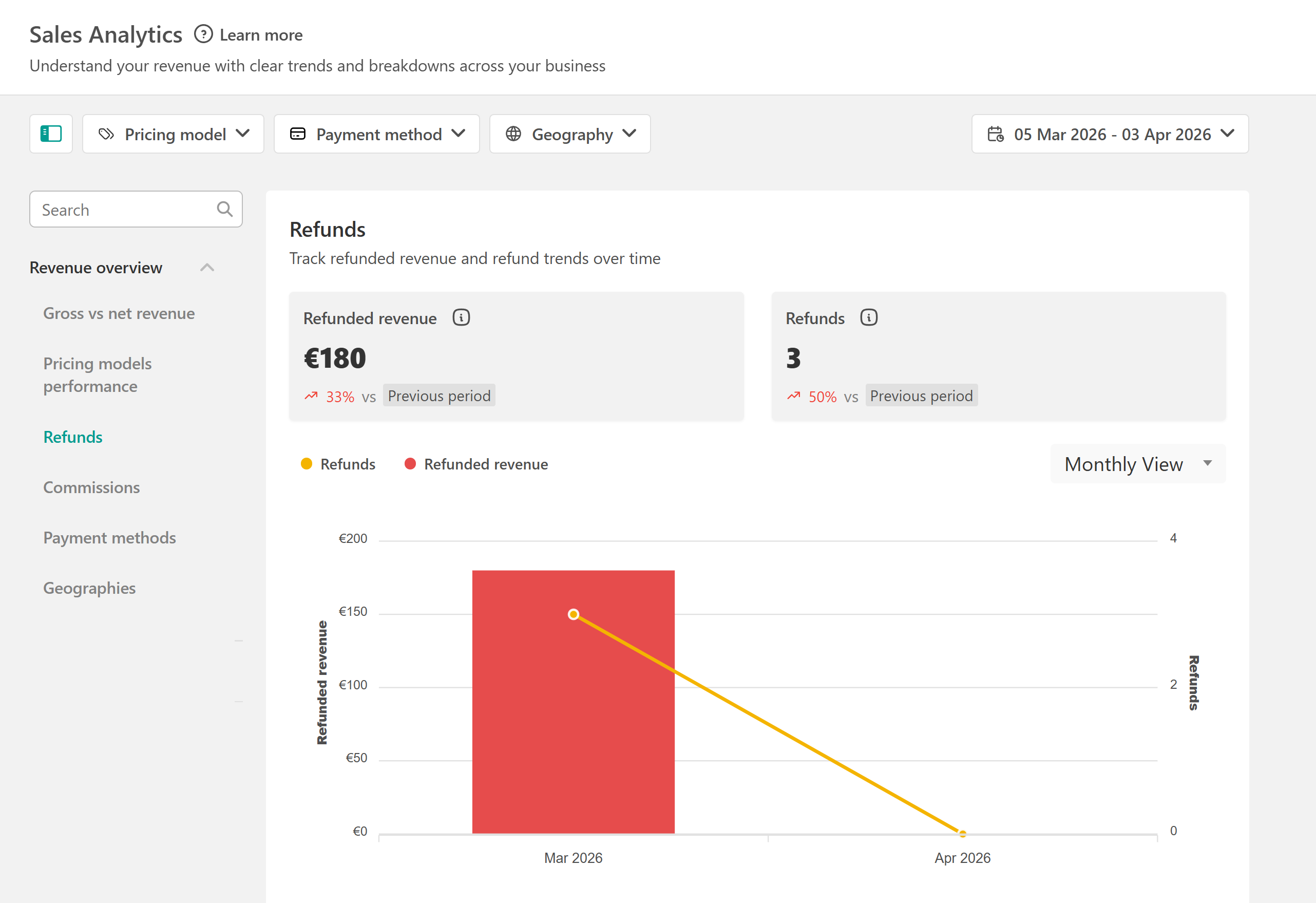
Refund impact appears in the period when the refund happens, not the original purchase date.View commissions
Next, we have commissions. Here you'll see:
- Total Commissions
- Instructor Commissions
- Affiliate Commissions
- A time-series chart plus a data table
View payment methods
The next tab is payment methods, where you will find:
- Breakdown by payment method
- A time-series chart plus a data table
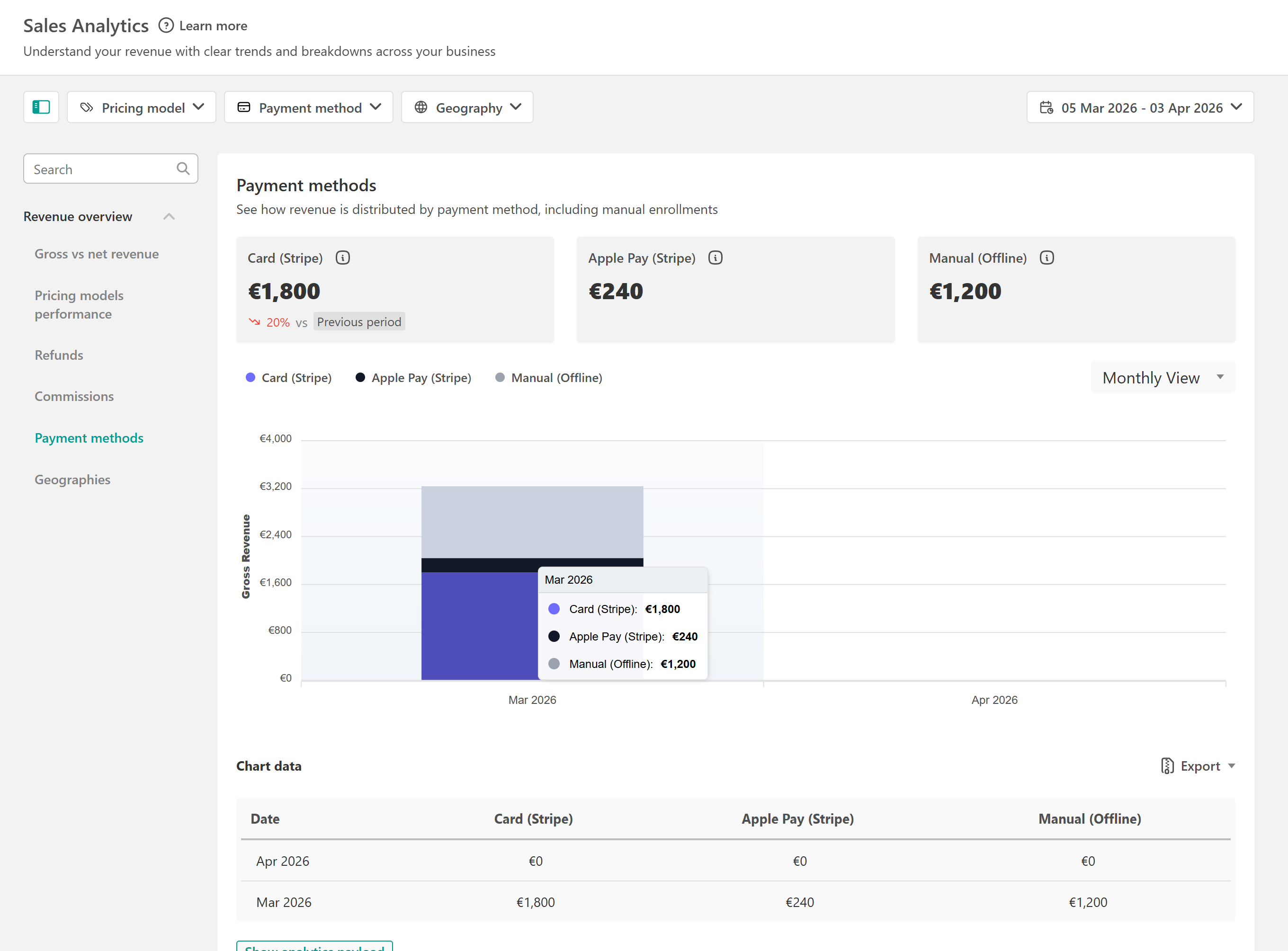
In payment methods, the payment gateway is shown in parentheses. For example: Card (Stripe) indicates that the payment method is Card and the gateway is Stripe. Check the supported payment methods here.
Manual enrollments appear under Offline (Manual).View Geographies
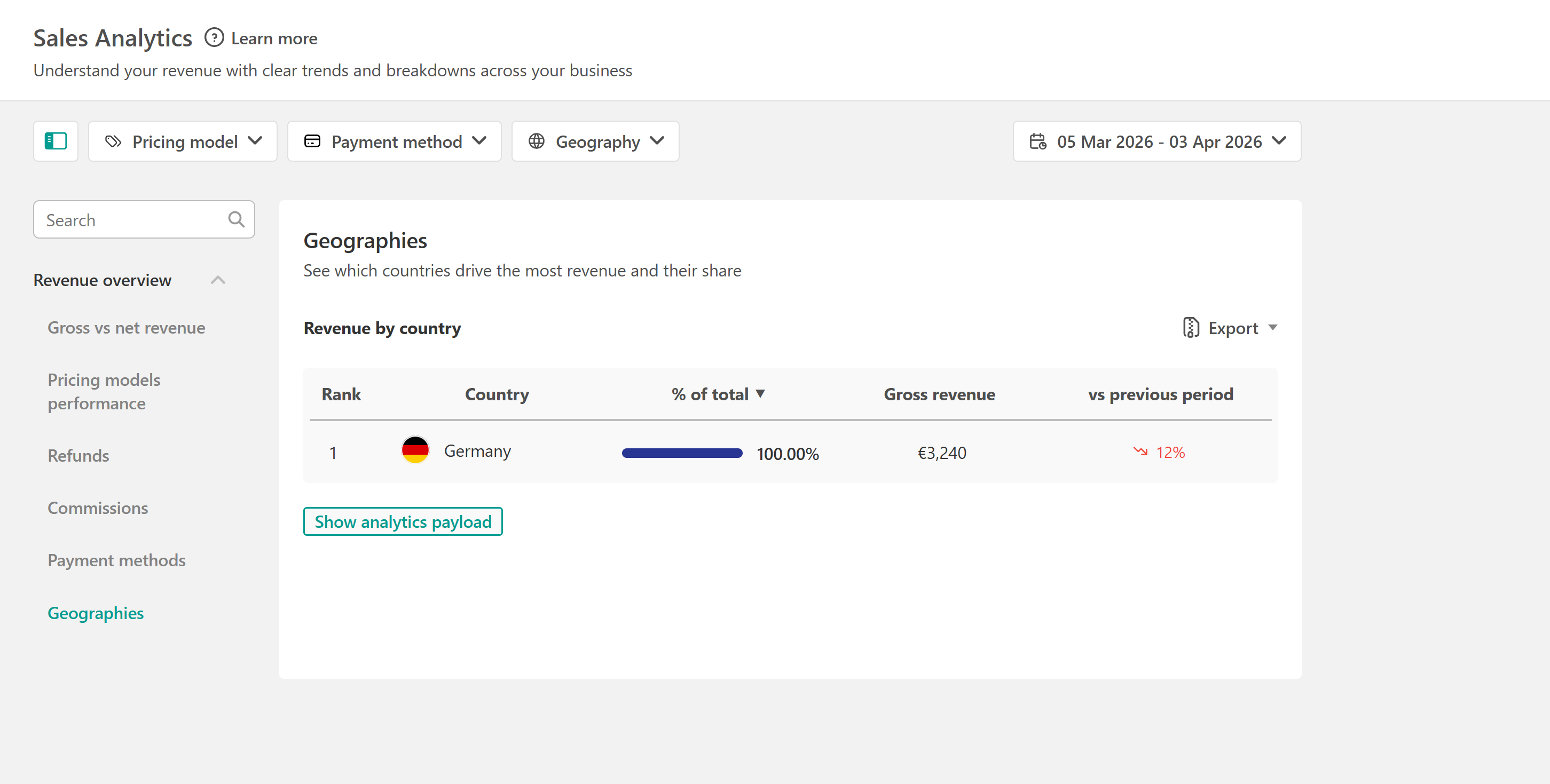
Go to Revenue Overview → Geographies to see top-performing countries. Here you will see:
- Country ranking
- % of total
- Gross Revenue
- Comparison vs previous period (The previous period is determined by the time filter set in the calendar option in the top-right corner. For example, if the current period is ‘Last 7 days,’ then the previous period refers to the 7 days immediately preceding that range.)
You can export the current report with the filters and date range you’ve set by clicking on the export button in the top-right corner of the report.
The export button is visible only to users with the export sales analytics permission.Best practices and tips
- Use 30/90-day ranges and compare to the previous period to spot trends early.
- If Net Revenue drops, check Refunds first to confirm whether refunds increased in the same period.
- Review Pricing models' performance regularly to understand whether subscriptions are increasing revenue stability.
- If you sell in multiple currencies, filter by Currency before you export, so totals match the currency you’re reporting on.
Limitations
- Single school only: no cross-academy aggregation.
- Currency totals are not converted: selecting a currency filters to payments made in that currency only.
- Some metrics may not be directly additive across reports (for example, payments by pricing model vs total payments).
FAQ
1. Why can’t I see Sales Analytics in my dashboard?
You need the View sales analytics permission (default roles: Admin, Marketer, Financial Manager).
2. Why don’t I see the Currency filter?
If your school has used only one currency since day 1, the Currency filter is hidden.
3. Why doesn’t “Payments by pricing model” match total payments?
A single payment can be counted under more than one pricing model, so totals may not match exactly.
4. Do overdue or written-off payments appear in Sales Analytics?
They are included only when they are successfully paid.
5. How are instructor commissions calculated?
- Shows total amount owed to instructors for the selected period.
- Calculated on the amount learners paid, including VAT (if applicable).
- Taxes applied to instructor payouts are not included.
- Instructor payouts are handled outside LearnWorlds.
- Payout dates are not recorded in the platform.
6. How are affiliate commissions calculated?
- Shows total amount owed to affiliates for purchases whose purchase date (accrual date) falls within the selected period.
- Calculated as a percentage of the price paid, including VAT.
- Only commissions with status = Paid are included.
- Statuses New, Approved, Payable, or Rejected are excluded.
- Affiliate payouts are handled outside LearnWorlds.
- Both accrual date and payout date are recorded.
- If marked as Paid later, commissions are attributed back to the original purchase date, which may create small retroactive adjustments.
7. Is there a reporting delay?
Sales Analytics is near real-time and typically refreshes within seconds after a successful payment is received.
8. How can I see revenue from manual enrollments?
Revenue from manual enrollments is included in Sales Analytics and tracked under the payment method Manual (offline). To view only revenue from manual enrollments:
- Go to Reports → Sales Analytics → Revenue Overview
- Open a report (for example, Gross vs Net Revenue)
- Use the Payment method filter
- Select Manual (offline)
If you don’t see Manual (Offline) in the filter, it means no manual enrollments have been recorded in your school yet.
9. Why don’t I see a specific payment method in the filter?
The Payment method filter shows only payment methods that have been used at least once in your school. If a payment method doesn’t appear, it means no successful payments have been recorded with that method yet.
10. How payment methods are labeled
When a payment gateway is involved, it appears in parentheses. For example, Card (Stripe) means the payment method is Card and the gateway is Stripe. Examples of payment methods you may see:
- Stripe (gateway shown in parentheses):
- Card (Stripe)
- Apple Pay (Stripe)
- Google Pay (Stripe)
- Klarna (Stripe)
- iDEAL (Stripe)
- Bancontact (Stripe)
- Przelewy24 (Stripe)
- Afterpay / Clearpay (Stripe)
- Boleto (Stripe)
Other providers:
- PayPal
- Shopify
- Special cases:
- Manual (Offline) — revenue from manual enrollments (payments tracked outside LearnWorlds)