
Retraining lets you set up courses that learners need to repeat over time, such as recurring training, certification renewal, or paid recertification.
Each repeat is tracked as a separate retraining cycle. You can choose what triggers a new cycle, when learners can start it, what they need to complete again, which progress is kept or reset, and whether another purchase is required.
In this article, you'll learn how to configure retraining and manage what happens when a learner starts a new cycle.
How retraining works
Retraining creates a new training cycle when learners need to a repeat course or renew a certification. Each cycle is tracked separately, so previous training remains in the learner's history while the new cycle has its own progress and completion requirements. A new cycle can be triggered by:
- Certificate expiry, useful when learners need to renew a certification.
- Course due date, useful for recurring training that needs to be completed on a schedule.
- Re-enrollment, useful when a learner's course access has ended and they enroll in the course again.
Each cycle is tracked separately, so previous training remains in the learner's history while the new cycle has its own progress and completion requirements.
 Use Course due date when repeating the training is the main requirement. Use Certificate expirywhen learners need to renew a certificate.
Retraining use cases
- Recurring training : Use retraining when learners need to repeat mandatory or recurring training, such as compliance, employee, or partner training. A recurring course due date can determine when the next training cycle becomes due.
- Certification renewal: Use certificate expiry when learners need to repeat training to maintain a current certification. When the learner completes the new certification requirements, a new certificate can be issued while the previous certificate remains in their history.
- Paid recertification: You can require learners to purchase the course again before starting their next training cycle. This can be useful for paid certification or recurring training where each renewal requires a new purchase
Set up retraining
To configure retraining:
1. Go to Courses & Programs → Courses.
2. Select the course you want to configure.
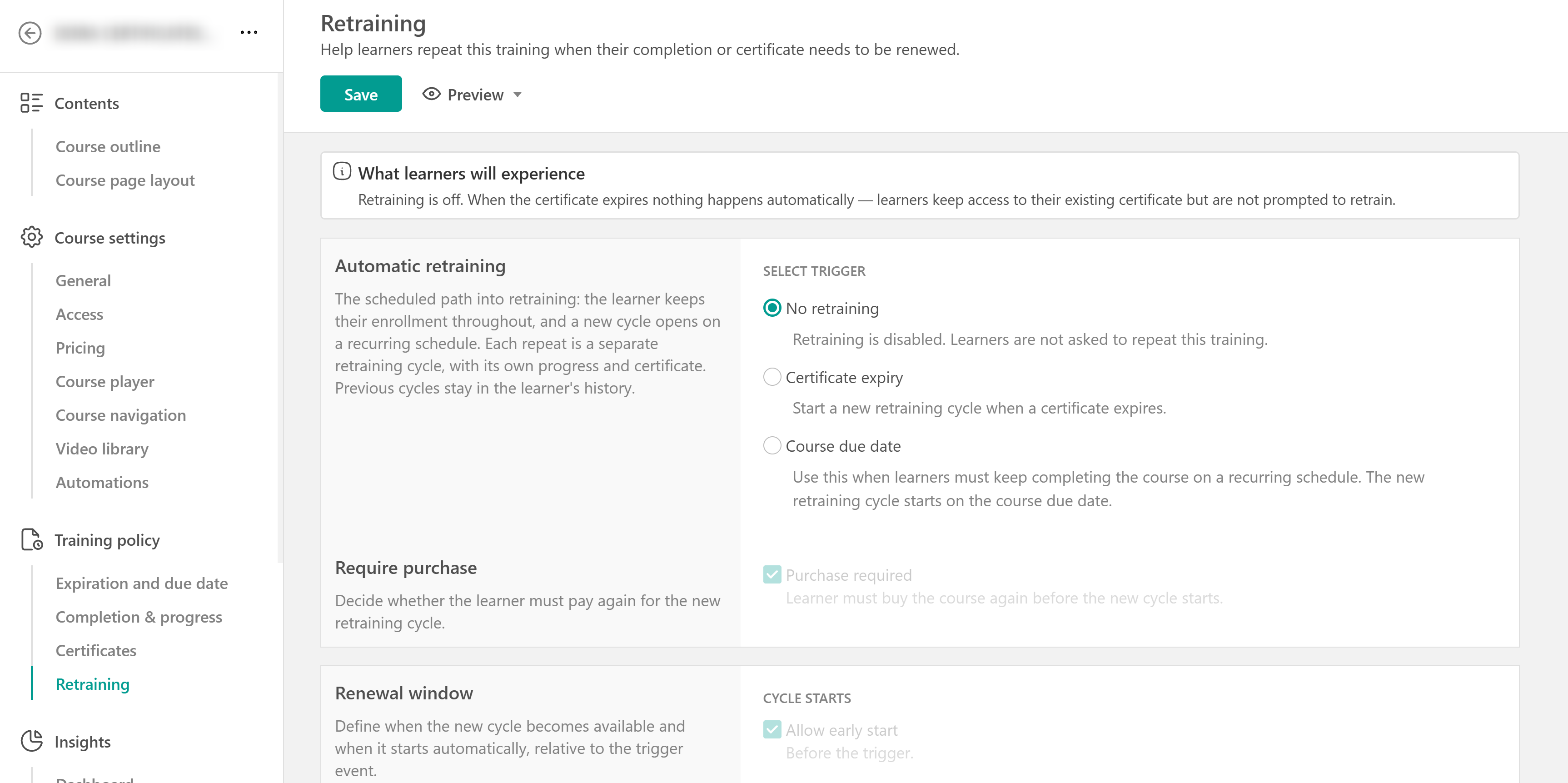
3. Go to Training policy → Retraining.
Choose what triggers retraining
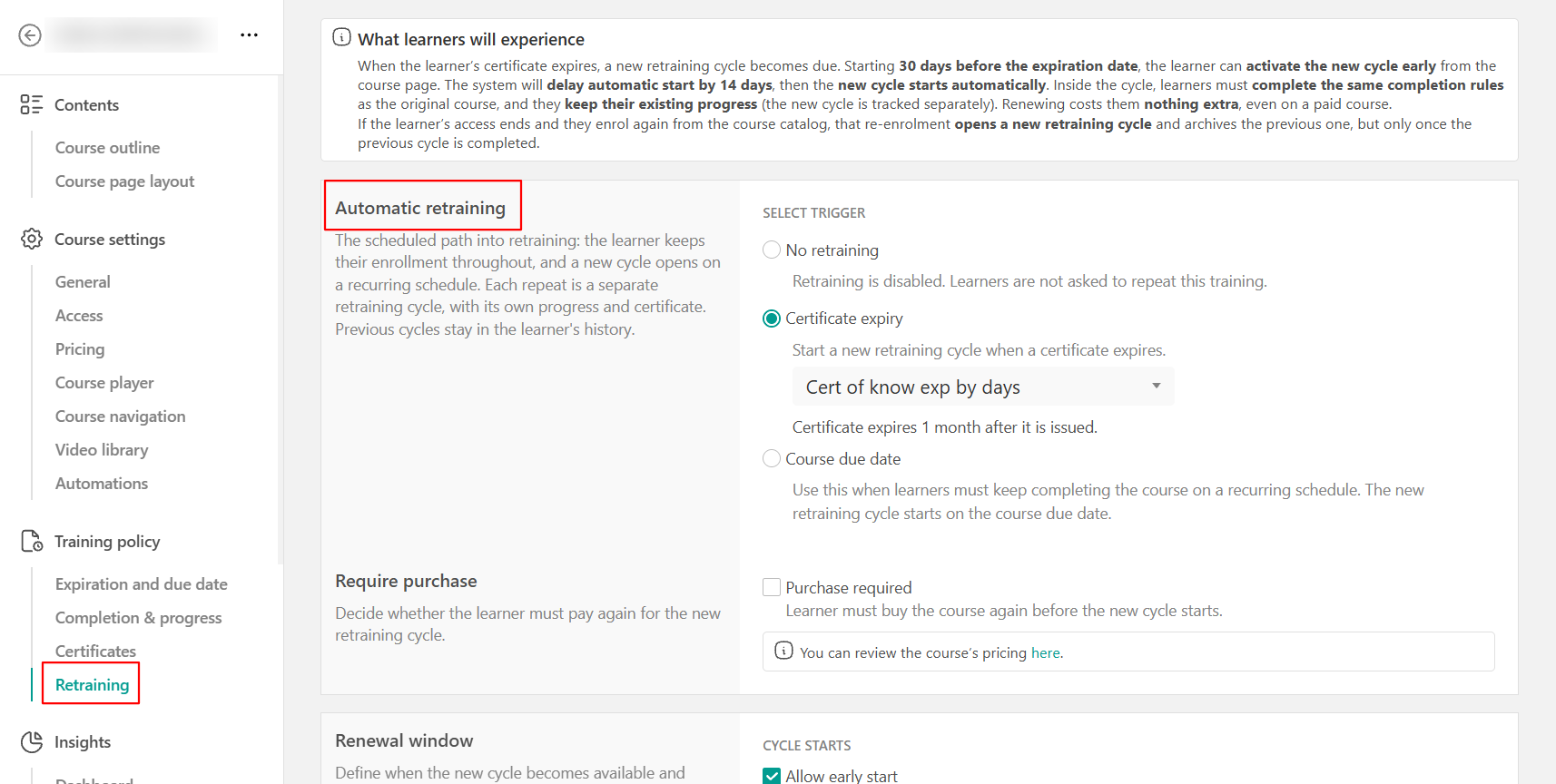
Under Automatic retraining → Select trigger, choose when another retraining cycle becomes due.
- No retraining: Select No retraining when learners do not need to repeat the training. Retraining is disabled.
- Certificate expiry: Starts retraining based on the expiration of the selected certificate. Use this option when learners need to repeat training to maintain a certification.
- Course due date: Starts retraining based on the learner's recurring course due date. Use this option when learners need to repeat the course on a recurring schedule.
A learner does not need to have completed their previous cycle for the normal certificate-expiry or course-due-date retraining flow to become available.Decide whether another purchase is required
Under Require purchase, enable Purchase required if learners must purchase the course again before starting the new retraining cycle.
When enabled, learners are directed to checkout before the new cycle begins. The new cycle starts only after a successful payment. If the purchase is not completed successfully, the learner retains their existing access and remains in their current training cycle.
If Purchase required is disabled, learners can start retraining without purchasing the course again.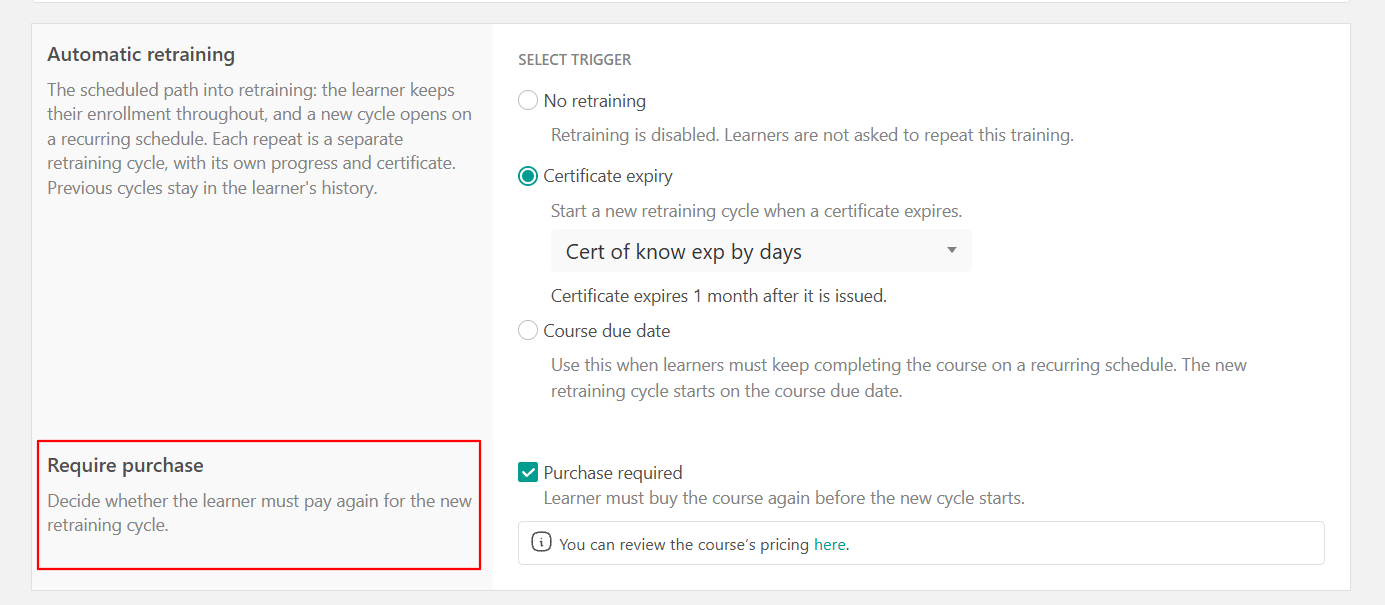
Set the renewal window
The Renewal window controls when learners can start their next retraining cycle in relation to the selected trigger. It supports two options:
- Allow early start to let learners start retraining before the certificate expiration or course due date. Enter the number of days before the trigger that the new cycle should become available.
For example, if a certificate expires on January 1 and you allow learners to start 30 days before the trigger, retraining becomes available on December 2. - Delay automatic start if you do not want the new cycle to start automatically as soon as the trigger occurs. Enter the number of days after the trigger that LearnWorlds should wait before starting the new cycle automatically.
For example, if the certificate expires on January 1 and automatic start is delayed by 14 days, the learner can start the new cycle during that period. If they do not, the new cycle starts automatically after the 14-day delay.
Either option can be enabled independently, or both can be used together.
Check the schedule preview
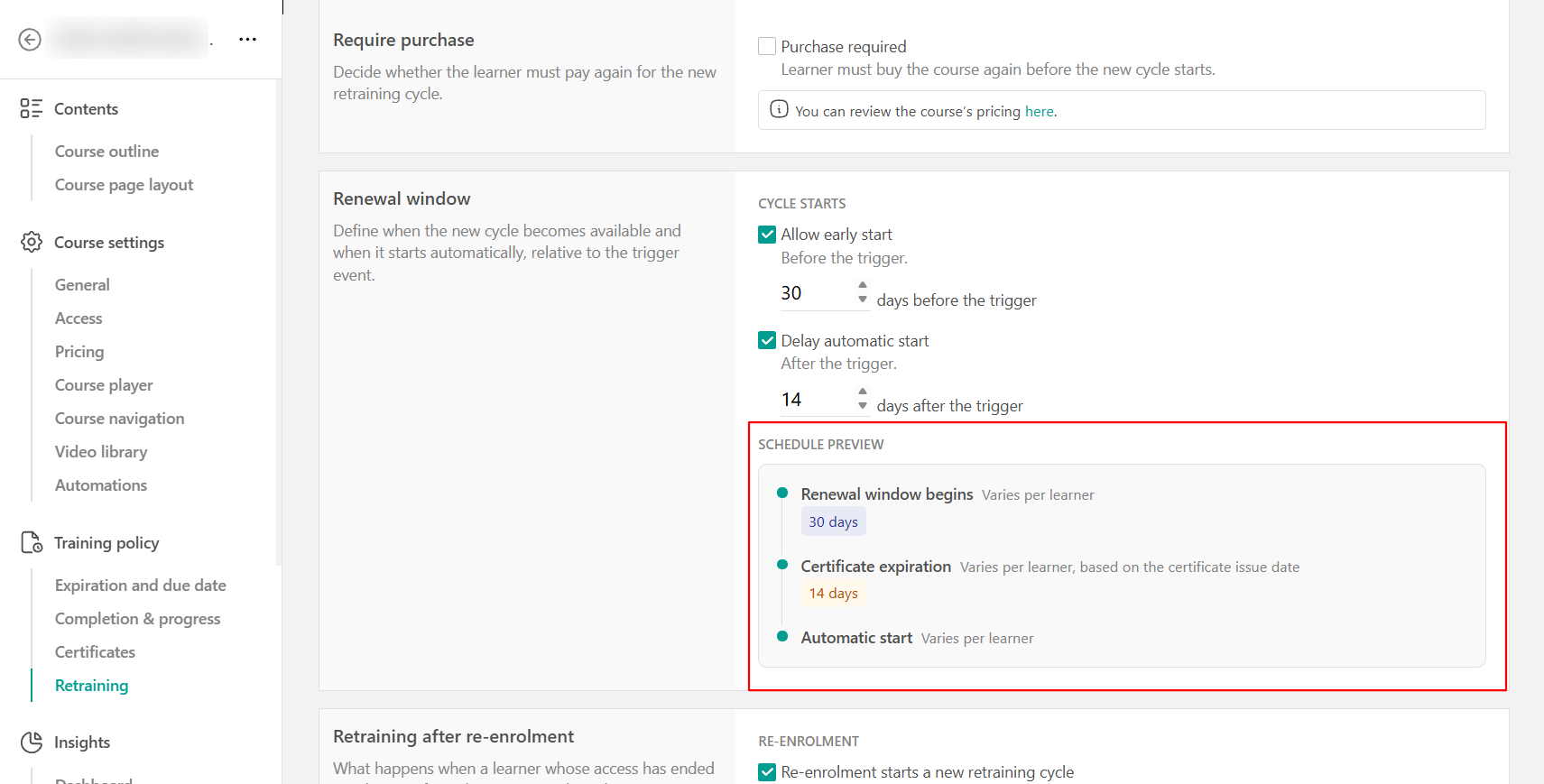
The Schedule preview shows how your settings work together, including:
- When the renewal window begins
- The certificate expiry or course due date
- The period after the trigger
Define what learners need to complete again for retraining
Retraining works together with the settings under Training policy → Completion & progress. After enabling retraining, configure two key aspects of each retraining cycle:
- Retraining completion determines what learners must complete during the new cycle:
- Keep the same completion rules as the original course (Choose this when learners should meet the same requirements each time they take the training.)
- Require full course completion (Choose this when the entire training needs to be repeated.)
- Require selected activities only (Choose this when only part of the course needs to be repeated.)
- Learner progress determines what happens to progress from the previous cycle:
- Keep progress
- Reset all course progress
- Reset only selected activities
- Reset only the activities required for retraining.
This allows you, for example, to require a learner to repeat only selected activities while keeping the rest of their previous course progress.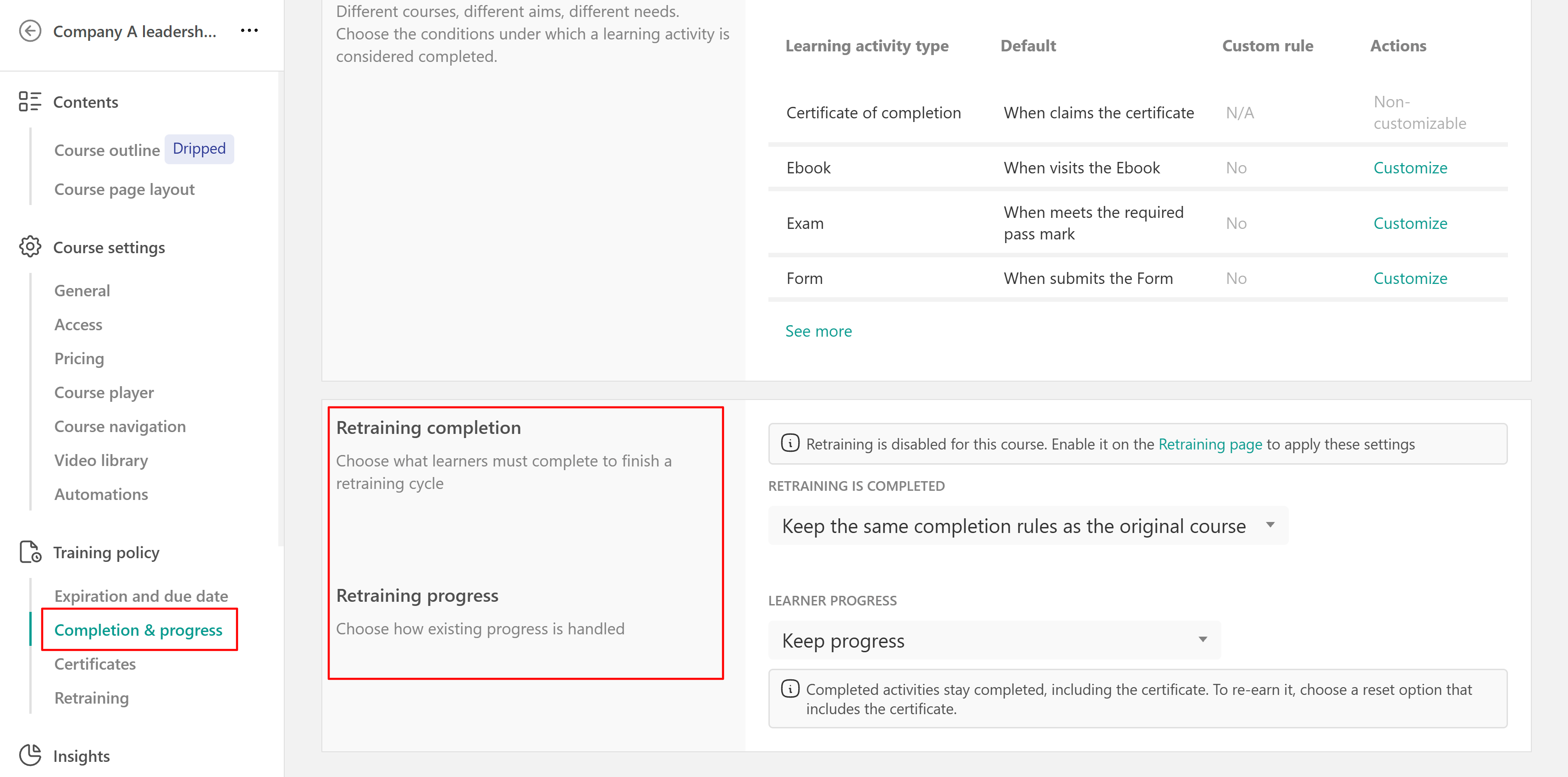
If progress is kept, completed activities remain completed, including the certificate. If learners need to earn the certificate again, choose a reset option that includes the certificate.Start a new cycle after re-enrollment
A new retraining cycle can also start when a learner whose course access has ended enrolls in the course again from the course catalog. Under Retraining after re-enrollment, enable Re-enrollment starts a new retraining cycle.
When the learner re-enrolls:
- The previous cycle is archived in their retraining history
- A new retraining cycle begins
- New dates are applied
- Progress is handled according to your retraining settings
Enable Previous cycle must be completed when learners should finish their current training cycle before starting another one. Learners can still re-enroll while a cycle is in progress, but re-enrollment does not start a new cycle. Instead, they continue their existing cycle. Note that if a course expires, users get unenrolled and they can re-enroll according to the course's pricing (free, paid etc).
Use retraining for recertification
Retraining can be used for recertification when learners need to repeat training to earn a new certificate.To set up this flow:
1. Configure an expiration rule for the certificate
2. Select Certificate expiry as the retraining trigger
3. Configure the renewal window
4. Define what learners need to complete during retraining
5. Choose which progress is kept or reset
6. Decide whether another purchase is required
When the learner completes the requirements for the new cycle, a new certificate can be awarded. The new certificate has a new issue date, and its expiration date follows the certificate's expiration settings.
The previous certificate remains in the learner's history.
How learners start and complete retraining
When a learner becomes eligible for retraining, the course reflects the available renewal according to the renewal window and retraining settings you configured.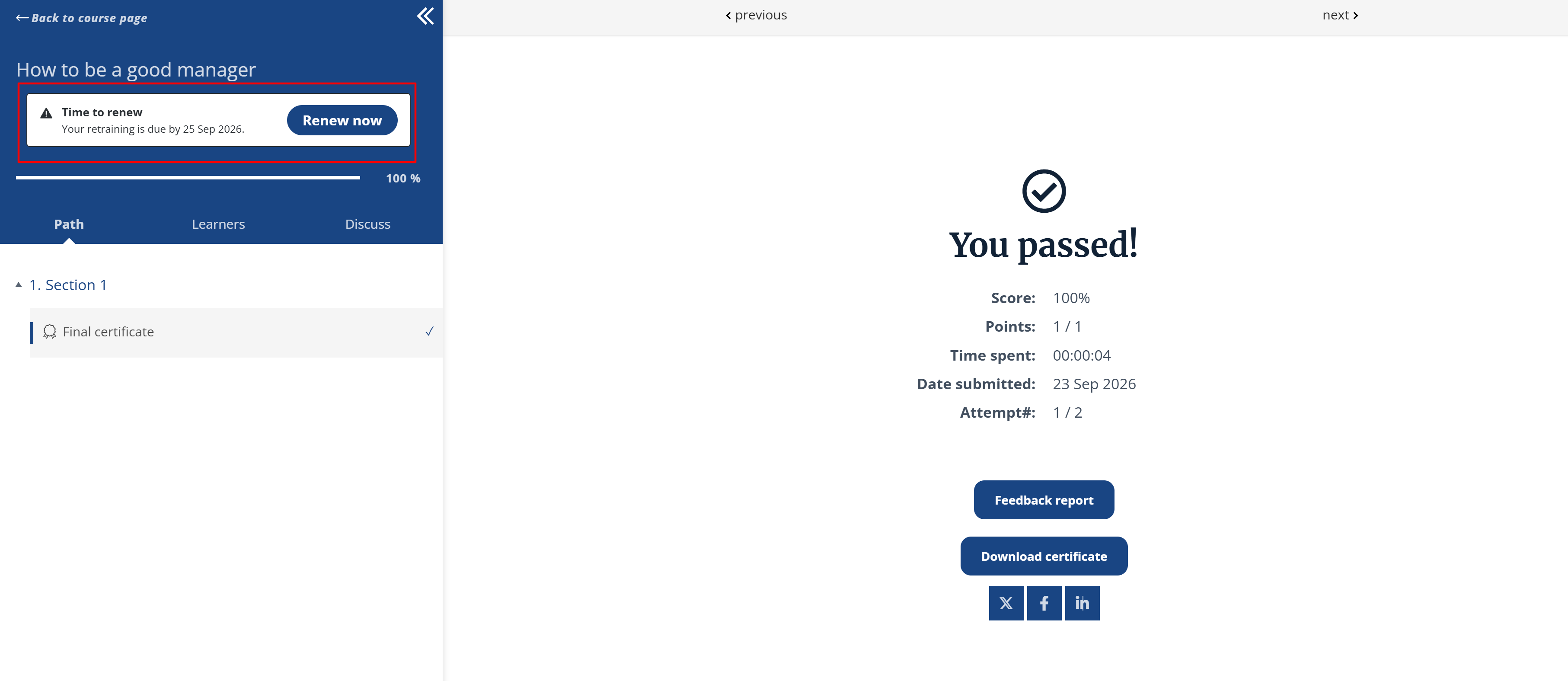
If Allow early start is enabled, learners can start their next training cycle during the early renewal period. If they do not start it manually, the new cycle starts automatically when the configured trigger is reached, or after the configured delay if Delay automatic start is enabled.
If Purchase required is enabled, learners must purchase the course again before the new training cycle can begin. They select Renew and are redirected to the payment page to complete the purchase. After a successful payment, they regain access to the course and the new training cycle begins.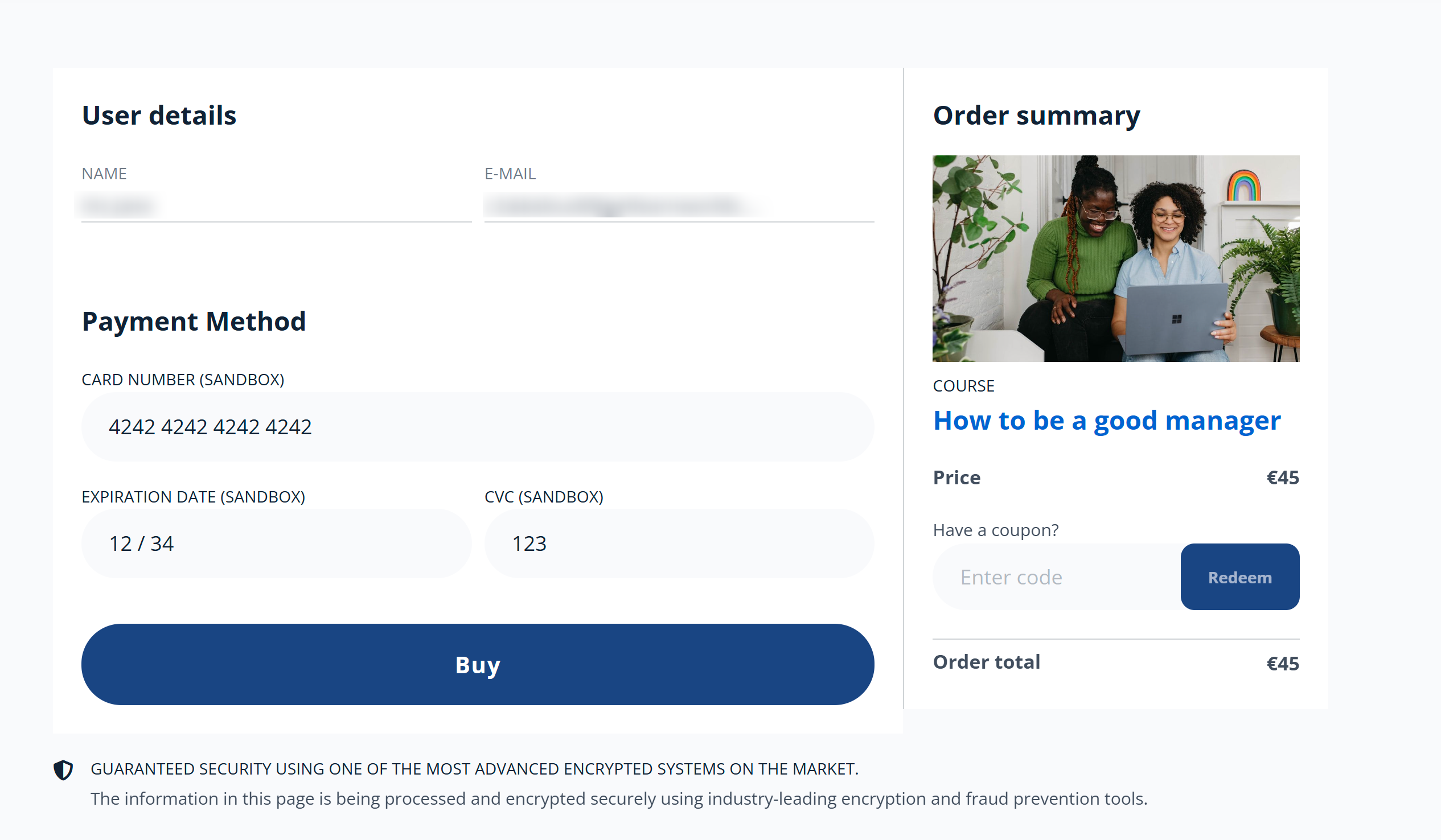
Once the new cycle starts, learners access the course and complete the activities required by the Retraining completion settings. Their previous progress is kept or reset according to the configured Learner progress settings.
Configure retraining email notifications
You can use School emails to automatically notify learners at key stages of the retraining process. Go to Communication → School emails → Retraining to configure the available notifications:
- Retraining available: Sent when a learner can start their next retraining cycle early.
- On retraining grace period started: Sent when the learner reaches the retraining trigger and the grace period begins.
- On retraining cycle activated: Sent when a new retraining cycle starts and the learner's progress is reset according to your retraining settings.
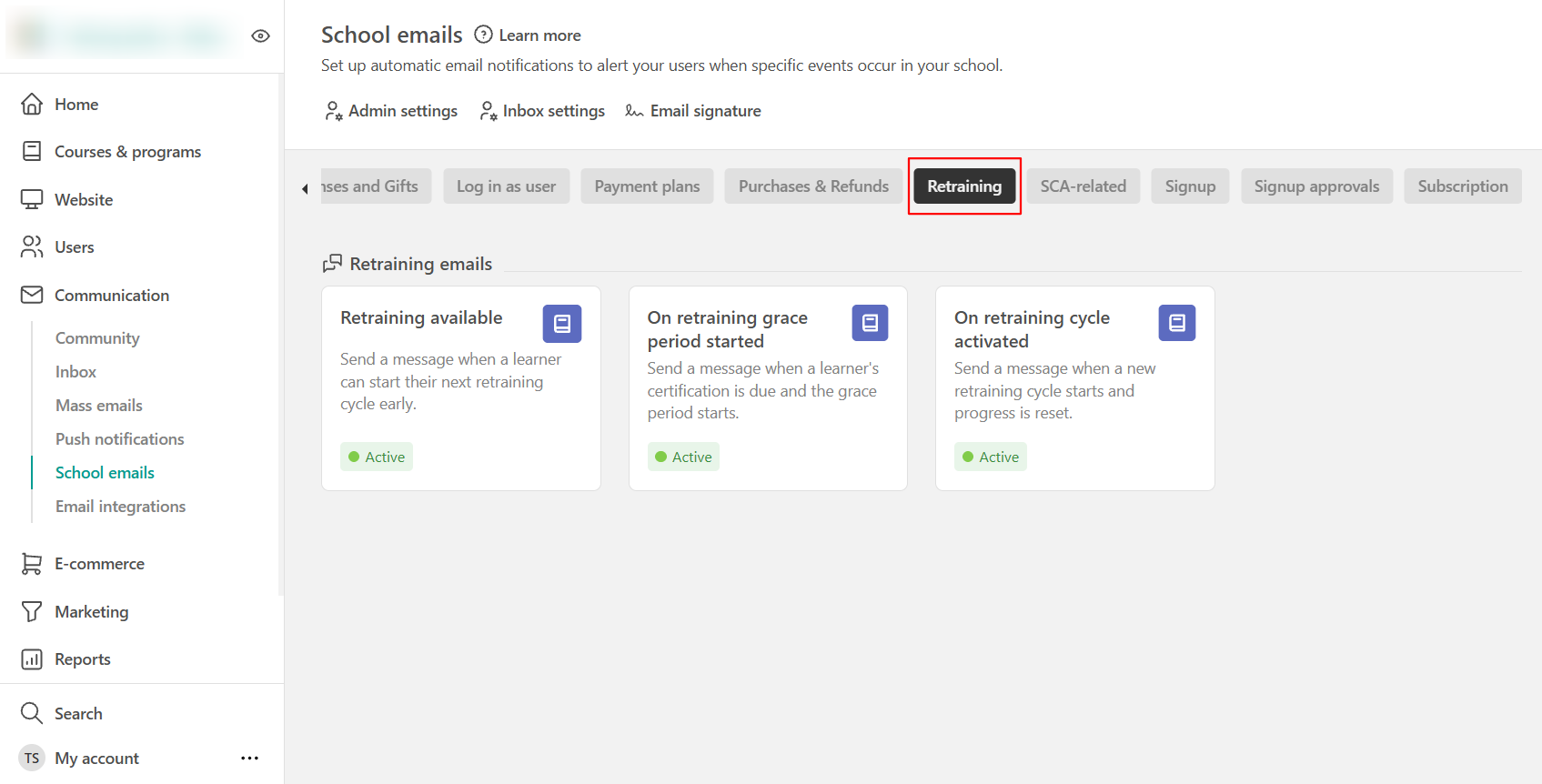
You can activate and customize these emails based on how you want to communicate with learners throughout the retraining process.
View a learner's retraining history
Each retraining cycle is stored separately, so you can review current and previous training cycles. To view a learner's retraining history:
1. Go to Users → All users
2. Select the learner
3. Open Products
4. Find the course
5. Open the course actions
6. Select Past training cycles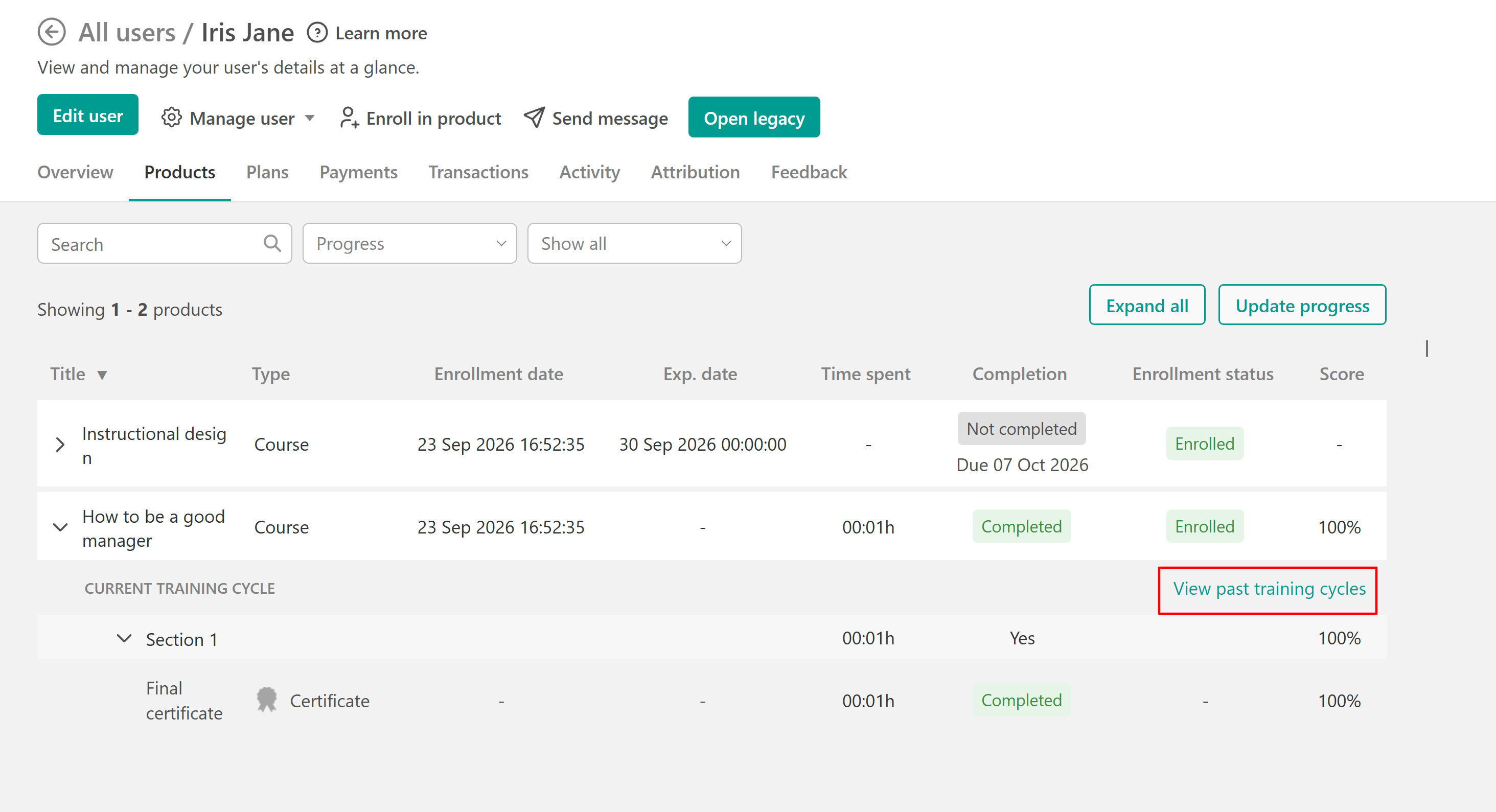
7. Expand a cycle to view its details
Retraining history lets you review a learner’s current and previous training cycles without replacing their earlier training records. In the Reports Center, course statistics reflect the learner’s latest training cycle.
Use Automations with retraining
You can use Automations alongside retraining for additional workflows, such as notifying learners about retraining. Automation settings are managed separately from Training policy → Retraining.
For setup instructions and available retraining triggers and actions, see the relevant Automations guide.
Best practices and tips
- Use Certificate expiry when the learner's main goal is to keep a certification valid, and Course due date when the course itself needs to be completed repeatedly.
- Give learners an early renewal window when they may need time to complete the required activities before their certificate or training deadline.
- Configure retraining completion and retraining progress separately. This helps you control both what learners need to repeat and what previous work they can keep.
- For paid retraining, confirm the course pricing before enabling Purchase required.
- If learners may return after their course access has ended (due to expiration or unenrollment), configure the re-enrollment settings as well so that behavior is predictable.
Limitations
- Retraining information does not sync across schools through School Sync.
- Retraining starts automatically when the selected trigger is reached. If Delay automatic start is configured, the new cycle starts automatically after the specified delay instead. Starting a new retraining cycle does not automatically complete it. The learner must access the course and complete the configured retraining requirements.
FAQs
- What is a retraining cycle?
A retraining cycle is a new instance of the course's training requirements for the same learner. Each cycle is tracked separately so previous training history can be preserved.
- Can retraining start before a certificate expires or a course due date is reached?
Yes. Enable Allow early start and specify how many days before the trigger learners can begin retraining.
- What happens if the learner does not start retraining during the renewal window?
If Delay automatic start is configured, LearnWorlds starts the new retraining cycle automatically after the specified number of days following the trigger.
- Does starting retraining extend the learner's existing certificate?
No. The existing certificate expires according to its original expiration settings. A new certificate can be awarded after the learner completes the new certification requirements.
- Can learners keep their previous course progress?
Yes. You can configure which progress is retained or reset when the new training cycle begins.
- Can learners repeat only part of the course?
Yes. You can choose selected activities as the retraining requirements and configure which activities should have their progress reset.
- Can learners be required to pay again for retraining?
Yes. Enable Purchase required to require another course purchase before the new training cycle can begin. note that only if the payment is successful the new cycle starts, otherwise the learner retrains their access and their current cycle
- Can re-enrollment start a new retraining cycle?
Yes. Enable Re-enrollment starts a new retraining cycle if you want a learner who enrolls again after their access ends to begin a fresh training cycle.
- Does the previous cycle need to be completed before a new cycle can start after re-enrollment?
Only if Previous cycle must be completed is enabled. The learner can still re-enroll in the course, but a new retraining cycle will not start while the previous cycle is still in progress. Instead, the learner continues their existing cycle. Once that cycle is completed, a subsequent re-enrollment can start a new retraining cycle.
- Where can I see a learner's previous retraining cycles?
Go to Users → All users, select the learner, open Products, open the course's management options, and select Past training cycles.