
If you've configured custom sign-up fields for your LearnWorlds school, you can also use them in your mobile app to collect additional information from learners.
With Mobile Profile Completion, you can select which sign-up fields learners should complete after registering or logging in to the app. You can make this process optional or require learners to complete missing required fields before accessing the app.
In this guide, you'll learn how to configure user fields, manage the settings, and understand what learners experience.
 Mobile app version: 4.10 or later, on iOS and Android.
How mobile profile completion works
When learners register through your mobile app, they provide their basic account information, such as their email, password, and name or username, depending on your school's configuration.
If your school uses additional custom sign-up fields, you can collect this information through the Profile completion flow after learners sign up or log in.
The flow has two parts:
- Introductory screen: Explains why learners are being asked to provide additional information.
- Profile completion fields: Displays the selected custom sign-up fields for learners to complete.
Choose whether learners must complete these fields before accessing the app or can skip the process.
Set up mobile profile completion
To configure the feature, navigate to Mobile app → App settings → Authentication → Profile completion.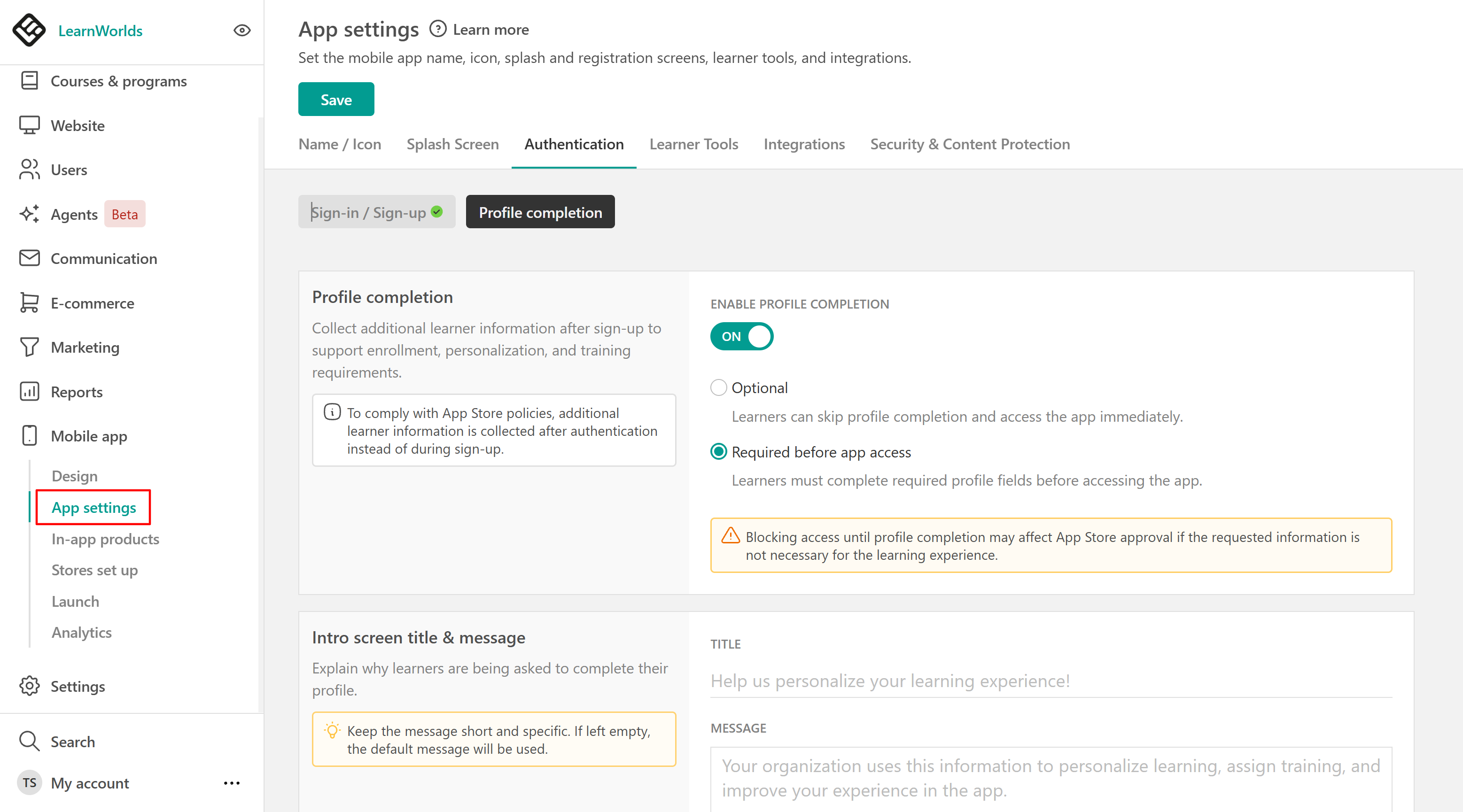
From here, you can manage the completion mode, customize the introductory screen, and select the fields learners will see.
Choose the profile completion mode
Under Profile completion, select one of the following options:
| Setting | What happens |
|---|---|
| Off | Profile completion is disabled, and learners are not prompted to provide additional information. |
| Optional | Learners see a one-time invitation to complete missing fields, which they can dismiss. |
| Required before app access | Learners must complete missing required fields before accessing the app, but can skip optional fields. |
The fields available for mobile profile completion come from your school's existing sign-up fields. Their required or optional status is also inherited from those settings.For example, if you select a required Country field and an optional Job title field, learners in Required mode must provide their country before accessing the app, but can skip their job title.
Customize the introductory screen
Under Intro screen title & message, customize the information learners see before completing their profiles.
- Title: Add a short heading introducing the profile completion process.
- Message: Explain why you're requesting additional information and how learners should proceed.
For example, you might explain that completing their profile helps you provide more relevant training or understand their learning needs.
Select the profile completion fields
Under Profile completion fields, choose which of your school's existing custom sign-up fields should appear in the mobile app.
These fields are shared with your school's website sign-up configuration, so you don't need to create them separately for the app.
If you want to add a field that doesn't exist yet:
- Click Manage Sign-up Fields.
- You'll be redirected to your school's sign-up field settings, where you can create new custom fields or manage existing ones.
- Return to the mobile profile completion settings and select the fields you want to display.
Preview and save your changes
Use the Learner preview to see how the introductory screen and selected fields will appear in the mobile app.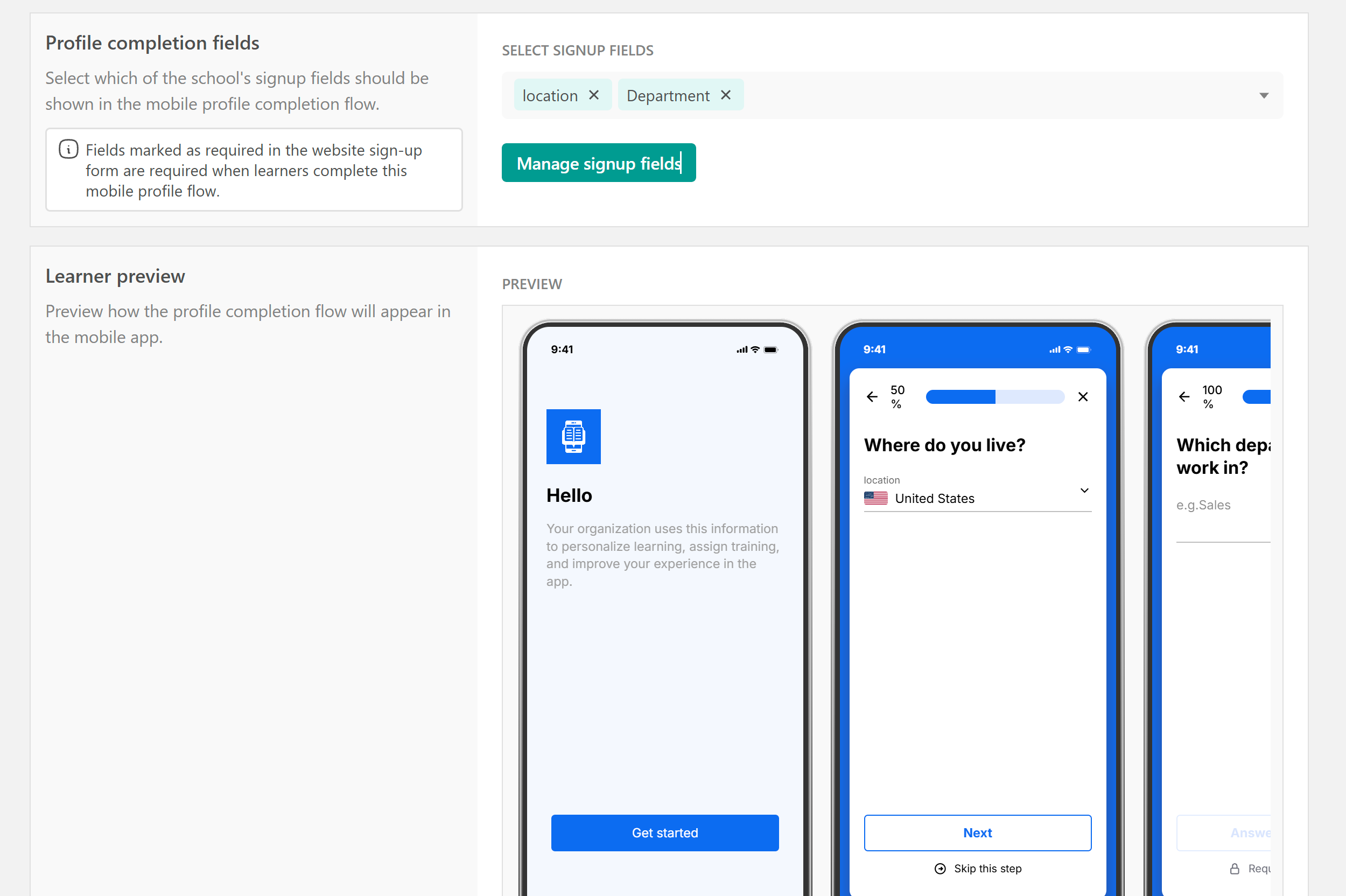
Once you've reviewed your settings, click Save.
What learners experience
The profile completion flow appears after learners sign up or log in to the mobile app, depending on the mode you've selected and whether they're missing information.
Optional mode
When Optional mode is enabled, learners with missing selected fields see a one-time invitation to complete their profiles.
They can either:
- Complete the requested information and continue to the app.
- Select X to dismiss the prompt and access the app without completing the fields.
If learners dismiss the prompt, it won't automatically appear again on subsequent app launches or logins.
Adding new fields while remaining in Optional mode won't trigger the prompt again for learners who have already dismissed it. They can still update their information through their profile in the app.Required before app access
When Required before app access is enabled, learners must complete any missing required fields before entering the app.
- Required fields must be completed.
- Optional fields can be skipped.
- Learners can sign out and return later without losing previously submitted answers.
When learners return, they must complete any remaining required fields before accessing the app.
This also applies to existing learners who are missing information from the selected required fields.
What happens when you change the settings?
You can update your profile completion settings at any time. The following table explains how changes affect learners:
| Change | What happens |
|---|---|
| Add a required field | In Required mode, learners missing that field must complete it on their next app launch or login. |
| Add fields in Optional mode | Learners who previously dismissed the one-time prompt won't be prompted again. |
| Switch from Optional to Required | Learners who previously dismissed the prompt must complete any missing required fields. |
| Update the introductory message | The new message appears the next time learners are shown the flow. |
| Remove a field | The field no longer appears in the mobile profile completion flow. |
| Disable the feature | Learners no longer see profile completion prompts. |
Previously submitted answers remain saved when you change settings, remove fields, or disable the feature.
Important considerations
Keep the following in mind when configuring Mobile Profile Completion:
- Existing learners: The feature applies to both new and existing learners who are missing selected information.
- Required fields: Field requirements are inherited from your website sign-up settings and cannot be overridden in the mobile app.
- Optional prompts: Learners who dismiss the Optional flow won't be prompted again automatically while the school remains in Optional mode.
- Multiple academies: Configure Mobile Profile Completion separately for each academy. Settings are not synchronized through School Sync.
- Website sign-up: Enabling this feature doesn't change your school's existing website sign-up process.
- App Store approval: Requiring learners to complete profile information before accessing the app may affect App Store approval.
In mobile app version 4.10, the feature doesn't support conditional fields, different completion rules for specific learner groups, or recurring profile completion requests.
Frequently asked questions
1. Can learners skip mobile profile completion?
In Optional mode, learners can dismiss the prompt and access the app. In Required mode, they must complete missing required fields but can skip optional ones.
2. Will learners see the Optional prompt again if they dismiss it?
No. The Optional prompt appears only once. Adding new fields while remaining in Optional mode won't display it again for learners who have already dismissed it.
3. Can I make a field required only in the mobile app?
No. A field's required status comes from your website sign-up settings. To change it, update the field configuration there.
4. What happens if learners close the app before completing their profiles?
Previously submitted answers remain saved. In Required mode, learners must complete their remaining required fields before accessing the app when they return.
5. Does mobile profile completion apply to existing learners?
Yes. Existing learners with missing selected fields follow the configured completion mode. In Required mode, they must complete any missing required fields before accessing the app.