
Animated counter widgets allow you to showcase important statistics and achievements on your school pages in a visually engaging way. You can use numeric or circle counters to highlight data such as enrolled learners, completed courses, success rates, and more.
In this article, you will learn how to add and customize animated counter widgets on your LearnWorlds pages.
Add animated counter
1. Navigate to Website → Design → Edit Website.
2. Choose any page to edit from the Page Manager.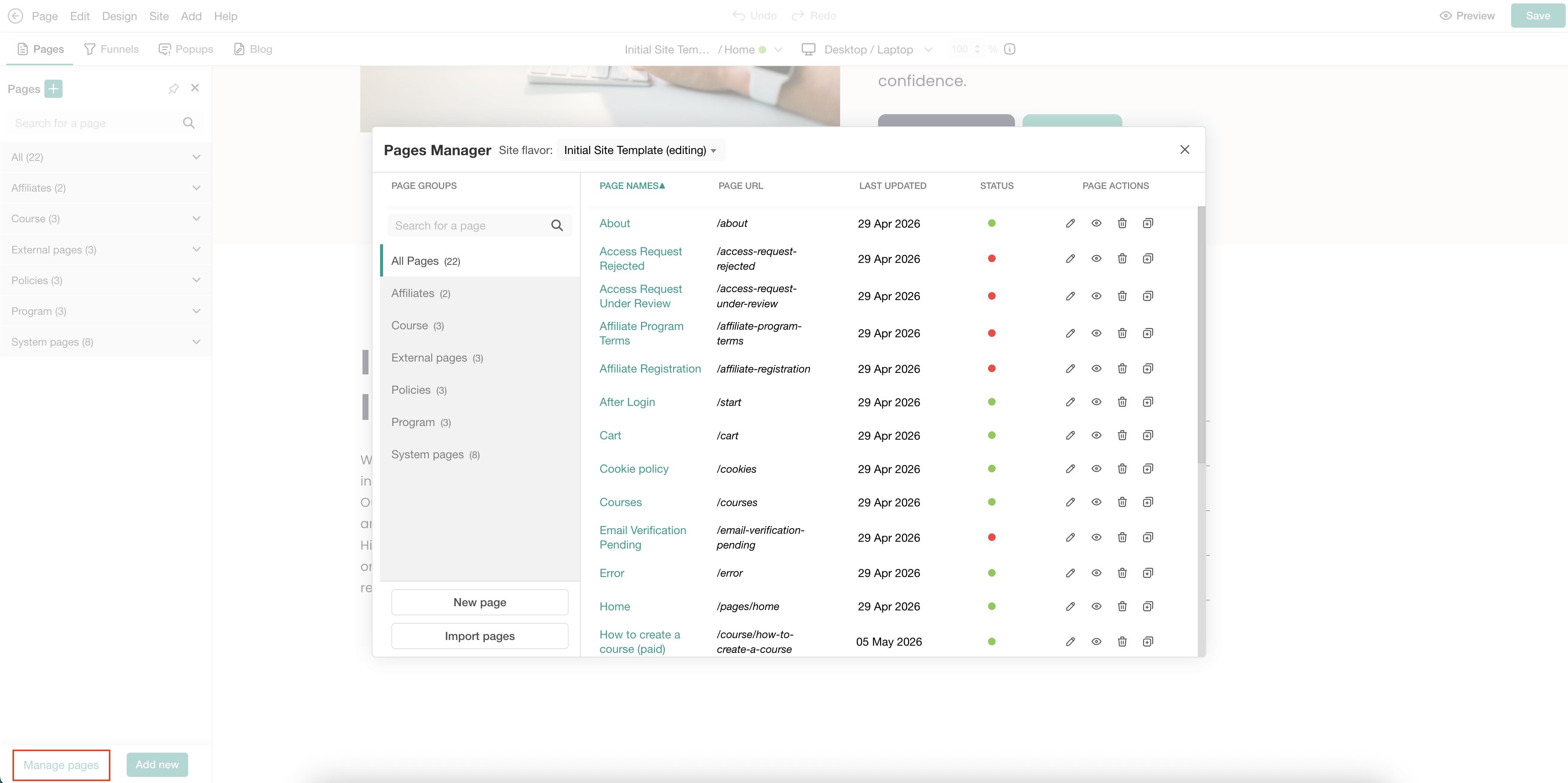
3. Hover over the element under which you want to add the animated counter and click the (+) icon to add it as a widget. To display it as a full section instead, use the (+) icon between sections on the page. You can choose between two counter styles: a circular counter or a simple numeric counter.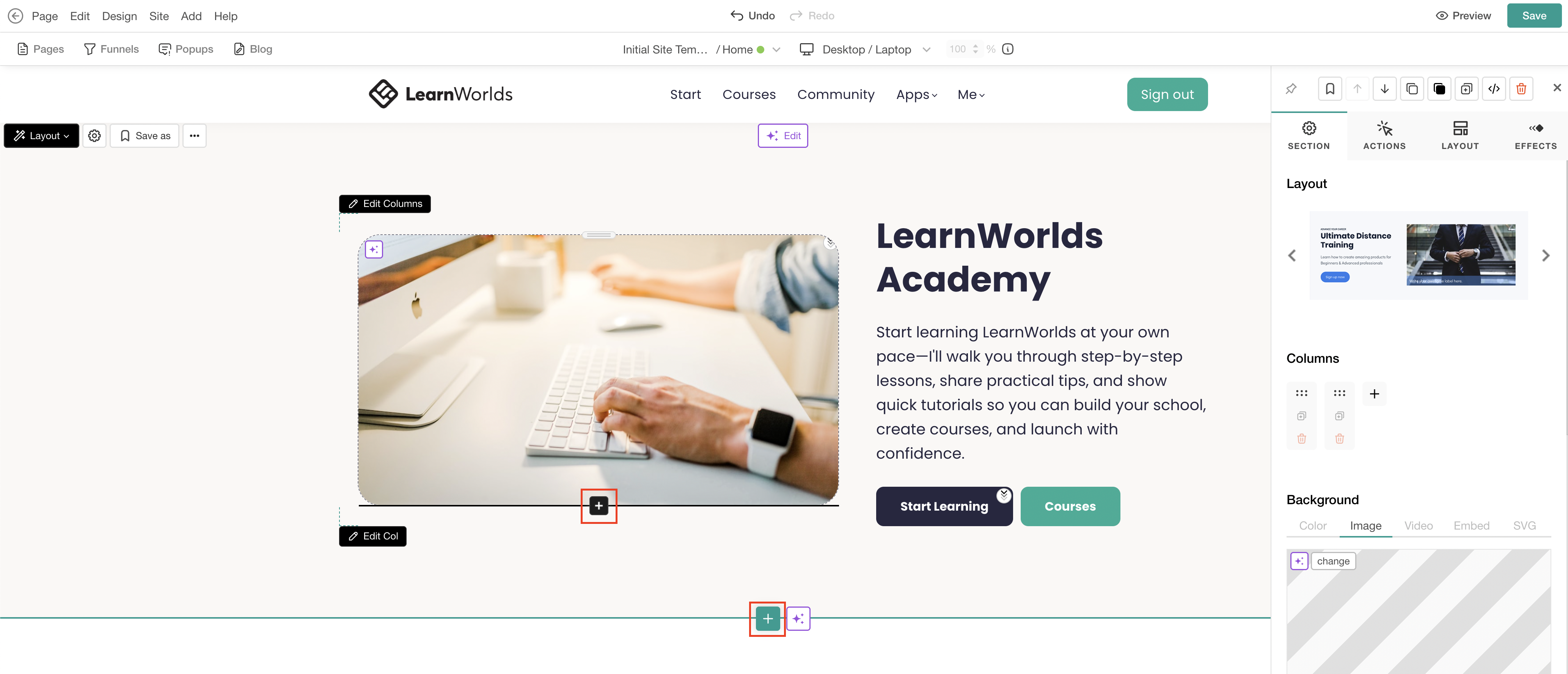
4. Choose the Counters category and select Add to insert the preferred section, or choose Fill with AI. When using Fill with AI, a dialog box will appear, allowing you to provide instructions to further customize the selected section.
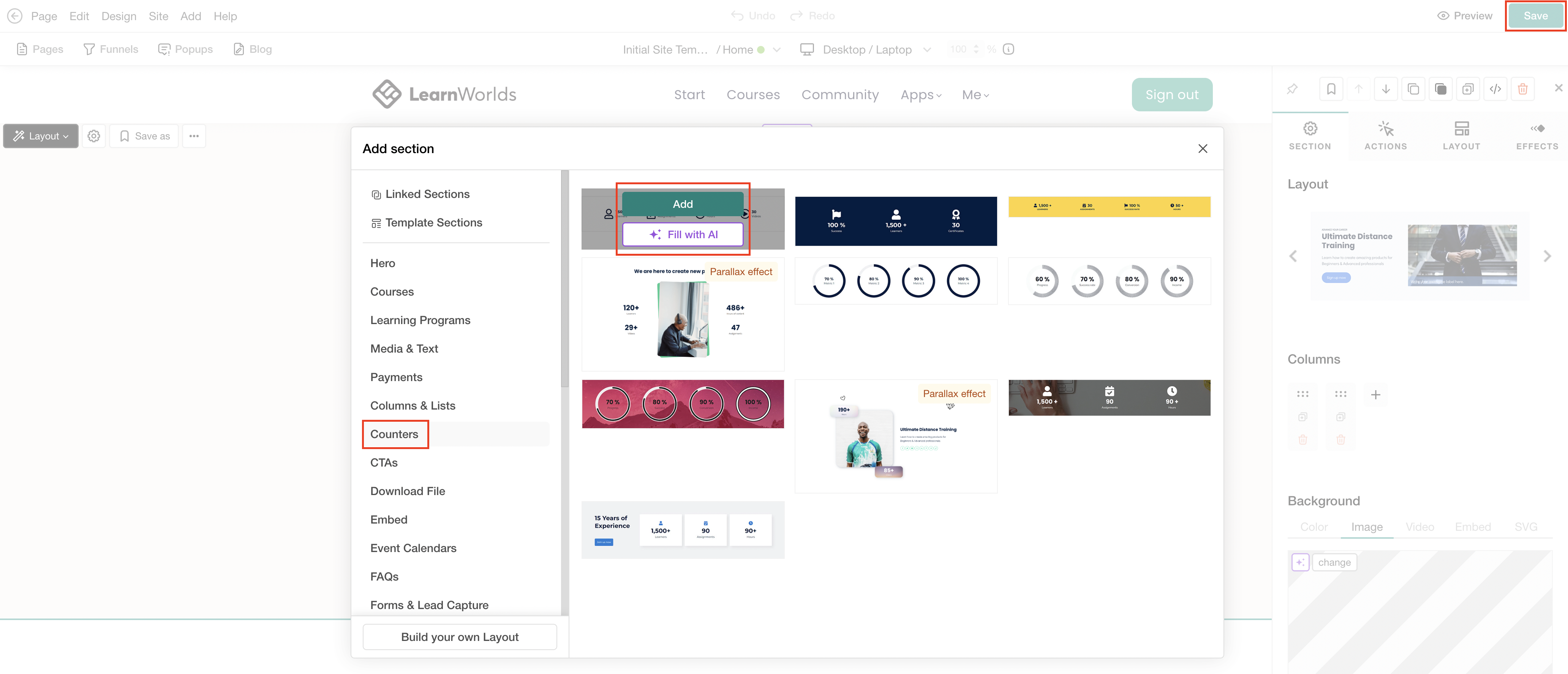
5. Click Save to save changes on the page.
Customize animated counter
1. Click on Edit counter to use the default settings in the sideform. If the AI Edit option is used, the dialogue box appears.
2. Configure the settings of each counter to match your needs.
3. Τo preview your animation, click on Play.

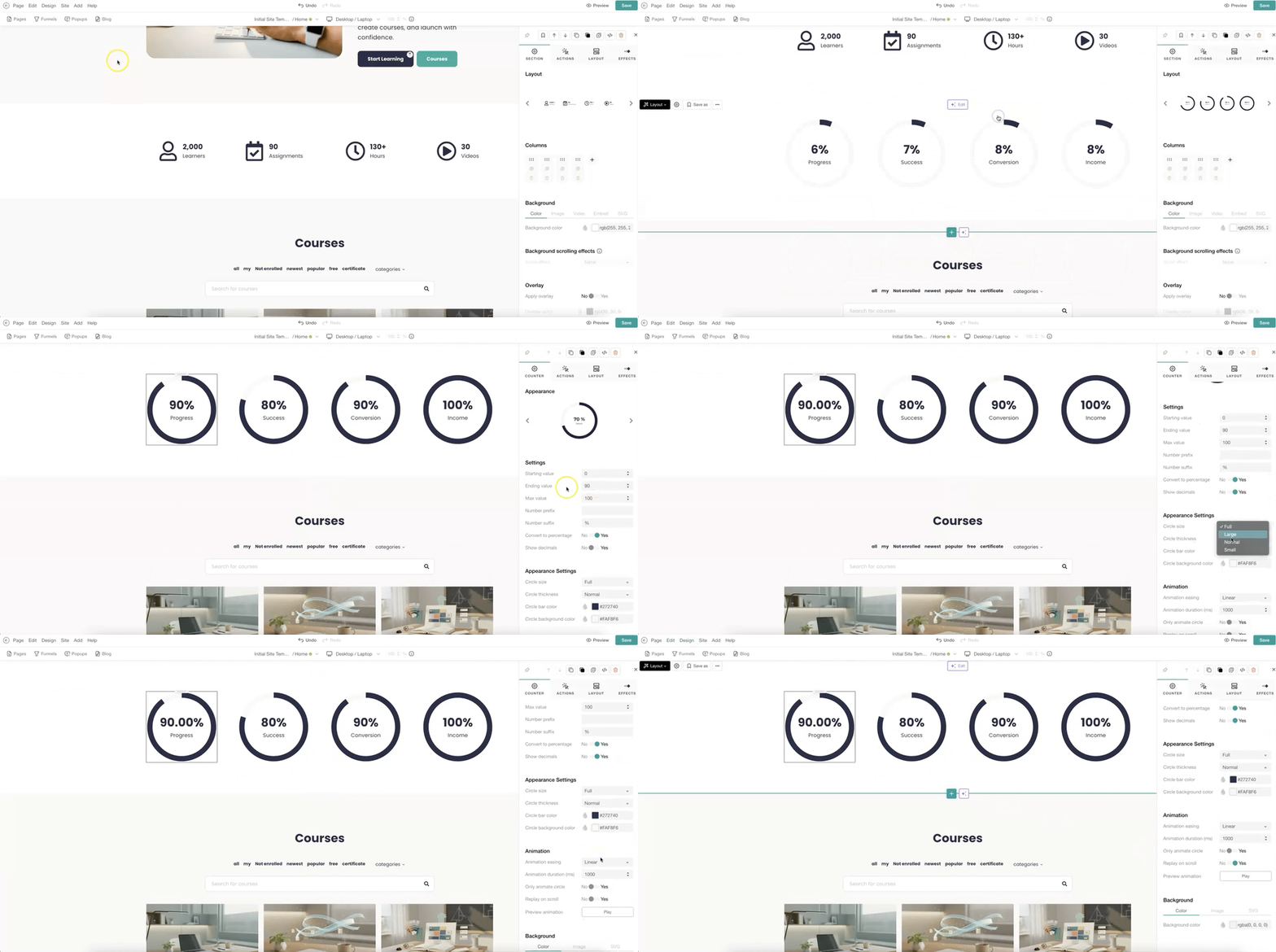
4. Click Save to save changes on the page.
- Avoid editing the number directly as plain text inside the widget, as the changes may not apply correctly and the counter may not function as expected.
- The Fill with AI and Edit with AI options are available only when the element is added as a section and not as a widget.
- For more information on how to further customize sections using the sideform, click here.