
In LearnWorlds AI-powered audio creation, helps turn ideas and learning materials into narrated explanations, podcasts, and conversations for your courses.
Describe the audio you want to create, select a format, and let AI generate a script. You can then refine the content, choose voices, and generate your audio.
In this guide, you'll learn how to create audio with AI, customize your script, and choose voices for your audio learning activities.
Create an audio learning activity with AI
AI-powered audio creation is available in LearnWorlds when generating an entire course or individual section with AI, or directly from an audio learning activity.
When creating a course or section with AI
When using Create course with AI or Create section with AI, you can include audio learning activities in your course or section outline.
Once you've reviewed the generated outline, select Continue to planning or Generate sections without planning to let AI generate the actual audio content along with the other learning activities.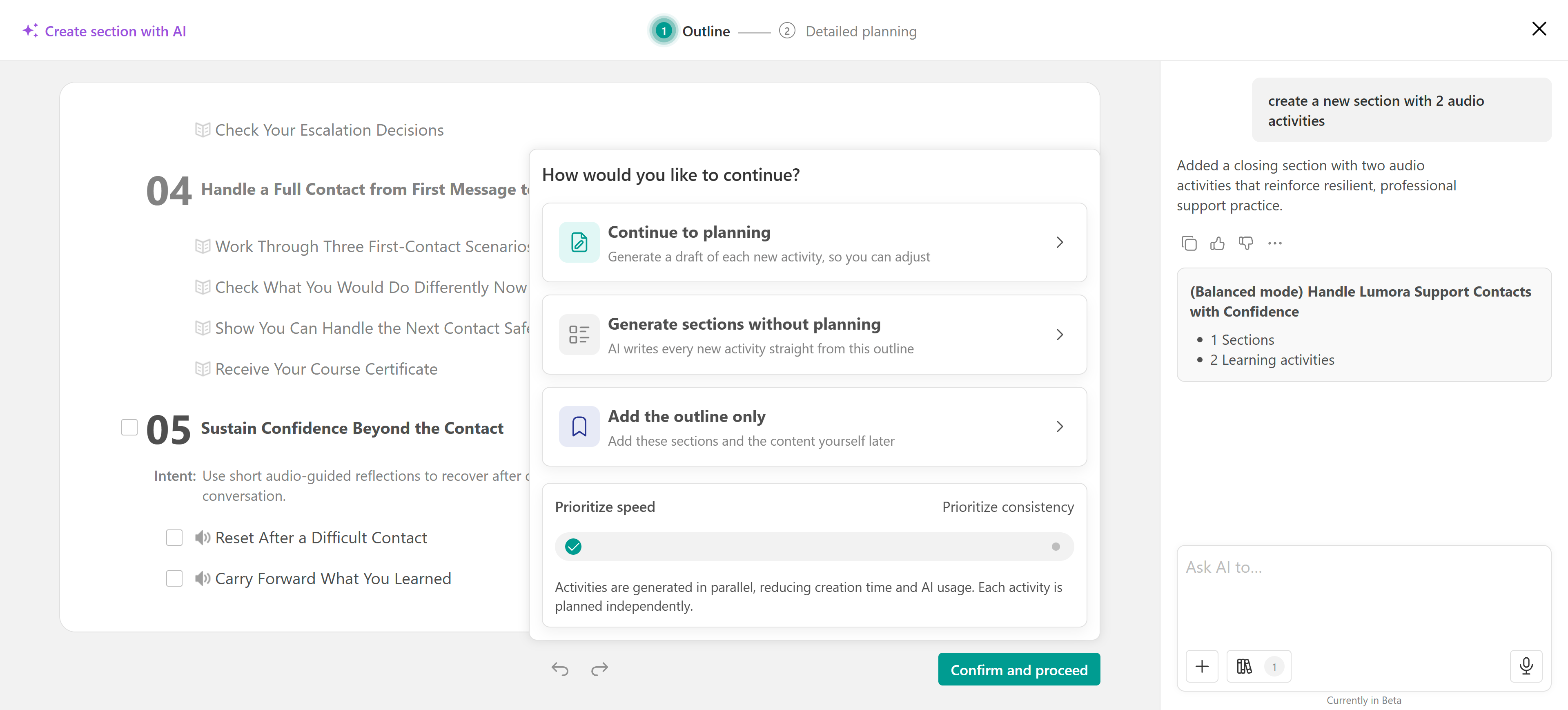
If you select Add the outline only, the audio activities will be added to your course structure without generated content, allowing you to create the content later.
From an audio learning activity
To get started:
- Navigate to Courses & Programs and open your course.
- Go to Contents → Course outline.
- Add an Audio learning activity or select an existing one.
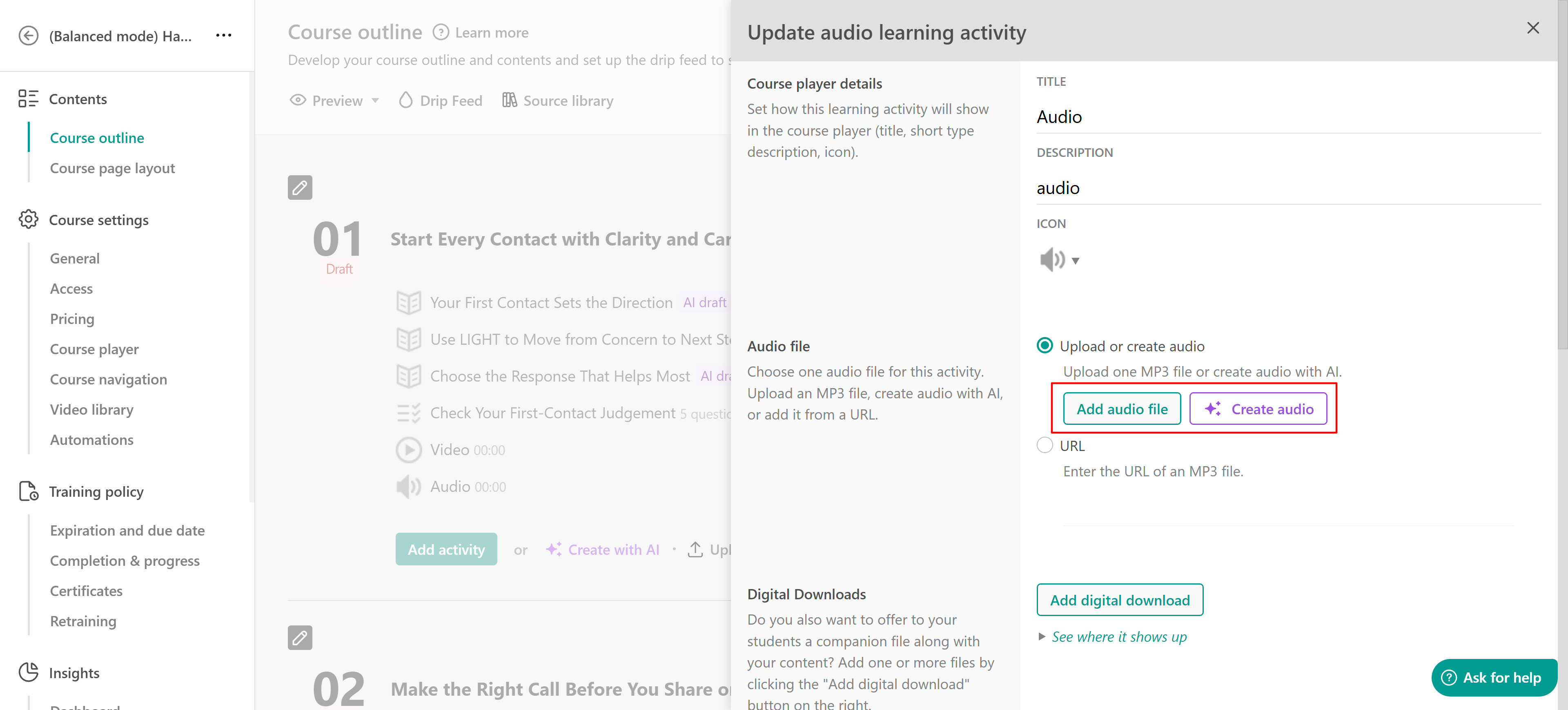
- Open the activity's Settings and, under Audio file, select Upload or create audio.
- Click Create audio to open the AI creation interface.
Alternatively, hover over an existing audio activity in your course outline and click Create.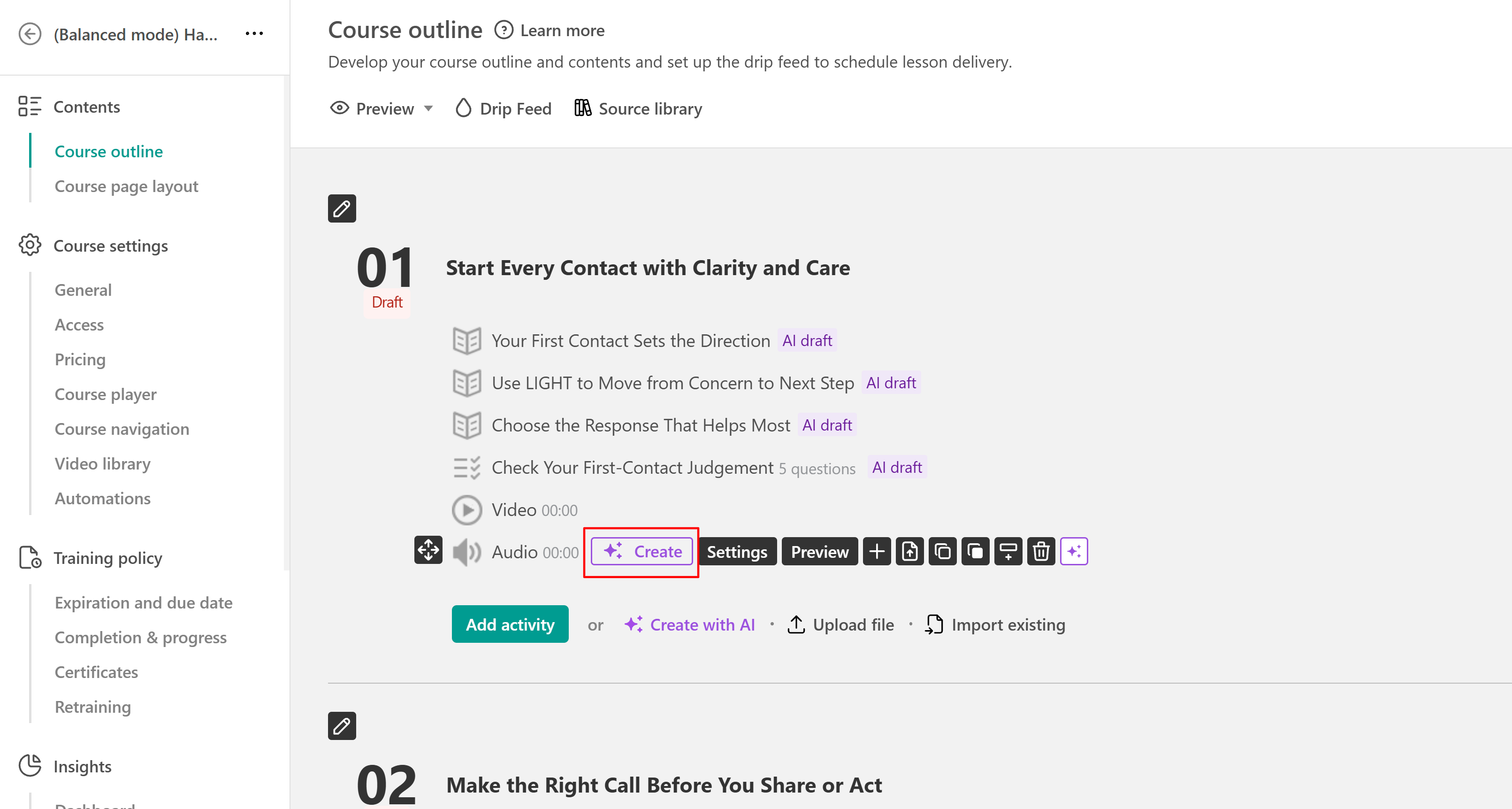
Choose your audio format
Before generating your audio, choose the format that best suits your learning content.
- Narration: Create an audio explanation delivered by a single speaker. Ideal for lessons, summaries, and instructional content.
- Podcast: Generate a podcast-style discussion with a host and guest. Useful for exploring topics through questions, explanations, and examples.
- Dialogue: Create a conversational exchange between speakers. Suitable for scenarios, role-playing, and demonstrating real-world interactions.
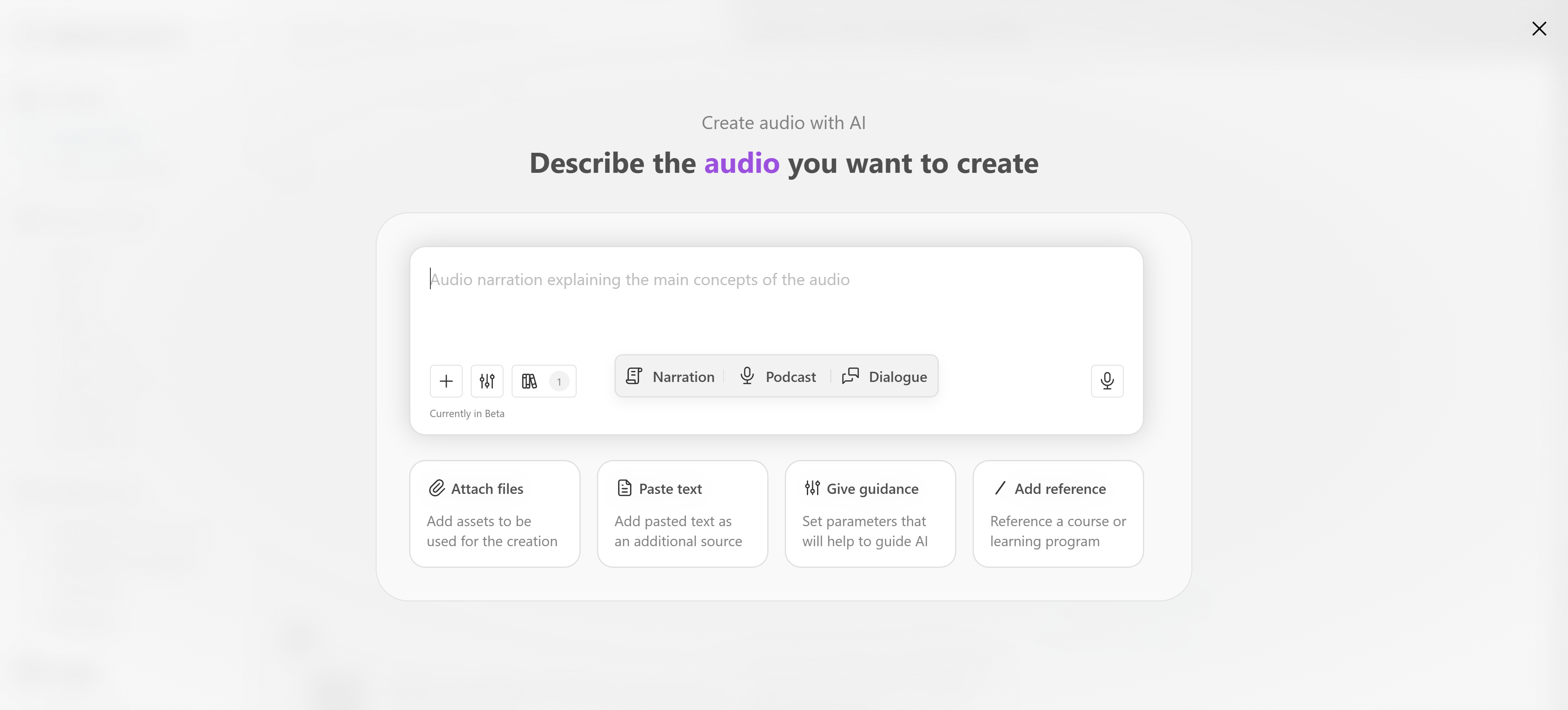
Describe the audio you want to create
Enter a prompt describing the topic, purpose, and content of your audio. For example:
- Narration: Create a short audio lesson explaining the benefits of dietary fiber, using simple language and practical examples.
- Podcast: Create a two-minute podcast with a host and guest discussing the benefits of dietary fiber.
- Dialogue: Create a conversation between a nutritionist and a learner about how to include more fiber in everyday meals.
You can also provide additional context using the available options:
- Attach files: Upload resources for AI to use when creating the audio.
- Paste text: Provide existing content to include or adapt.
- Give guidance: Define parameters to guide AI generation.
- Add reference: Reference an existing course or learning program.
Use the microphone icon to dictate your prompt.
Review and customize your audio script
After submitting your prompt, AI generates an audio script based on your instructions and selected format. The creation workspace includes a script editor and an AI conversation panel.
Review the generated script and edit the text directly, or use the AI chat to request changes. For example, ask AI to simplify an explanation, make the conversation more engaging, add practical examples, or shorten the script.
The AI conversation panel also provides a summary of the generated audio, including its topic, learning goal, speakers, and approximate duration.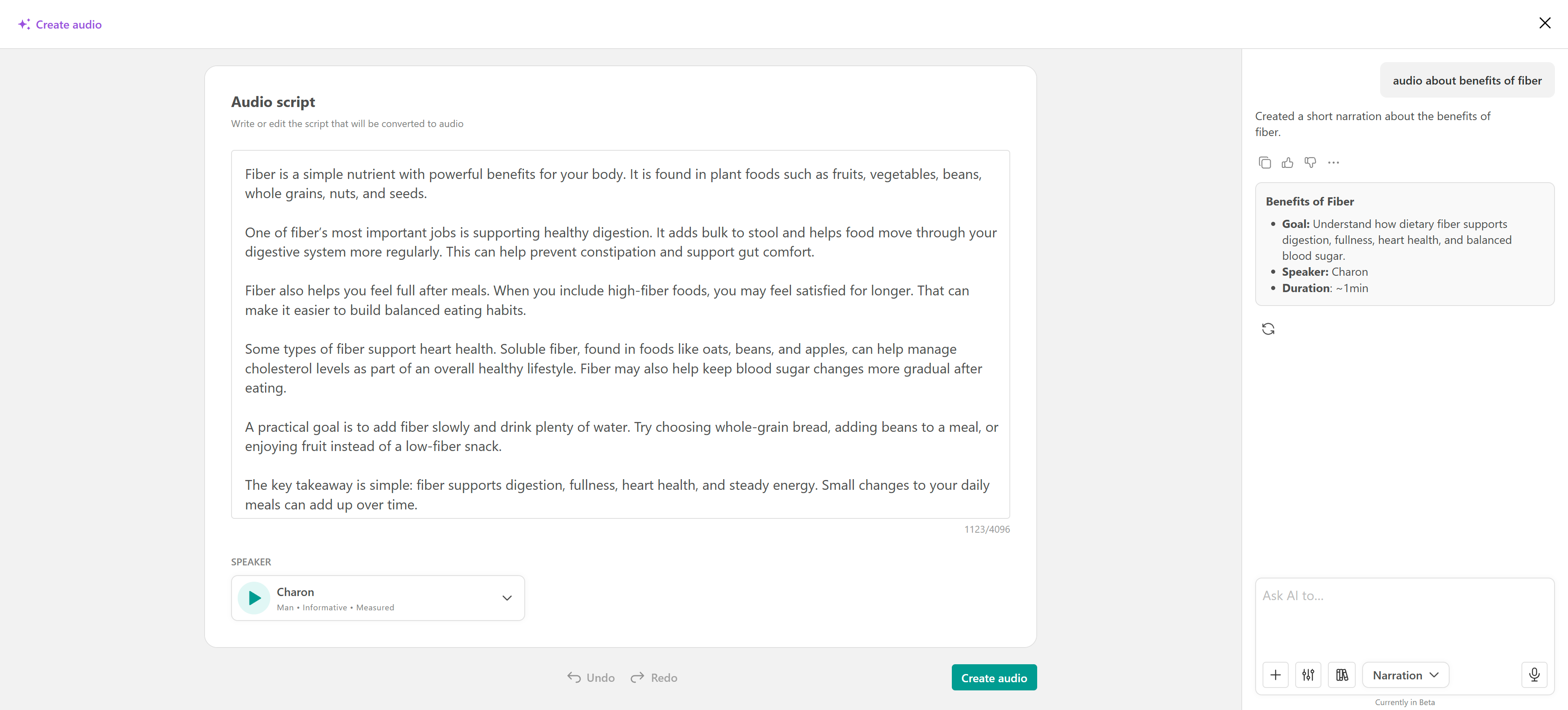
The script structure depends on the selected format.
Select voices for your audio
Once you're satisfied with the script, select the voices that will deliver your content. The available voice settings depend on the selected audio format.
- For narration
Under Speaker, open the dropdown menu to select a voice for your narration.
- For podcasts and dialogues
For a podcast, you can select separate voices for the Host and Guest.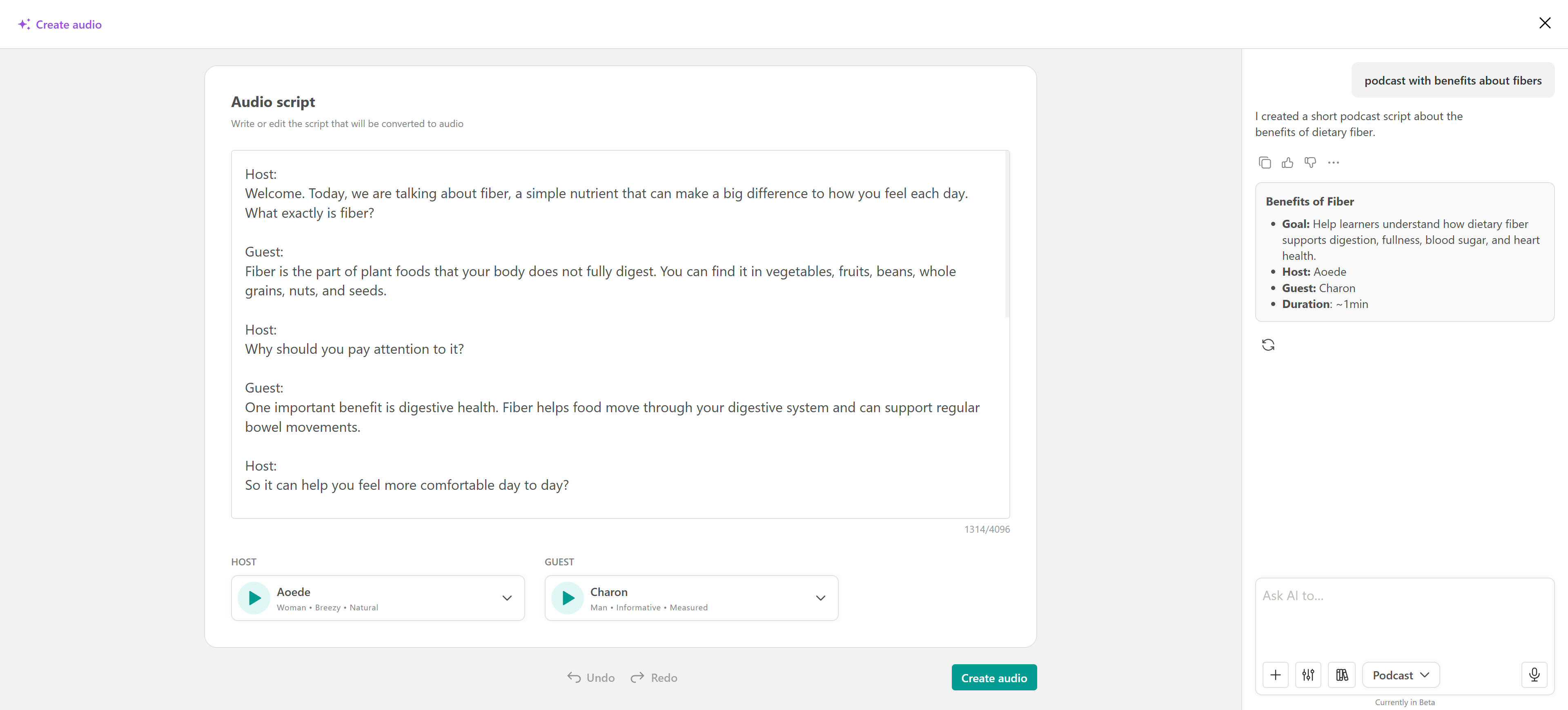
Open each voice dropdown to browse the available options and choose the voice you want to use for each speaker.
Each voice includes descriptive information to help you choose an appropriate speaking style. You can also click the play icon to listen to a preview before making your selection.
For example, you might choose a friendly, conversational voice for the host and a more measured, informative voice for the guest.
Generate your AI audio
Once you've reviewed the script and selected your voices, click Create audio to generate your audio file. Make sure the script is accurate, the selected voices suit your audience, and the audio format matches your learning objectives before proceeding.
Tips for creating effective AI audio
To get better results, provide clear instructions about your topic, audience, tone, and desired duration.
For narrated lessons, focus on clear explanations and a logical flow. For podcasts and dialogues, describe the roles of the speakers and the type of conversation you want to create.
You can also provide existing learning materials as references to keep the generated audio aligned with your course content.