
Monitoring your students' progress is crucial for managing your online school. Whether it's to track their interaction with your content or to ensure they meet the formal requirements of a specific certification (such as spending a minimum amount of time in a course), it's important to have the ability to delve into their statistics when necessary.
You can review which courses, programs, and learning activities your users have completed, as well as how much time they have spent on each section and learning unit.
How to view a user’s progress
1. Go to Users → All users.
2. Select the user you want to review.
3. In the User details panel, click on products.
4. You’ll see all progress-related information for each product the user is enrolled in.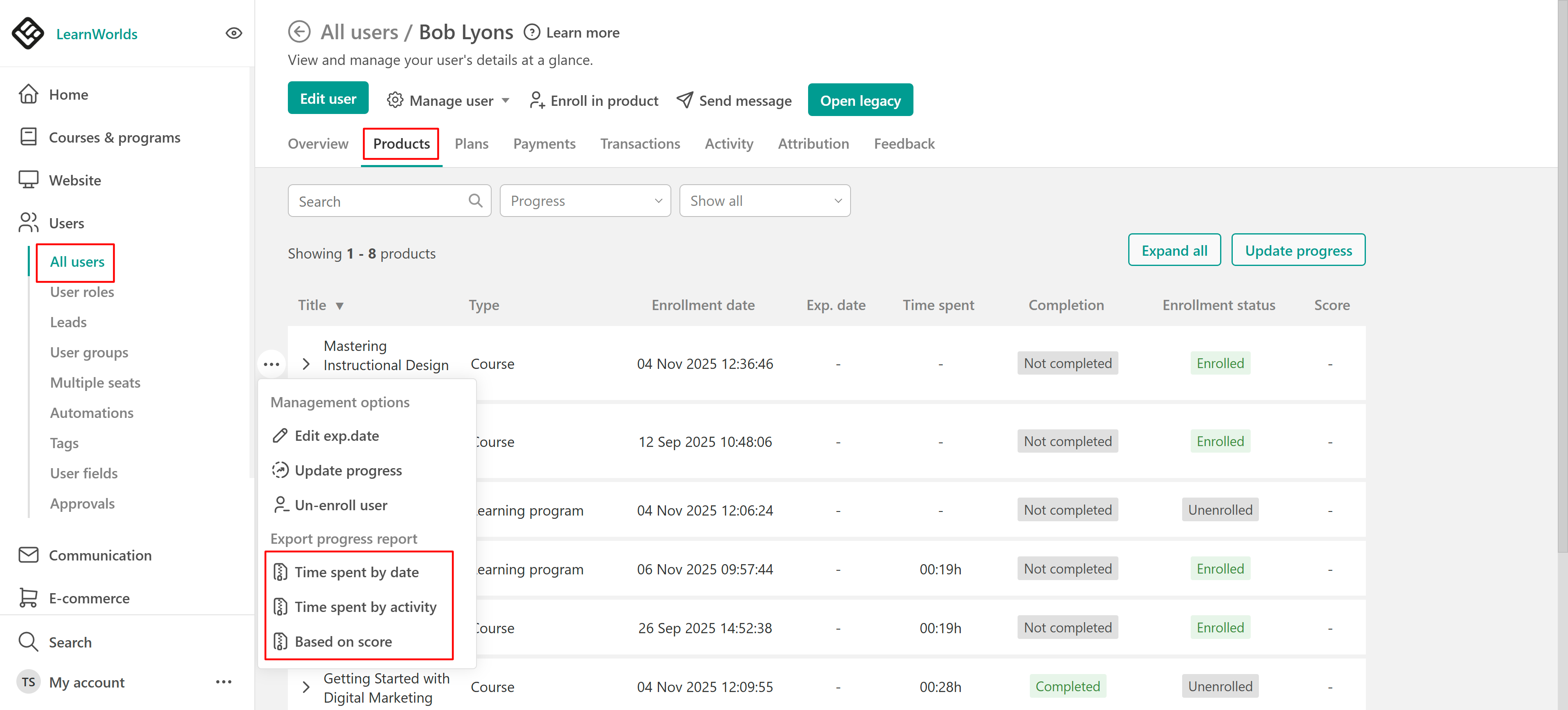
From here, you can:
- View completed sections, courses, and programs
- Check the time spent on each activity and the total time spent on the product
- See the course start and end dates
- Export progress reports based on:
- Time spent per date
- Time spent per activity
- Score
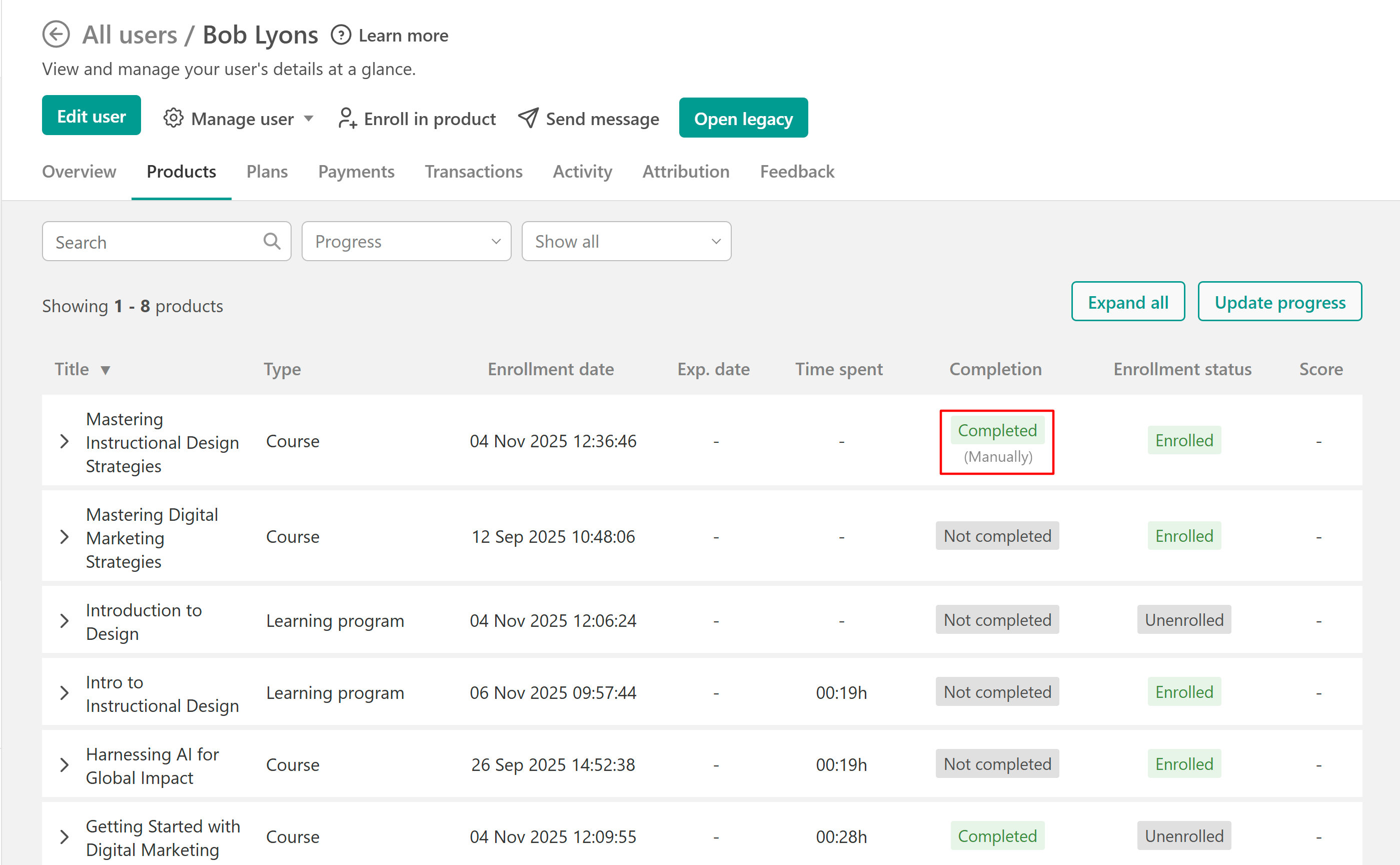
If a product or learning activity has been marked as completed manually, you’ll see a “Completed (Manually)” indication under the Completion column. For more details, refer to the relevant help article.
 In the Activity tab, you can also see a record of your user's recent activity and export the login and logout activity per date and time.
Understand unenrolled or expired access
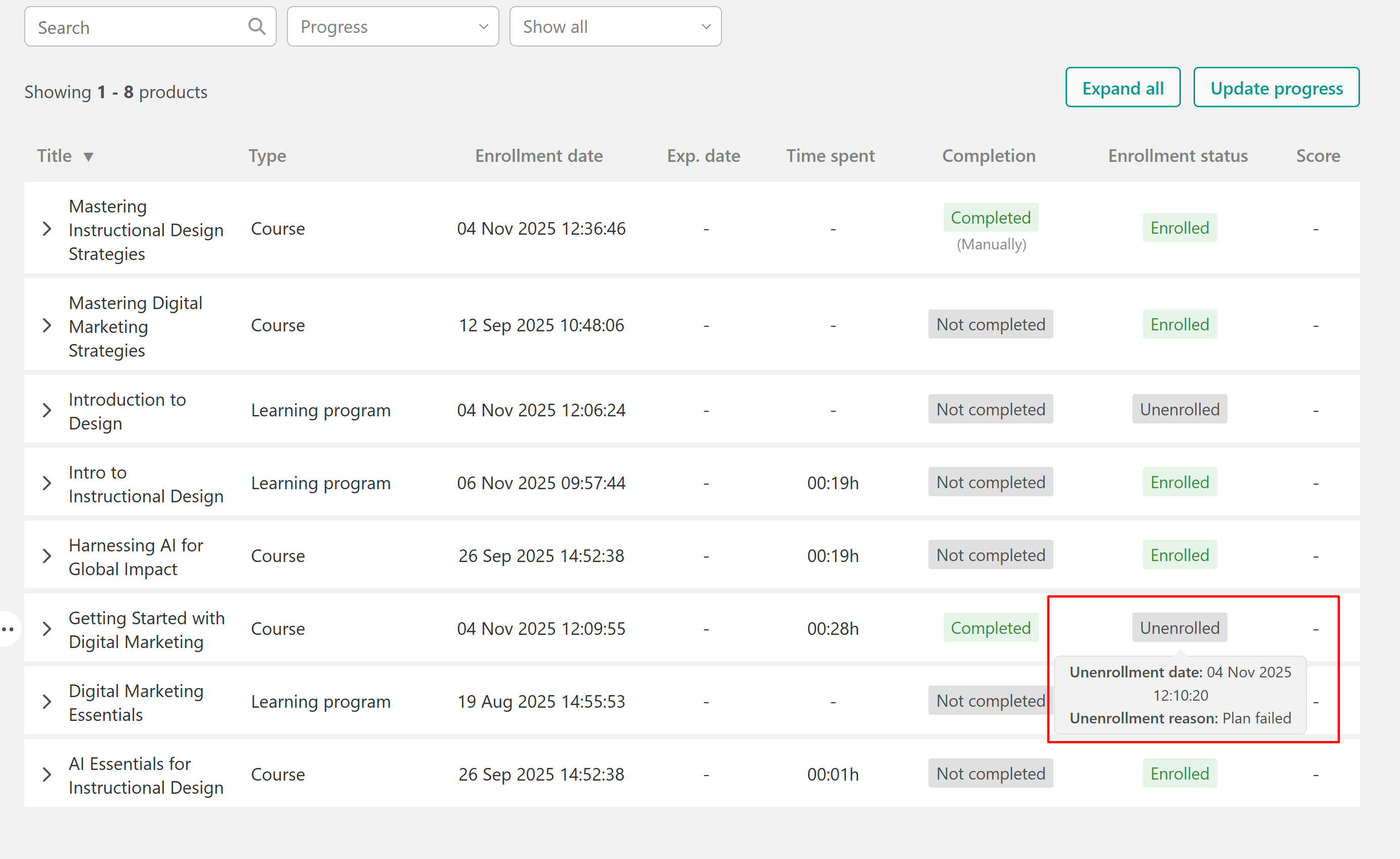
If you see the following "unenrolled/expired" red tag on the users' card, it means that:
a) You have set up an expiration date for this course, and their course access has expired.
b) They have been manually unenrolled from the course.
c) They have lost access as they stopped paying for their installment plan (canceled or card issues).
d) Or they have lost access as they stopped paying for their subscription plan.
Hover over the unenrolled status to see the reason.
For detailed user progress, navigate to Report Center → User progress.