
Subscriptions let learners pay a recurring fee to access a course or learning program. Use them for regularly updated courses, ongoing training, or membership-style programs.
In this article, we will explore the use of subscription plans in LearnWorlds, including when to use them, requirements, how to create and edit plans, manual user enrollment, cancellation procedures, and managing multiple subscription plans.
When to use subscriptions
A subscription works well when learners need ongoing access to content and pay at a regular interval, such as monthly or annually. For example, you can use subscriptions:
- When you offer courses that are regularly updated with new content.
- When you want to give learners access to your content through lower monthly payments rather than a high one-off price.
- When your business model depends on recurring revenue.
- When you're building a membership-style learning experience.
- When you want learners to pay for access over time without committing to a full course price upfront.
 Subscription vs. payment plan: A subscription renews at regular intervals until it ends or is canceled. A payment plan divides a fixed total into a defined number of installments.
Subscription requirements
To use subscriptions in your LearnWorlds school, make sure you have:
- A Pro Trainer plan or higher.
- Integrated Stripe as your payment gateway.
Both courses and learning programs support Subscription pricing options. Learning programs also support Tiered subscriptions, which allow you to offer different subscription tiers.
How subscriptions work
When a learner purchases a subscription, LearnWorlds creates the corresponding recurring subscription in Stripe. Stripe processes payments according to the configured billing interval, while LearnWorlds manages access to the purchased product.
You can offer a subscription as the only pricing option or alongside other options, such as a one-time purchase. Each pricing option has its own billing terms and availability settings.
Create subscription plans
To offer a subscription in LearnWorlds, start creating a course or learning program and choose Subscription as the pricing option, set the subscription price and billing interval, and complete the remaining steps to create your product. Refer to this article for detailed steps on setting up a subscription plan.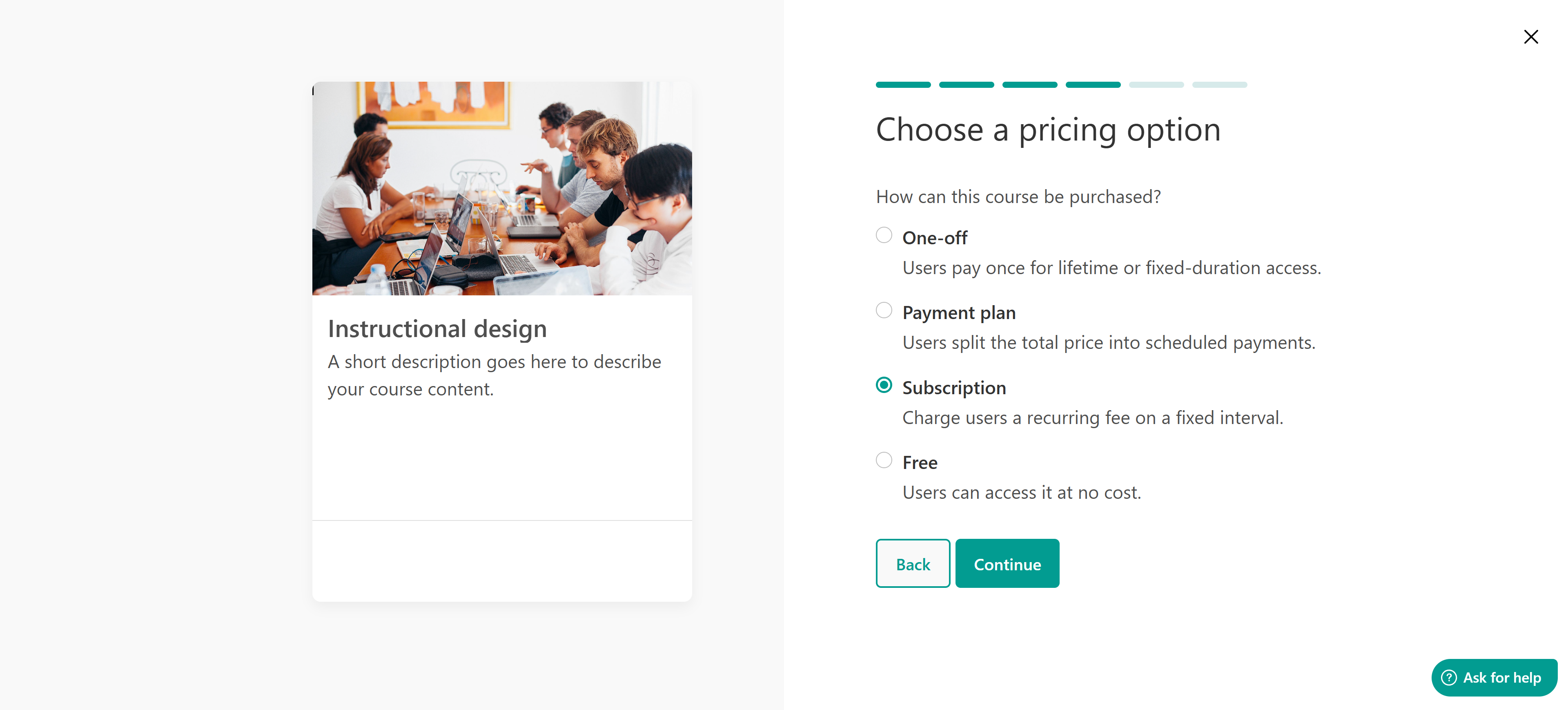
If you're interested in the notification emails users receive as part of a subscription, check this guide.
If you've already created a course or learning program, you can add a subscription as another pricing option. Open the product, go to Pricing, and select Add pricing option → Subscription. Configure the subscription under Setup, Payment terms, Availability, and Access, then click Add.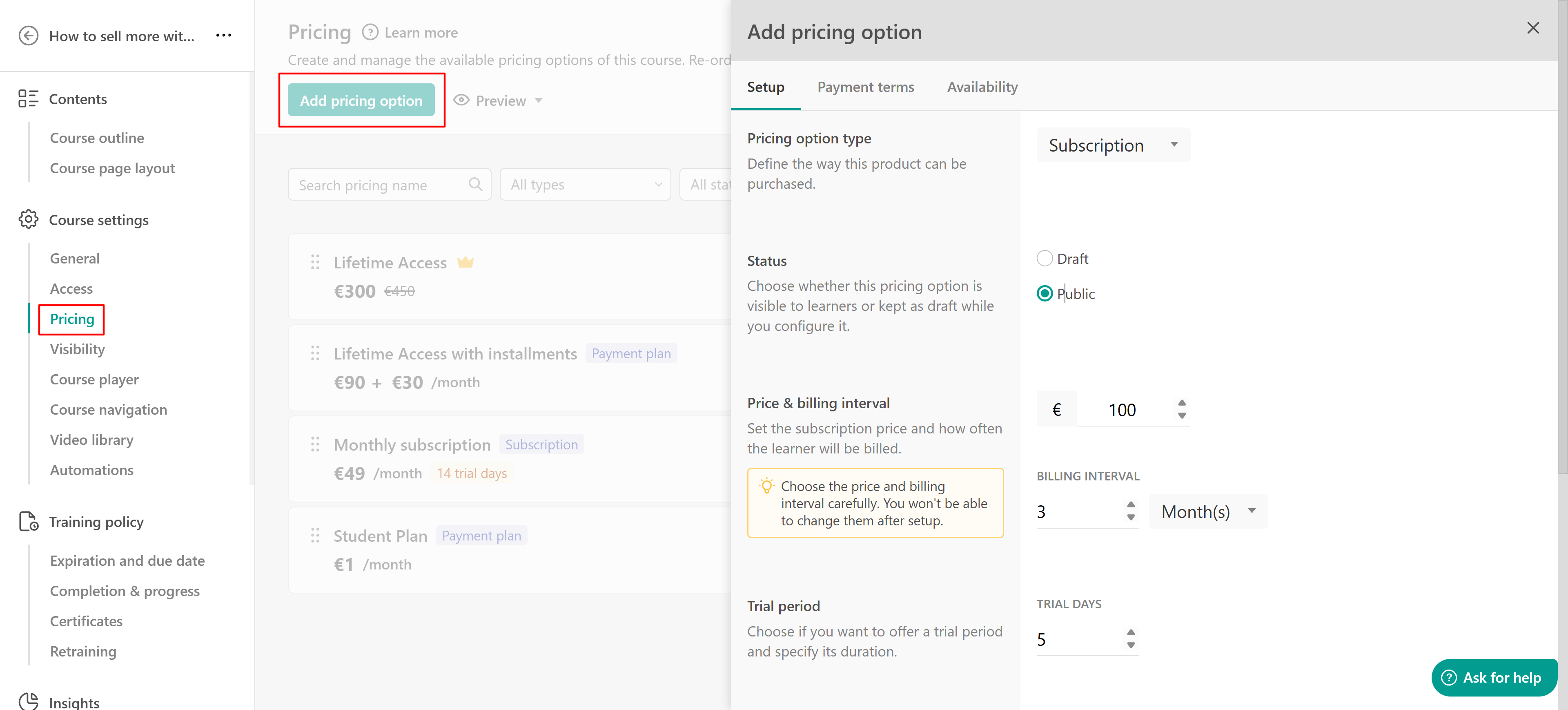
Manage subscription plans
The Plans tab in your admin dashboard gives you a complete overview of all active subscriptions and installment plans across your school. On the plans page, you can monitor, review, and manage user payment plans directly from LearnWorlds; no need to log into Stripe.
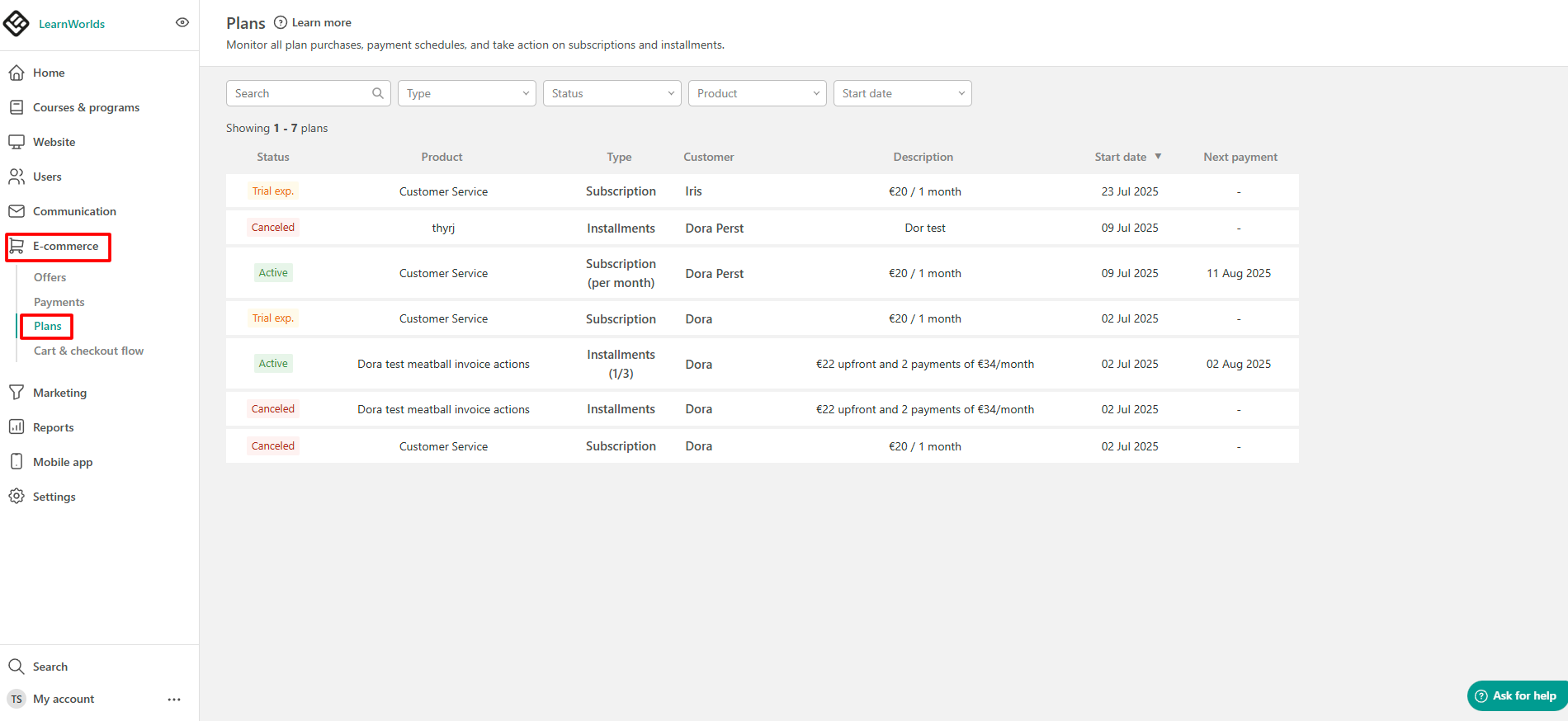
Refer to this article for detailed steps on managing your subscription plans.
Users' subscription management
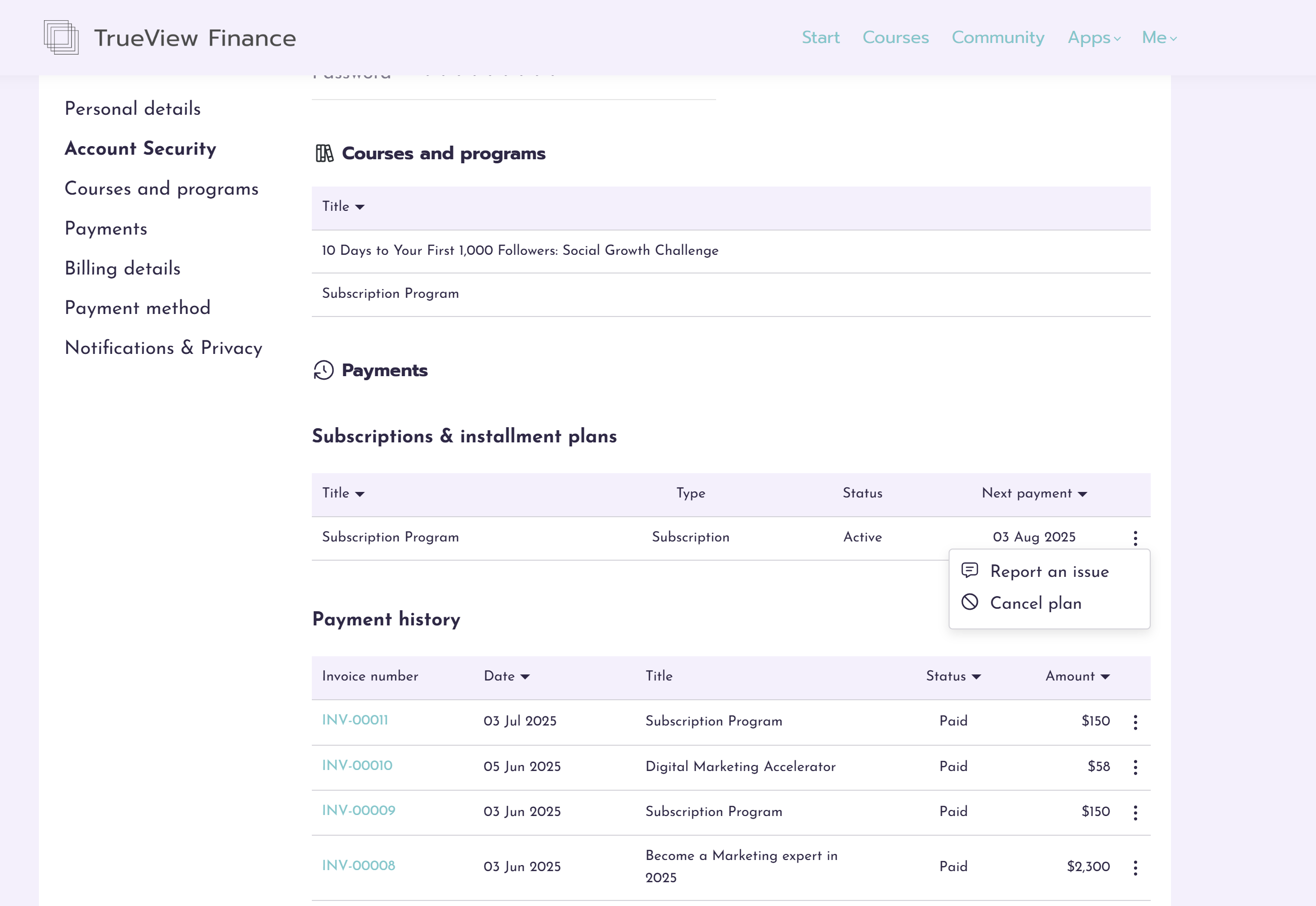
Users can manage their subscriptions via their Account page. They can view information about their active subscription plans and installment plans, including the next billing date. If they wish to stop their subscription, they can do so by clicking the Cancel button.
Subscriptions are not available on the Mobile Apps.Subscription trials
Offer learners a free trial before their recurring subscription payments begin. Trial periods are configured when creating or editing a subscription pricing option.
When a learner starts a trial, it becomes part of their subscription's billing lifecycle. Once the trial ends, Stripe automatically attempts to collect the next scheduled payment.
If no valid payment method is available or the payment fails, the invoice may be marked as Overdue. Additional payment attempts may occur based on your Stripe retry settings.
- One trial per learner per product: A free trial can only be used once, even if the learner cancels early, does not add a payment method, or does not complete the setup.
- Switching subscription options: If a learner switches to another subscription option for the same product during the trial, the trial period is not extended.
- Trial expiration: Learners remain enrolled when their trial ends. If they should not continue with the subscription, it must be canceled.
- Coupons and trials: When a limited-duration coupon is applied during a trial, the coupon period starts on the purchase date. The coupon and trial periods run at the same time.
Important notes
- When an admin creates a subscription plan in LearnWorlds, it will be synced to Stripe. The other way around, creating a subscription plan in Stripe, will not sync it to LearnWorlds.
- If you want to create a subscription-only school, check this guide.
- Once you connect your Stripe account and create your subscriptions and installments, you should not connect to a different Stripe account; otherwise, you will not be able to receive payments from the users who purchased a subscription or installment while you had connected the first account.
- If your users have already activated their subscriptions, you should not change the currency since your existing customers will not be able to pay in the new currency.
- If you change the price of a subscription, existing users will not be affected; they will continue to pay the amount they originally subscribed to. Only newly enrolled users will be charged the updated price.
- Deleting a product that was purchased with a recurring payment does not mean that the recurring payment will stop automatically. The recurring payment (either payment or subscription) should first be canceled prior to deleting the product itself.
If you manually enroll a user in a subscription through your school, this will not synchronize with Stripe, and no payments will be processed. To ensure the user is charged, you also need to manually add the user to the subscription through Stripe.
- When purchasing a subscription, the user's card needs to be stored in your Stripe account for upcoming recurring payments. Since this part of the process is not a transaction, the amount displayed in the card authentication and 3D Secure will be 0. If the user's bank approves this procedure, then the card will be charged the actual amount of the subscription.
- According to Stripe policy, when you start processing live payments from your customers with Stripe, you won’t receive your first payout until 7–14 days after receiving your first successful payment. You can find out more here.
- Suspending or deleting a user account does not automatically cancel or pause their active subscription. The subscription will continue to renew, and any associated payments will still be processed via Stripe unless manually canceled by the user or the admin.
- Your school sends a set of notification emails related to subscriptions, but Stripe offers additional options you may find useful. Find more information about these emails here.
Subscription trials are part of the subscription billing lifecycle. When a trial ends, the subscription automatically moves to the next billing step, and a payment is attempted. If no valid payment method is available or the payment fails, the payment may be marked as Overdue, and multiple payment attempts may appear in the user’s transactions based on your Stripe retry settings.
The user remains enrolled in the subscription after the trial ends, as the trial is treated as the beginning of the recurring subscription rather than as a separate period of free access. Payment attempts and their status are handled through Stripe and can also be reviewed in your Stripe dashboard. If the user should not continue with the subscription after the trial, the subscription must be canceled.
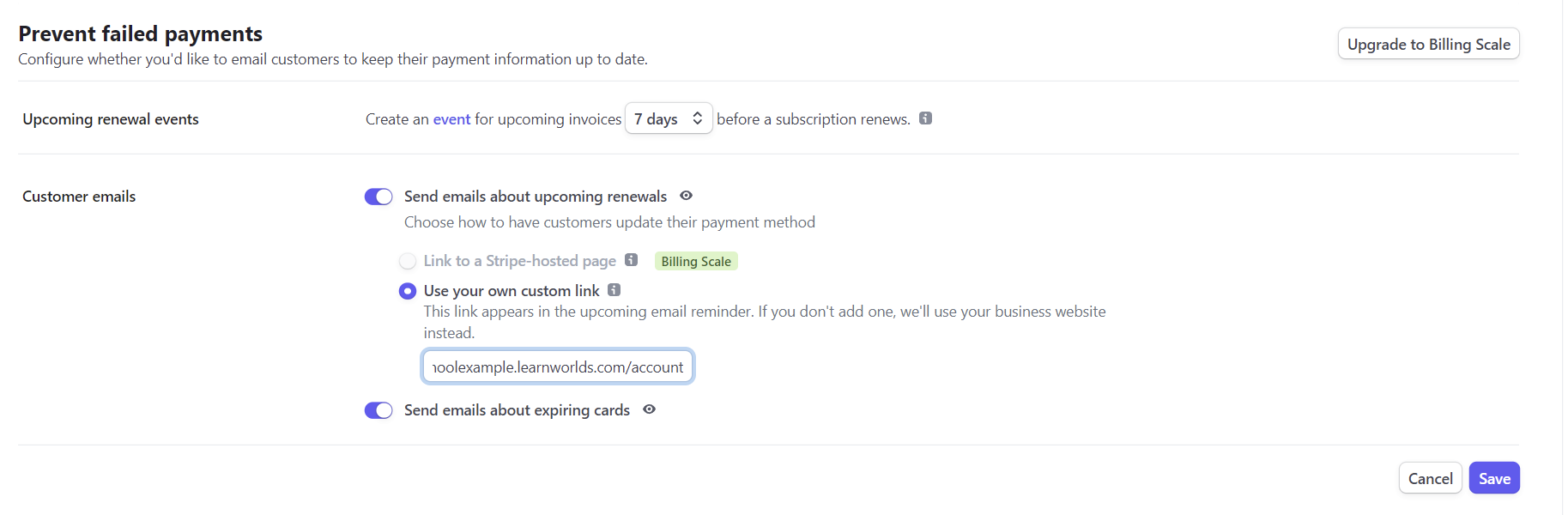
- To help reduce failed renewals, you can enable Stripe's "Send emails about expiring cards" option. When enabled, Stripe will automatically notify customers when their saved payment card is approaching its expiration date, prompting them to update their payment method before their next subscription or installment payment is due.
- Stripe allows you to customize how failed subscription and installment payments are handled. You can configure a custom Retry Schedule to define how many times Stripe should attempt to collect a failed payment, as well as enable the "Send emails to customers to update failed card payment methods" option so customers are notified and can update their payment details when a payment attempt fails.
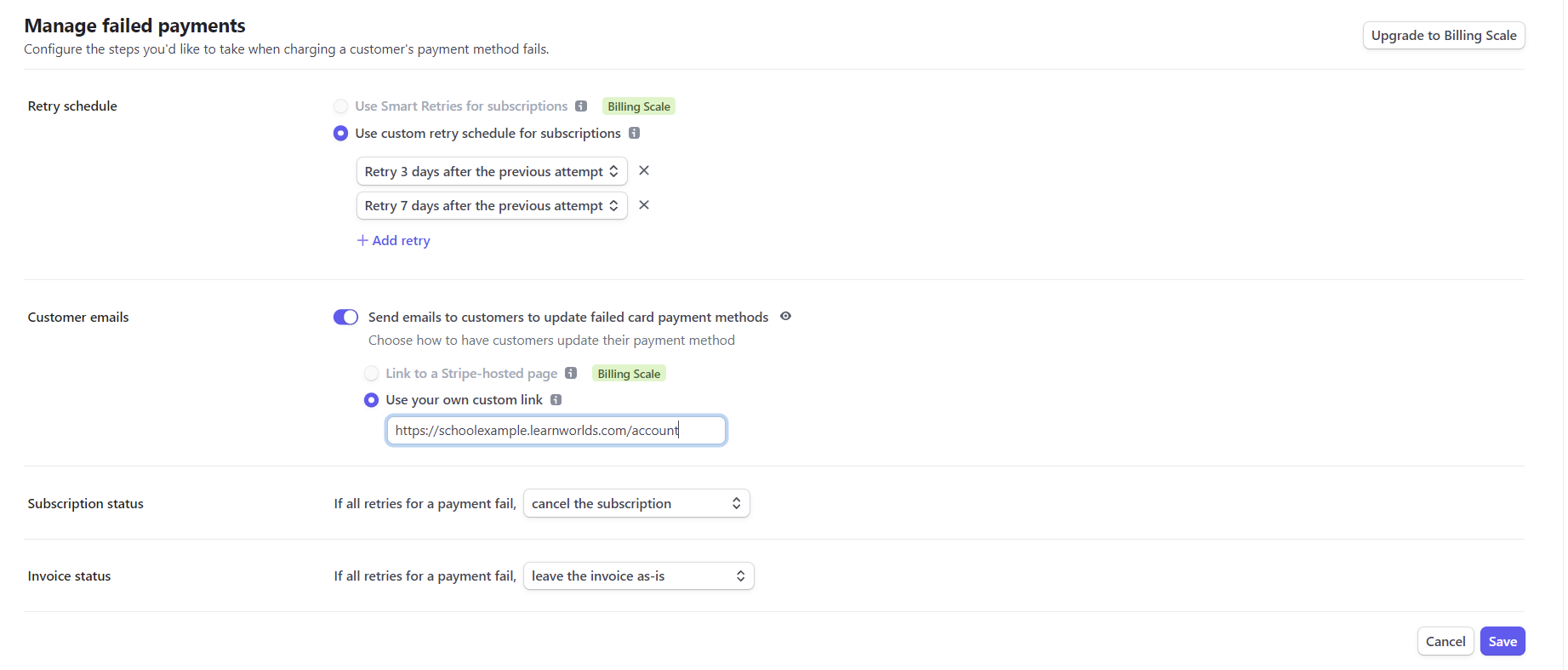
- If you use the Retry option and want the subscription to be canceled after the configured number of failed payment attempts, so the user no longer has access to the product, make sure the Subscription status setting in Stripe is set to Cancel the subscription.