
Learner pages help you create a more structured and organized learning experience in your school. They provide dedicated spaces where learners can easily access their courses, progress, grades, certificates, and events, and allow them to track their learning journey and understand what they should focus on next.
For admins, Learner Pages reduce the need to build custom dashboards from scratch while helping improve learner engagement and course completion rates. By giving learners clear access to their progress, grades, and upcoming activities, admins can also reduce time spent answering routine questions.
In this article, we will learn how to create learner pages and customize them to display courses, progress, grades, certificates, and events for your learners.
Why learner pages matter
Learner Pages improve both the learner experience and admin efficiency. Some common use cases include:
1. Creating a learner dashboard: Admins can create a central hub where learners immediately see their courses, progress, and upcoming activities after logging in.
2. Helping learners continue their training: Sections like Continue Learning help learners quickly resume the courses they were previously working on.
3. Tracking learning progress: Learners can check their progress across courses and activities without opening each course individually.
4. Following grades and instructor feedback: Learners can view their grades, review submissions, and read instructor feedback in one place, making it easier to understand what has been reviewed and what is still pending.
5. Managing certifications and achievements: Learners can view, download, and share certificates from one dedicated location.
6. Staying organized with scheduled learning events: Learners can see upcoming live sessions, group sessions, and course deadlines in one calendar.
These pages help schools provide a clear, professional learner experience while reducing the effort required to build and maintain learner dashboards.
What are learner pages?
Learner Pages are ready-made page templates that consist of learner-focused sections that help you organize the learner experience in your school. Except for My Profile, which is a system page, these are not fixed pages by default. Instead, they are:
- Page templates you can use to quickly create learner pages (available in Pro trainer plans or higher).
- Sections that can be added to any page through the website builder (available in all plans).
This means you can either use the built-in templates or build your own custom learner dashboard by combining sections from different Learner Page categories.
All sections are data-driven, meaning they automatically display information related to the currently logged-in learner. The main Learner Page includes:
- My Courses
- My Progress
- My Grades
- My Certificates
- My Events
- My Profile
Create learner pages and sections
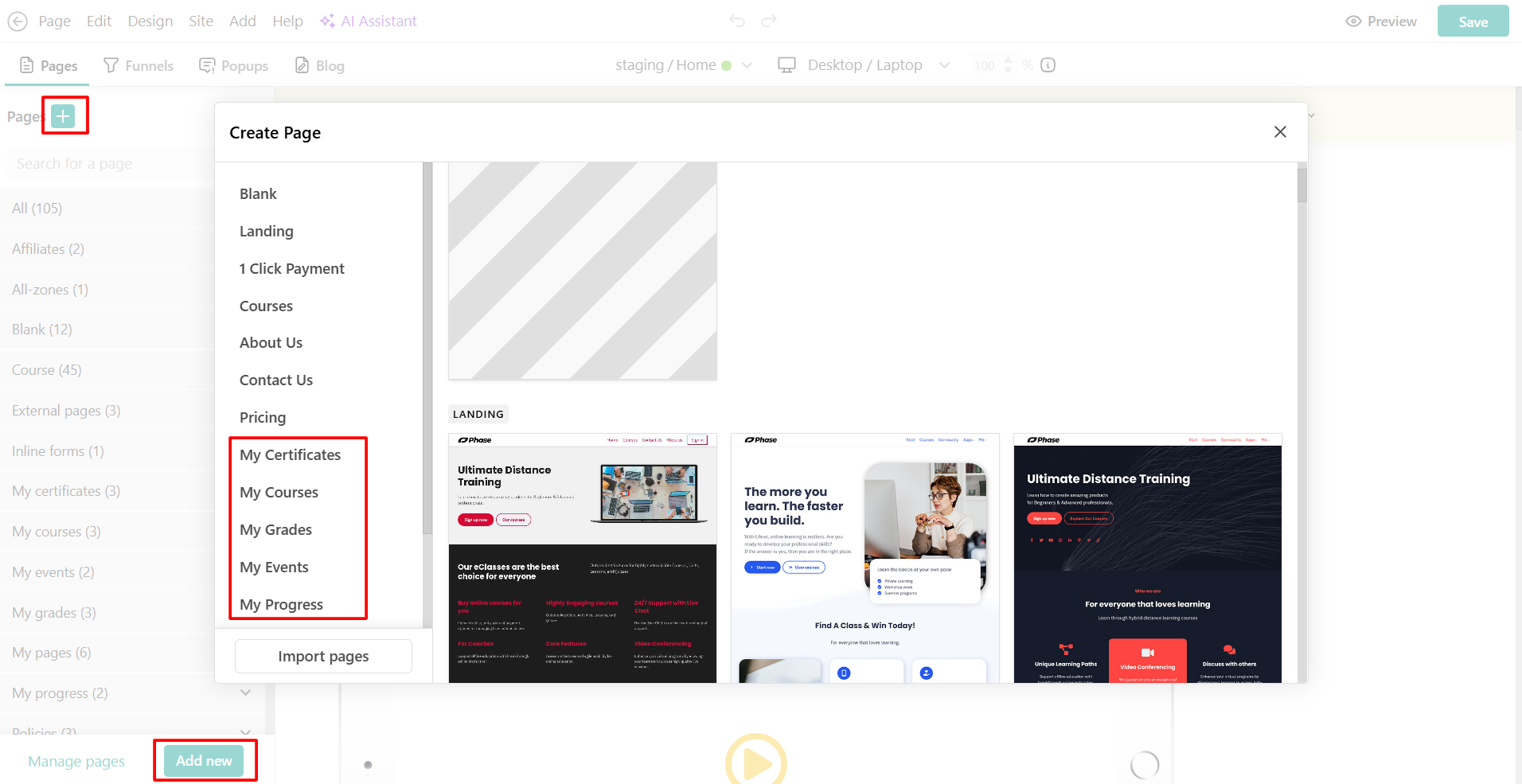
To create a new page using the ready-made learner templates:
1. Navigate to Website → Design and click on Edit website builder.
2. Click to add a new page.
3. Select one of the available page templates.
4. Follow the steps and start editing!
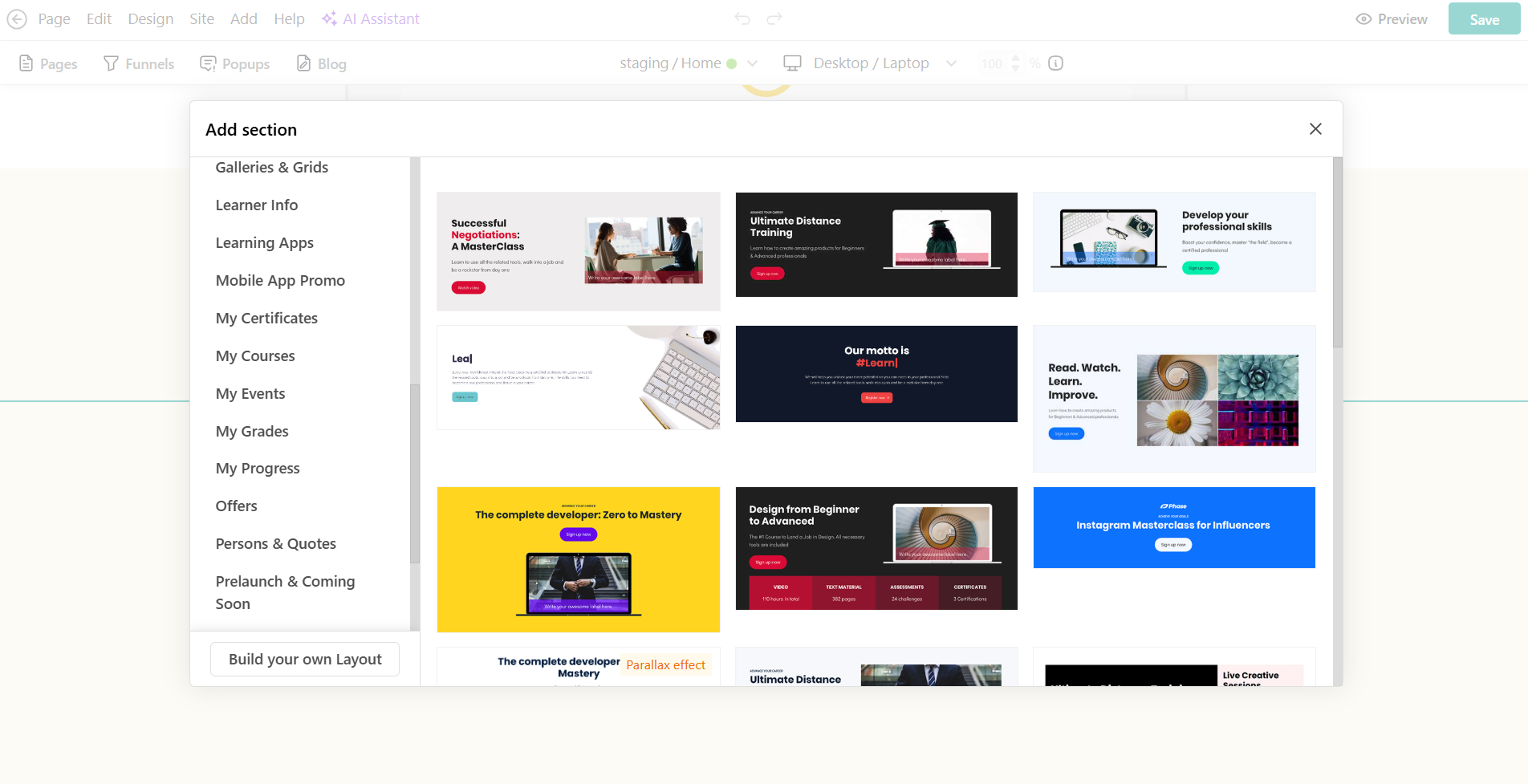
If you wish to add learner sections to any existing page:
1. Hover over between two sections.
2. Click on Add section.
3. Select one of the available options and start editing.
Create a custom learner dashboard
Some schools prefer to give learners one place to check the information that matters most after login. You can combine sections from different Learner Page families into a custom page, bringing together content such as what to continue, upcoming content, recent grades, or certificates.
 You can start with ready-made templates and customize them, or reuse sections to build your own learner dashboard.
Learner page options
Below is an overview of the available Learner Page templates and the type of information they display.
My Courses
The My Courses page helps learners manage their enrolled courses and quickly return to their learning. Typical sections include:
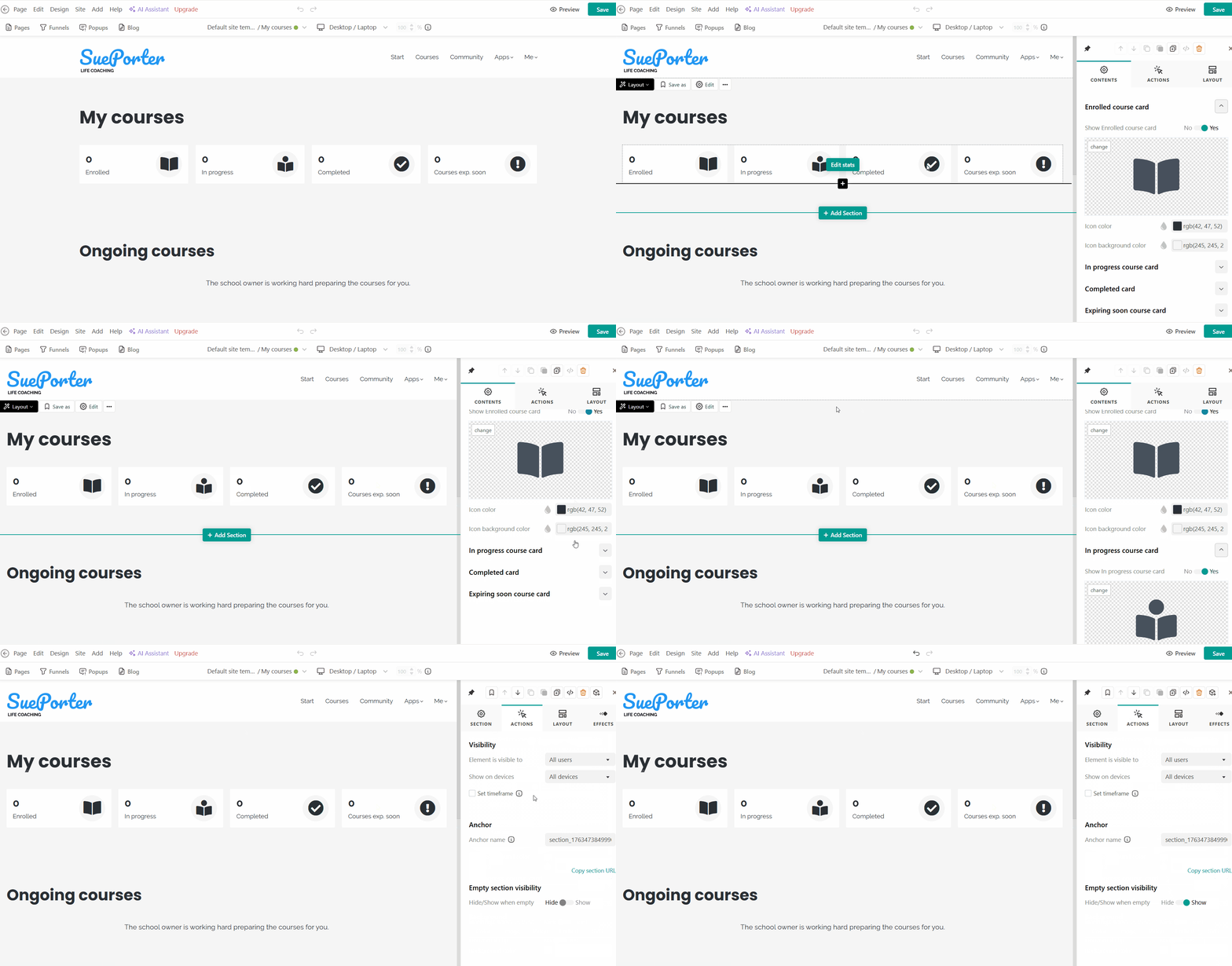
Course Stats: Displays counters for:
- Enrolled courses
- Courses in progress
- Completed courses
- Courses expiring soon (in 1 month or less)
Options:
- Click Edit stats to customize each stats card (show/hide it or change the icon).
- To control whether the section appears when there is no data for a user, click on the section Actions and toggle Empty section visibility.
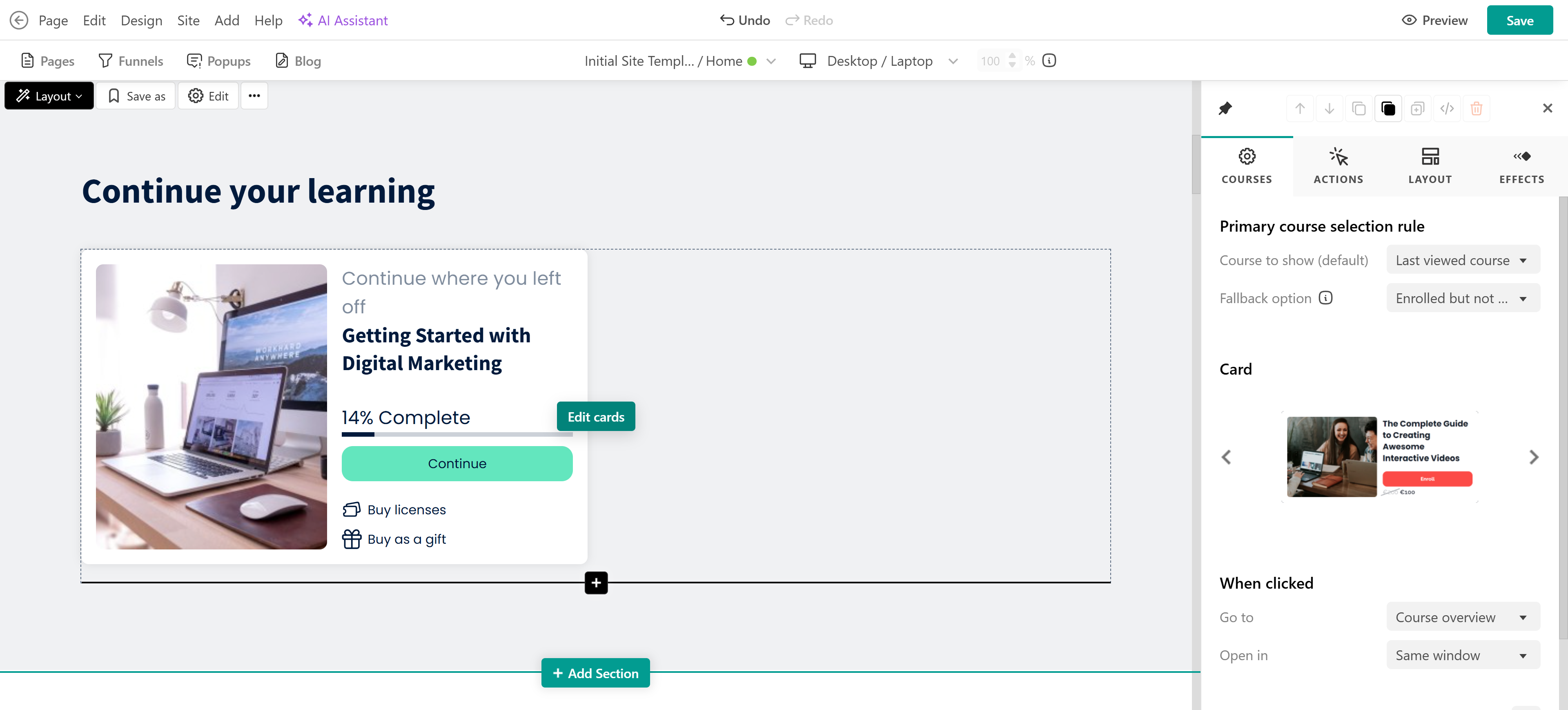
Continue Learning: Recommends courses based on a set of rules that admins can configure (for example: learner's recent activity, expiration date, etc.) so they can resume learning quickly.
Options:
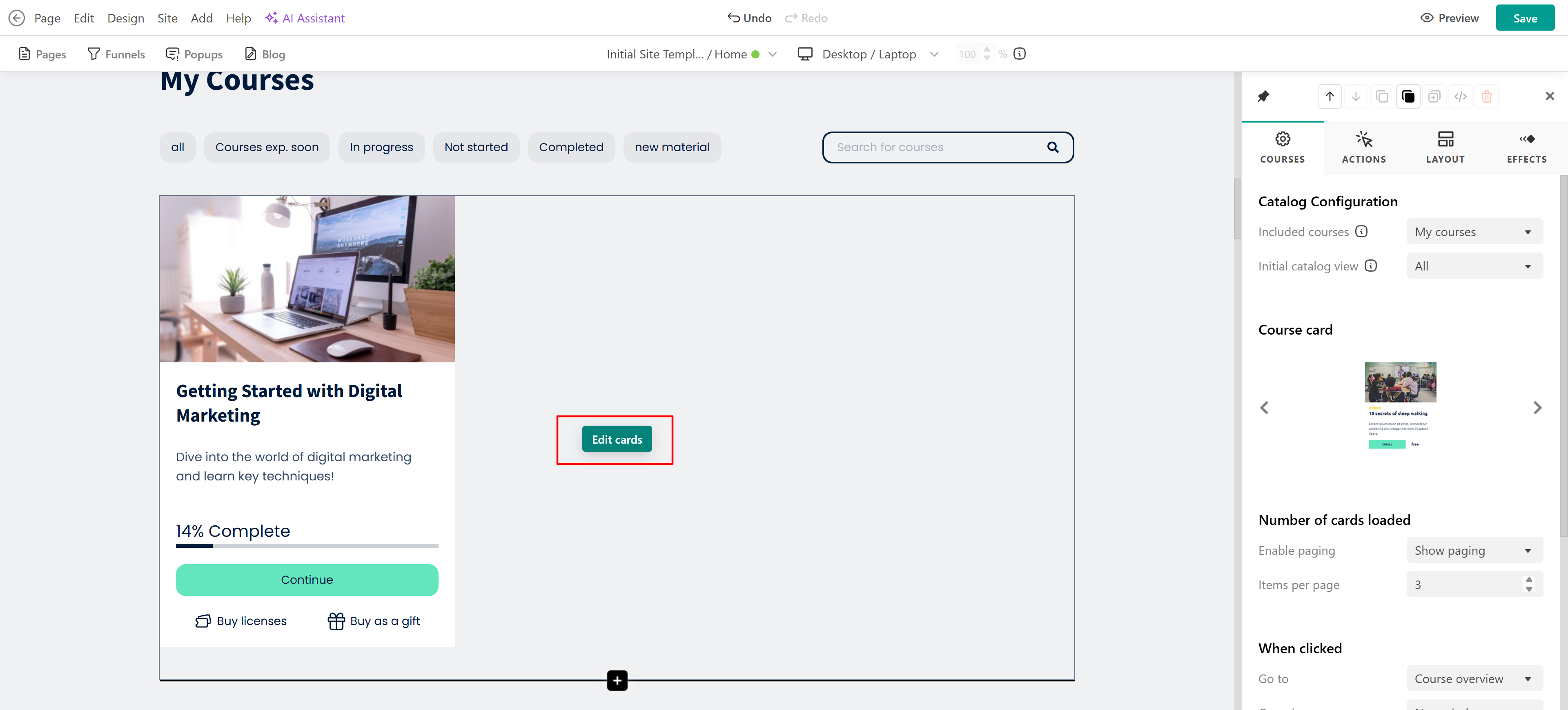
- Click Edit cards to choose the recommendation rules to show and fallback options (shown when no course matches the primary rule), select the cards' layout and appearance, and edit the options when clicked.
- To control whether the section appears when there is no data for a user, click on the section Actions and toggle Empty section visibility.
My Courses Catalogue: Displays all courses the learner is enrolled in and allows filtering by status (e.g., completed, in progress).
Options:
- Click Edit cards to choose the courses included (in catalog search) and initial options (appear as default), select the cards layout and appearance, edit the number of cards loaded, options when clicked, and the continue button.
- Choose the filters you wish to showcase between:
- All
- Courses that will be expiring soon
- In progress
- Not started
- Completed
- New material (drip feed courses)
- Search term
- To control whether the section appears when there is no data for a user, click on the section Actions and toggle Empty section visibility.
This page helps learners understand their overall progress in the academy, including how much they have completed and what still remains. It provides a clear view of their learning progress, which can support performance discussions or personal reflection.
My Progress
The My Progress page gives learners a detailed view of their learning progress across courses and activities. Common sections include:
Progress Stats: Displays high-level progress indicators.
Options:
- Click Edit stats to customize each stats card (show/hide).
- To control whether the section appears when there is no data for a user, click on the section Actions and toggle Empty section visibility.
Progress Table: Shows course progress and activity completion status.
Options:
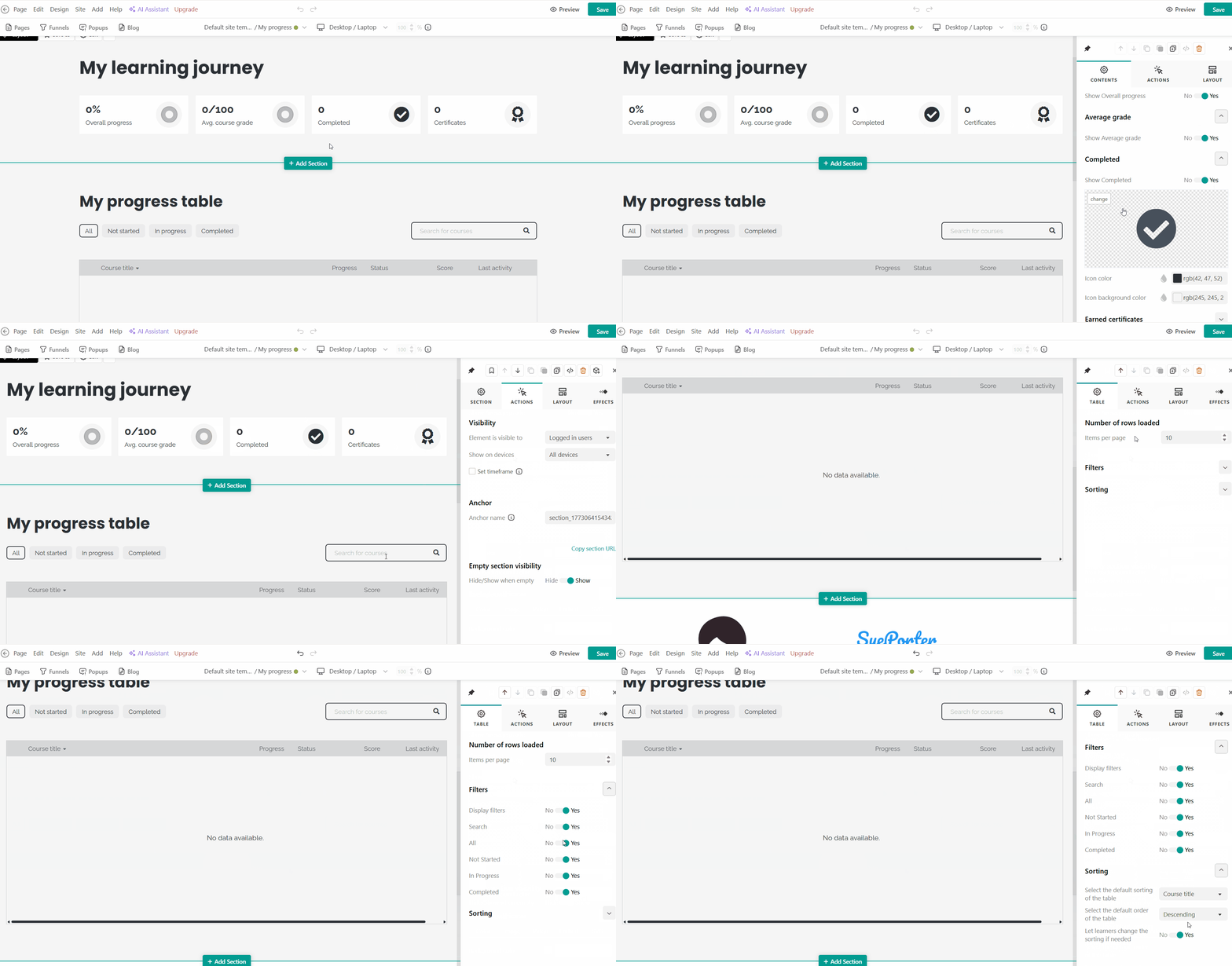
- Click Edit table to select the number of rows loaded, select the progress filters (search, all, not started, in progress, completed), and select the sorting of the table.
- To control whether the section appears when there is no data for a user, click on the section Actions and toggle Empty section visibility.
Learners can expand courses to view detailed activity-level progress information.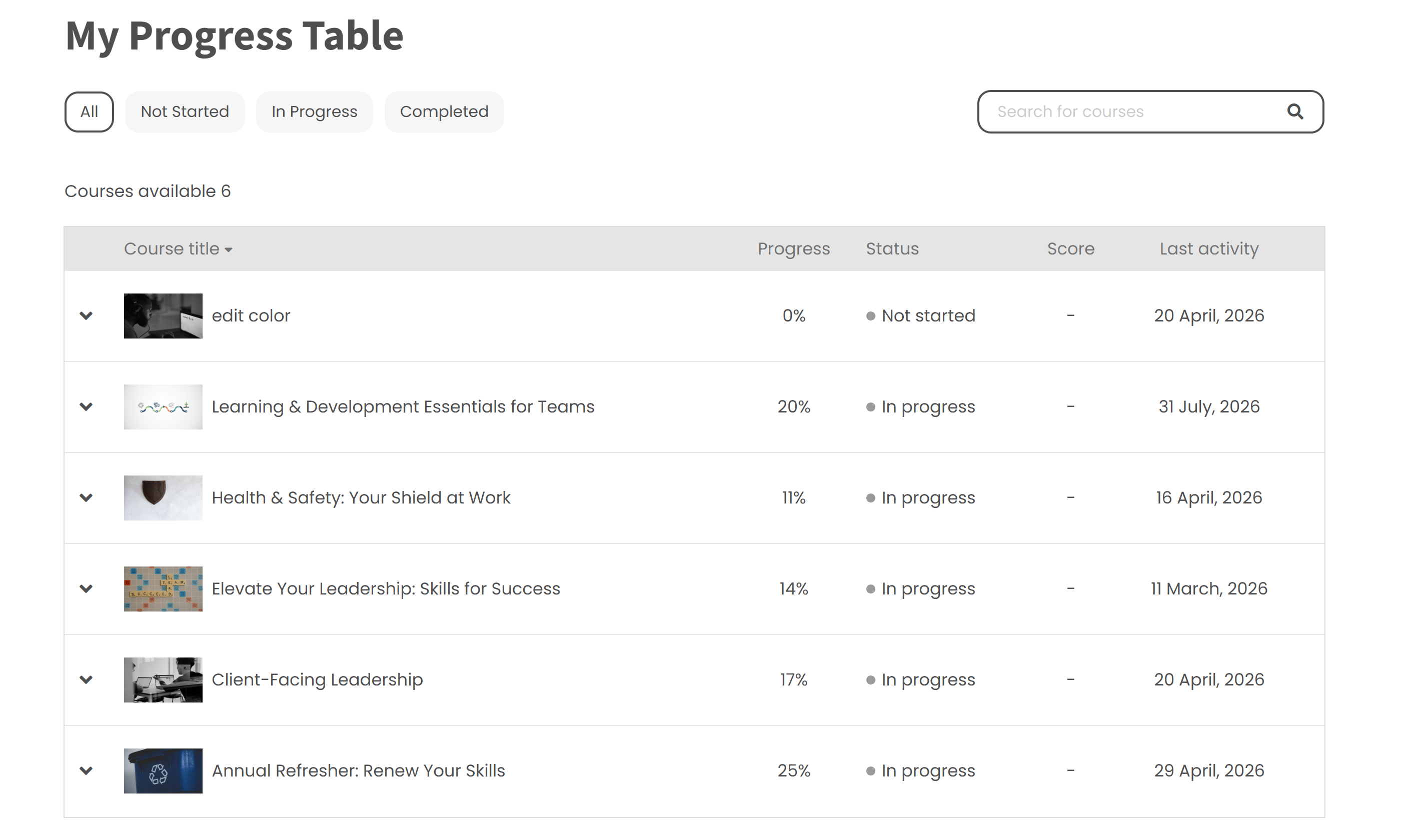
My Grades
The My Grades page offers a centralized overview of learner performance. It displays courses and their associated exams, giving learners a single place to track results, review feedback, and monitor any pending evaluations.
Options:
- Click Edit table to customize each stats card (show/hide).
- To control whether the section appears when there is no data for a user, click on the section Actions and toggle Empty section visibility.
Recent Submissions: Shows assignments that have been recently reviewed or are waiting for review.
Options:
- Click Edit submission cards to select:
- The included submissions and the initial view (default view)
- Submission cards layout
- Number of cards loaded
- Card appearance (activity type, title, date, attempts)
- Card actions (show retry, contact instructor, view feedback)
- Customize the load more button.
- To control whether the section appears when there is no data for a user, click on the section Actions and toggle Empty section visibility.
Grades Results Table: Displays grades across courses and learning activities.
Options:
- Click Edit table to select the number of rows loaded, select the table actions (show retry, view feedback, contact instructor), and select the sorting of the table.
- To control whether the section appears when there is no data for a user, click on the section Actions and toggle Empty section visibility.
This page allows learners to easily find:
- Instructor feedback
- Graded assignments
- Submissions awaiting review
and click on to retry an assignment, view their feedback, or contact their instructor without leaving the page.
My Certificates
The My Certificates page allows learners to find, download, and share their achievements. Typical sections include:
Certificate Stats: Displays the number of certificates earned or in progress.
Options:
- Click Edit stats to customize each stats card (show/hide).
- To control whether the section appears when there is no data for a user, click on the section Actions and toggle Empty section visibility.
Latest certificates: Highlights the most recently earned certificate.
Options:
- To control whether the section appears when there is no data for a user, click on the section Actions and toggle Empty section visibility.
- Click Edit banner to select:
- The included certificates and certificate options (completion or knowledge).
- Banner layout, appearance, and image.
- Share actions (allow to share to Facebook, X, and LinkedIn).
- Customize the certificate download button.
- To control the duration that the section appears when there is no data for a user, click on Edit banner → Actions and customize the Achievement display duration. This means that the banner will be hidden 7, 30, or 60 days after the certificate was issued.
All Certificate: Displays available certificates and allows learners to:
- View certificates
- Download them
- Share achievements on social media
Options:
- To control whether the section appears when there is no data for a user, click on the section Actions and toggle Empty section visibility.
- Click on Edit certificate cards to configure the:
- The included certificate view and initial view
- Certificate card layout, appearance, and image.
- Number of cards loaded
- Select the display filter (all earned, in progress, and not started yet)
- Customize the card and load more buttons.
- Share actions (allow to share to Facebook, X, and LinkedIn).
This page makes it easier for learners to access, download, and share their accomplishments. This is how the table appears to the user.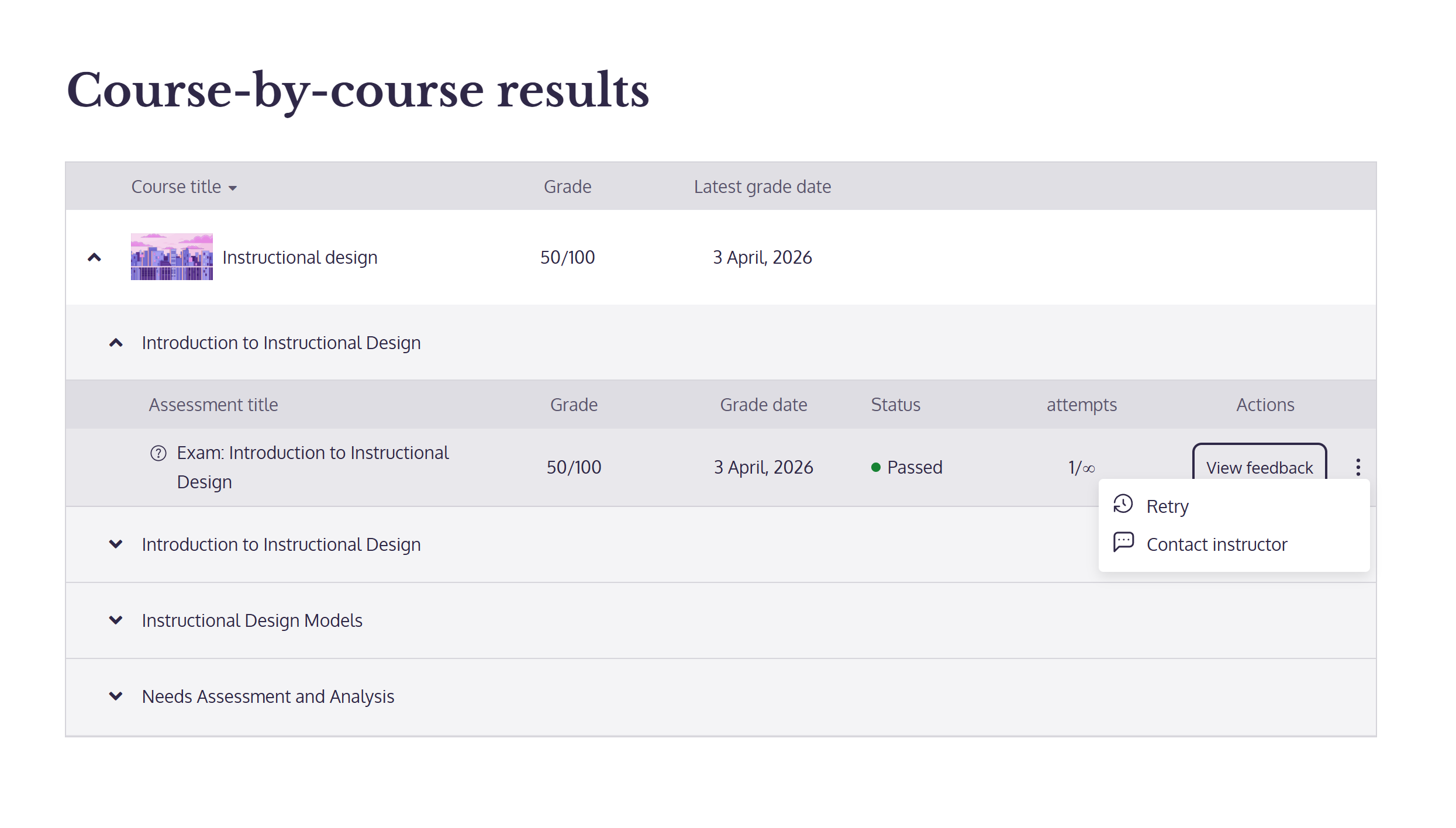
My Events
The My Events page provides learners with a calendar view of upcoming and past learning activities. Sections may include:
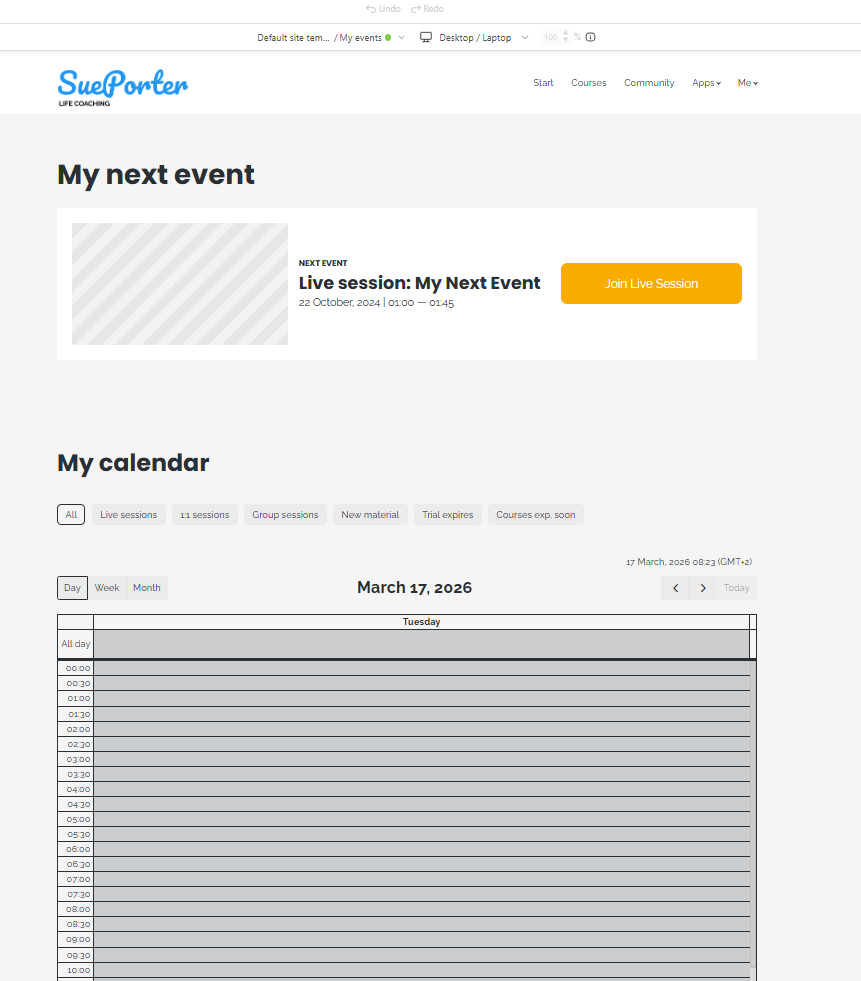
Next Event Banner: Highlights the learner’s next scheduled learning event.
Options:
- Click on Edit event card to configure the:
- The included events via all events or a custom list (live, 1:1 group sessions, new content released (drip), and trial/course expiration
- Background colors, notifications, and the appearance of the action buttons.
The time of the event will reflect each user's timezone.My Calendar: Displays upcoming events in a calendar format. Events may include:
- Live classes
- Group sessions
- 1:1 sessions
- Drip content unlocks
- Course expiration dates
- Due dates
- Retraining
Options:
- Click on Edit calendar to configure the:
- The included events via all events or a custom list (live, 1:1 group sessions, new content released (drip), and trial/course expiration
- The calendar options including showing the default calendar view (month, week, day), when to start the week on, past events, and the local timezone.
- Customize the event options.
- Choose the filters to display between: all, live,1:1, group, new material (dripped), trial, and course expirations.
- Select the event modal layout.
This page helps learners stay aware of important sessions and deadlines, go to the course where this event takes place, or add a live session to their calendars.
My Profile
The My Profile page represents the learner’s identity inside your school. Admins can customize this system page to control what information learners can see about themselves or other members, such as courses, certificates, or community activity.
You can find out more about the editable profile page in this article.
Make the learner pages accessible to users
After creating a Learner Page, you should add it to your after-login navigation menu so learners can easily find it. Steps to add a Learner Page to the navigation:
- Navigate to Website → Design and click on Edit website builder.
- Click to edit the topbar.
- Select the Signed in users topbar to edit.
- Add the Learner Page you created (for example, My Courses or My Progress), by clicking on the navigation buttons.
- Click to save your changes.
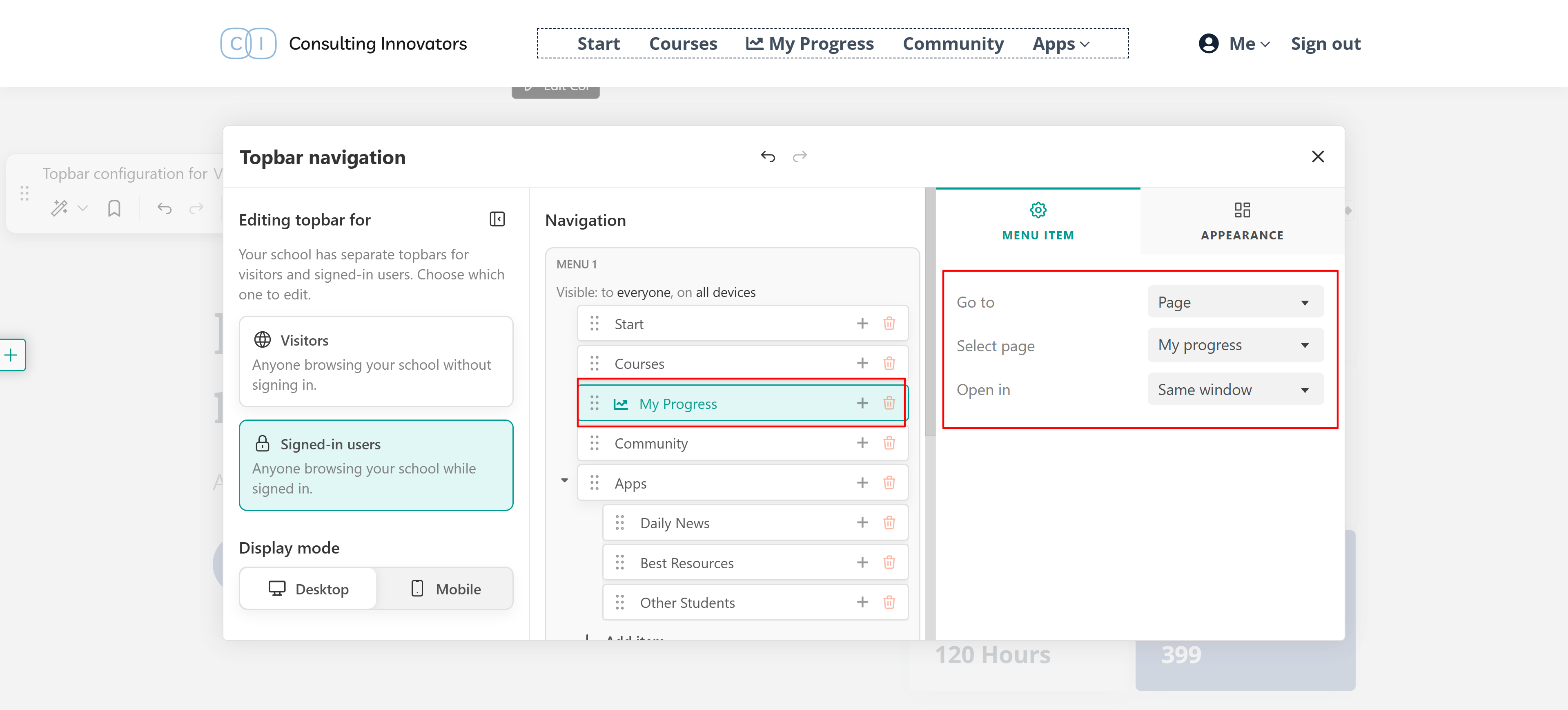
If the page is not added to the navigation menu, learners may not easily find it.
FAQs
Can I customize Learner Pages?
Yes. All Learner Pages and sections can be customized using the website builder. You can add, remove, reorder, or configure sections based on the learner experience you want to create.
Can I build my own learner dashboard?
Yes. You can create a custom page and combine sections from different Learner Page categories to build a personalized learner dashboard.
Do these pages show data for all learners?
No. Learner Pages only display information related to the currently logged-in learner.
Why does a section appear empty?
A section may appear empty for several reasons:
- The learner has not yet generated data (for example, no completed courses or certificates).
- The section is configured with “Hide when empty.”
- The related product feature is not enabled in the school.
Important notes:
- Learner Pages show only the logged-in learner’s data.
- You can edit the section’s layout, background, and effects like any other section.
- Instructors, admins, or group managers visiting these pages will see their own data, not aggregated learner information.
- Some sections may appear empty if the learner has no related activity.
- Certain sections require enabled product features (for example, certificates or live sessions).
- To ensure learners can access these pages, remember to add them to the after-login navigation menu (topbar).