Product recommendations allow you to suggest additional products to learners throughout their purchase journey. Increase your revenue and help learners discover relevant content at the right time by promoting courses and learning programs across your school, during checkout, in the cart, and throughout your website pages.
Use cases
- Increase revenue at checkout: Promote relevant products during checkout to increase the average order value.
- Promote courses automatically: Display personalized product suggestions across your website without requiring manual setup.
- Highlight products: Promote new, featured, or high-priority courses across your school.
Enable product recommendations
To get started,
1. Go to E-commerce → Recommendations
2. Select a recommendation type:
- None
- Order bumps: Manually recommend products during checkout for a specific product.
- Automatic: Automatically suggest products based on recommendation strategies
- Hybrid: Combines manual and automatic recommendations
3. Click Save

- Order bumps are available on all plans.
- Automatic & Hybrid recommendations are available on Learning Center plans and above.
Create an order bump
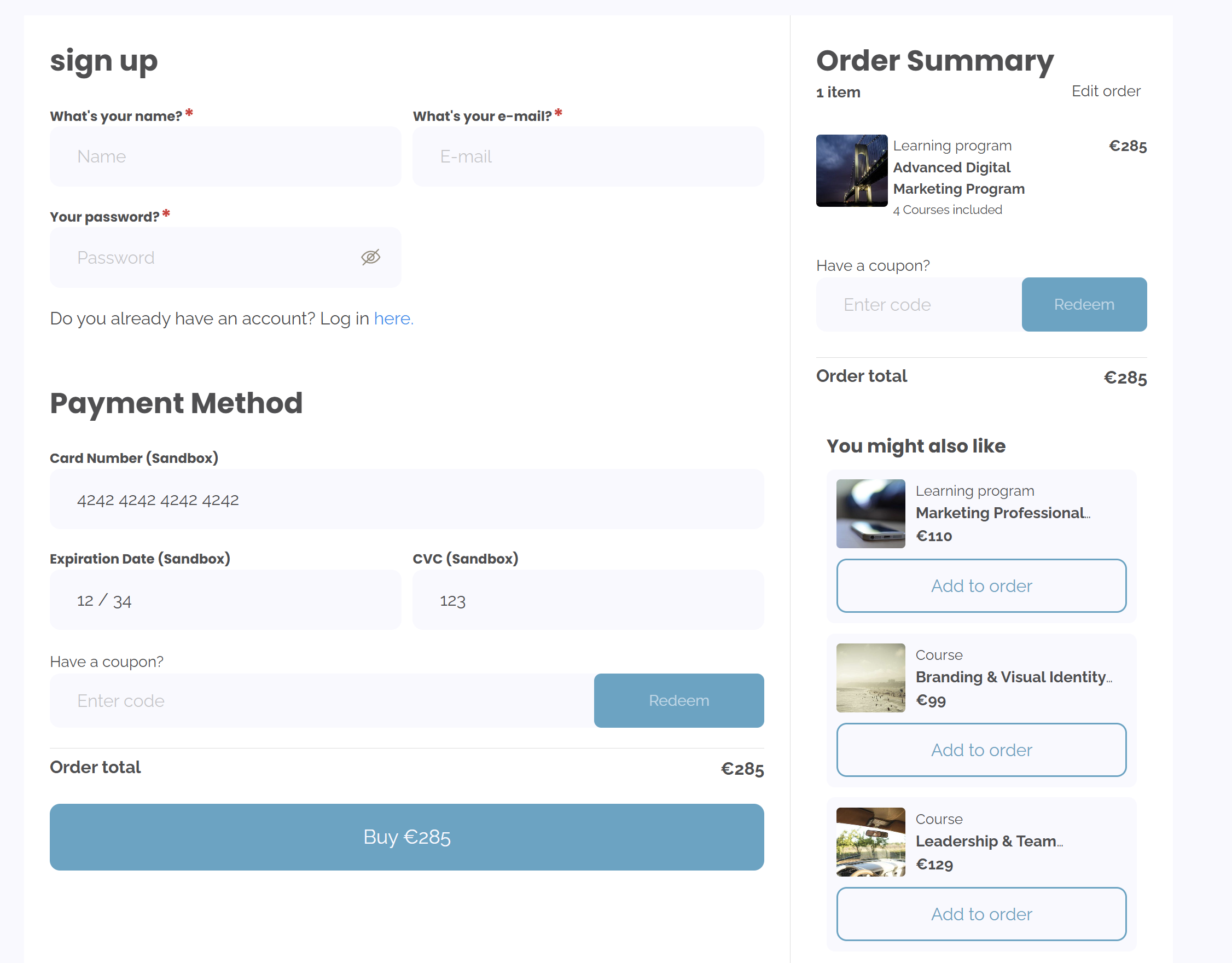
Order bumps allow you to recommend additional courses or learning programs during checkout, helping increase order value at the moment learners are ready to purchase.
1. Go to E-commerce → Recommendations → Order bumps
2. Click Create order bump
3. Select the Primary product. This is the product that triggers the order bump during checkout.
When a learner purchases the primary product, the recommended products will appear on the Payment page. 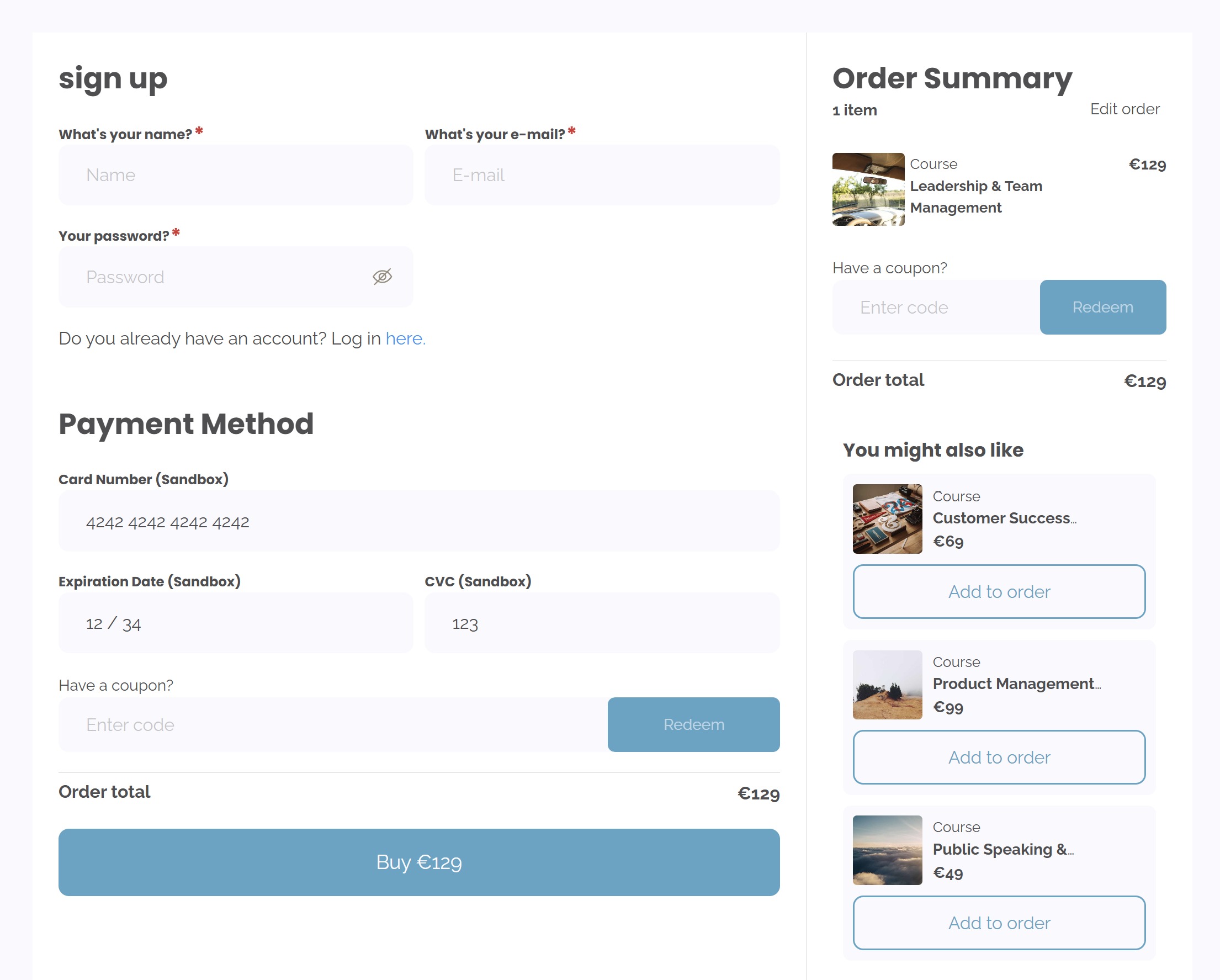
4. Set the status, Draft/ Public.
5. Choose the products you want to recommend. You can:
- Rearrange products to define their recommendation priority.
- Modify the displayed price for each recommended product.
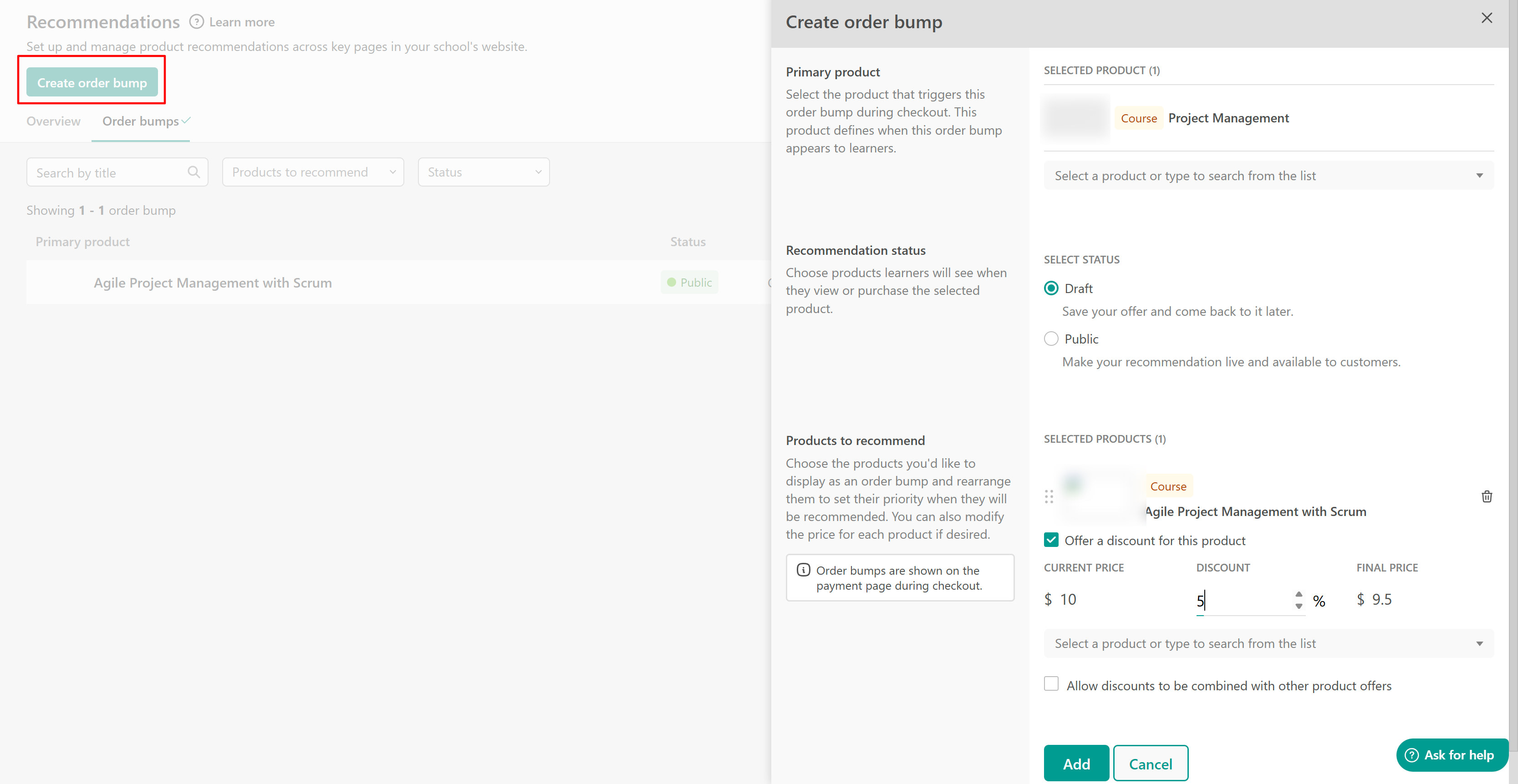
For each product, you can also provide a discount. You'll see the current price, add a percentage discount and preview the final discounted price.
6. Choose whether the discount can be combined with other active product offers.
7. Once your setup is complete, click Add. Your order bump is now created. You can edit or delete it at any time.
-Order bumps can't include private courses.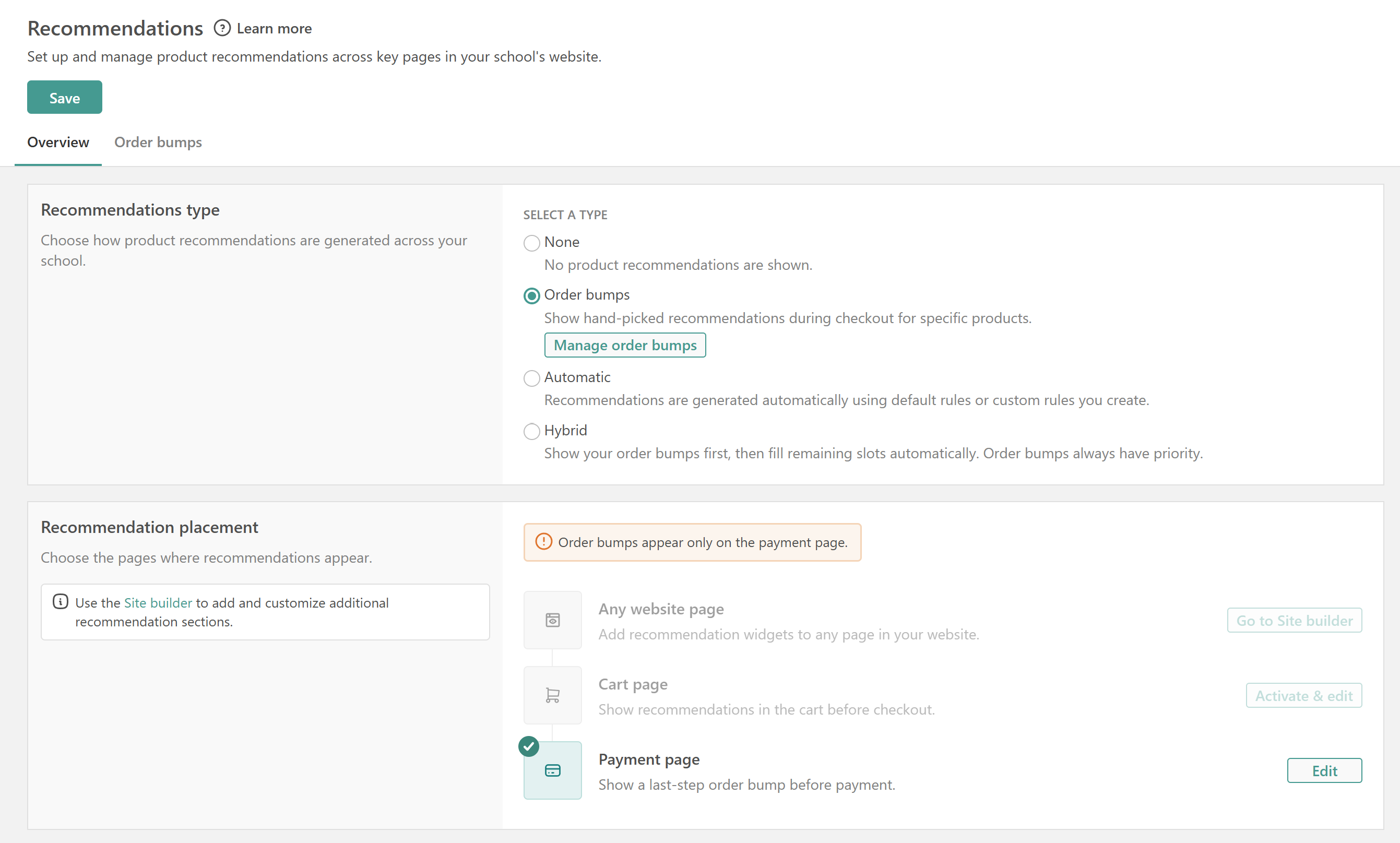
Automatic recommendations
With automatic recommendations, the system automatically suggests products to learners based on recommendation strategies and learner behavior.
1. Go to E-commerce → Recommendations
2. Select the Automatic option
3. Click Edit settings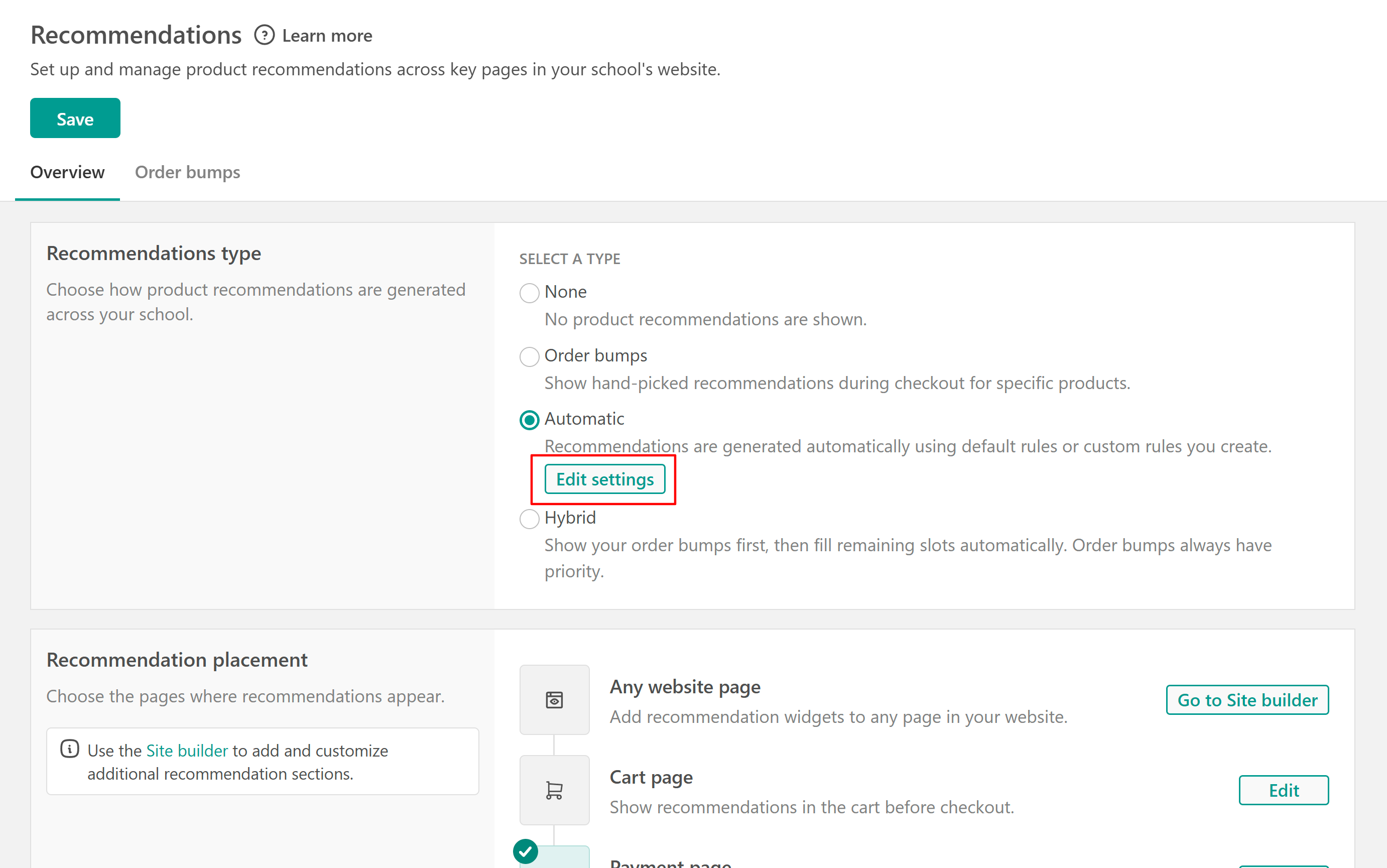
Here, you can manage the recommendation strategies you want to use and decide which ones should be enabled. Available strategies include:
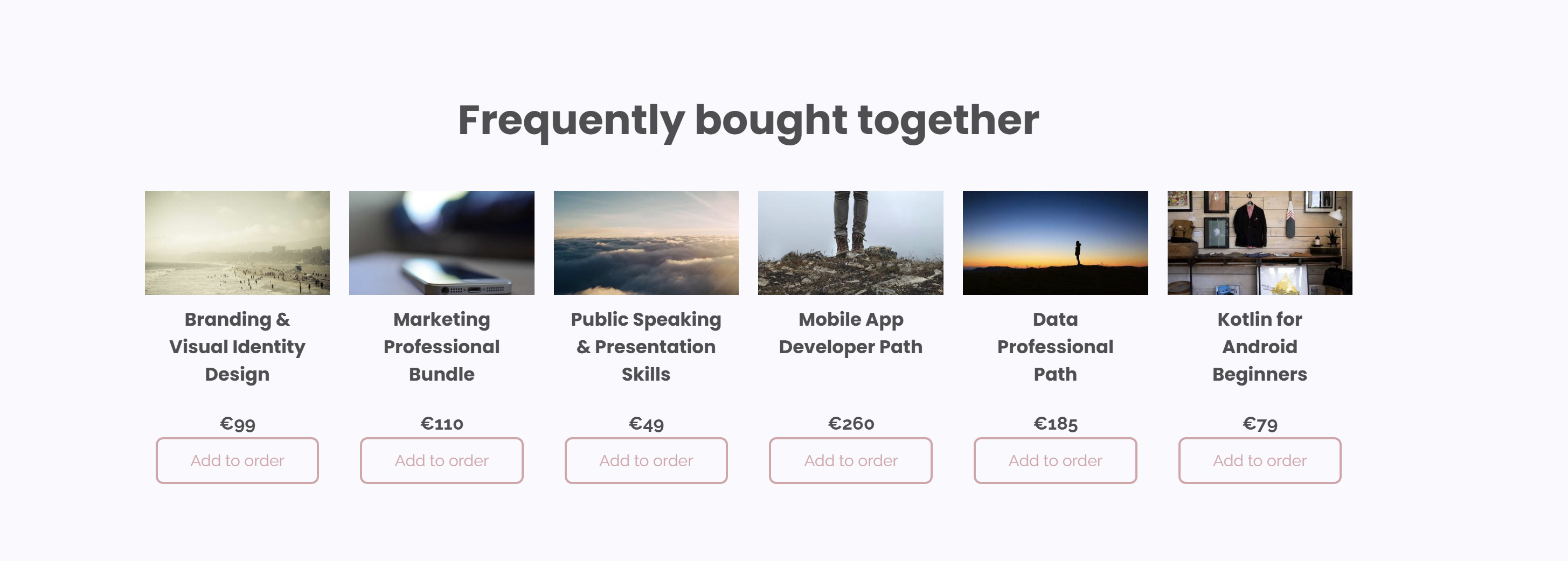
- Frequently bought together (Recommends products bought by learners with similar purchase history, prioritizing products bought in the same order. Use this to promote complementary courses that naturally fit the learner’s current purchases.)
- Best-selling (Recommends the most purchased products in your school. Use this to showcase popular courses with proven demand and guide new learners toward products that are already performing well.)
You can either delete or edit an existing strategy.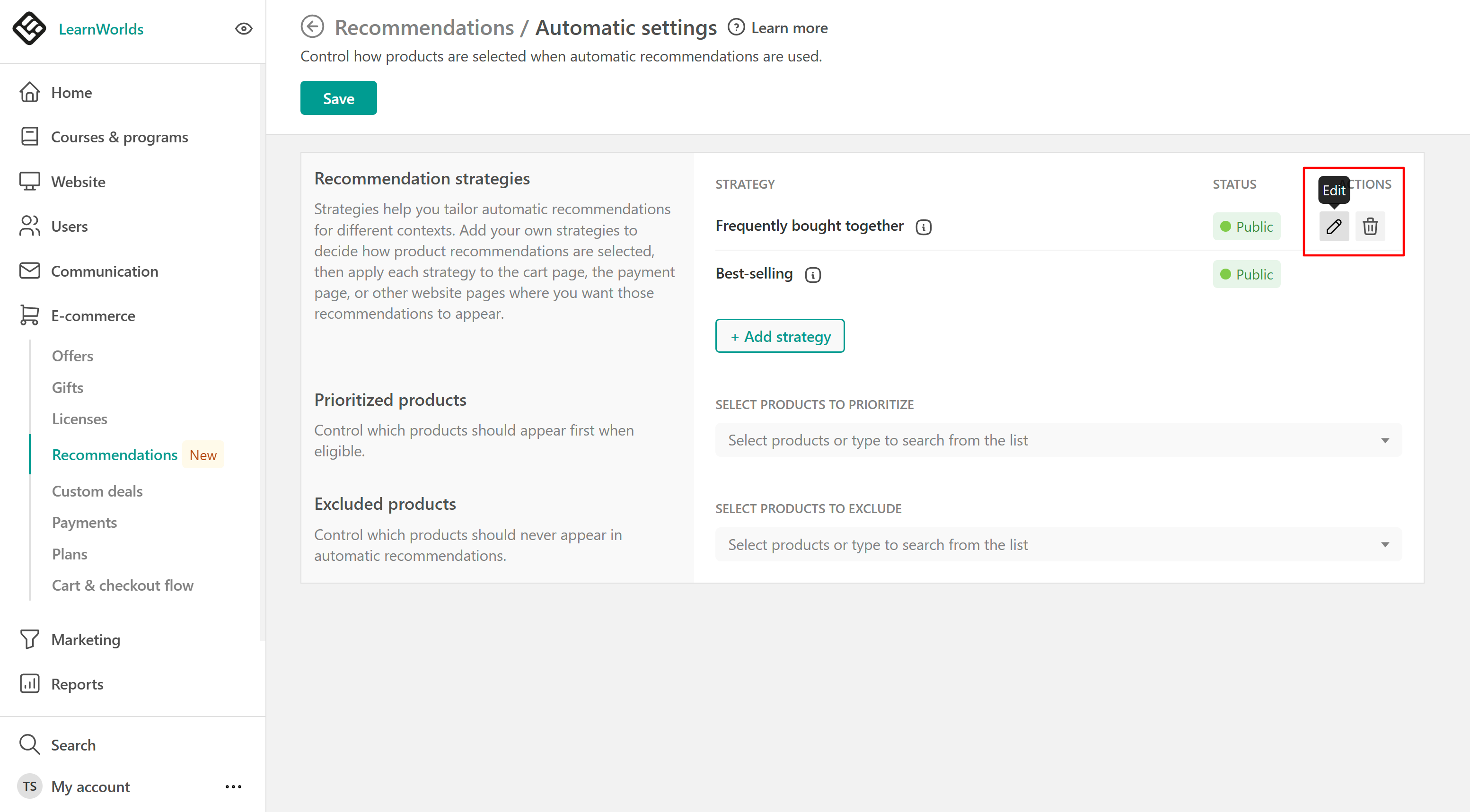
The Popularity strategy recommends products based on purchase activity. Popularity is calculated using only self-purchases, helping provide more accurate recommendations based on actual learner buying behavior rather than manual enrollments or admin-assigned access.This ensures that recommended products better reflect what learners are actively purchasing.
Custom recommendation strategies
In the settings tab, you can also create your own recommendation strategies.
1. Click add strategy
2. Select the recommendation criteria:
- Learners also bought: Courses also bought by learners with similar purchase history
- Bought together: Courses often bought on the same order
- Popularity: Best-selling courses in your school
You can select more than one.
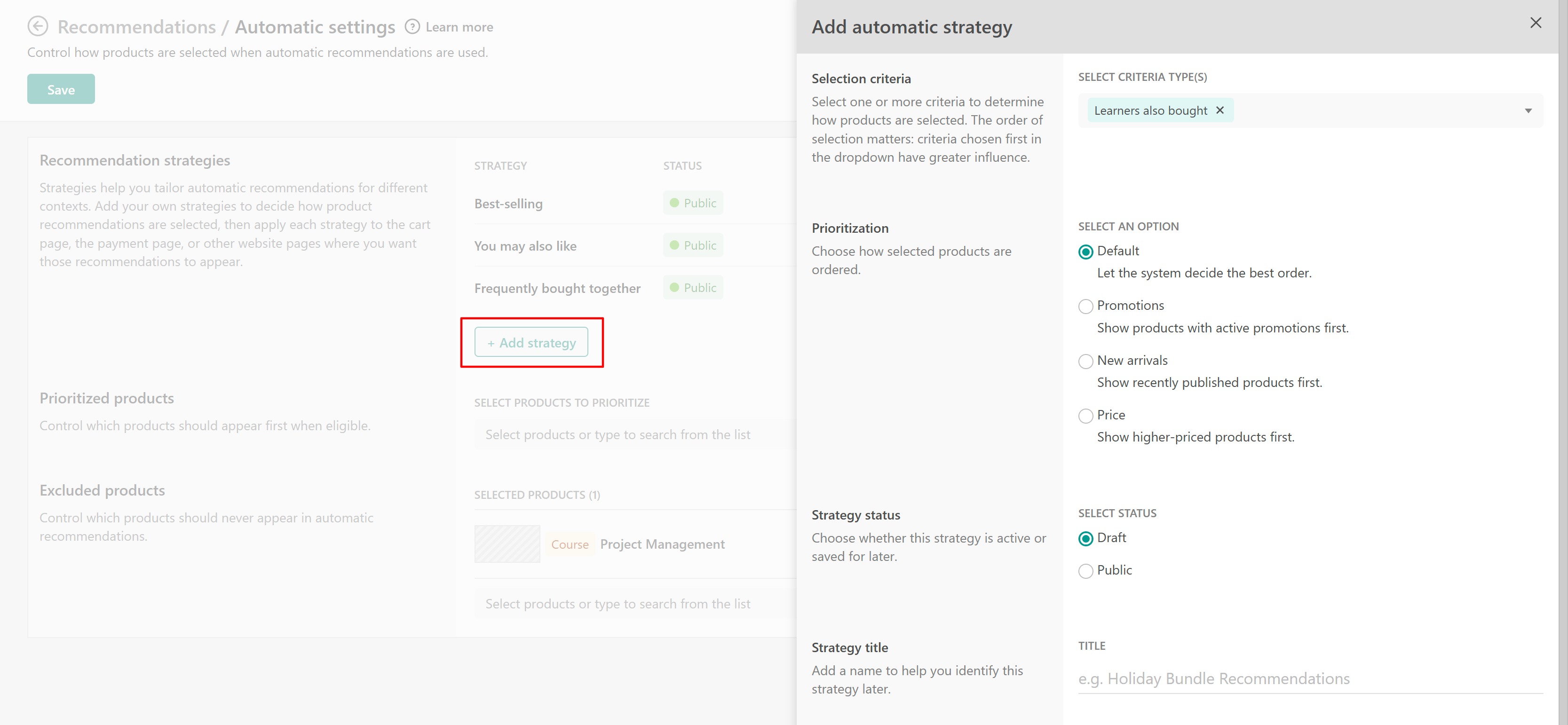 3. Choose a prioritization method. This defines how recommended products are ordered:
- Default
- Promotions
- New arrivals
- Price
4. Set the strategy status, draft/public.
5. Add a strategy title
6. Click Add
Your custom strategy is now ready to use.
Configure recommendation settings
Under the Settings tab, you can also configure the following:
- Prioritize products: Choose which products should appear first when eligible.
- Exclude products: Control which products should never appear in automatic recommendations.
Hybrid recommendations
Hybrid recommendations combine:
- Order bumps
- Automatic recommendation strategies
Order bumps are displayed first, and any remaining recommendation slots are automatically filled using your selected recommendation strategies.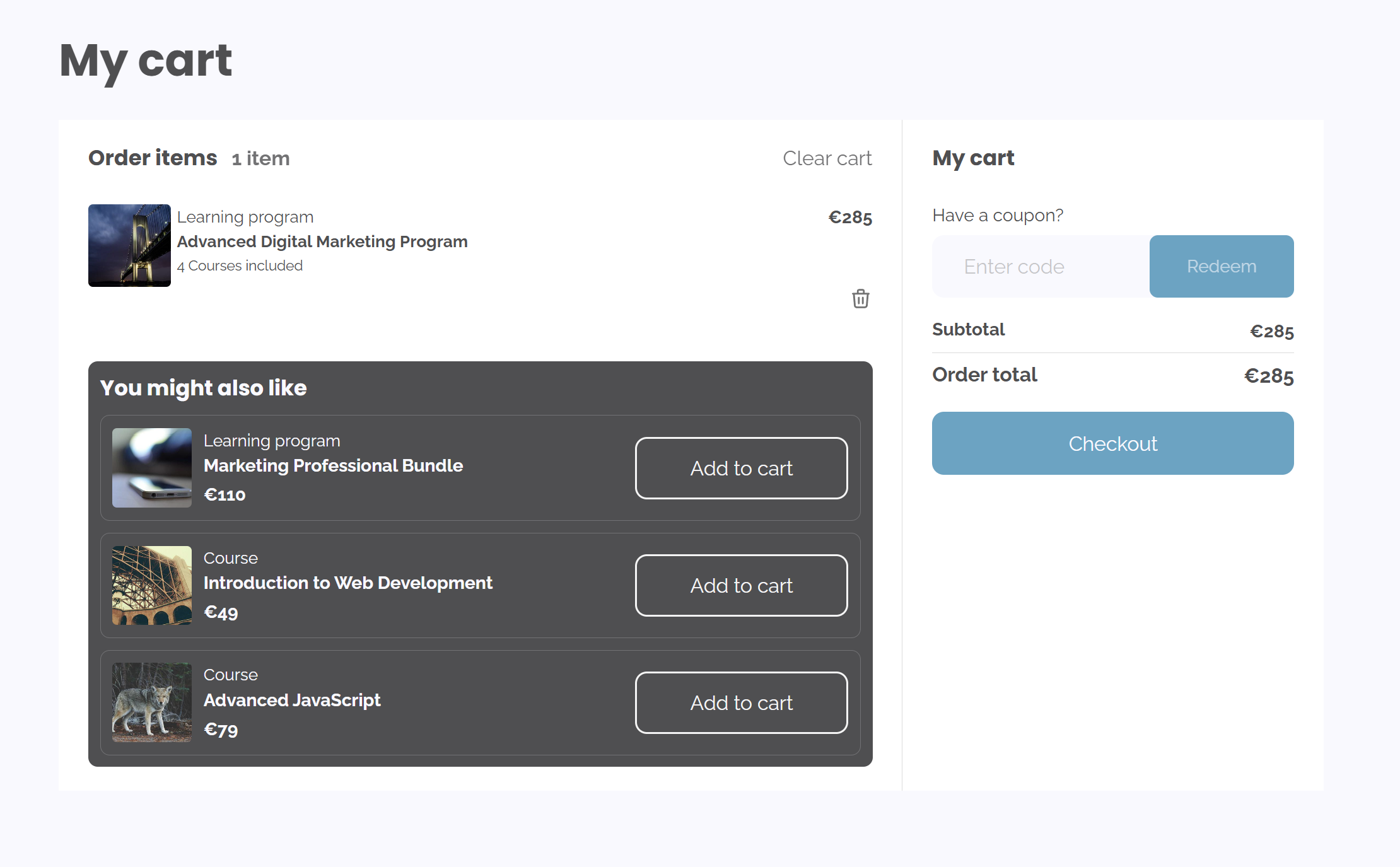
To enable Hybrid recommendations:
1. Go to E-commerce → Recommendations
2. Select the Hybrid option
3. Click Save
Once enabled, you can:
- Manage order bumps.
- Click edit settings to configure recommendation strategies, just like in the automatic option.
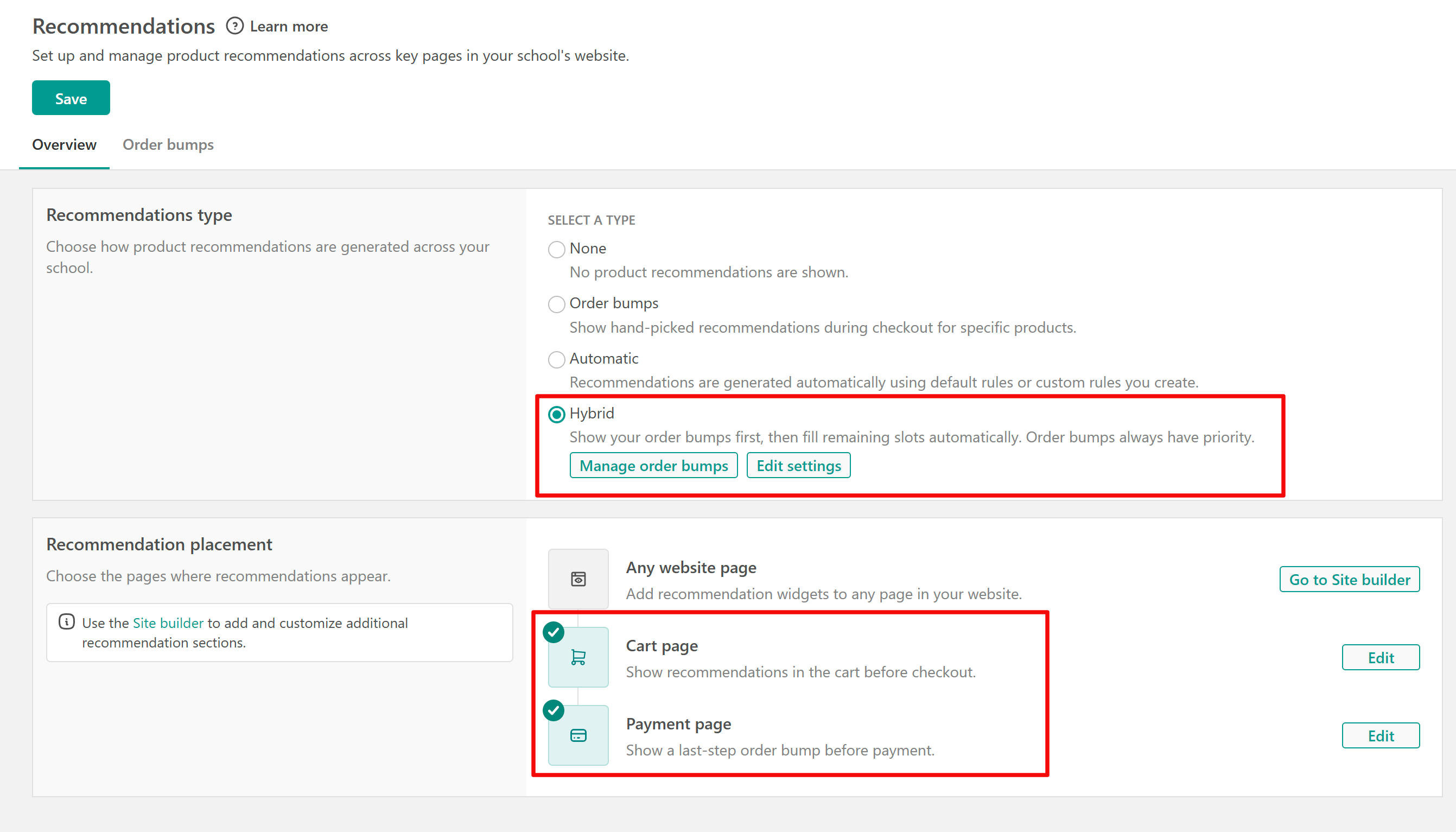
This setup gives you more control over strategic recommendations while still allowing the system to automatically suggest additional relevant products.
When hybrid recommendations are enabled, recommendations on the cart and payment page are enabled by default.Recommendation placement
Depending on the recommendation type you choose, you can control where recommendations appear throughout your school.
Order bumps
Order bumps appear only on the Payment section during checkout. Because of this, placement settings are disabled for order bumps.
Automatic recommendations
Automatic recommendations can appear on:
- Website pages
- Cart page
- Payment page
To configure recommendation placement:
1. Click Edit next to the page you want to customize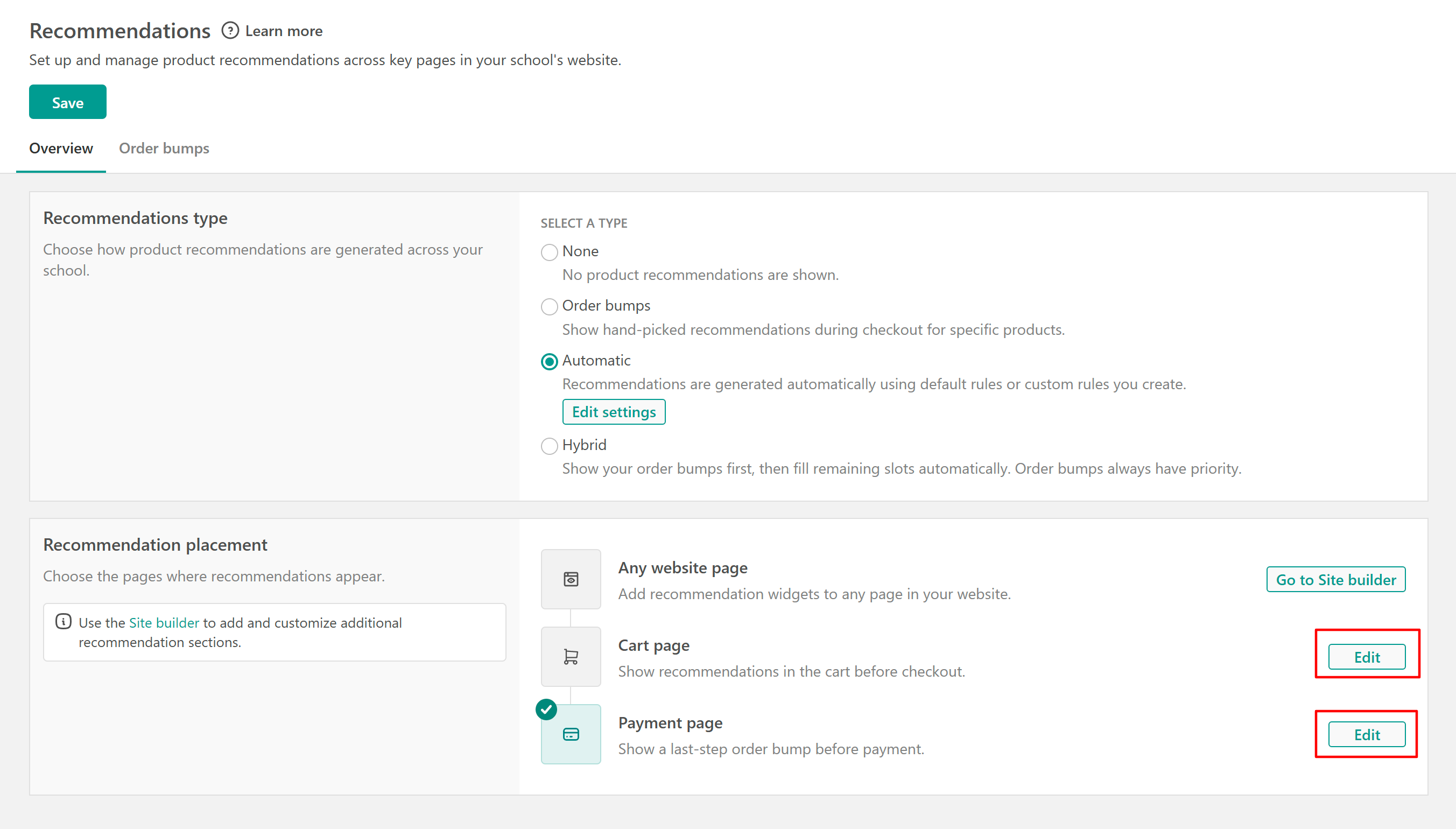
2. Choose where recommendations should appear.
Cart page placement options
- Below cart items section
- Below order summary section
Payment page placement options
- Below payment method section
- Below order summary section
You should also choose the recommendation strategy for the widget.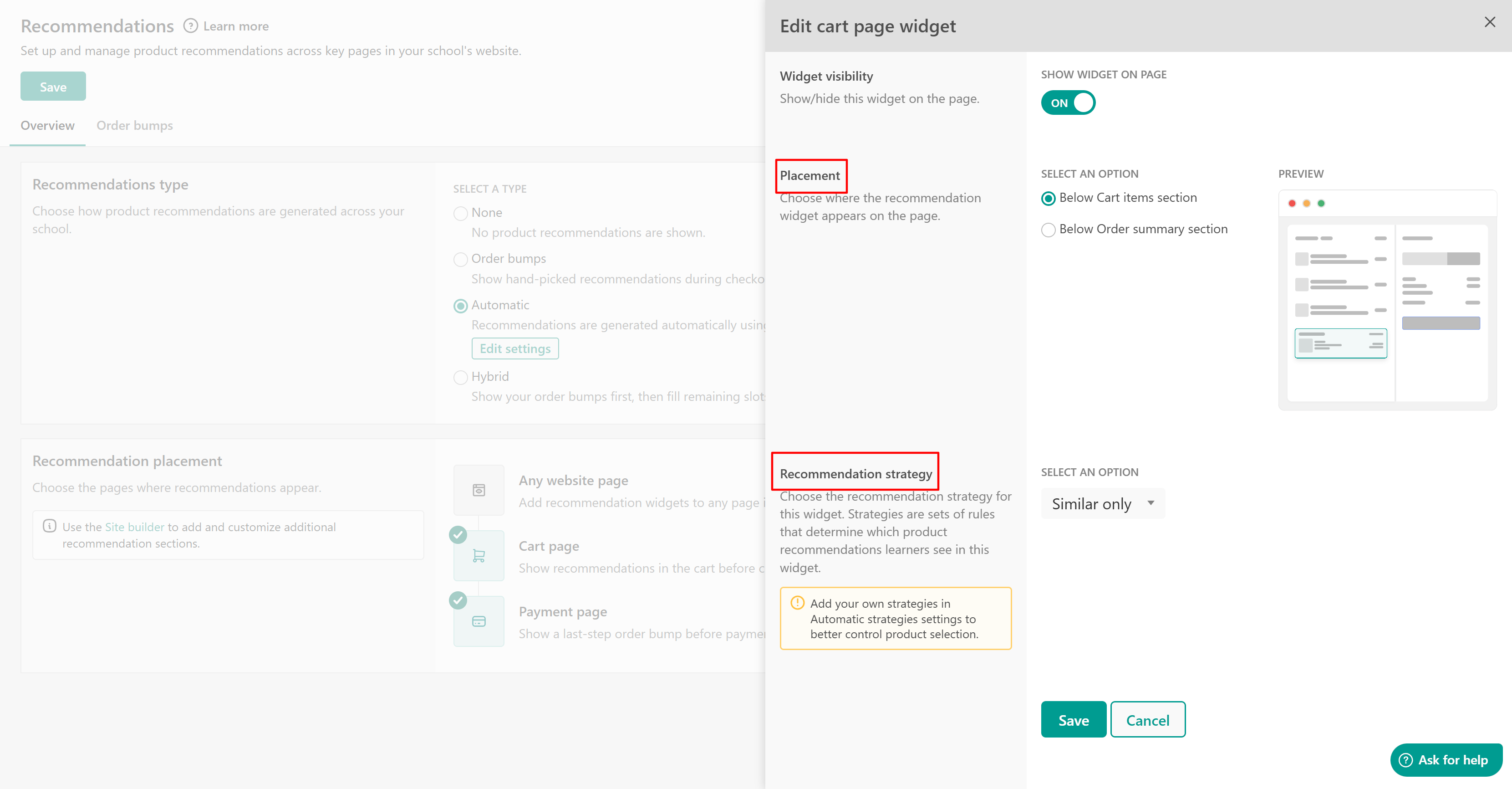
3. Click Save
Hybrid recommendations
With hybrid recommendations, recommendation widgets on the Cart and Payment pages are enabled by default and cannot be disabled. You can only change their placement on each page.
Cart page placement options
- Below cart items section
- Below order summary section
Payment page placement options
- Below payment method section
- Below order summary section
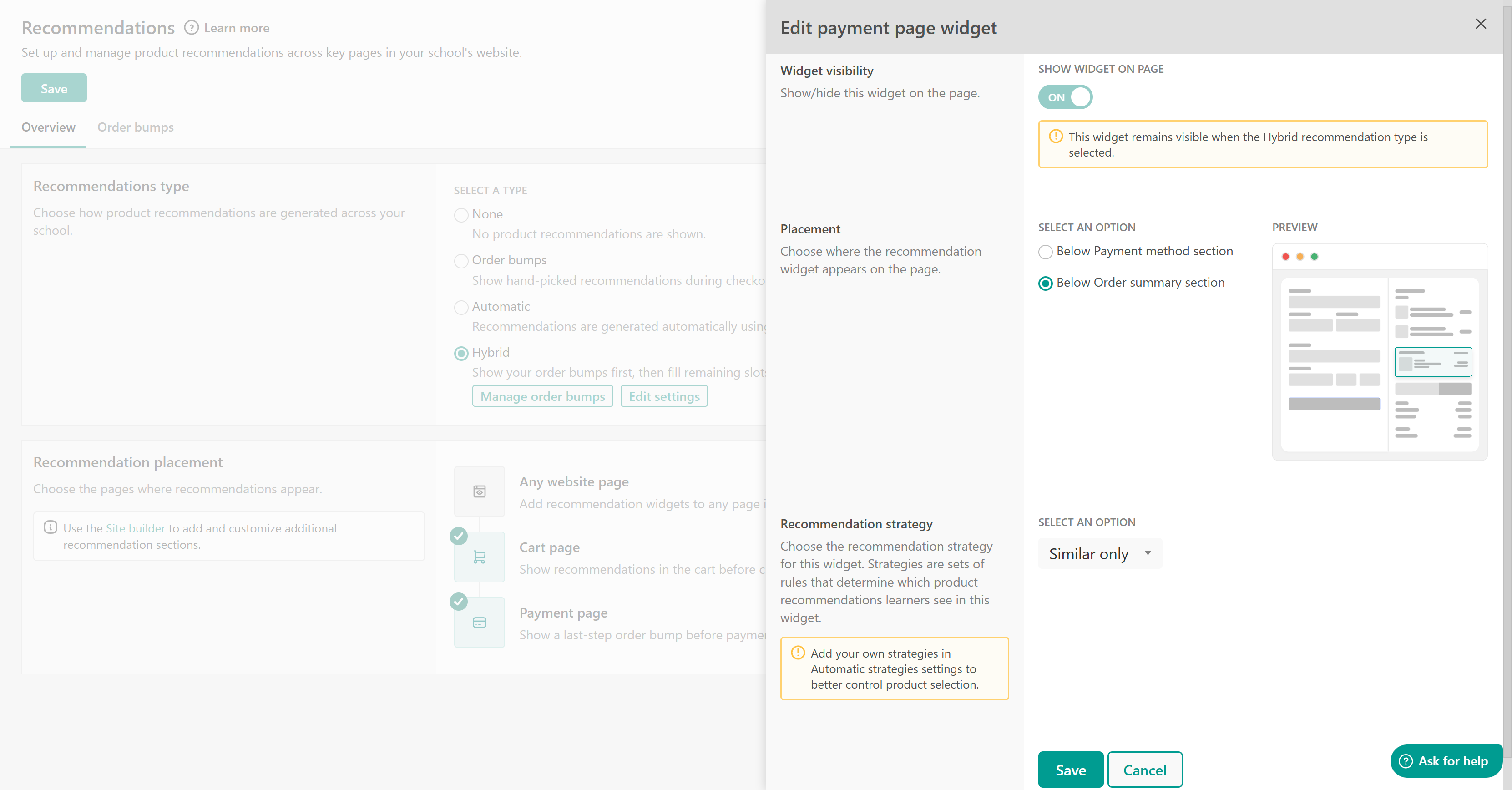
You can also select the recommendation strategy for each widget.
If you want to display recommendations on your website pages (available for automatic & hybrid options), click Go to site builder, open the page you want to edit, and add the Recommendations section. Find more information about this here.
Recommendations can be enabled and displayed on website pages, the cart page, or the payment page. However, payment plans are not displayed when recommendations are placed on the Payment page. For learners to see payment plans, place recommendations on website pages or the cart page instead.Notes
- Only one-time priced products are supported.
- Free, subscription products are not supported.
- The pricing option selector doesn't appear when product recommendations are enabled.
- Recommendations are not available on mobile devices.
- Maximum recommendations
- 3 products on Cart & Payment pages
- 8 products on the website page sections
- Expired Course Hub courses cannot be used in product recommendations. They cannot be selected as primary or recommended products in order bumps, prioritized or excluded in automatic recommendation settings, and are automatically excluded from recommendations shown to learners.
To improve recommendation performance:
- Use order bumps for high-intent checkout upsells
- Use automatic recommendations for large product catalogs
- Keep recommendations relevant to the learner’s interests and purchase journey
FAQs
- Will learners see products they already own?
No. Learners will not see products they already own in recommendation widgets.
- Can I control which products are recommended?
Yes. You can:
- Manually configure recommendations using order bumps
- Use automatic recommendation strategies
- Combine both approaches with hybrid recommendations
- Can I add discounts to recommended products?
Yes, but only for order bumps displayed on the Payment page.
- Where should I place recommendations?
- Payment page → Best for upsells and increasing order value
- Website pages → Best for product discovery and browsing