
You can save time and effort in creating your Assessments (Graded or non-graded), by utilizing the built-in AI (Artificial Intelligence) assistant! You can improve the quality of your writing, and get guidance throughout the authoring process in terms of research, editing or proofreading.
The built-in AI assistant helps you save time, improve content quality, and supports you throughout the authoring process.
In this article we will dive into the endless capabilities of utilizing AI while creating your course exams and self-assessments.
Create assessment questions with AI
You can use AI to create a new self- assessment or exam from scratch.
Open an activity, exam/self assessment, and you will see the available options,
- Build manually
- Import questions
- Or select Create with AI
Lets choose the AI option.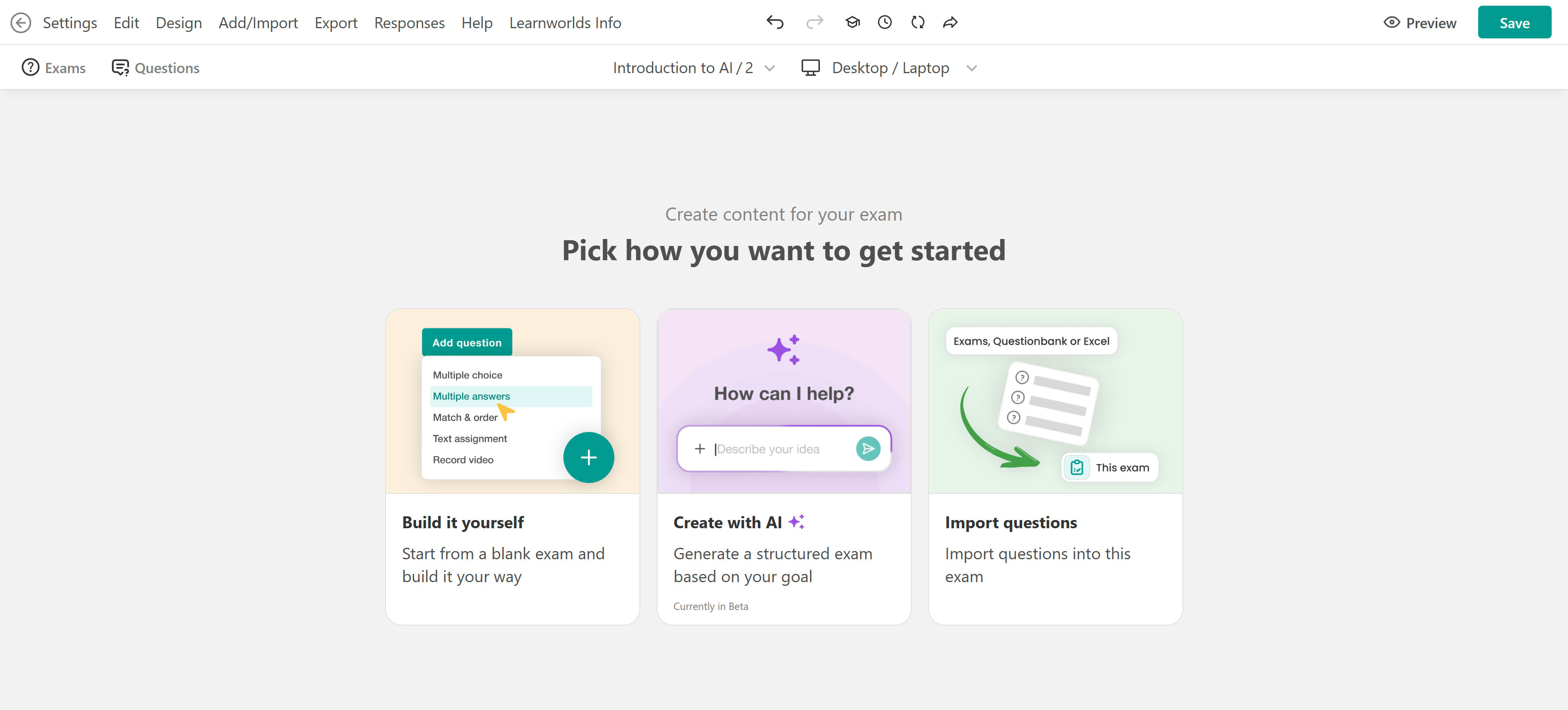
A chat box will appear where you can describe your assessment. While writing your prompt, you can include:
- Topic of the exam or assessment
- Question types (e.g., multiple choice, open-ended)
- Difficulty level
- Learning goal
- Feedback style
- Tone of voice
- Attach related files
- Paste text
- Add references (e.g., course content)
Once ready press enter to get your result. The generated questions will be automatically added to your assessment.Make sure to review the content and adjust it to fit your needs.
You can also use Dictation to enter your prompt. Select the microphone icon in the AI prompt area and speak instead of typing.
Use AI after questions are added
Once your questions are created, or if you’re editing an existing assessment, you can continue using AI to expand or refine your content.
Click the AI button inside the assessment editor.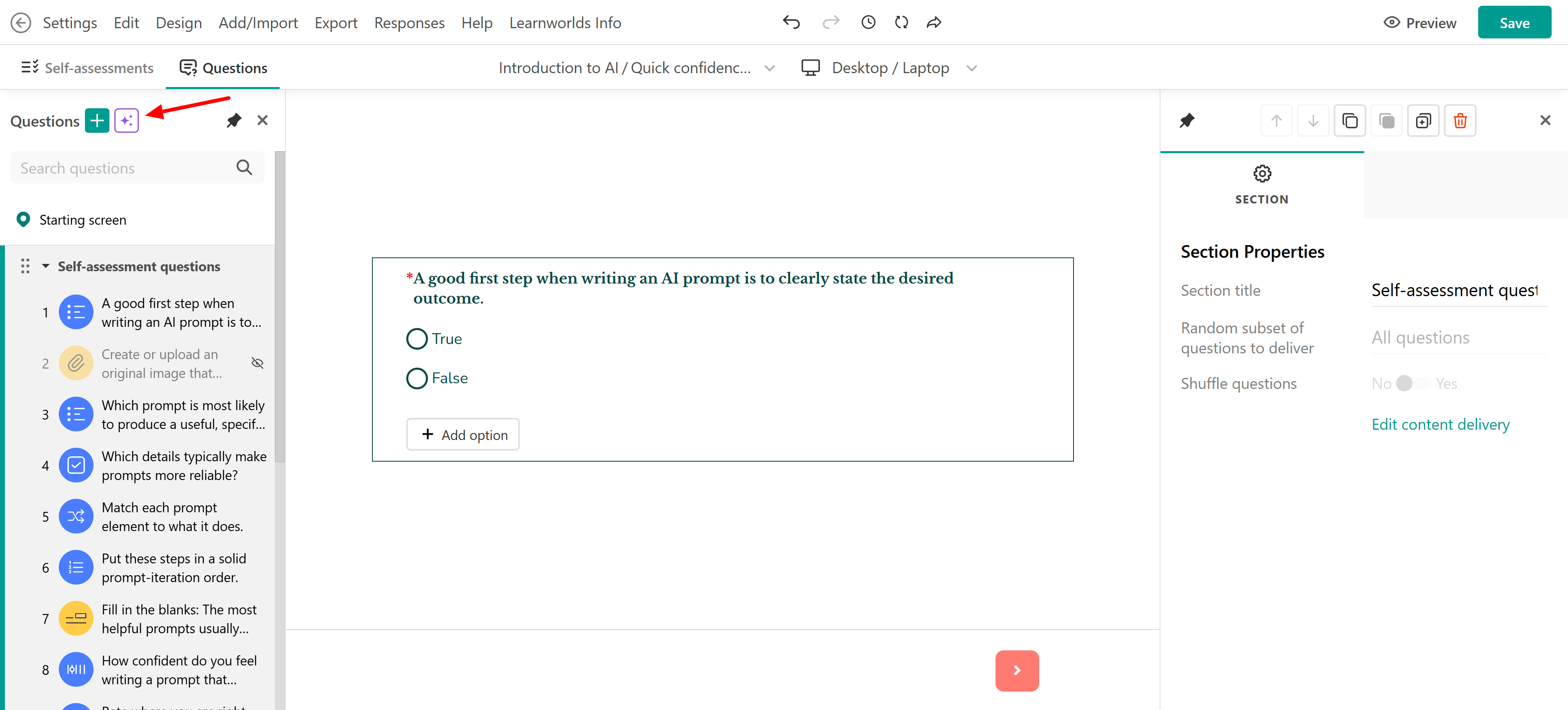
Enter a prompt describing what you want to add and AI will generate additional questions.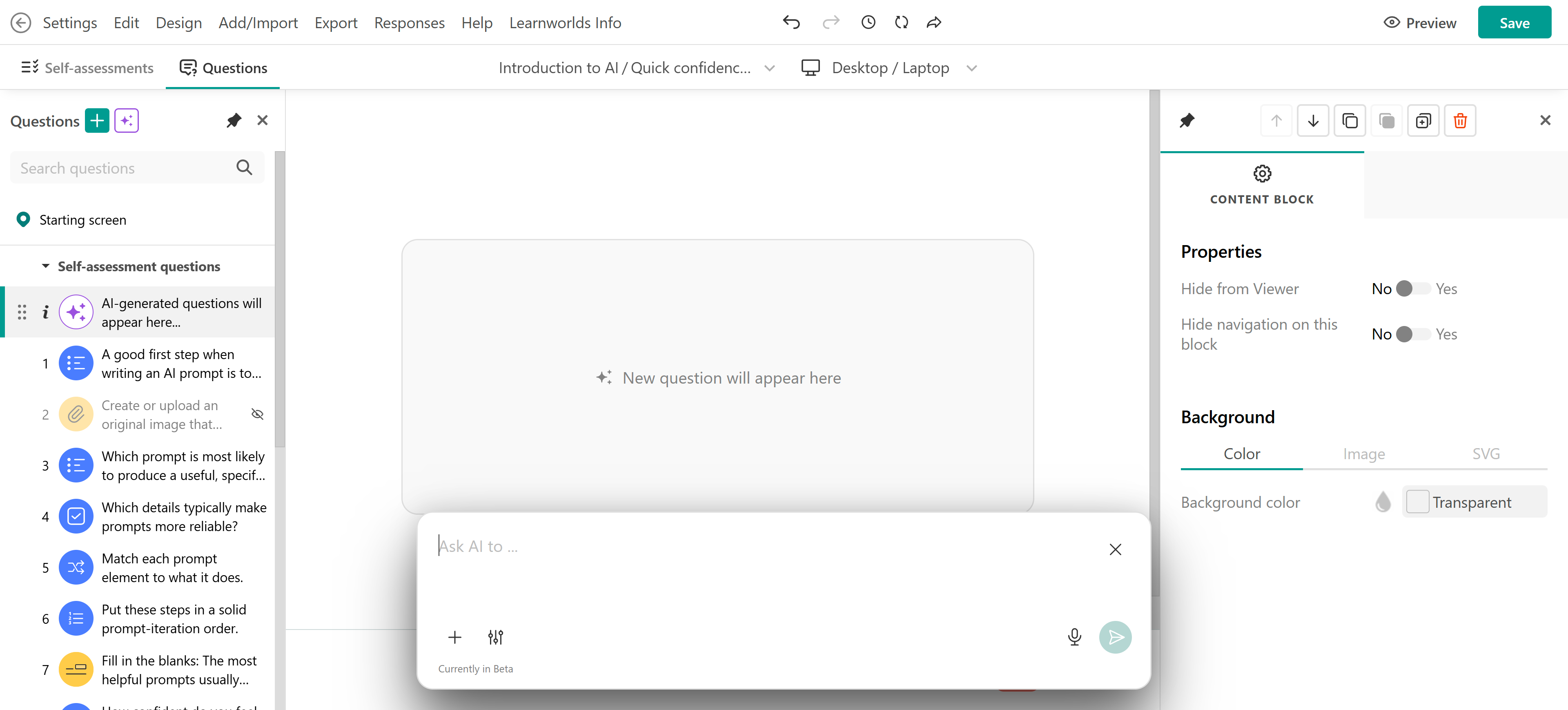
 When writing your prompts, you can also include instructions about question settings. For example, you can ask AI to enable or disable feedback, hide questions from users, or adjust the structure and format of your assessment.
Use AI on specific questions
You can apply AI to individual questions for more precise control.
- Locate a question (created manually or with AI)
- Click Edit with AI
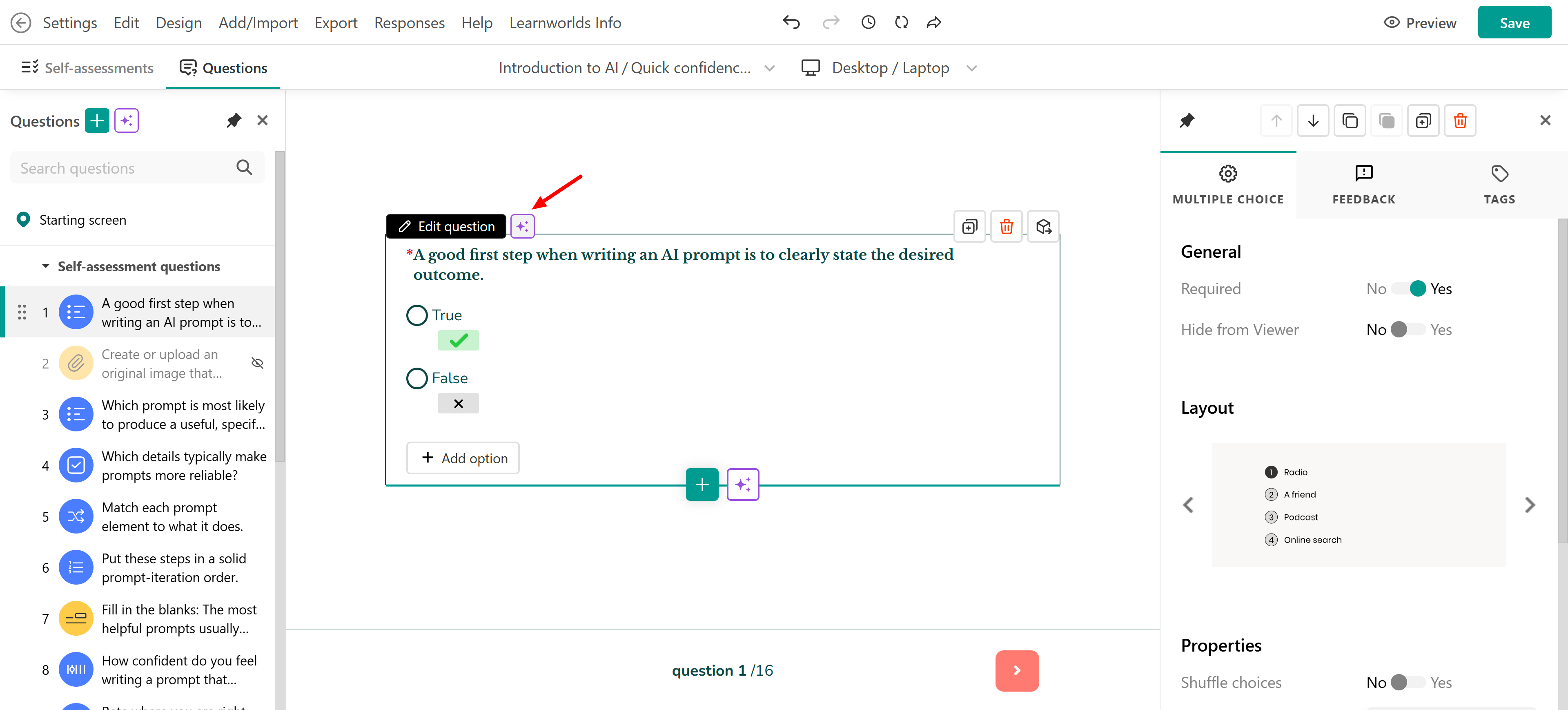
- Enter your request in the chat box
For example, you can:
- Change the question type
- Adjust difficulty
- Modify wording
- Update settings (e.g., disable feedback)
AI will ask for clarification or confirmation before applying changes. Once confirmed, the updates will be applied automatically.
When creating graded or non-graded assessments using AI:- The feedback option is automatically enabled
- You can manually edit or disable it if needed
Enabling feedback ensures that learners receive instant feedback after submitting their answers in the course player.
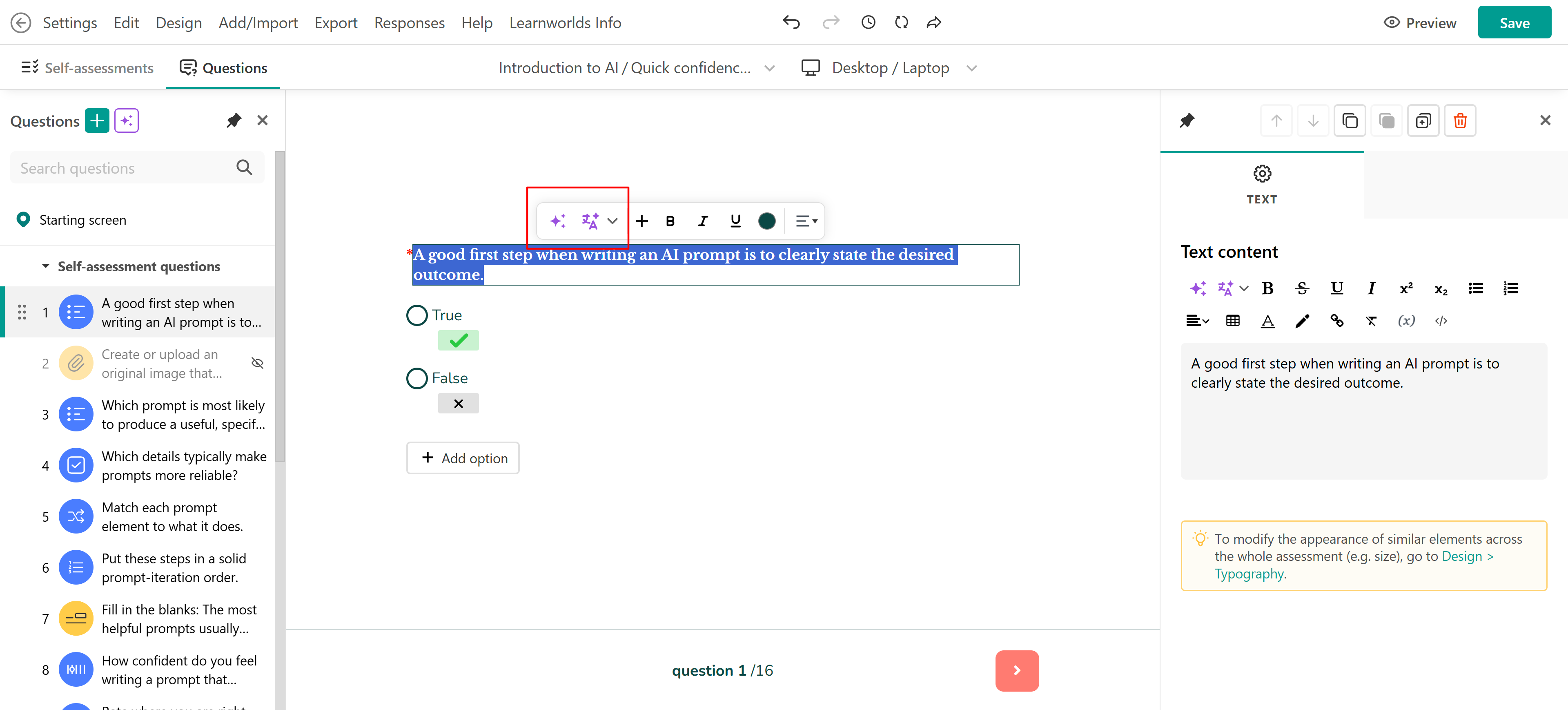
Edit and improve text
After adding questions and content, you can refine text using AI. You can:
- Polish text
- Rewrite text
- Make it bold
- Make it catchy
- Make it powerful
- Make it compelling
- Shorten
- Expand
- Summarize
- Analyze for style, voice, tone,
- Change tone
- Translate
Responsible use of AI
To make the most of this advanced technology, it's important to keep ethical considerations and limitations in mind.
Navigate Ethical Considerations: When using AI to assist with any topic, bear in mind the ethical aspects involved. Always verify suggestions before putting them into practice.
Double-check Accuracy and Reliability: Ensure the information provided is accurate and relevant to your topic, by cross-referencing with trustworthy sources.
Put Privacy and Security First: Be conscious of the data you share while interacting with AI.
Be Aware of AI-based Assistance Limitations: Recognize that AI might not have all the answers for every topic, so use it just as a supportive companion.
The Perfect Balance: Foster a productive partnership between AI and your own knowledge when exploring any subject. Let AI spark new ideas and possibilities while trusting your creativity and intuition for your final decisions.