
The AI-Guided Dialogue question type lets you build more engaging assessments by introducing AI-powered follow-ups.
After learners submit their response, the system automatically generates follow-up prompts to deepen reflection, expand understanding, and guide higher-order thinking.
What is an AI-guided dialogue?
AI-Guided Dialogue is an open-ended question format enhanced by AI that creates a mini-conversation. Once the learner responds to the question you have added, AI follows up with personalized questions to prompt elaboration. This allows:
- Learners are to reflect and expand their answers
- Instructors to gain deeper insights into learner thinking
- More diagnostic and developmental learning moments
Add an AI-Guided dialogue question
1. Create a new graded or non-graded (self-assessment) exam, or edit an existing one.
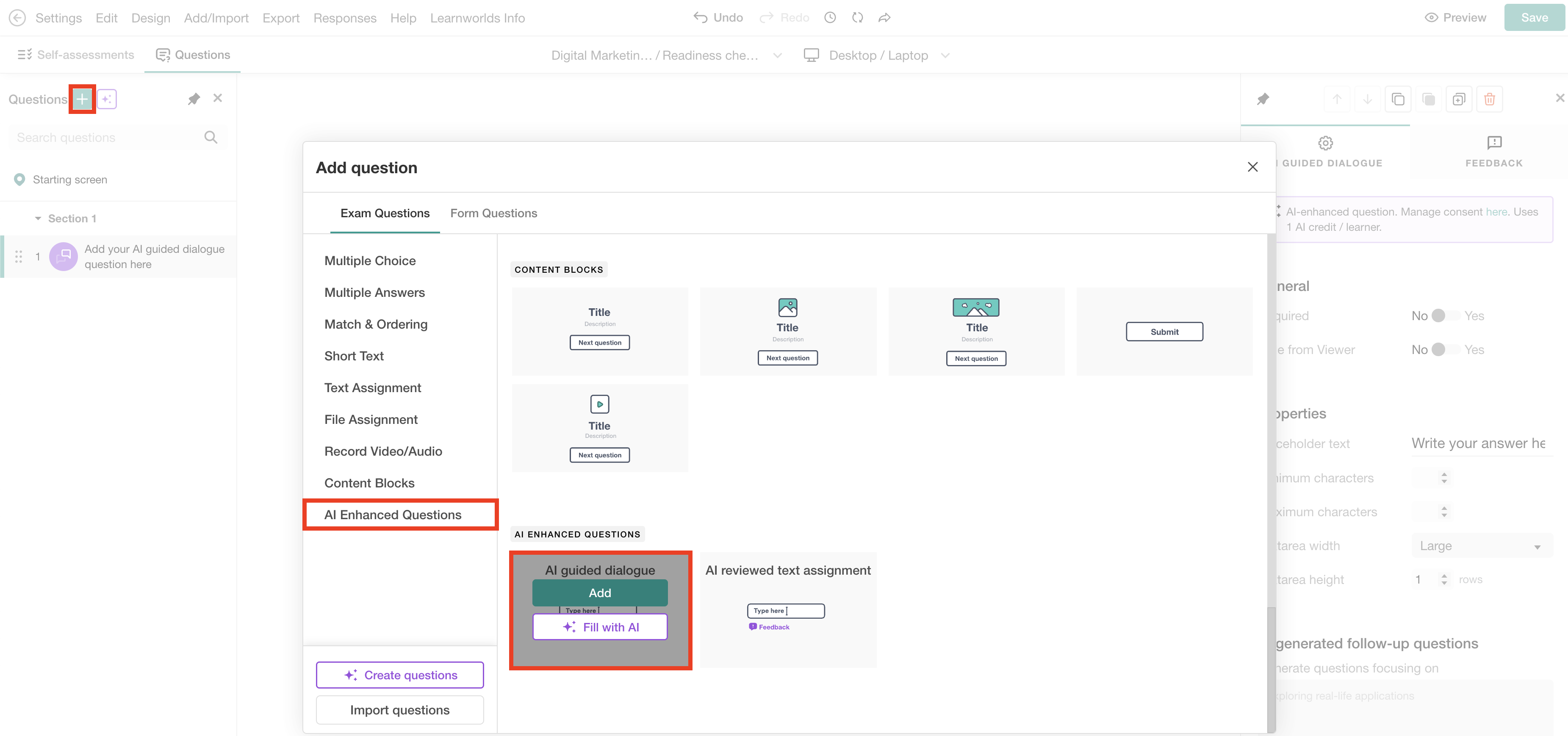
2. Click the “+” Add Question button.
3. Click on AI Enhanced Questions.
4. Select AI Guided Dialogue.
5. Select to Add a question or Fill with AI.
Configure your AI dialogue question
Add: Start by entering your open-ended question (e.g., “How can you practice photography using your phone camera?”). Then, set the display and formatting preferences for the answer field.
Fill with AI: Describe in the dialogue box the questions you want to generate.
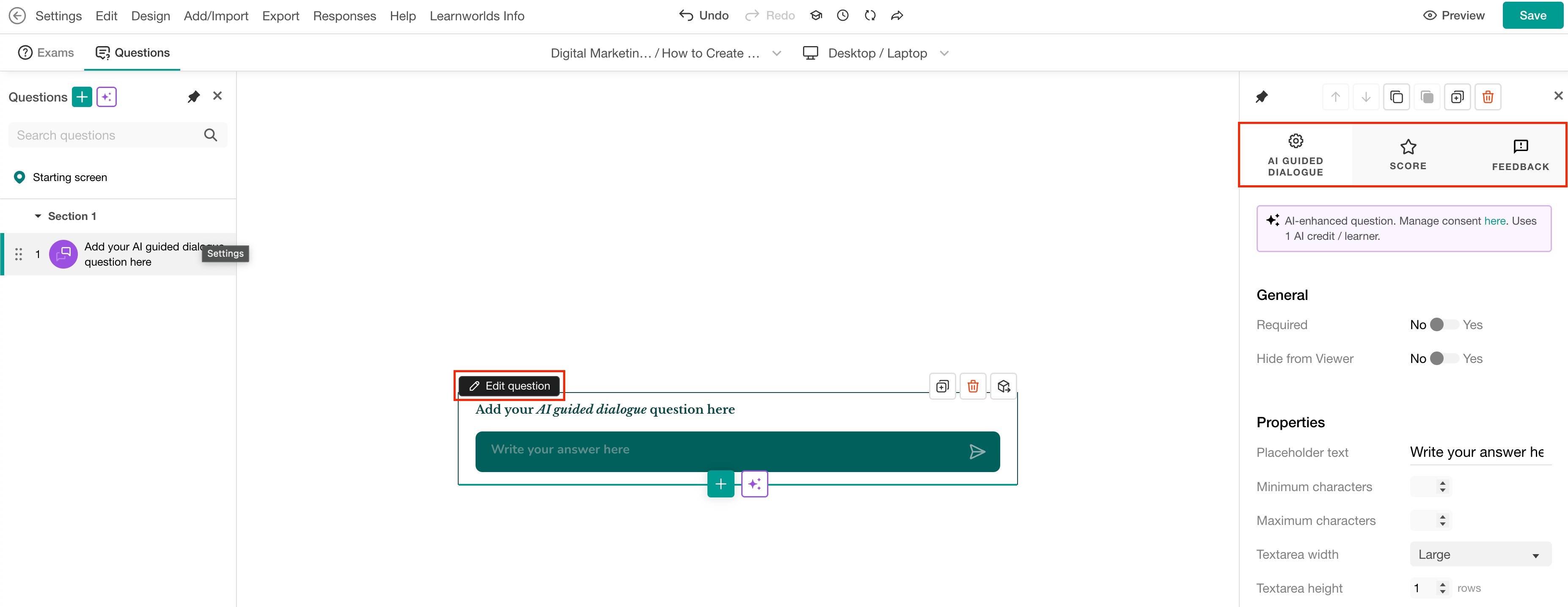
Once the question is added, click on Edit question, where you will see three tabs: AI Guided Dialogue, Score, and Feedback.
 For non-graded exams (self-assessments), only the AI Guided Dialogue and Feedback tabs appear.
AI guidance dialogue
Choose whether the question is required
Optionally hide the question from learners
Configure the question properties
Guide the AI on how to shape its follow-up prompts by suggesting directions for the follow-up questions' focus, such as examples, personal experiences, reasons, and consequences, along with the number of questions, tone of voice, and whether learners can edit their answers.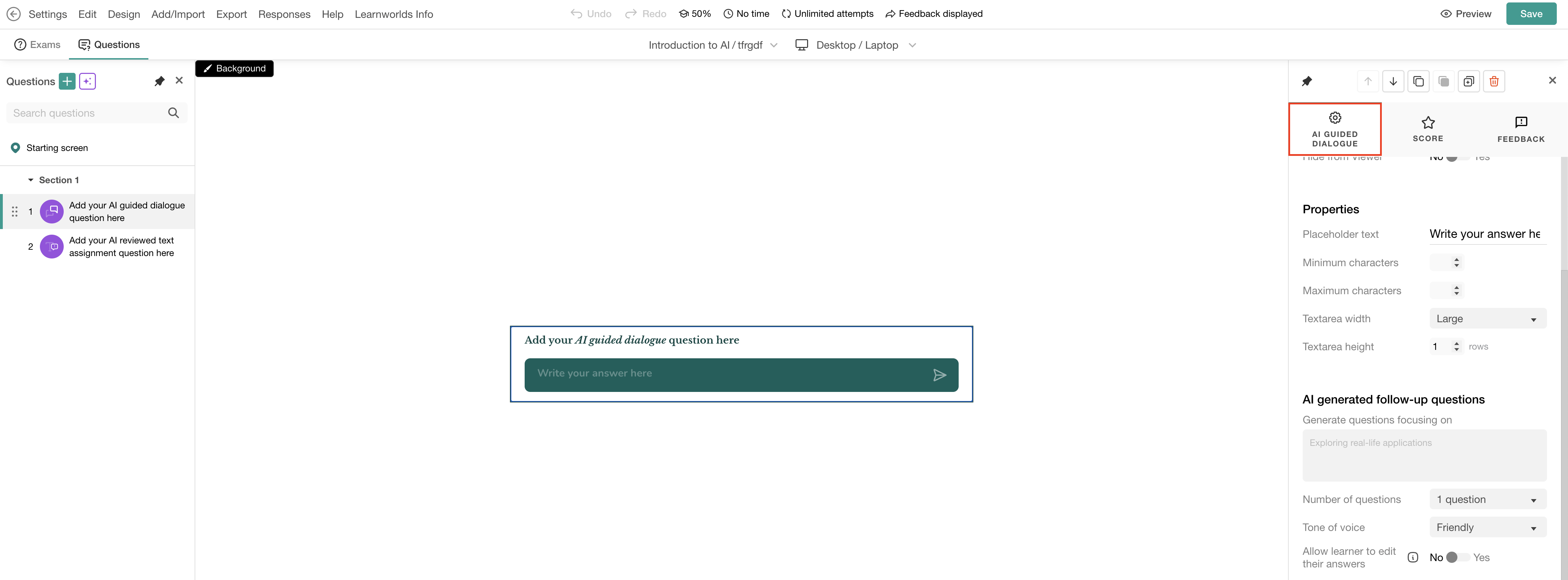
Score
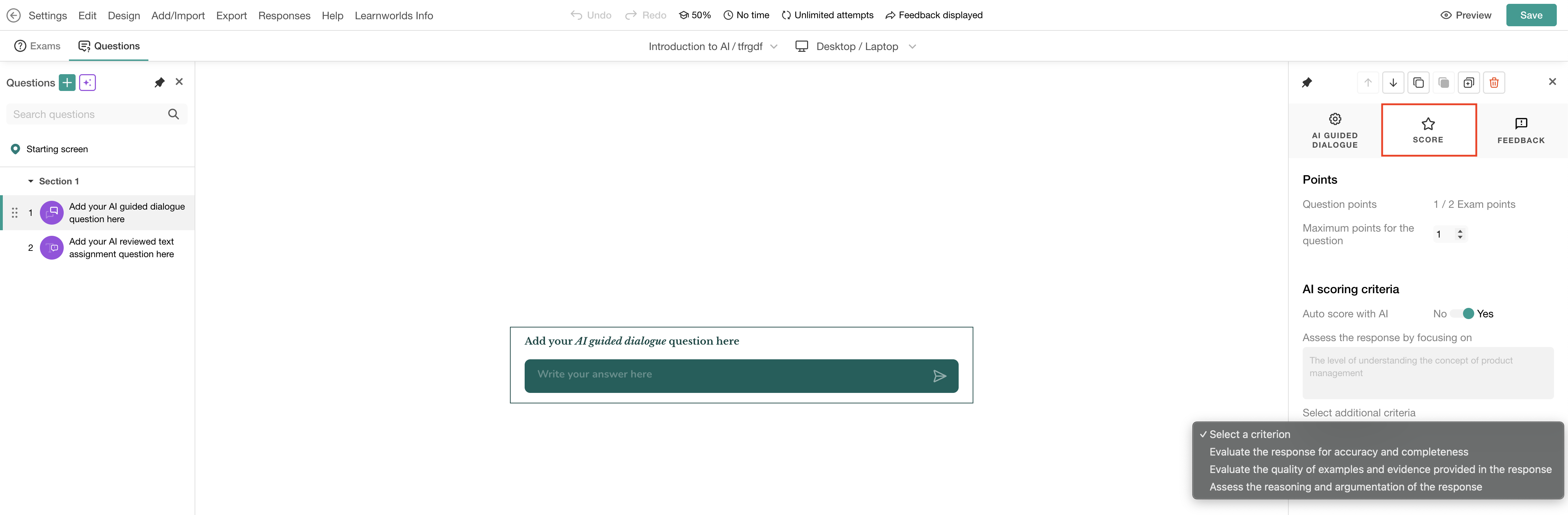
Assign points to the question, and optionally enable AI scoring for AI-Guided Dialogue questions by turning on Auto Score with AI. Then, select your scoring criteria, such as:
- Accuracy and completeness
- Examples and evidence
- Reasoning and argumentation
Feedback
Activate AI Automatic Feedback, to personalize how the system responds to learners by configuring several options, like the focus of the feedback criteria, type, length, strictness, and tone of voice. These settings allow you to align the feedback with the style of your course and the maturity of your audience.
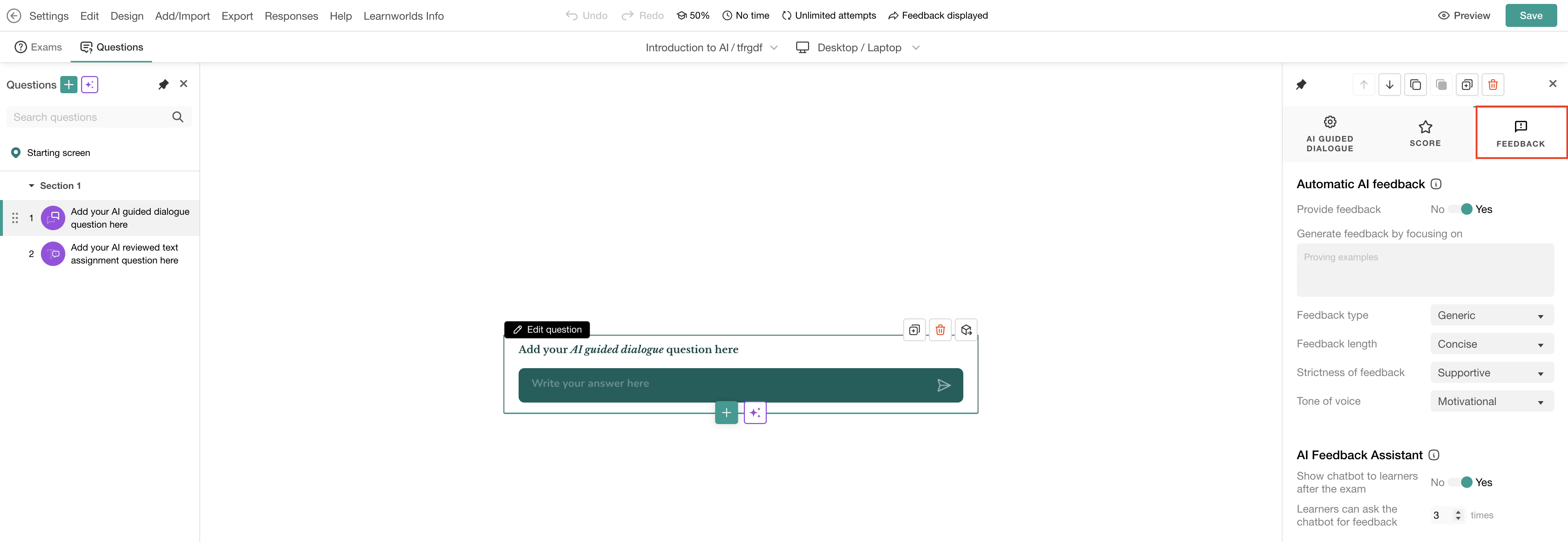
If you want learners to ask follow-up questions about their feedback, activate the AI Feedback Assistant, and set the number of times they can interact with it. To enable the feature, navigate to Settings → Feedback → AI Feedback Assistant.
Once you configure everything, click Save.
Best practices
- Start with a thought-provoking but clear initial question.
- Use a specific focus prompt to steer AI follow-ups.
- Enable the AI Feedback Assistant for deeper learner engagement.
- Test the AI-reviewed question thoroughly in Preview mode to ensure the configuration meets your expectations.
For more info on managing AI credit usage, please refer to this article. To ensure you're fully informed about your GDPR obligations and how Learner Consent is managed, make sure to read our article on this topic.