
Site Flavors allow you to create and manage different designs for your LearnWorlds school's website. Whether you're setting up your first website, redesigning your existing one, or creating additional versions, Site Flavors help you customize your school's appearance and content.
You can create a Site Flavor using a template or AI, customize it in Site Builder, and decide which version visitors see.
In this guide, you'll learn how to create, edit, and manage Site Flavors and activate the design you want to use for your school.
 During the trial period, you can create up to three Site Flavors. On the Starter and Pro Trainer plans, you can have two Site Flavors, while on the Learning Center plan or higher, you can have unlimited Site Flavors.
What is a site flavor
A Site Flavor is a customizable version of your school's website design, including its pages, layouts, colors, fonts, and content.
When creating your LearnWorlds trial account, you can choose from 50+ professionally designed, mobile-responsive templates tailored to different industries (e.g., Coaching, Fitness, NGOs, Education).
All templates are fully customizable. Adjust layouts, colors, fonts, and content using the Theme Explorer and Site Builder.
- You can have multiple site designs at the same time on the Site Flavors page, but only one can be activated, the live version that visitors see, while you continue working on the others in draft mode.
- Each Site Flavor you create has its own design and customizations, and changes made to one do not affect the others.
Create a site flavor
LearnWorlds offers two ways to create a Site Flavor: using AI or starting from a template. To get started:
1. Navigate to Website → Design 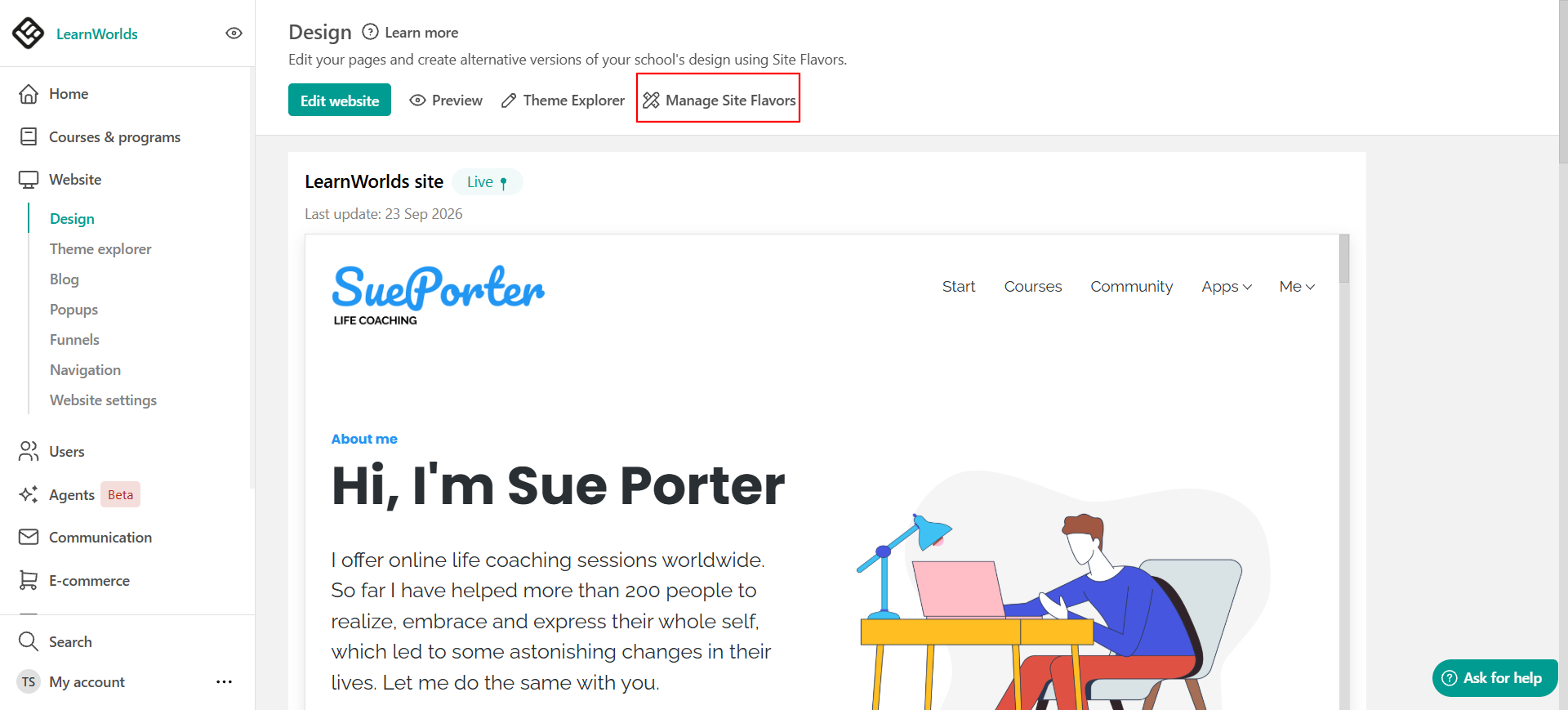
2. Click Manage Site Flavors to open the Site Flavors page.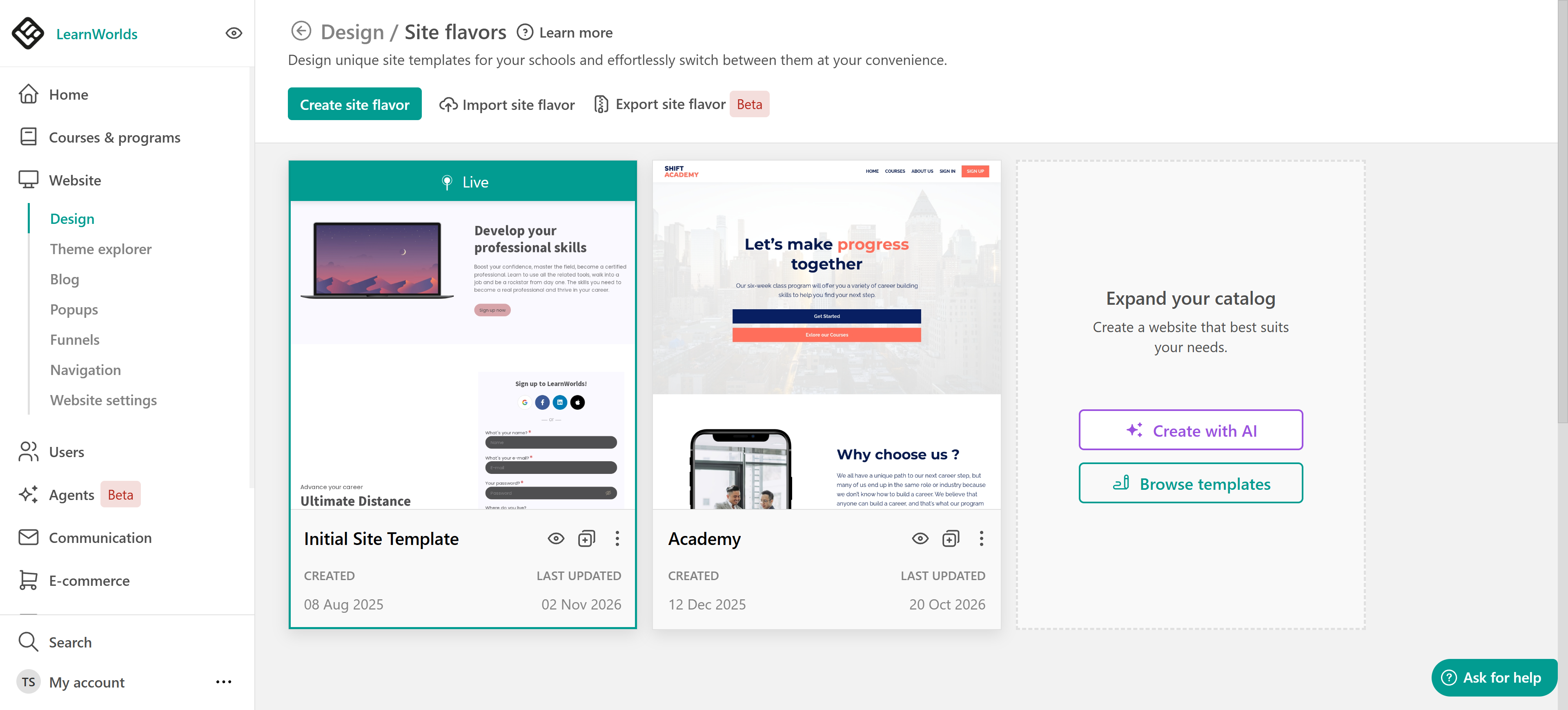
3. Select how you want to create your new Site Flavor, manually or with the help of AI.
Create a site flavor with AI
Select Create with AI to generate a website design based on your instructions.
Describe the website you want to create, including its purpose, target audience, and preferred style. You can also provide an existing website URL as a reference.
AI guides you through selecting your logo, color palette, typography, and website layout, then generates a Site Flavor with content adapted to your school's purpose.
For detailed instructions, check this guide.
Create a site flavor using a template
To create a Site Flavor manually:
1. Select Browse templates or create site flavor to explore the available website designs.
2. Choose the template you want to use.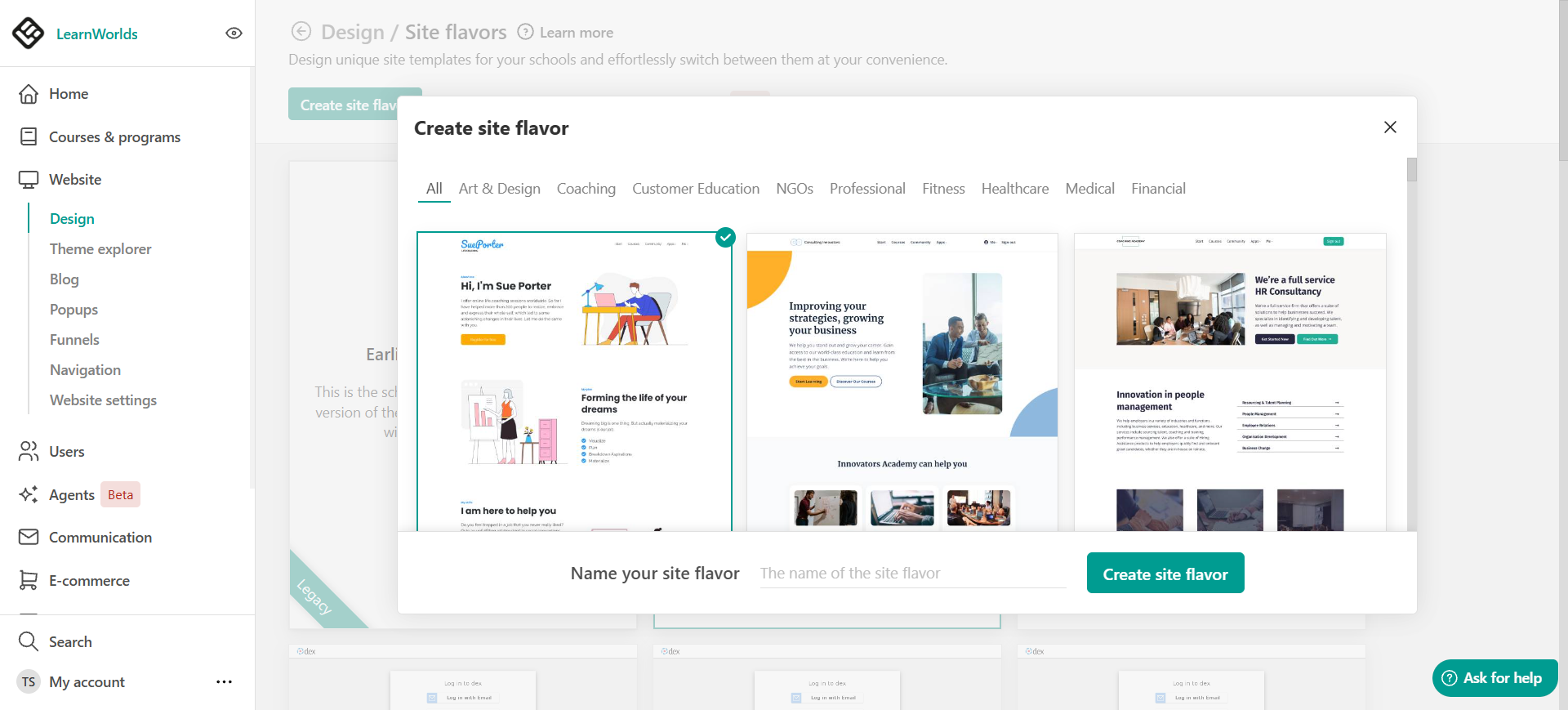
3. Enter a name for your Site Flavor.
4. Click Create site flavor.
If you already have a Site Flavor, you can clone it to create an identical version, including all pages and product descriptions. Each Site Flavor remains independent - Site Flavors are not synced, so any changes made to one will not affect the others.
Edit a site flavor
As soon as you create your Site Flavor, click Edit in Site Builder to start customizing. Use the Theme Explorer to adjust the design and modify your pages.
Use the More Options icon for further actions or shortcuts. You can preview, clone, rename, export, or delete the Site Flavor. 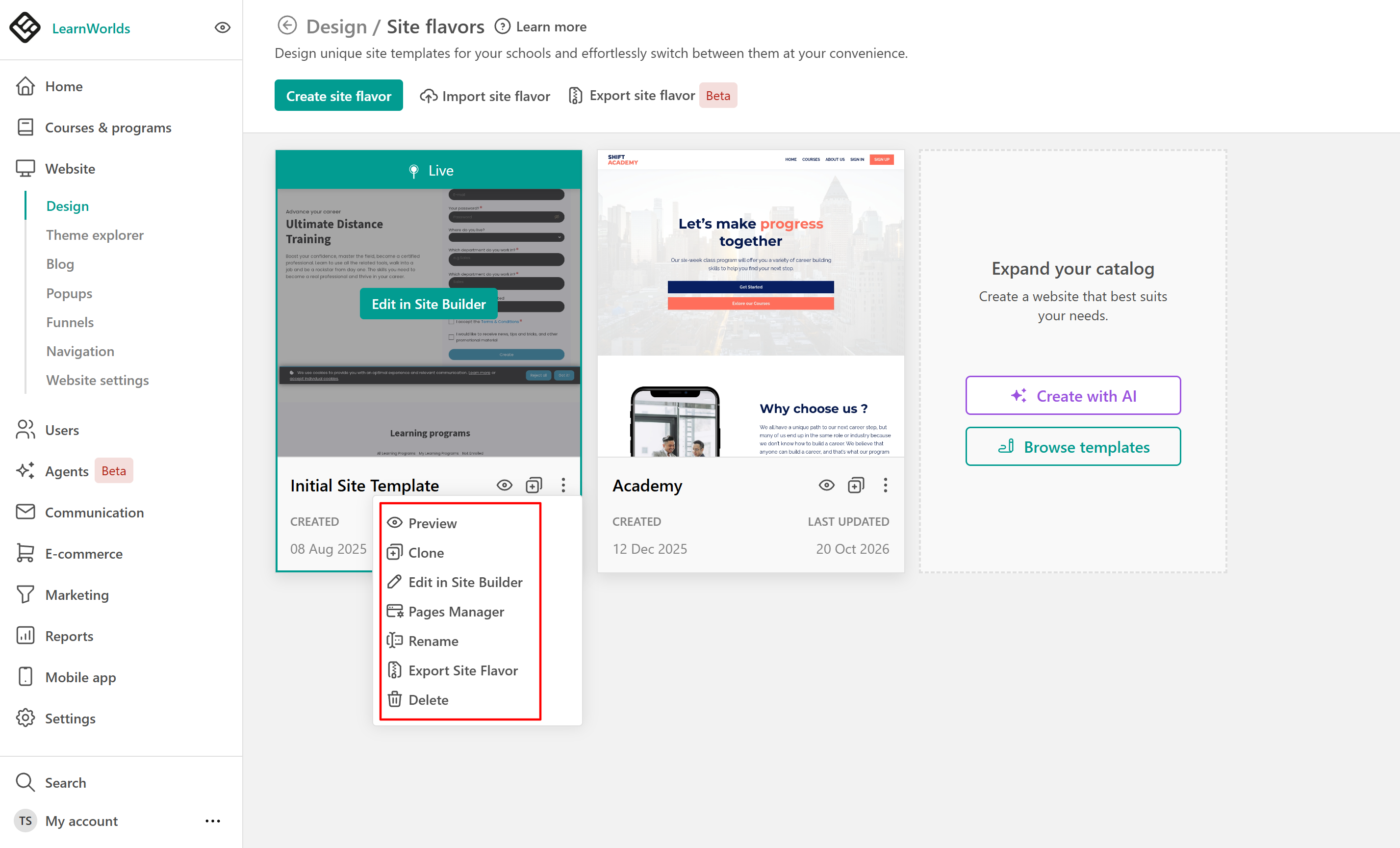
Activate a site flavor
If you only have one Site Flavor, it is activated by default as your live site, and it's visible to your audience. If you create a new Site Flavor, once it's ready, you can activate it as your live site. 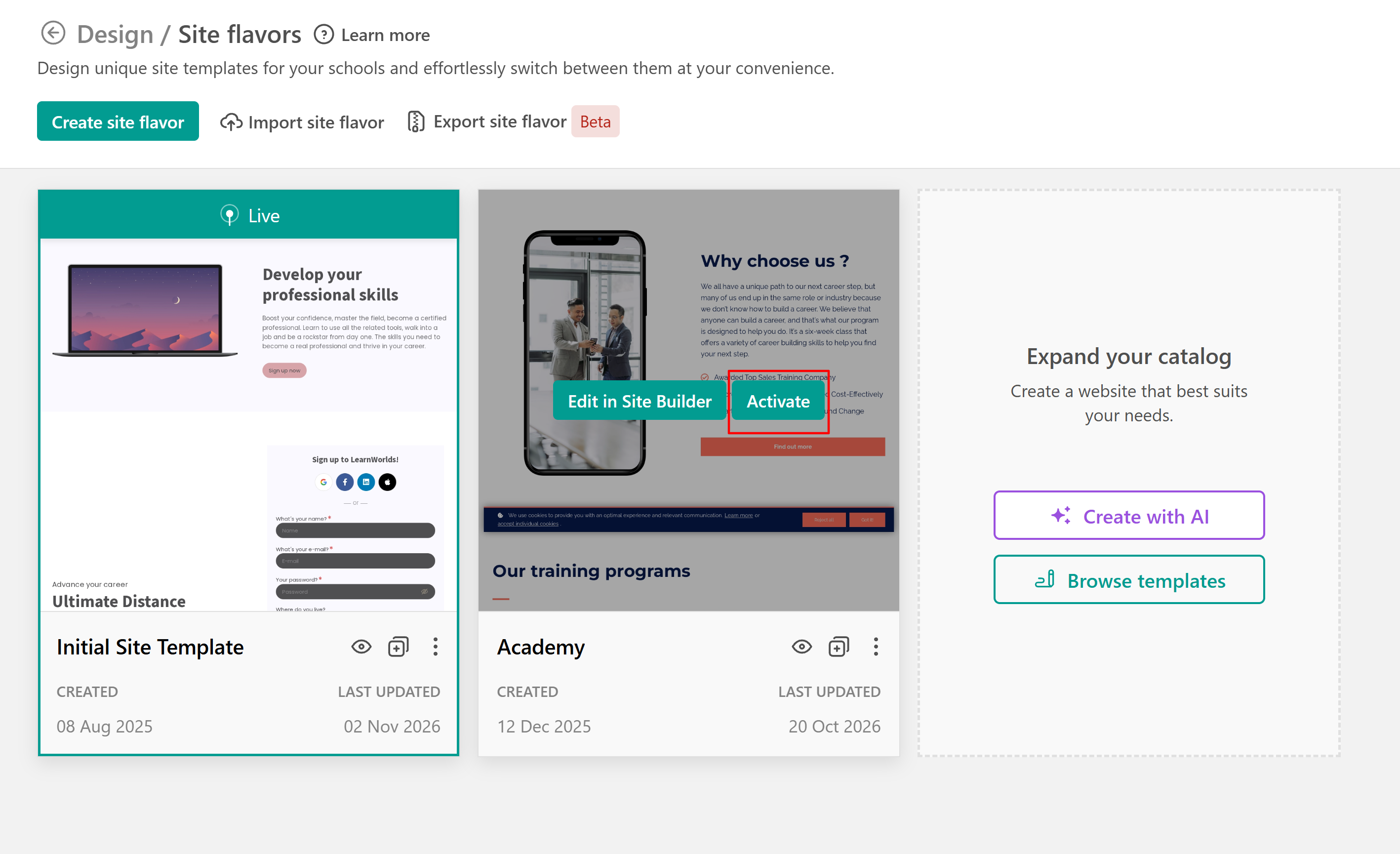
If you’ve just created your school and want to keep it hidden until launch, check how here.