
Cart-based discounts allow you to apply a discount to the total order value at checkout. This helps you increase average order value, run promotions, and offer volume-based pricing to your customers.
With cart-based discounts, you can automatically reward larger purchases or create targeted campaigns using flexible discount rules.
What are cart-based discounts?
Cart-based discounts are offers applied to the entire cart, rather than individual products. With cart-based discounts, you can:
- Apply a percentage (%) or fixed amount discount
- Set conditions based on:
- Cart value
- Number of items (including licenses and gifts)
- Choose how the discount is applied:
- Automatically at checkout
- Via coupon code
Use cases
Cart-based discounts can help you:
- Increase average order value: Offer discounts for larger purchases (e.g., 10% off orders over $200).
- Encourage multi-product purchases: Reward learners who buy multiple courses (e.g., 15% off when buying 3+ courses).
- Run tiered promotional campaigns: Increase rewards based on cart value thresholds (e.g., 10% off over $100, 15% off over $200).
- Reward high-value customers: Create tiered discounts for larger orders.
- Offer volume discounts for licenses: Provide better pricing when purchasing multiple licenses to encourage larger commitments.
Create a cart-based discount
To create a cart-based discount:
1. Navigate to E-commerce → Offers
2. Click on Create an offer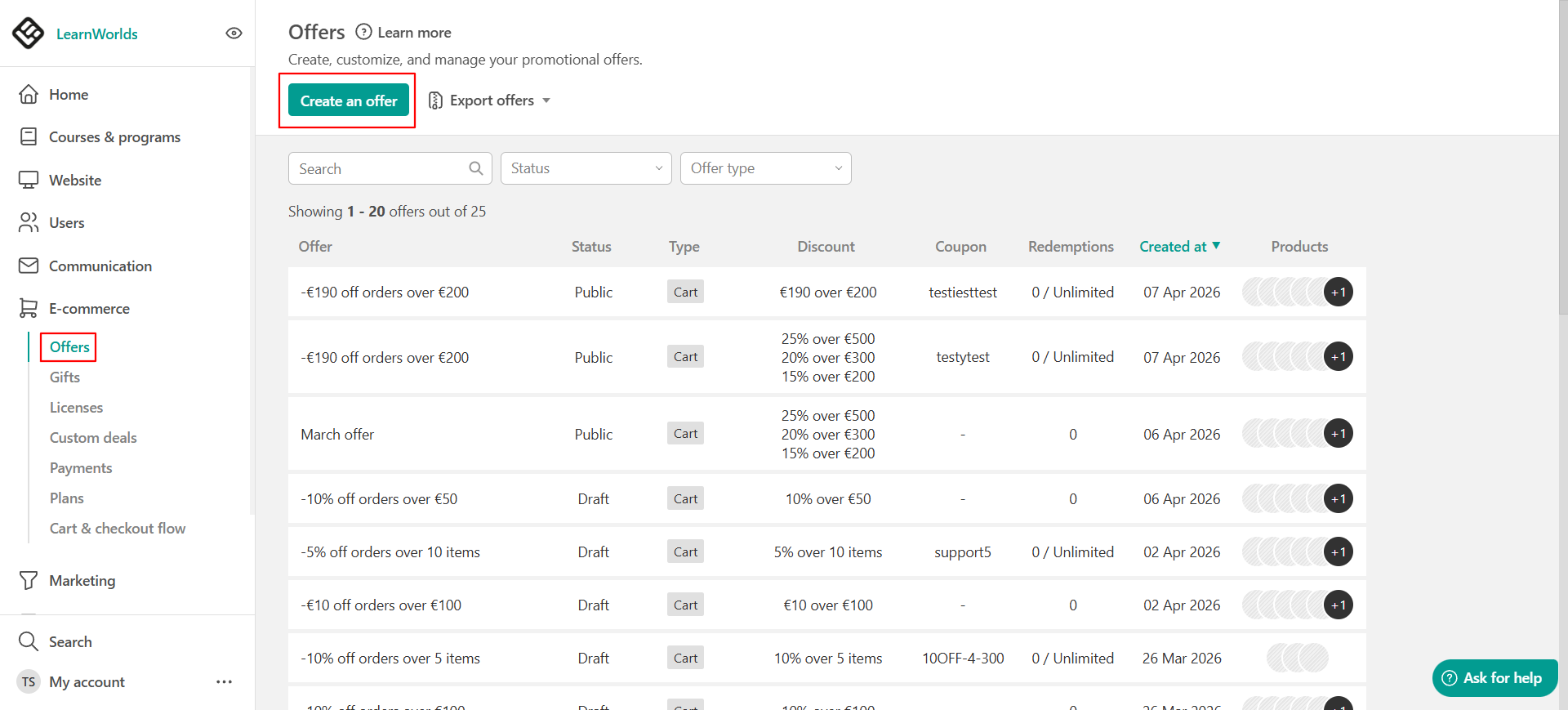
3. Select Cart-based discounts
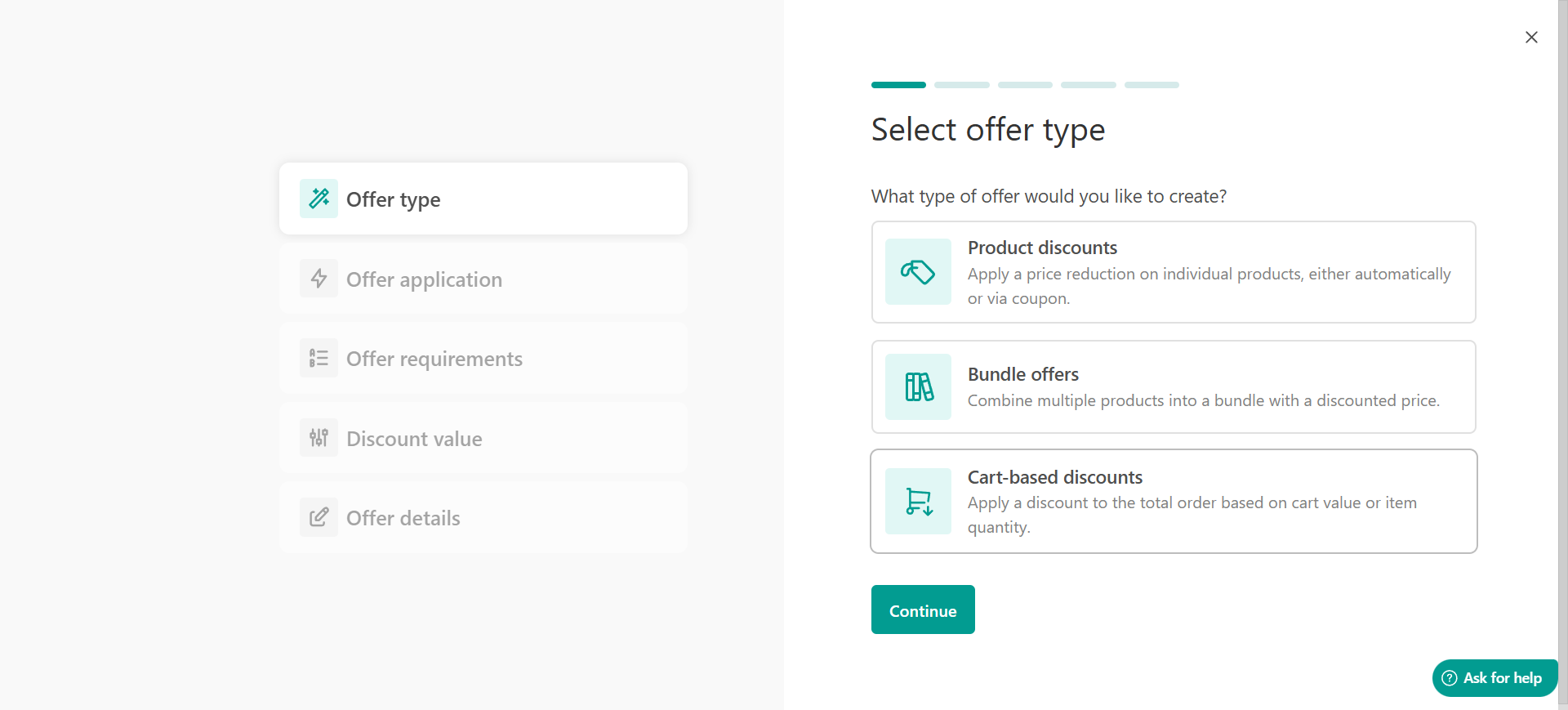
4. Click Continue
Configure how the discount is applied
5. Choose one of the following options:
- Auto-applied (default)
- Coupon-based
6. Click Continue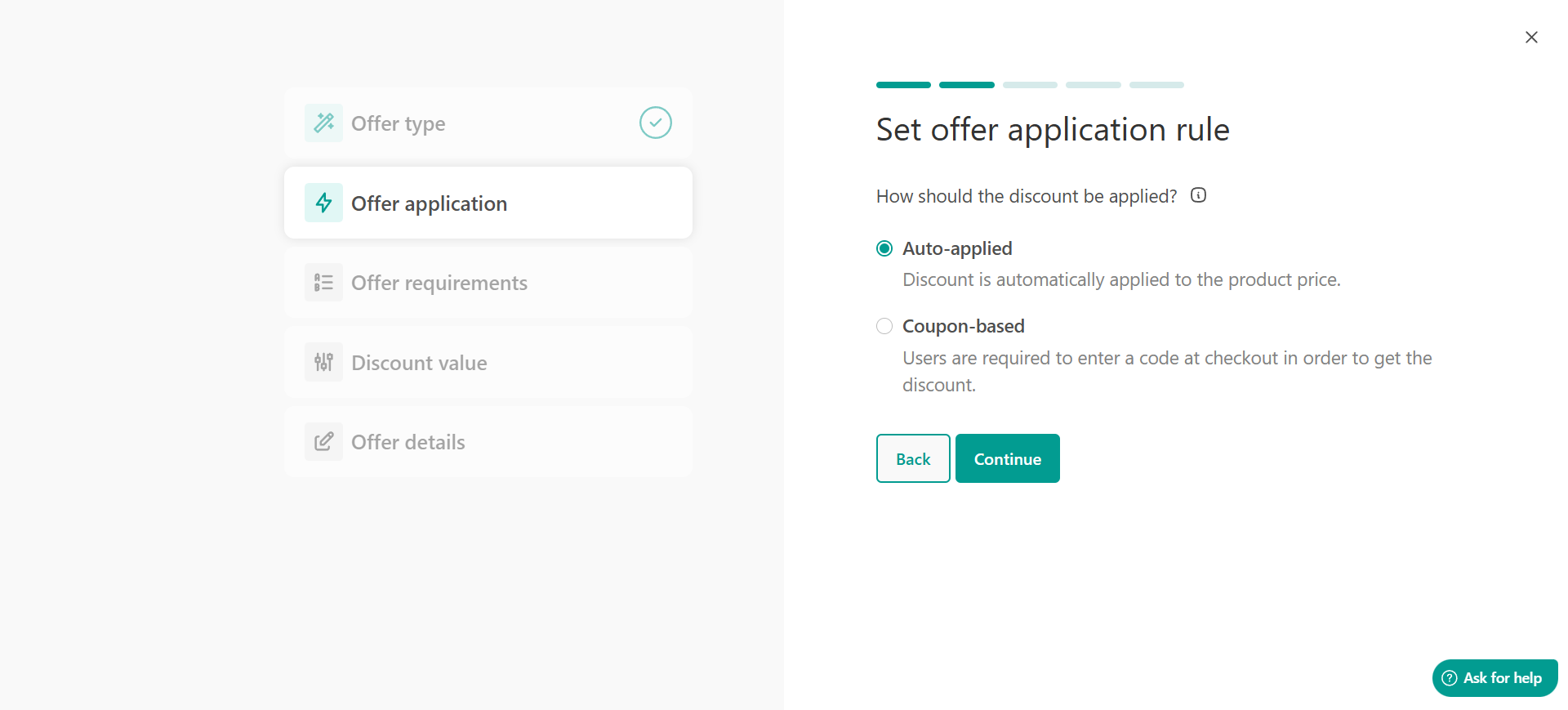 Select offer requirements
7. Choose when the discount should apply:
- Minimum order amount (e.g., $100)
- Minimum number of items (e.g., 3 items or licenses)
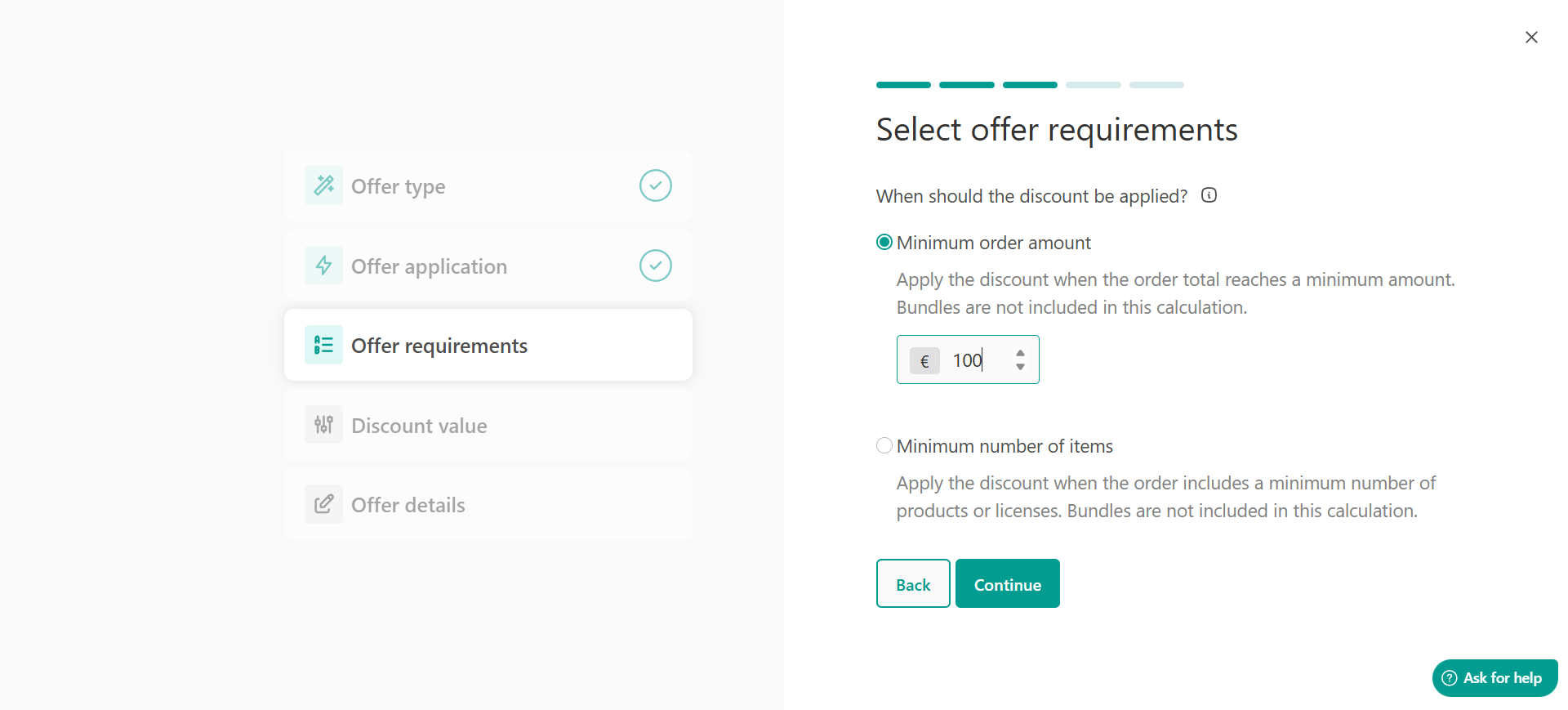
8. Enter the required value and click Continue
Select the discount value
9. Select the discount type:
- Percentage (%)
- Fixed amount
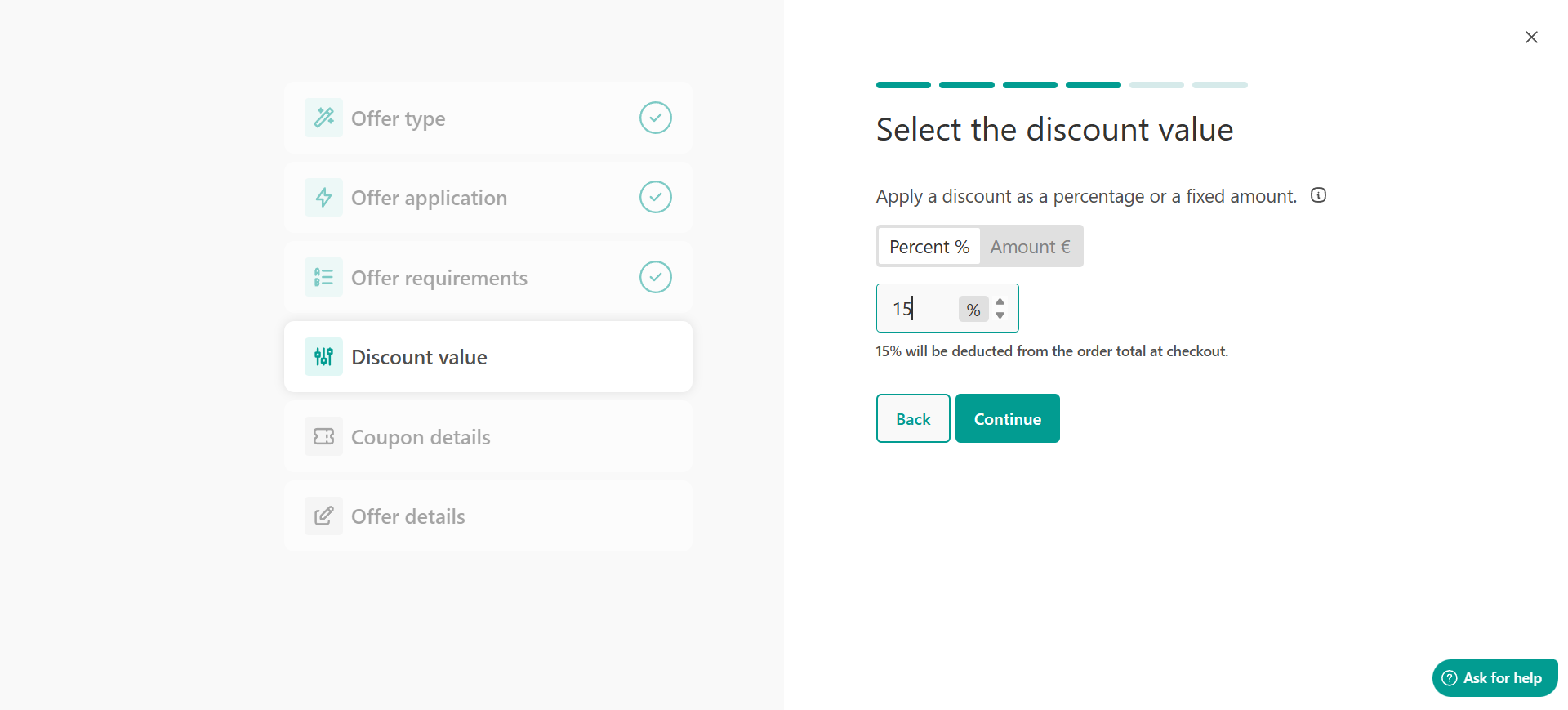
10. Enter the discount value and click Continue
If you selected a coupon-based offer, enter the coupon code, set redemption limits, and optionally define an expiration date.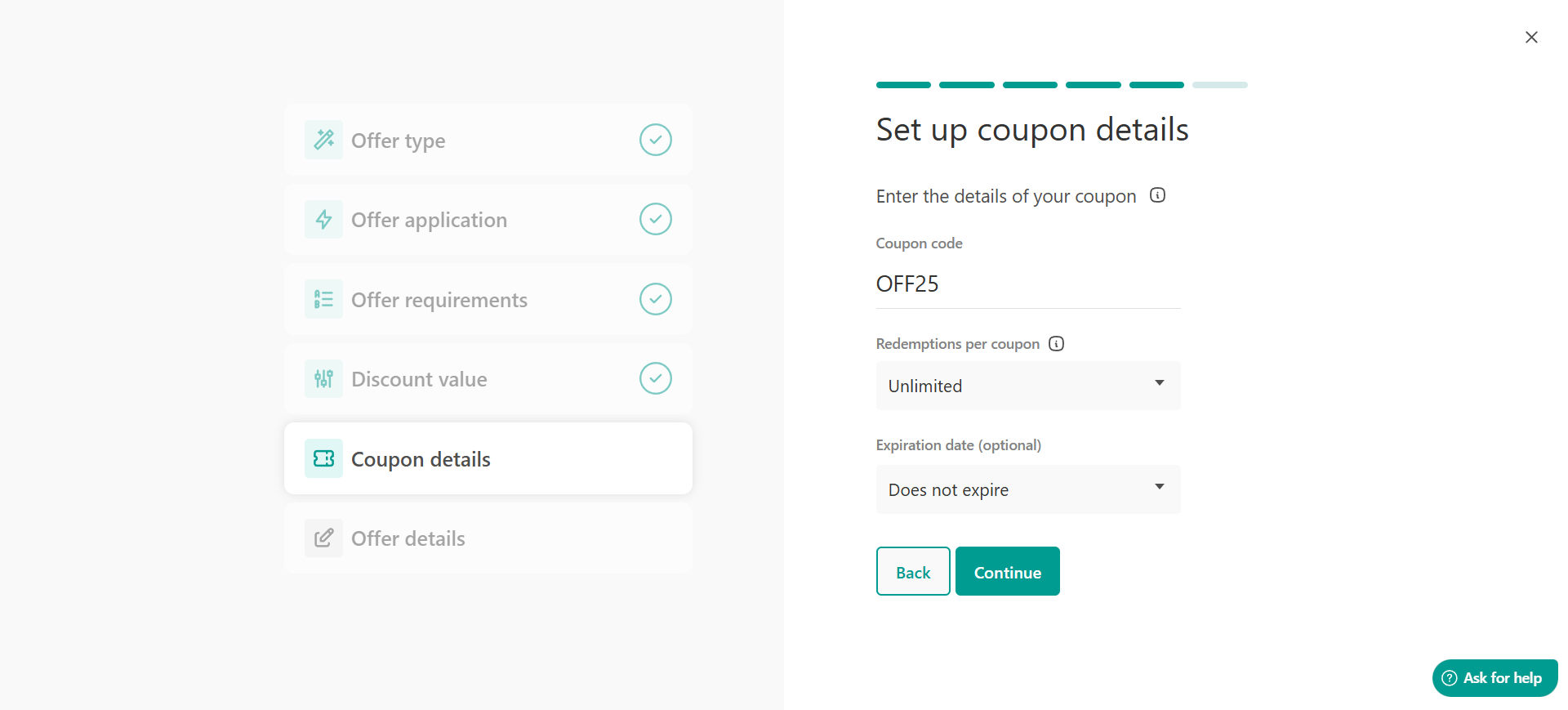
Complete the offer setup
11. Add the offer details:
- Offer name (internal use)
- Status: Draft or Public
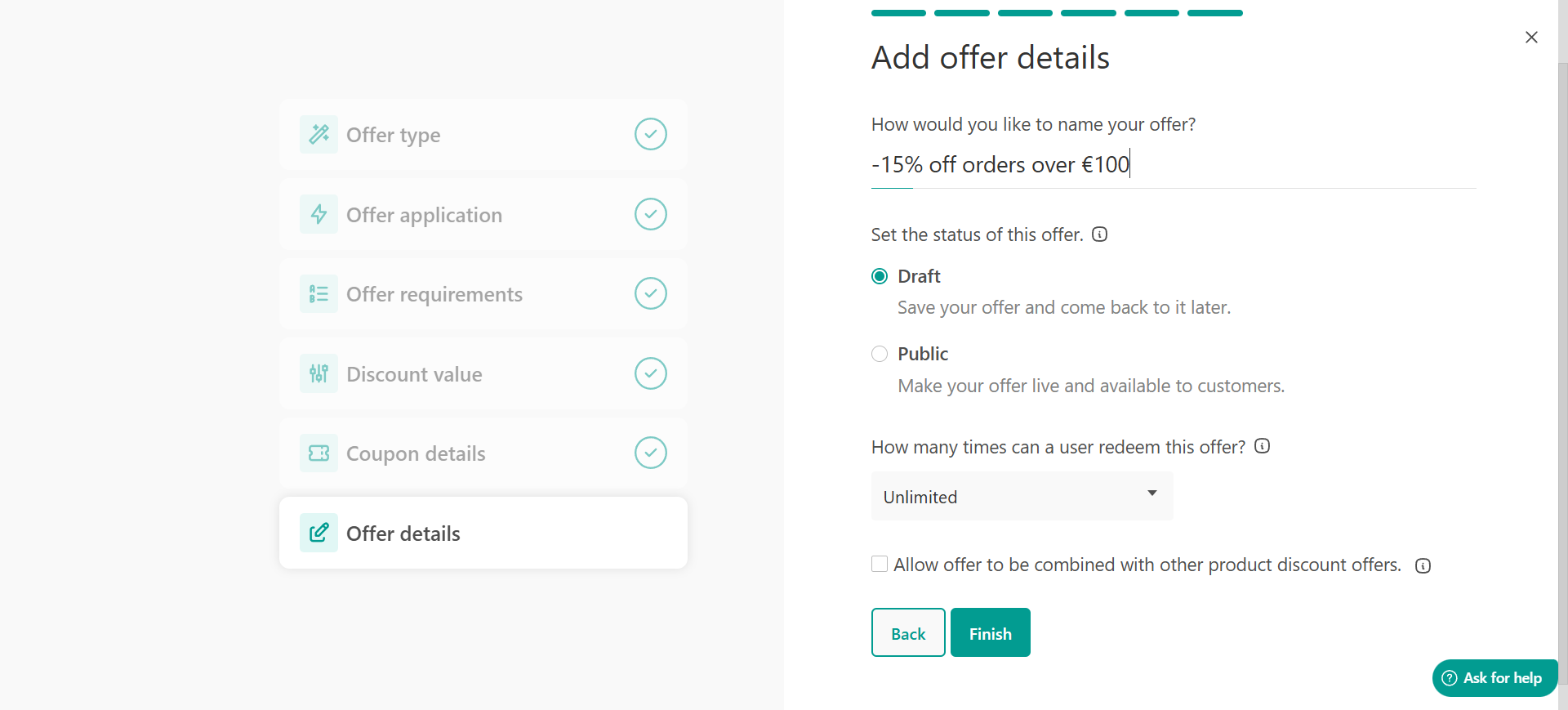
12. Click Finish.
Add discount levels for auto-applied offers
You can create multiple discount tiers within the same offer. To add discount levels:
- Go to E-commerce → Offers
- Locate your offer and click Edit
- Add new discount levels based on different thresholds
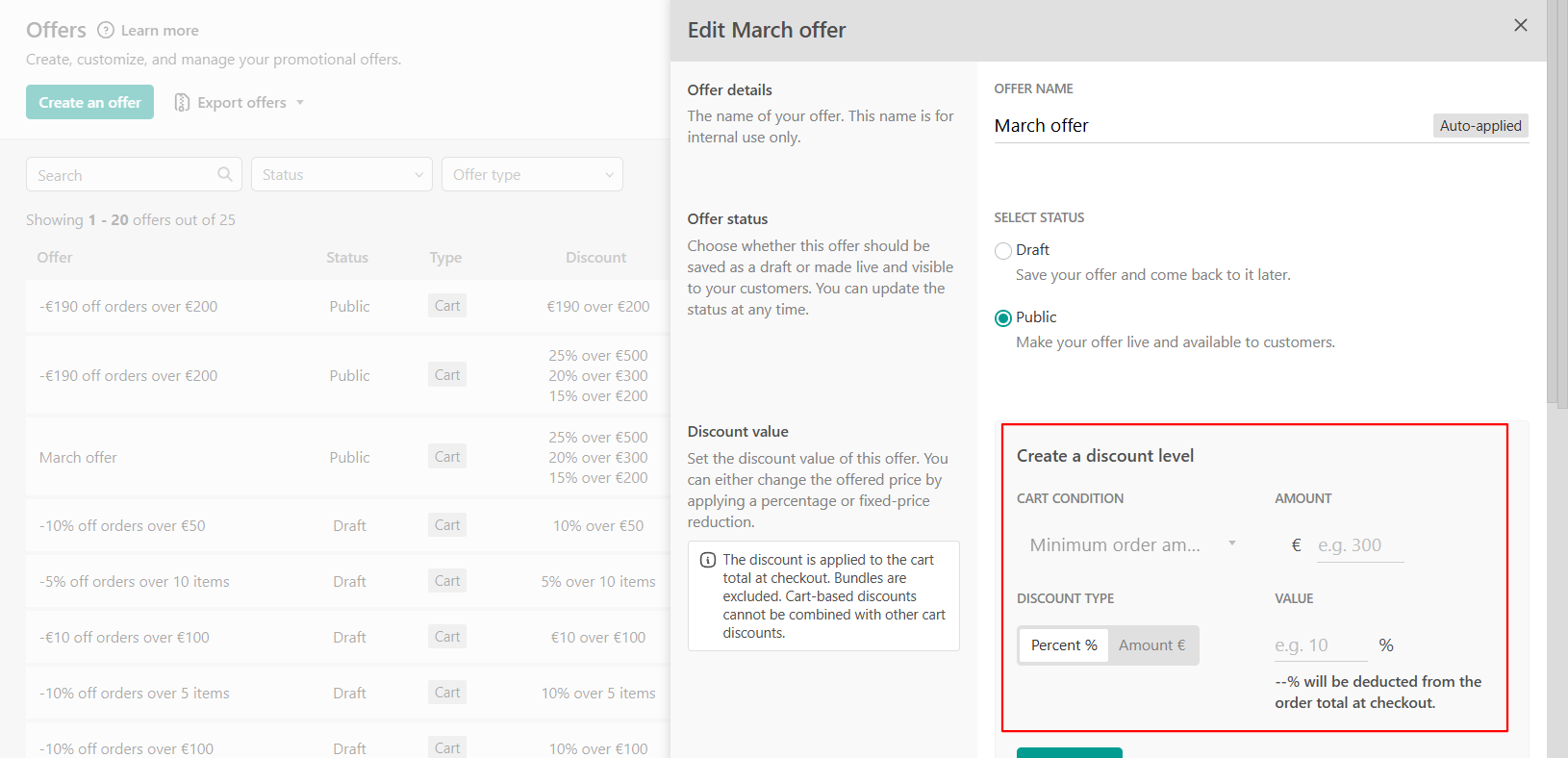
For example:
- Spend $200 → 10% discount
- Spend $300 → 15% discount
 There is no limit to the number of discount levels you can add. You can edit or delete levels at any time.
Coupon based offer settings
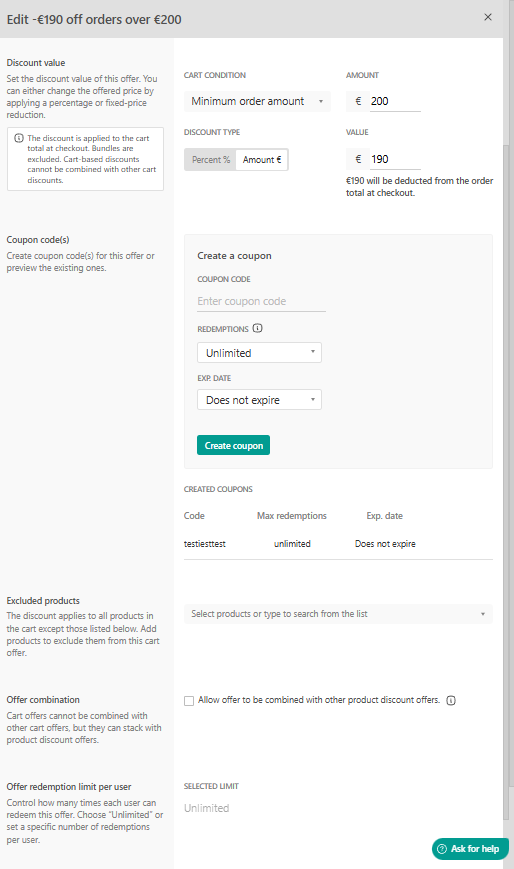
When editing a cart-based discount, you can also:
- Create coupon codes for this offer or preview the existing ones
- Exclude specific products
- Allow combination with product discounts
- Set redemption limits per user
Cart-based discounts:- Do not work if the cart is disabled.
- Cannot be combined with other cart-based discounts.
- Apply only to the cart total at checkout.
View and manage your offers
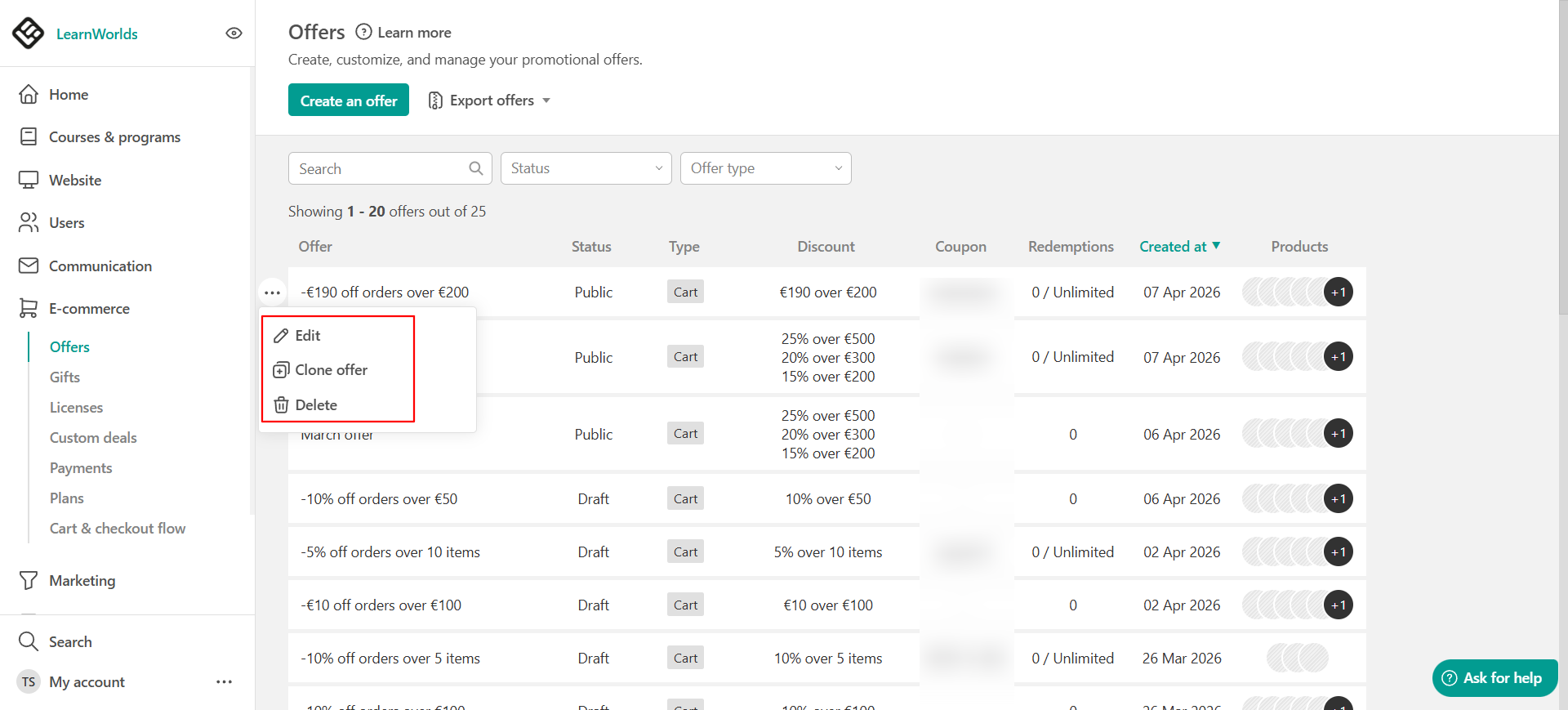
To manage your cart-based discounts:
- Go to E-commerce → Offers
- Locate your offer
From here, you can:
- Edit (View status and details)
- Clone
- Delete
Deletion is permanent and cannot be undone.Best practices
- Use minimum order value to increase revenue per transaction.
- Use item-based conditions for volume discounts (especially for licenses).
- Use auto-applied discounts for a frictionless checkout experience.
- Use coupon-based discounts for marketing campaigns.
- Combine cart-based discounts with product recommendations to encourage larger purchases and increase average order value.
- Combine with product discounts carefully to avoid conflicts.
Limitations
- For affiliate commission calculations, the discount is distributed proportionally across all items in the cart, based on each item’s share of the total value. Affiliate commissions are then calculated based on the final discounted price of each item.
- Licenses and gifts: Count as items for item-based conditions
- Cart-based discounts do not apply to installment plans. Products purchased with installments are treated as excluded products, meaning they:
- Do not receive the discount
- Do not count toward minimum requirements (e.g., cart value or number of items)
FAQs
- Can I combine multiple cart-based discounts?
No. Only one cart-based discount can apply at a time. The system automatically applies the discount that provides the highest benefit.
- Can I combine cart-based discounts with product discounts?
Yes, if you enable this option in the offer settings. Both the cart-based and product discounts must be set as combinable for them to work together. Otherwise, only the offer with the highest discount will be applied.
- What happens if the cart is disabled?
You cannot create new cart-based discounts. Existing ones remain but do not apply.
- How are discounts shown to learners?
Cart-based discounts are reflected in the cart and checkout totals, similar to product discounts and are reflected in the cart and checkout total.
- How are discounts calculated when tax is inclusive?
If your school uses inclusive tax, both the minimum order value and the discount amount are calculated based on the total cart value, including tax.
This means the discount is applied to the sum of product price + tax, not just the product price.