
AI-powered subtitle translation helps you make your video content available in multiple languages so learners can follow along in their preferred language.
You can translate subtitles for individual videos or generate subtitles for multiple videos in one action, selecting one or more languages at a time.
In this article, we'll explain both methods and how to review the generated subtitles.
Translate subtitles for an individual video
If you haven’t already, navigate to Courses and select the course containing the video you want. From there, you can either upload your subtitles or generate them automatically.
1. Hover over the video learning activity and click on Edit Video.
2. Click on Subtitles and transcript, where you can upload a subtitle file or generate one automatically.
When your subtitles are auto-generated or uploaded, you can translate them into any language.
- Click on AI Assistant in the subtitle settings.
- Choose the subtitle you want to use.
- Select the target language for the translation.
- Click Generate and let the AI create subtitles in the selected language.
- Insert the subtitles, and you are ready!

Before launching your video, make sure to carefully review the AI-generated subtitles to ensure accuracy.
- Edit any phrases or terminology that need improvement.
- Make adjustments to subtitle timing if necessary
Make sure to click Save to apply the translated subtitles and to preview the result created to check how the subtitles appear in the video.
Generate subtitles for multiple videos
If you need subtitles for several videos, you can generate them in bulk from your course's Video library, selecting one or more languages in a single action.
- Navigate to Courses and select the course containing your videos.
- Go to Course settings → Video library.
- Click Bulk actions → Add subtitles.
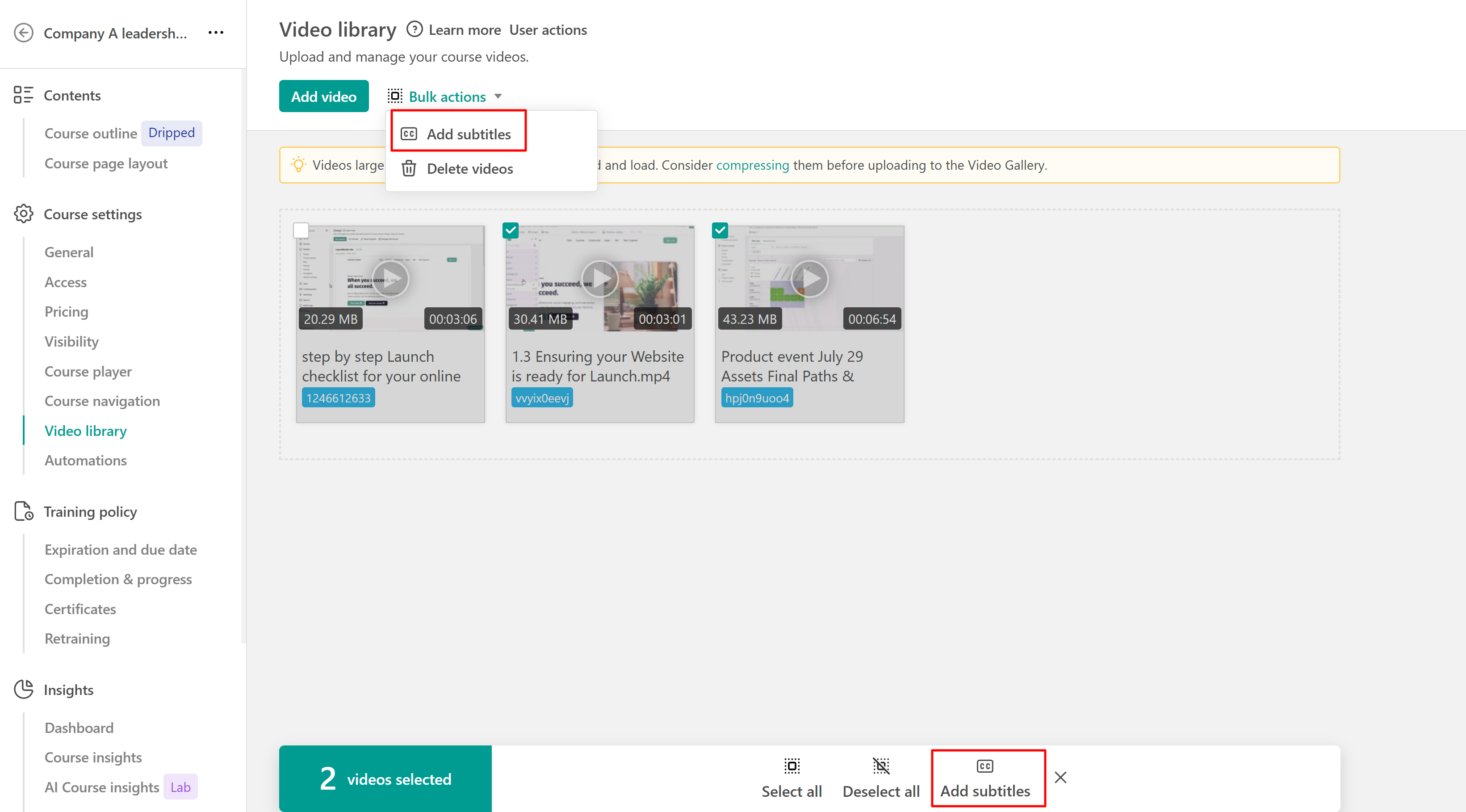
- Select the videos you want to generate subtitles for.
- In the panel that opens, review the selected videos.
- Under Subtitle languages, select one or more languages.
- Click Add new subtitle tracks to start the process.
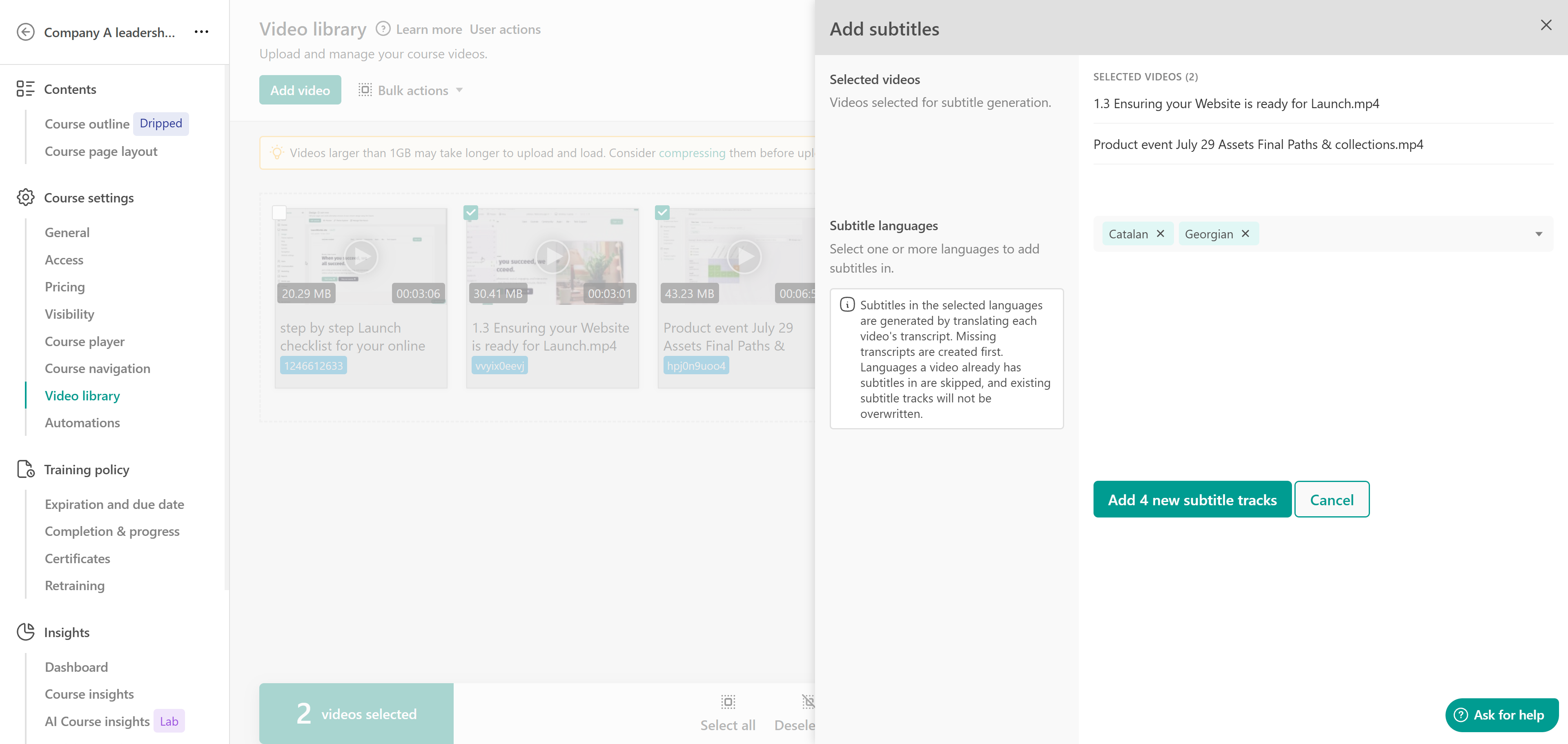
 - Subtitles in the selected languages are generated by translating each video's transcript. If a video doesn't have a transcript, one is created first.
- If a video already has subtitles in a selected language, that language is skipped for that video. Existing subtitle tracks are not overwritten.
Track bulk subtitle generation
Μonitor the results of bulk subtitle generation from your school's activity logs.
- Navigate to Reports → Activity logs.
- Open the User Actions tab.
- Find the Bulk subtitles generation action.
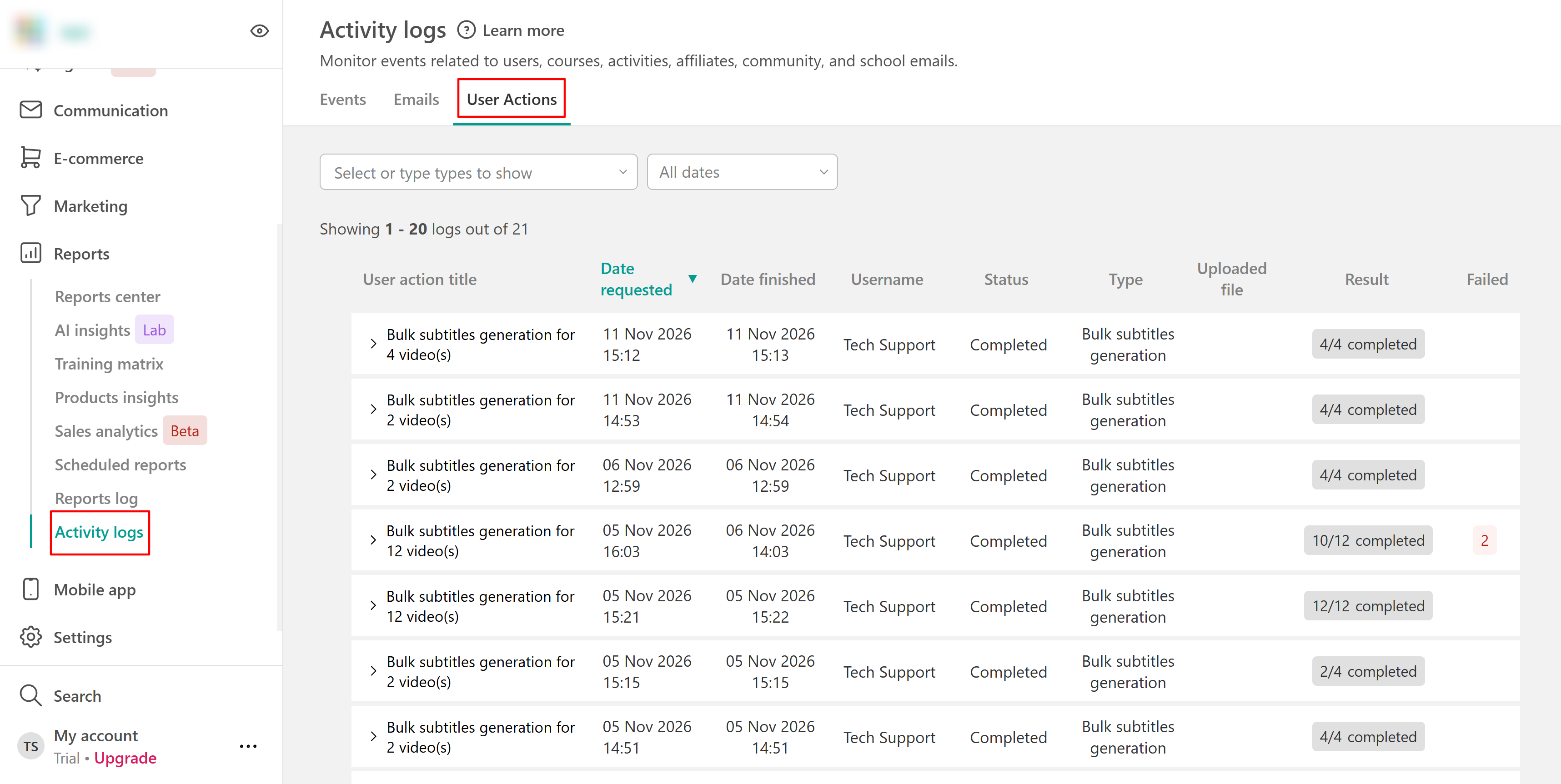
- Expand the entry to view the selected videos and the results of subtitle generation for each language.
Check the action's status, request and completion dates, number of completed subtitle tracks, and any failed operations.
Best practices for AI-Translated ubtitles
- Review translations: Check technical terms, names, and industry-specific language for accuracy.
- Check subtitle timing: Make sure subtitles appear at the correct moments and remain easy to read.
- Preview different languages: Check the generated subtitles before making your videos available to learners.
By using AI-powered subtitle translation, you can make your courses more inclusive, accessible, and engaging for learners worldwide.
AI-generated translations may require editing, particularly when videos contain specialized terminology or expressions.