Your LearnWorlds school automatically sends email notifications for certain key events that take place. You can enable or disable these notifications and customize the contents of the email that users will receive.
In this article, we will learn how to enable and edit automatic email notifications related to your school's Community. Remember that only admins can change those settings.
Manage community email notifications
- Go to Communication → School Emails
- Open the Community tab
- Select the notification you want to manage
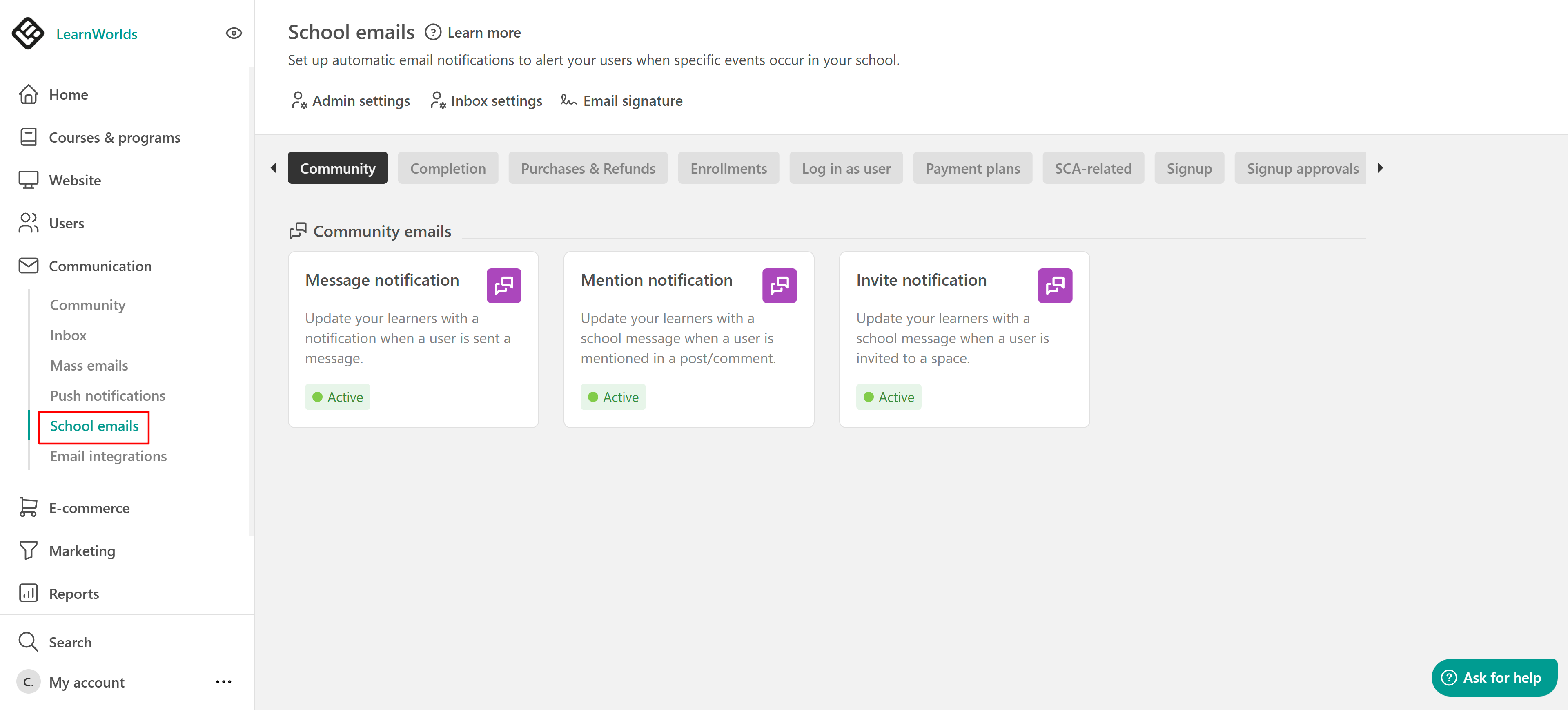
- Message notification: Update your learners with a notification in the school's inbox when a user is sent a message.
- Mention notification: Update your learners with a school message when a user is mentioned in a post/comment.
- Invite notification: Update your learners with a school message when a user is invited to a private space.
Edit email templates
Click on a notification template to:
- Enable or disable the notification
- Edit the email subject
- Customize the email content
You can include links and variables that automatically display personalized information for each user.
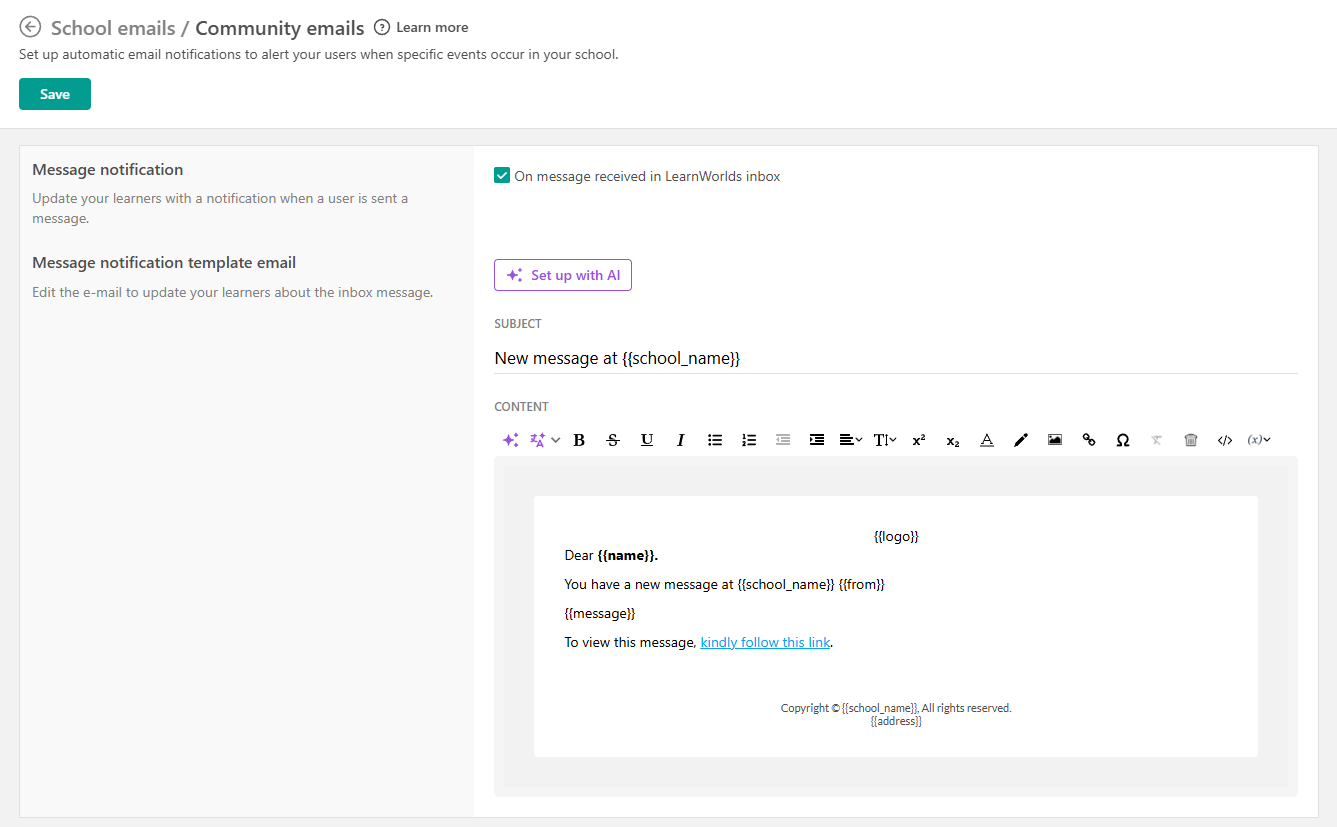
You can also use AI to help you create or refine your email content. Click Set up with AI and describe what you want in the prompt box. You can use AI to:
- Improve wording and tone
- Rewrite content
- Generate email copy
- Translate your email content

- If you wish to edit the links/variables of your Email Notifications, follow the steps in this article.
- If you wish to find out more about the notifications that the Community and Community Space managers can receive at certain events, navigate to this article.
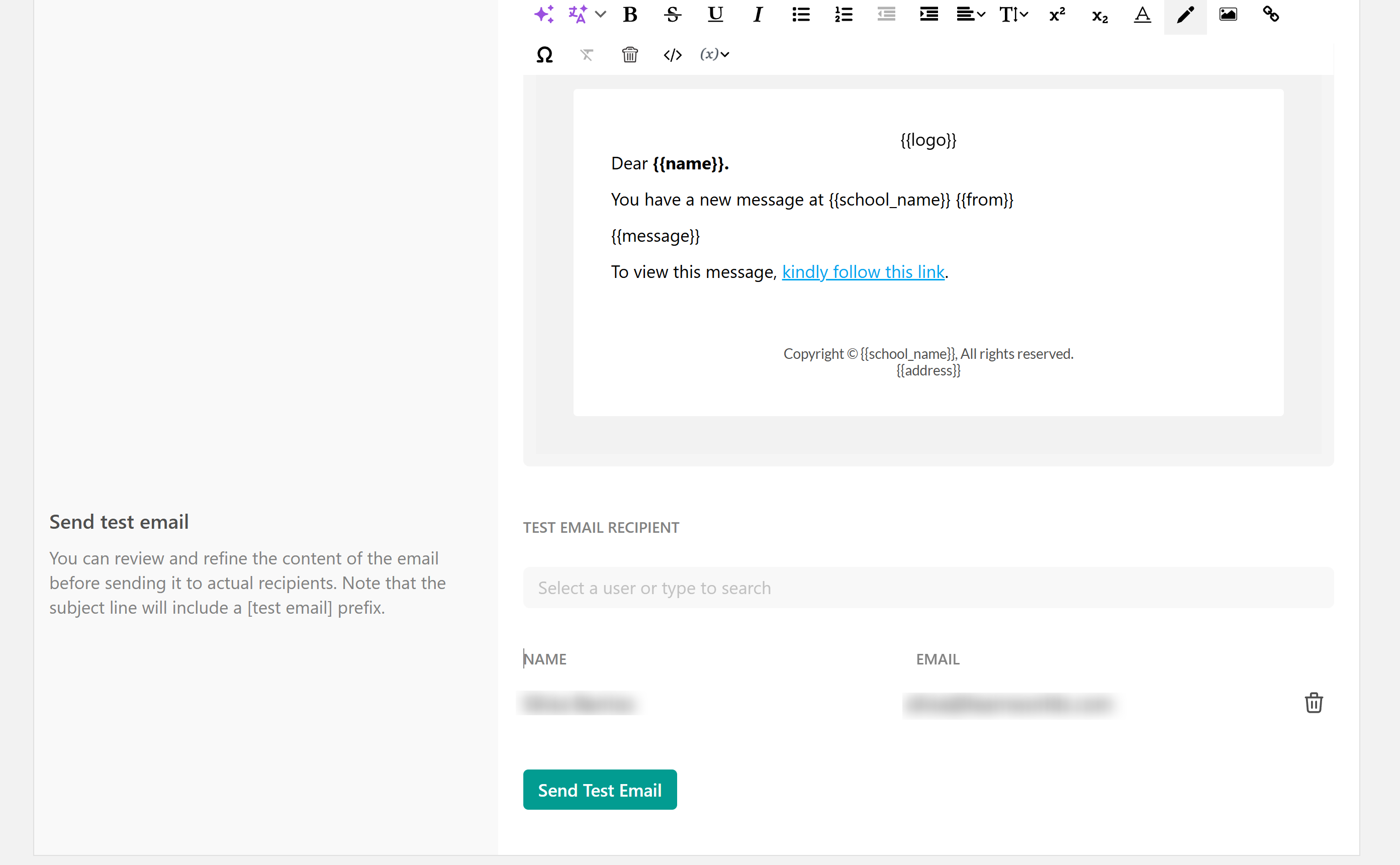
Send test email
You can review and refine the email before sending it to your recipients. To send a test email, select an admin account from the list and click Send test email. The subject line of the test email will include the [test email] prefix.