
Course due dates let you set a soft deadline for completing a course. If the due date passes, the course becomes overdue, but the learner keeps access to the course.
You can set a due date based on enrollment, choose a specific calendar date, or configure recurring due dates for training that needs to be repeated.
How course due dates work
In LearnWorlds, a course due date defines when a learner is expected to complete a course. When the due date passes, the learner's course is marked as overdue. The learner can continue accessing and completing the course unless course expiration is configured separately.
Course due dates and course expiration serve different purposes:
- A due date sets a completion deadline. After the deadline passes, the learner becomes overdue but keeps access to the course.
- Course expiration determines when the learner loses access to the course.
This allows you to track late training separately from access restrictions.
 Course due dates are available for courses and are not available for Learning Programs.
Use cases
Use course due dates when you need to:
- Give learners a set number of days to complete a course after enrollment
- Set the same completion date for a cohort or group of learners
- Schedule recurring deadlines for training that needs to be repeated
- Change the deadline for specific learners when an exception is needed
Set a due date for a course
To configure the due-date policy:
1. Go to Courses & Programs → Courses.
2. Select the course you want to configure.
3. Go to Training policy → Expiration and due date.
4. Enable the due-date option.
5. Choose the type of due date you want to use.
6. Configure the deadline and save your changes.
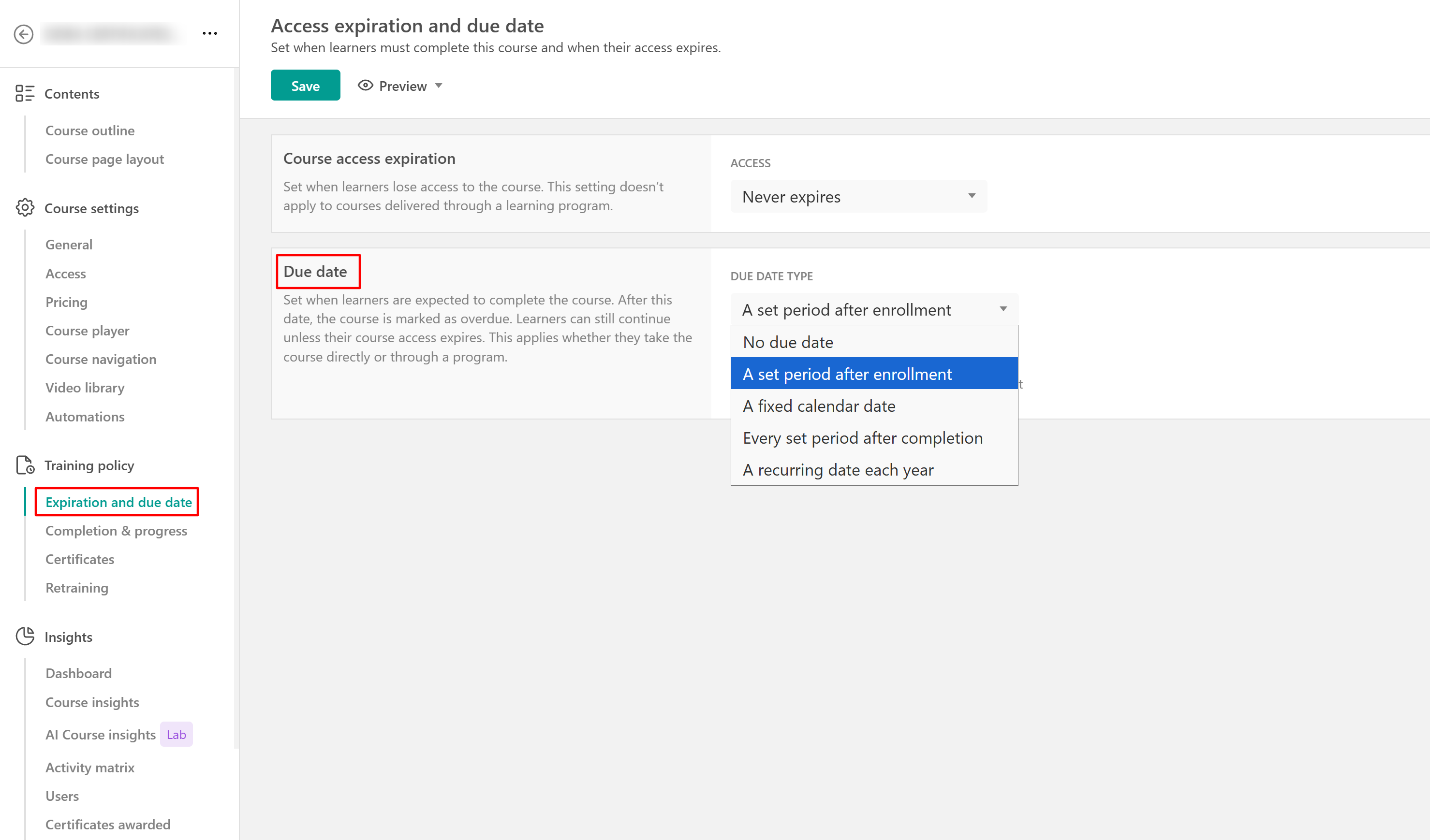
LearnWorlds supports four ways to calculate a course due date.
Set a due date based on enrollment
A due date based on enrollment gives each learner the same amount of time to complete the course, starting from their enrollment date. For example, if the due date is set to 30 days after enrollment, a learner who enrolls on May 1 will have a different deadline from a learner who enrolls on May 10.
This works well for evergreen training where learners start at different times.
Set a specific due date
A specific due date gives all applicable learners the same calendar deadline, regardless of when they enrolled. For example, you can require learners to complete annual compliance training by December 15.
This works well for cohorts, company-wide training, or other training with a shared deadline.
Set a recurring due date after completion
A recurring due date after completion calculates the learner's next deadline from the date they last completed the course.
For example, if retraining is required every 12 months and a learner completes the course on March 10, their next due date is calculated from March 10. This option is used together with retraining based on the course due date.
Set an annually recurring due date
An annually recurring due date gives learners the same calendar deadline each year, regardless of when they previously completed the course.
For example, if the annual due date is November 30, learners are expected to complete the course by November 30 each year.
This option is used together with retraining based on the course due date.
What happens when you change the course due-date policy?
Changing a course-level due-date rule does not automatically update due dates that have already been assigned to learners.
The updated rule applies when new enrollments are assigned. Existing learners keep their currently assigned due dates unless you change them individually or in bulk.
If you disable course due dates, due dates that have already been assigned are also preserved. This allows you to change the policy for future enrollments without unexpectedly changing existing learners' deadlines.
Change a learner's due date
You can change the due date for an individual learner without changing the course-level due-date policy. To change a learner's due date:
1. Go to Users.
2. Find and select the learner.
3. Locate the learner's course enrollment.
4. Select the option to edit the due date.
5. Enter the new due date.
6. Save your changes.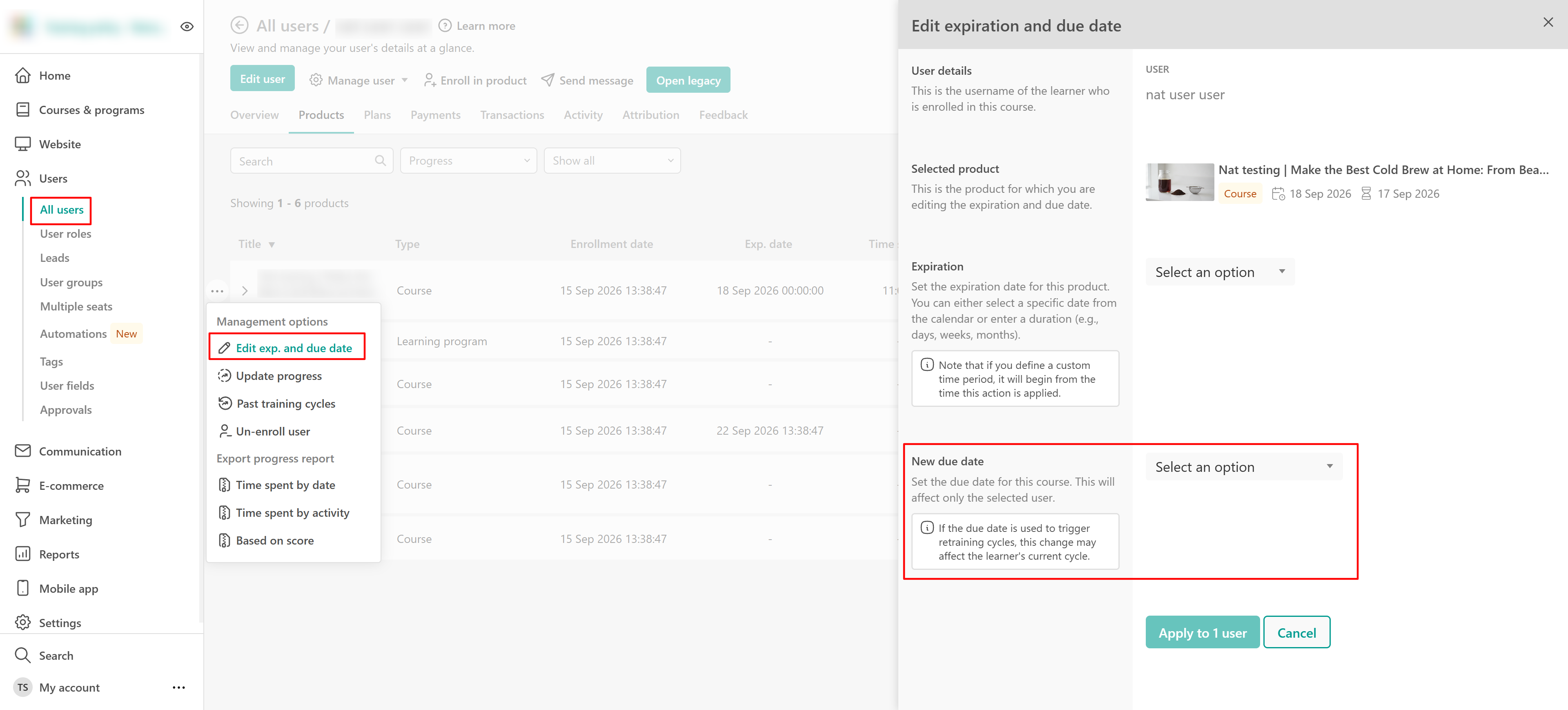
The change applies only to the selected learner.
Change due dates in bulk
You can change due dates for multiple learners at the same time without changing the course's default due-date policy.
To update due dates in bulk:
1. Go to Users.
2. Select the learners you want to update.
3. Open the available bulk actions.
4. Select the option to edit expiration and due dates.
5. Configure the new due date and confirm the update.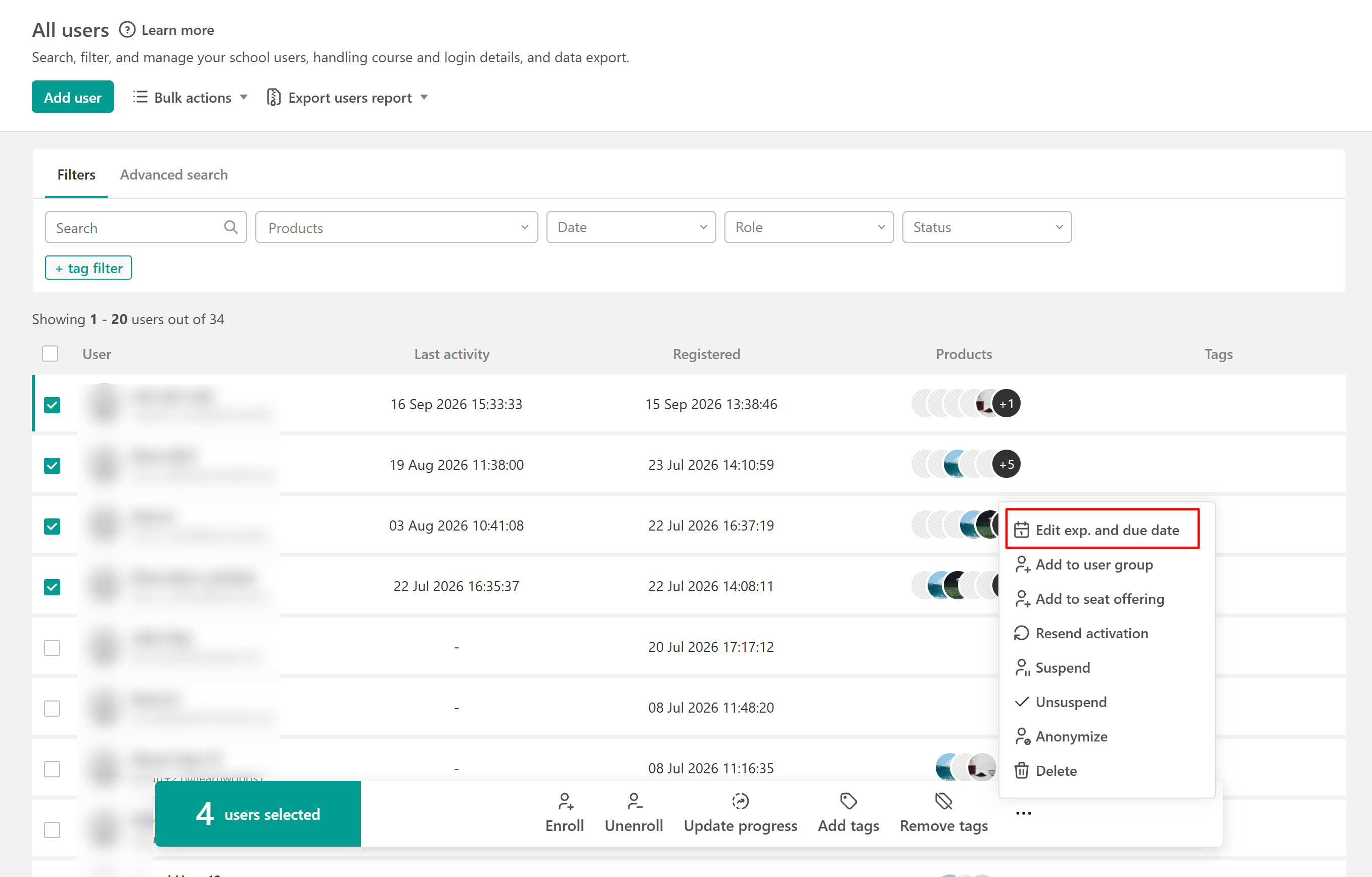
Use bulk editing when you need to extend or adjust deadlines for a group of learners without changing the course's default due-date policy.
What learners see
LearnWorlds surfaces upcoming and missed deadlines in several places so learners can keep track of their training. They can see notes on their:
- Course cards: Course cards can show Due soon and Overdue states so learners can identify courses with upcoming or missed deadlines. An overdue learner can continue the course unless access is separately restricted through course expiration.

- My Progress section: Learners can see their course due date alongside their progress and whether the course is Due soon or Overdue.
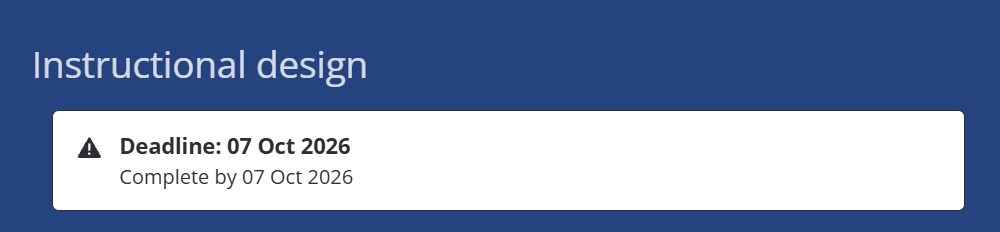
- Course player: The Course Player starts displaying the course deadline 30 days before the due date. Learners can see the deadline and the remaining time available to complete the course. The deadline starts appearing 30 days before the due date.
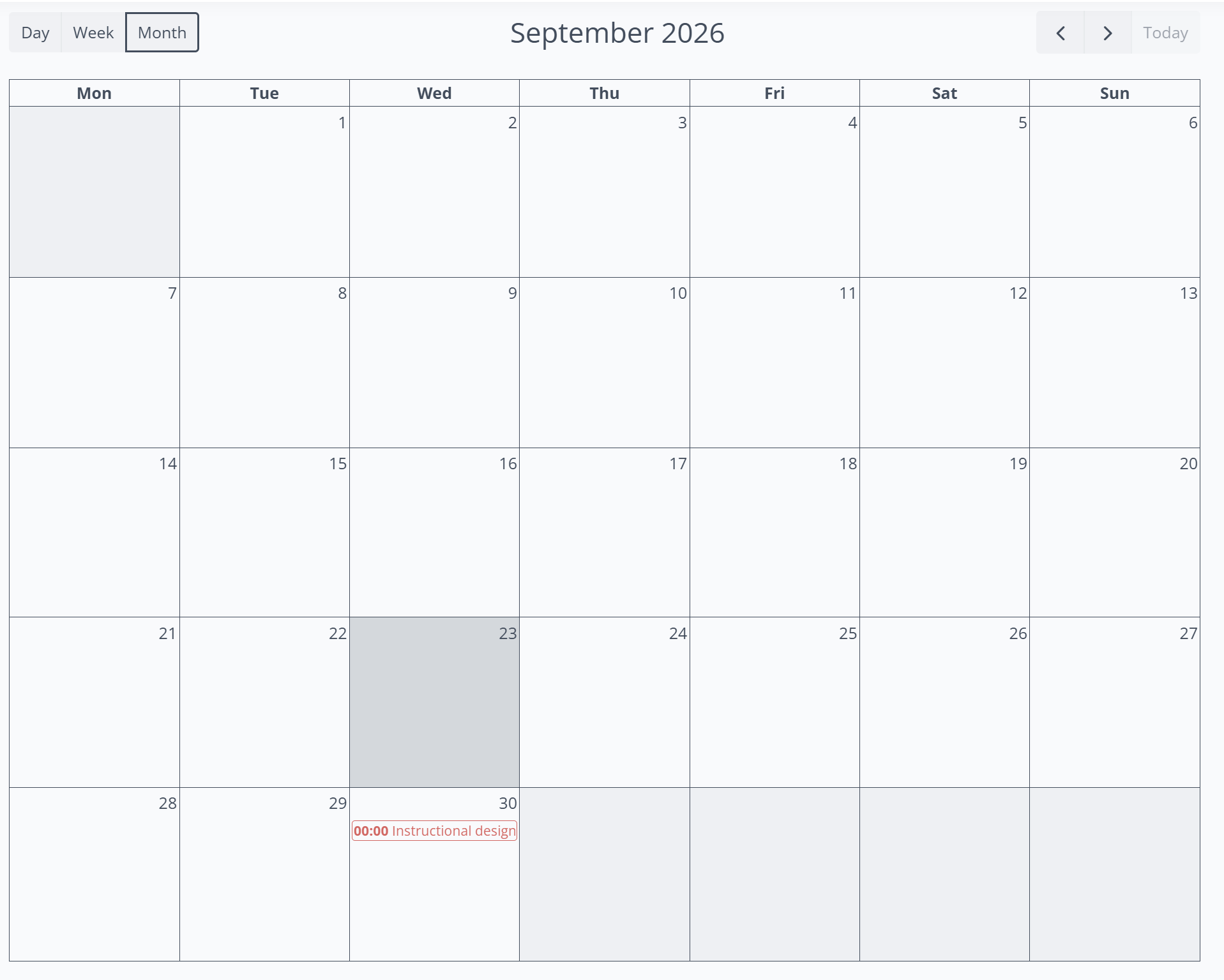
- My Events: Course due dates can also appear in My Events. Learners can open the event to view the deadline, go to the course, or add the event to their calendar. In the My Events template settings, you can configure the color used for course due dates and make the Due date filter available to learners.
Choose the right type of course due date
- Use a due date based on enrollment when learners start the course at different times.
- Use a specific due date when learners share the same deadline.
- Use a recurring due date after completion when each learner's next training deadline depends on their previous completion date.
- Use an annually recurring due date when everyone should meet the same deadline each year.
If you also need learners to repeat the course, configure the related retraining settings.
FAQs
- What happens when a learner misses a course due date in LearnWorlds?
The course is marked as overdue, but the learner keeps access to it. If you want course access to end after a specific period or date, configure course expiration separately.
-What is the difference between a course due date and course expiration?
A course due date defines when a learner is expected to complete the course. Course expiration defines when the learner loses access to the course.
- Does changing a course due date affect existing learners?
Changing the course-level due-date policy does not automatically replace due dates already assigned to existing learners. The new policy applies when new due dates are assigned.
-What happens to existing due dates if I disable course due dates?
Due dates already assigned to learners are preserved. Disabling the setting stops the course-level rule from assigning due dates going forward.
- Can course due dates recur?
Yes. You can set a recurring due date based on each learner’s previous course completion or use the same calendar deadline each year.
To use a recurring course due date for retraining, go to Training policy → Retraining and select Course due date as the automatic retraining trigger. When the recurring due date is reached, it triggers the next retraining cycle according to your retraining settings.
- Can I give one learner a different deadline?
Yes. Edit the learner's due date from Users. This does not change the course-wide rule.
- Can I change due dates for multiple learners?
Yes. Use the bulk user actions to update due dates for multiple enrollments.
-What is the difference between recurring and annually recurring course due dates?
A recurring due date after completion is calculated from each learner’s course completion date. An annually recurring due date uses the same configured calendar date each year, regardless of when the learner completed the course.
-Are course due dates available for Learning Programs?
No. Course due dates are available for courses and are not available for Learning Programs.