
Building a community within your school is essential for fostering engagement and collaboration. The Social learning activity lets you bring community discussions directly into your course, giving learners a dedicated space to ask questions, share ideas, and interact with their peers.
This feature enhances the learning experience by making it more interactive and enjoyable. For instance, learners can introduce themselves, provide feedback on completed courses, or engage in reflective discussions.
In this article, we will learn how to create and set up a social learning activity.
Create a social learning activity
A Social learning activity is an eBook that comes with a pre-configured Social Feed section. You can customize the eBook like any other eBook activity while using the embedded Social Feed to encourage learner interaction throughout the course. To create an activity:
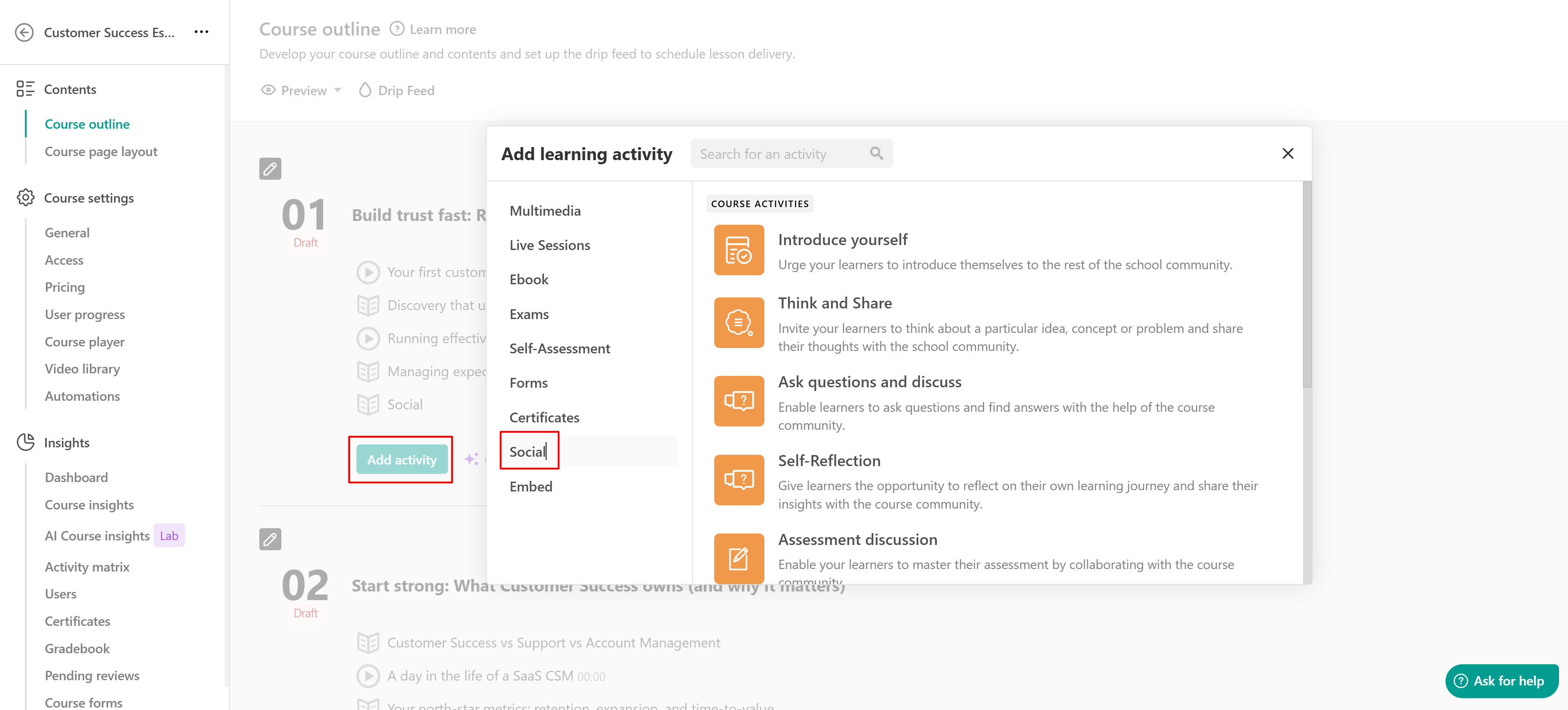
1. Go to your course and navigate to Contents → Course outline.
2. Click Add activity under your selected course section.
3. Select Social from the list of activities.
There are various templates crafted to assist you in building your course. Select the one most relevant to you, and let the social learning begin! Some available options are:
- Introduce yourself
- Think and Share
- Ask questions and discuss
- Self-reflection
- Assessment discussion
- Certification and exam activities
- Course Completion feedback
- Craft, share, and shine
- Exploring beyond the course
Social feed in ebooks
Because a Social learning activity is built as an eBook, you can edit it just like any other eBook. The Social section is added as a widget inside the eBook. If needed, you can also add additional Social widgets by clicking the + icon in an eBook section and selecting Social Feed.
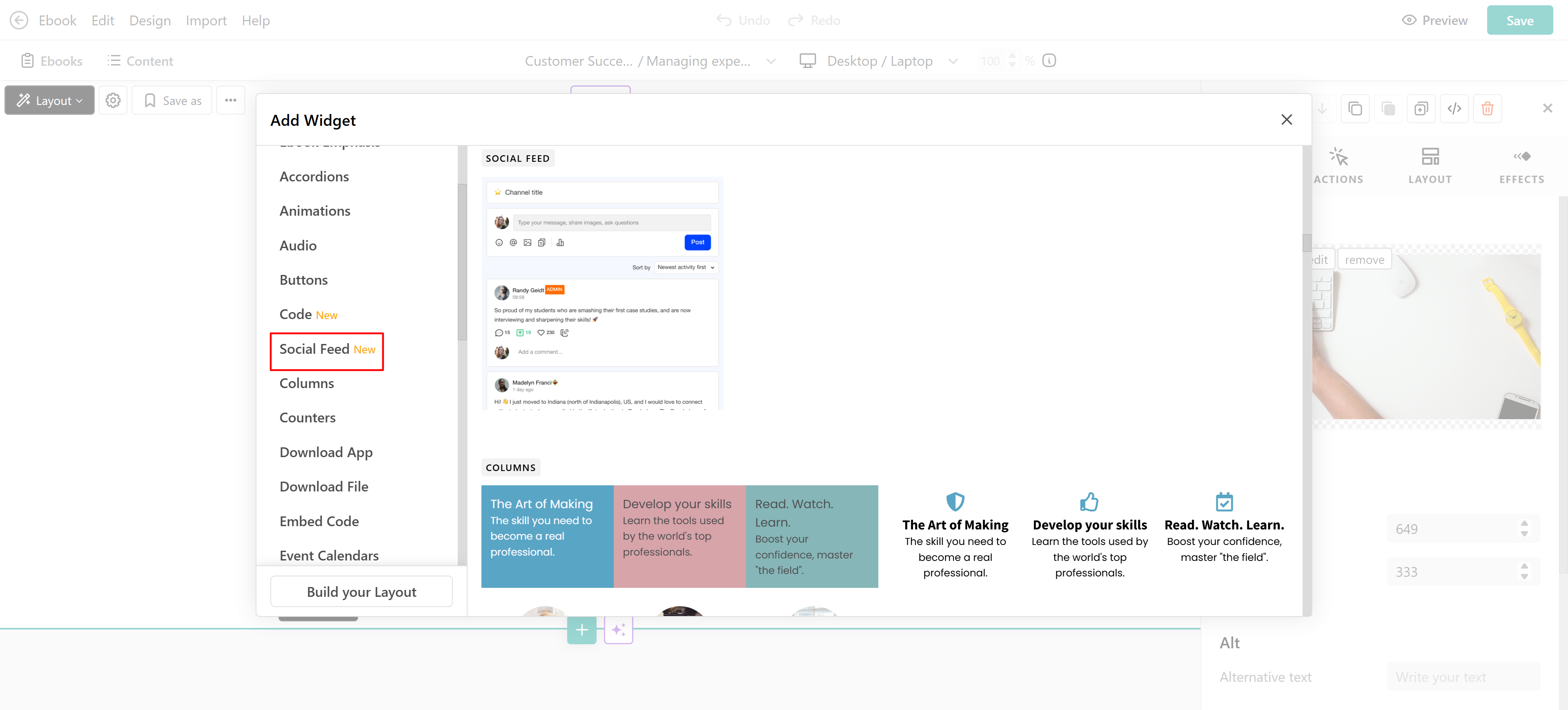
After adding the social widget to the ebook, select the space you want to link to this specific social widget. Linking the widget to a space means connecting it to an actual space in your Community where discussions will take place.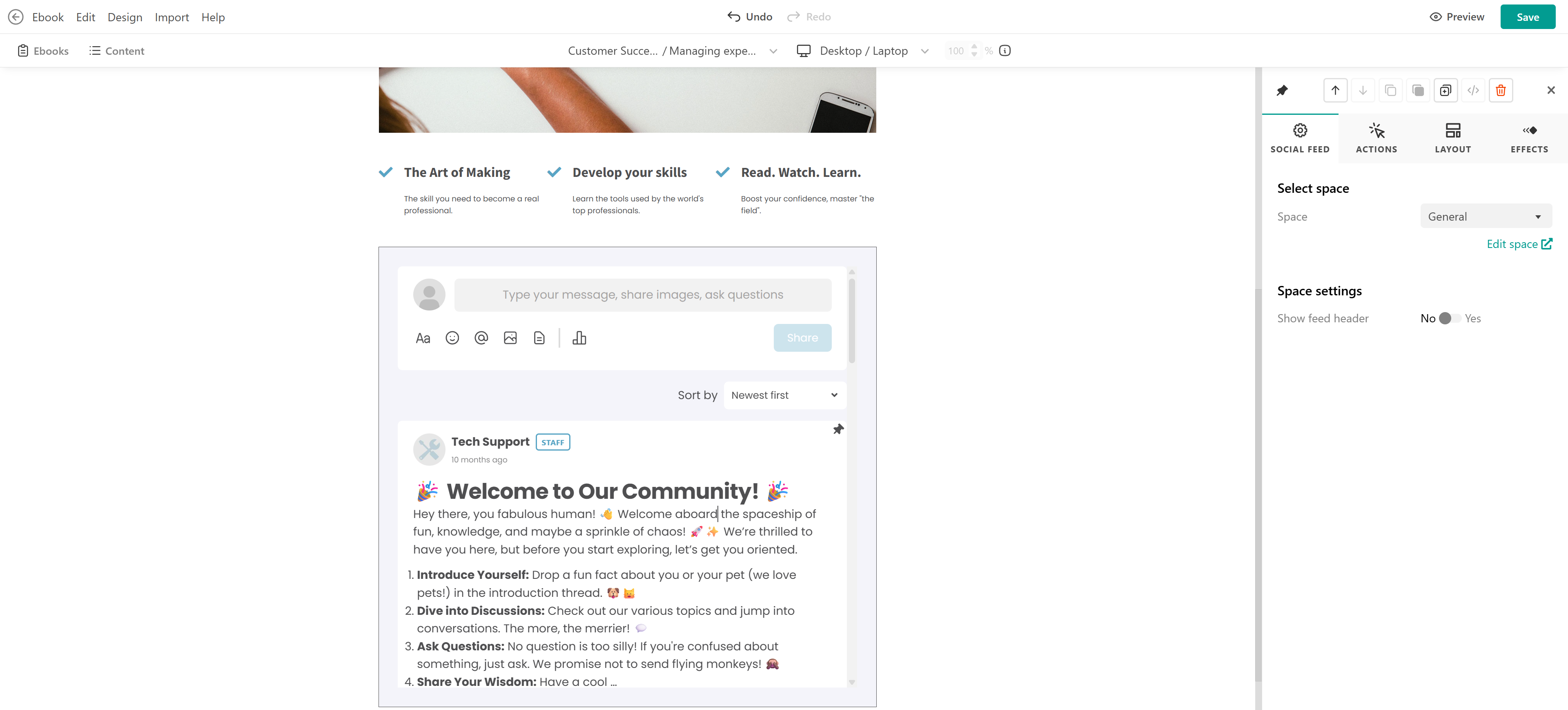
You can choose between:
- Course Spaces: These spaces exist only in the context of this learning activity, and they won't be visible on the community page. You can access it in the “Course spaces” tab of the Community admin page.
- Community Spaces: Add one of the existing public spaces.

You can create course spaces within the social feed widget in your courses. These spaces will only exist in the context of the specific learning activity and will not be visible in your community.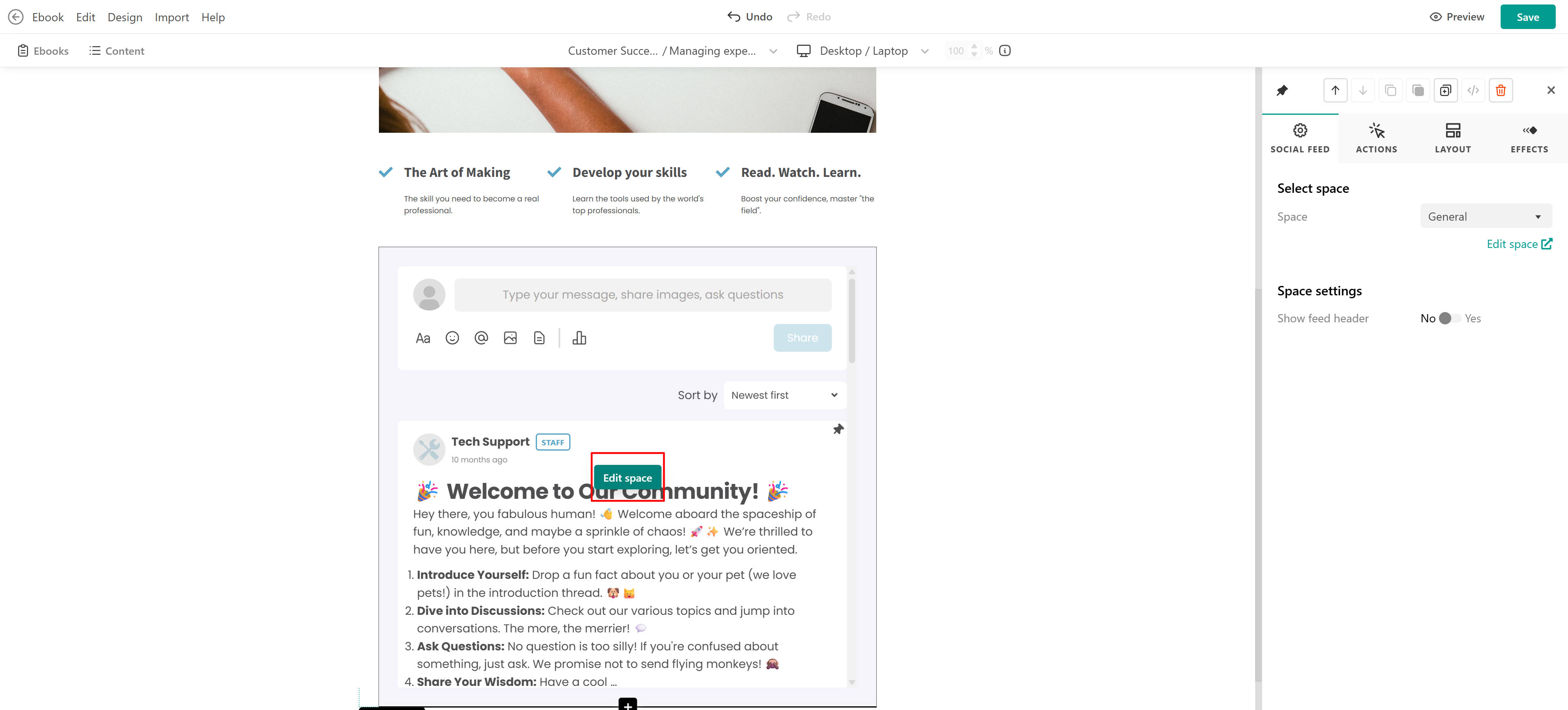
 When adding a social activity or a social feed widget to eBooks, mentioning a specific user (@username) or all users (@all) will ensure that only users enrolled in the courses are available and receive a mention notification.
Managing your course spaces
To manage your course spaces, go to the “Course spaces” tab on the Community admin page. Here, you can find all created spaces, including regular course discussions.
Instructors can access the course spaces tab and moderate their content (edit or delete posts) for their assigned courses. User experience
Here’s what the social feed activity looks like for users:

Within a Social learning activity, learners can:
- Create posts.
- Comment on and reply to other posts.
- Participate in discussions.
- Upload images (including multiple images in a single post), files, and polls.