
Availability
Starter
Pro Trainer
Learning Center
High Volume & Corporate
In this article, you’ll learn how to manage your blog posts in LearnWorlds, including how to edit, organize, duplicate, and control their visibility.
Posts manager
Before managing your posts, make sure the Blog feature is enabled and that you’ve created at least one post.
1. Navigate to Website → Blog → Manage Posts
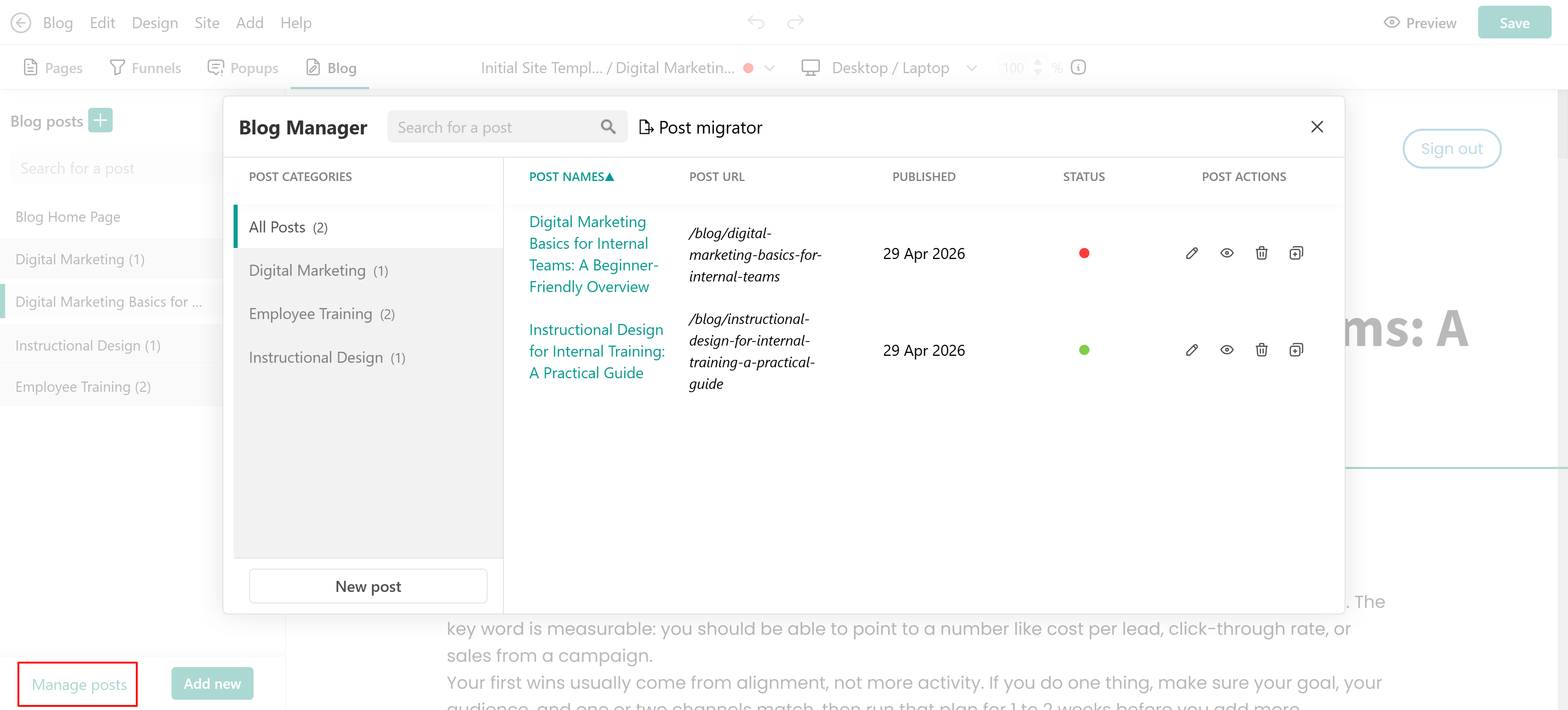
2. A window will open displaying a list of all your blog posts.
3. Here you can:
- Search for posts by title
- Filter posts by category
- Edit a post
- Preview a post
- Delete a post
- Clone (duplicate) a post
Change the status of a Blog post (Public/Draft)
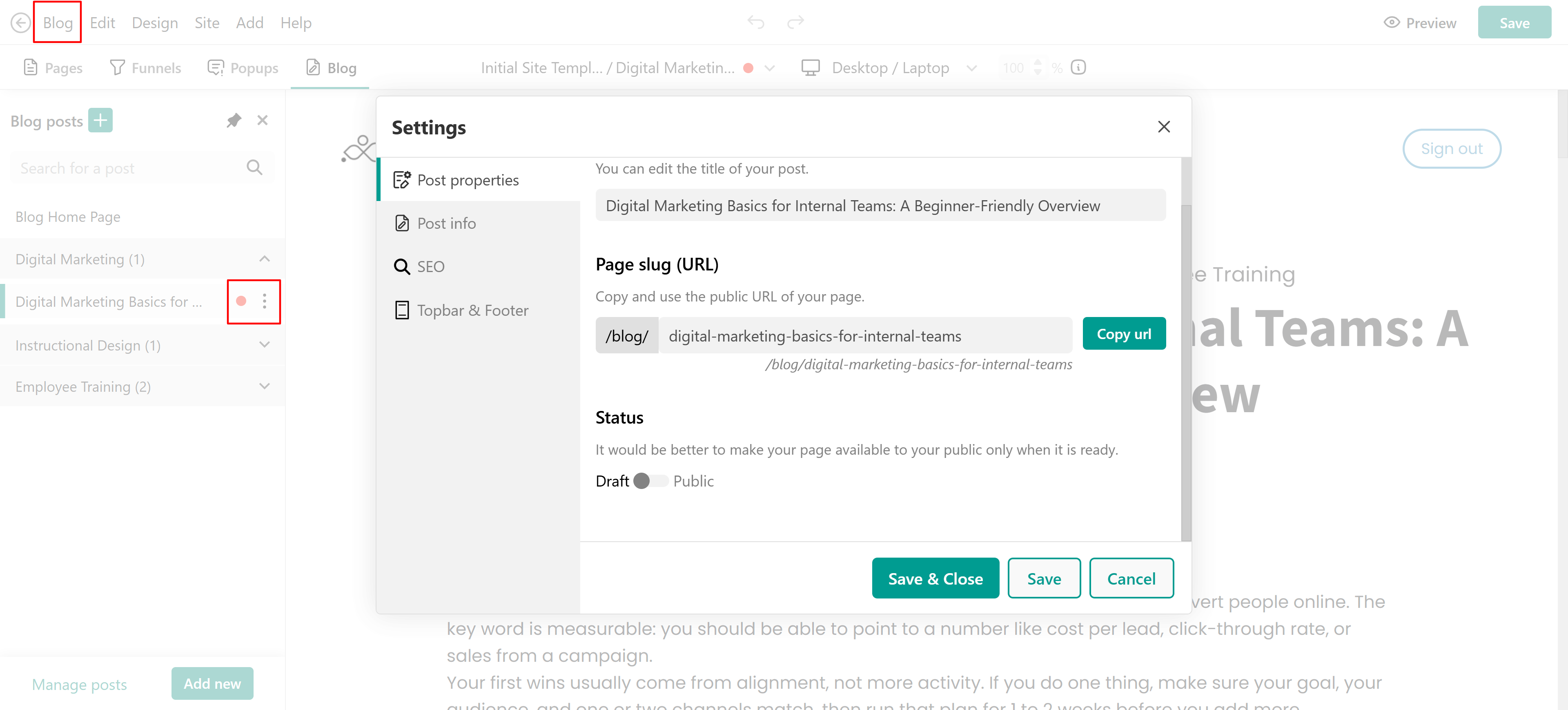
You can easily control whether a post is visible to your audience. To change the status:
- From the Posts Manager, toggle the status (Public/Draft),
- Open the post editor and go to: Blog → Post Properties → Status
- Click the Post Info (gear icon) → Post Properties → Status
Clone/ Delete blog post
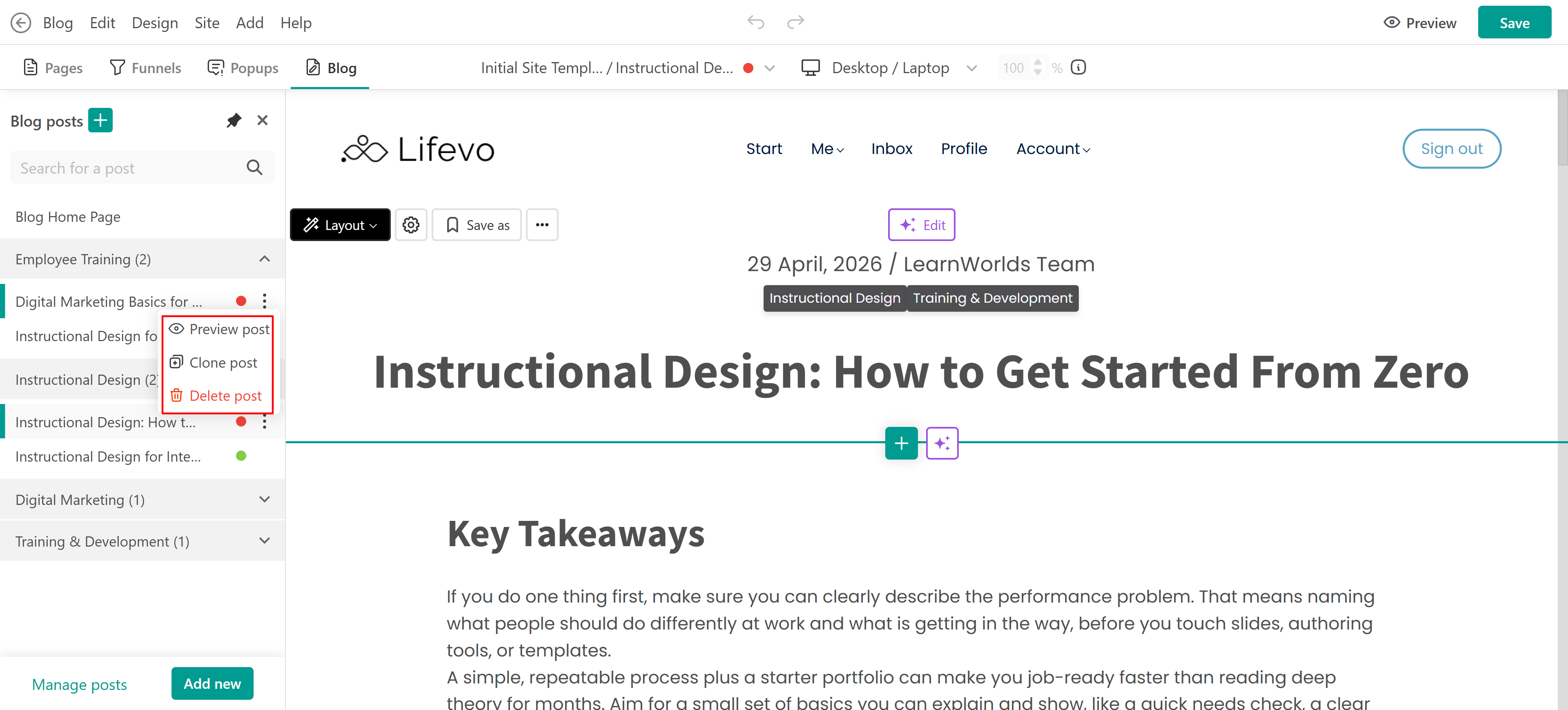
To duplicate or remove a post xlick the three dots (⋮) in the blog authoring side panel and choose:
- Clone to duplicate the post
- Delete to remove it
Blog post properties
While editing a blog post, you can access its settings by:
- Clicking Blog → Post Properties in the top toolbar, or
- Clicking the Post Info (gear icon) → Post Properties

- Properties tab: IIn the Properties tab, you can edit the page name and copy the public URL. You can also set the blog post as Public or switch it to Draft if it’s not ready yet.
- Post info: Here you can edit the author, description, publication date, featured image, and categories.
- SEO tab: By default, the automatic SEO extraction is enabled. You can disable it to manually customize the SEO settings.
- Topbar & Footer: Choose whether to show or hide the topbar and footer on the blog post page.