
The AI Source library helps you organize and reuse reference materials when creating courses and learning programs with LearnWorlds AI. Upload documents, files, and URLs to guide AI-generated content based on your subject matter, learning objectives, and existing resources.
You can reuse these materials across courses without uploading the same files repeatedly.
Access the AI Source library
The AI Source library is available when creating a course with AI or working on an existing course.
When creating a course with AI
Navigate to Courses & Programs, click Create course, and select Create course with AI.
In the AI course creation screen, there are two ways to add reference materials:
- Add the resources your course will build on: Upload files, add URLs, or select existing resources to guide AI when generating your course. When adding resources here, you can also choose how closely AI should follow them using the Strict, Balanced, or Open modes.
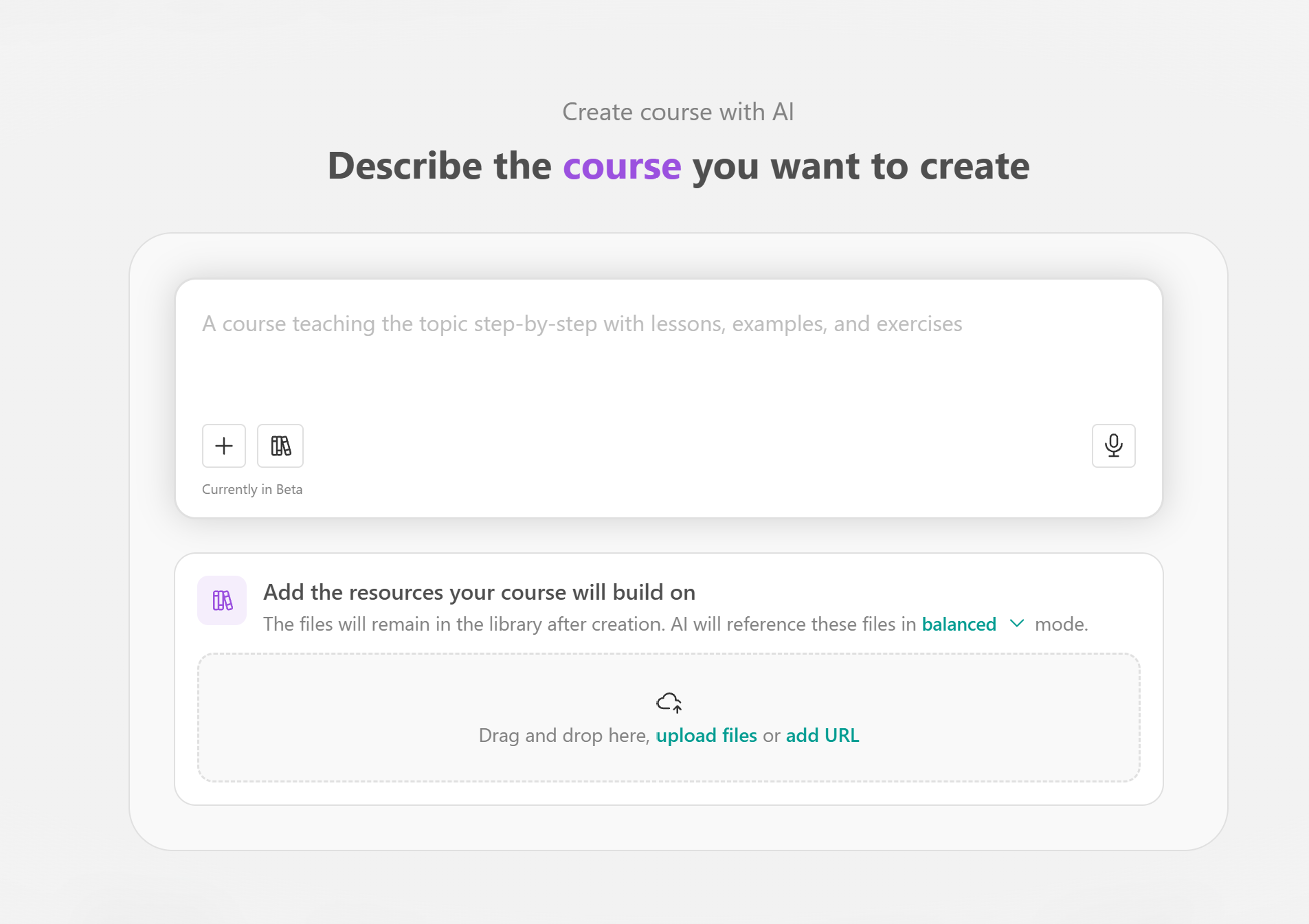
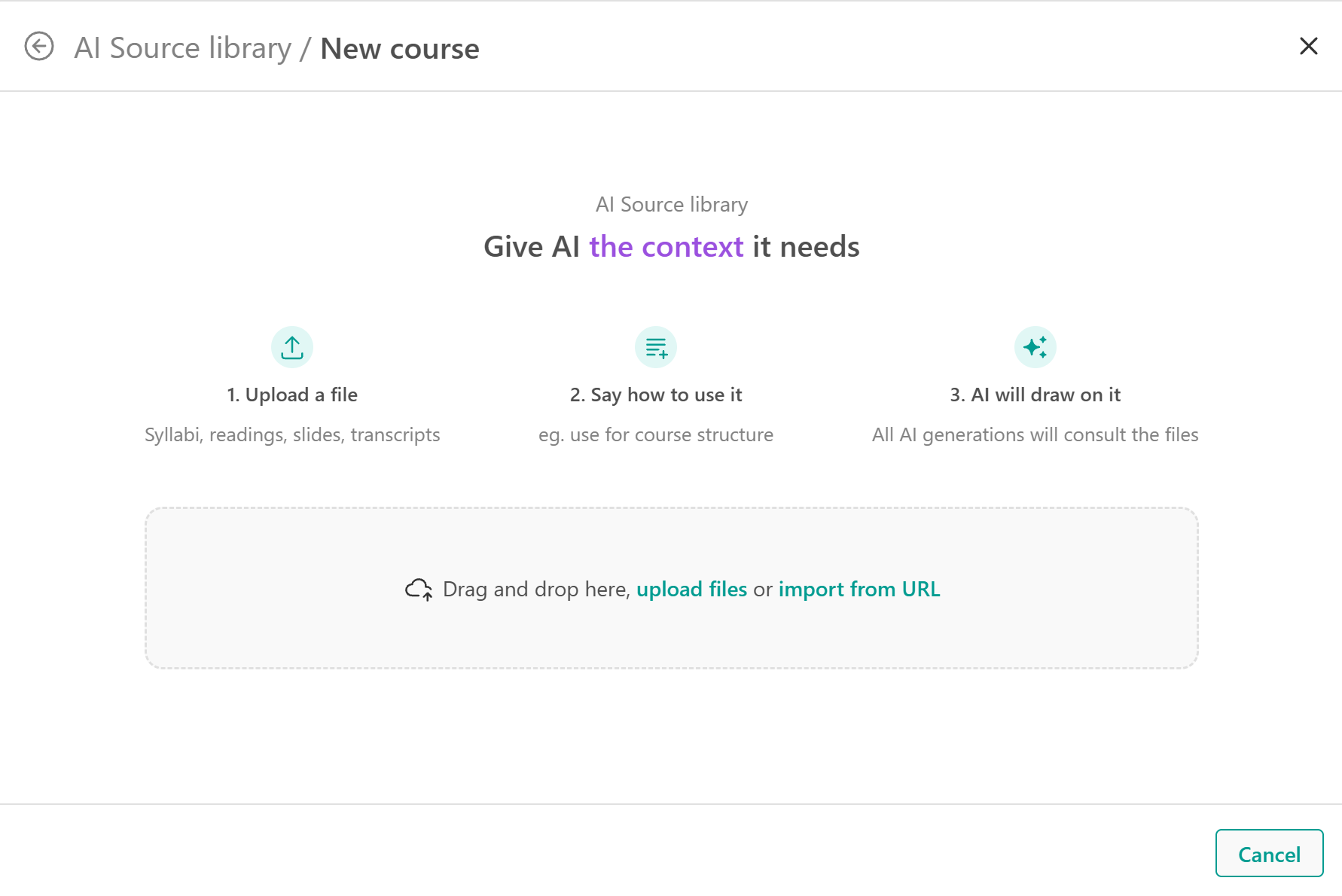
- AI Source library (book icon): Click the book icon in the AI chatbox to open your library, browse previously uploaded resources, or add new ones. If your library is empty, you'll see options to drag and drop files, select Upload files, or Import from URL.
From an existing course
To access the library from a course you've already created:
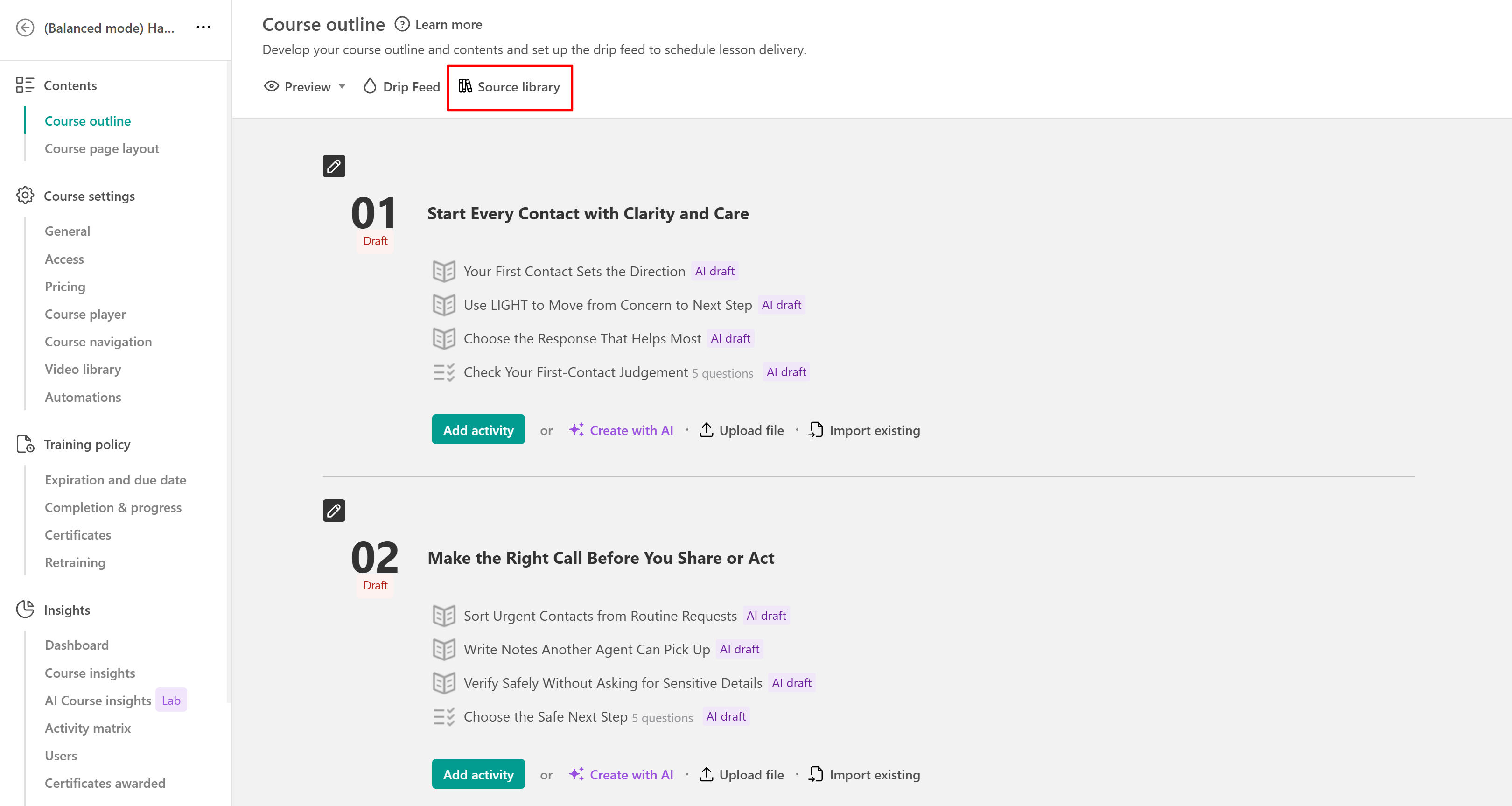
- Navigate to Courses & Programs and open your course.
- Go to Contents → Course outline.
- Click Source library at the top of the page.
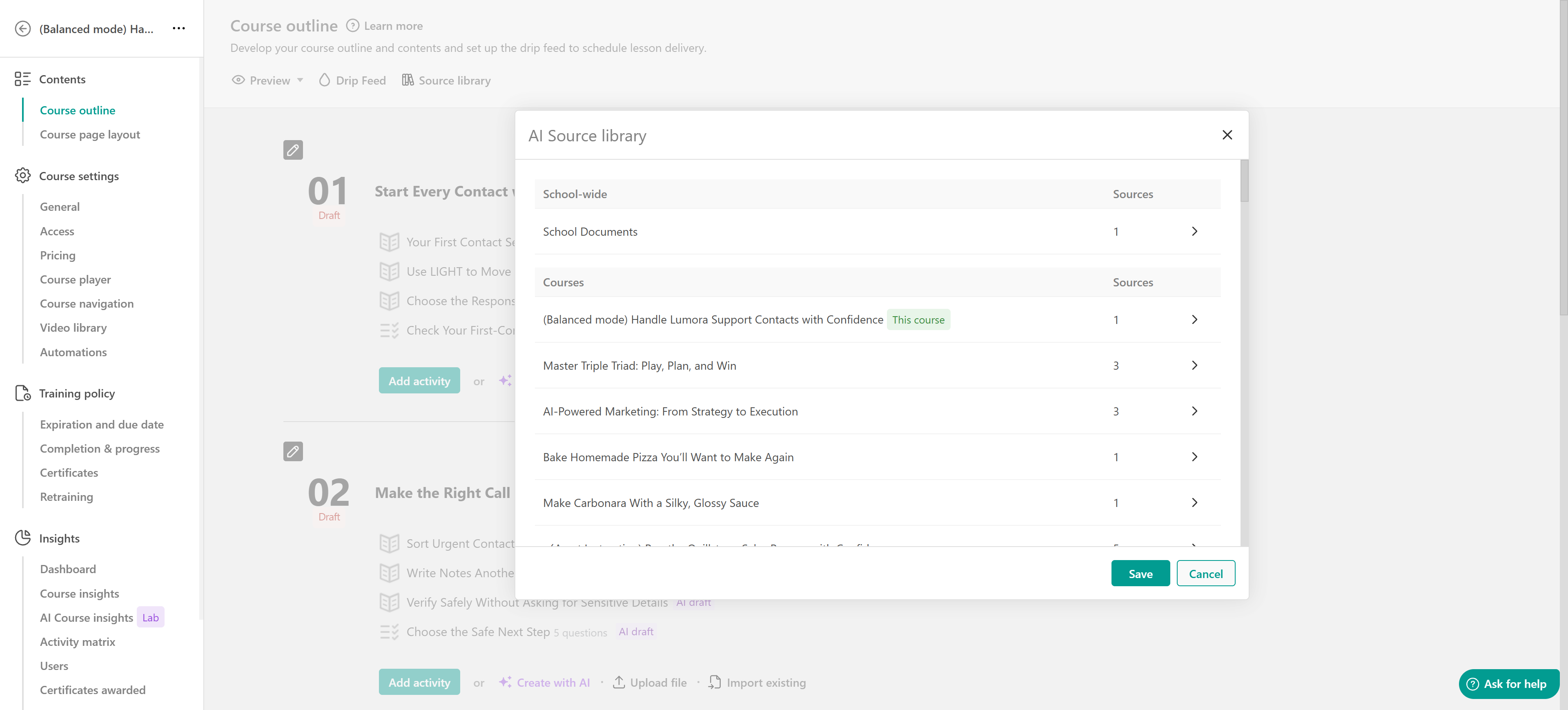
The AI Source library opens, allowing you to review existing reference materials, manage the sources associated with the course, and reuse materials from other areas of your library.
Add reference materials
Once you've opened the AI Source library, add the materials you want AI to use when generating your course content. These can include syllabi, presentations, readings, transcripts, and other relevant documents.
If your library is empty, drag and drop files into the upload area, select Upload files to choose files from your device, or click Import from URL to add a web resource.
After adding your materials, provide instructions in the AI chatbox explaining how AI should use them.
For example, you can enter:
Use the uploaded training manual as the main reference for the course structure and create practical exercises based on its examples.
Your uploaded materials remain available in the AI Source library for reuse in future AI workflows.
Control how AI uses your sources
When adding reference materials through Add the resources your course will build on, you can choose how closely AI should follow the provided sources.
| Mode | Description |
| Strict | AI follows the provided source materials closely and avoids introducing information beyond them. |
| Balanced | AI uses your sources as its foundation while allowing some flexibility to connect ideas and fill in gaps. |
| Open | AI uses your sources as a starting point and has greater flexibility to expand on the content. |
Balanced is selected by default.
- Choose Strict when creating training based on specific policies, procedures, or approved documentation.
- Choose Balanced for general educational content that benefits from both source-based information and additional context.
- Choose Open when exploring new ideas and approaches.
Select your preferred mode from the available dropdown menu when adding or managing source materials.
Reuse existing reference materials
The AI Source library keeps your uploaded resources organized, making it easier to reuse materials across courses without uploading them again. Resources are organized into two main areas:
- School-wide: Shared school documents.
- Courses: Reference materials associated with individual courses.
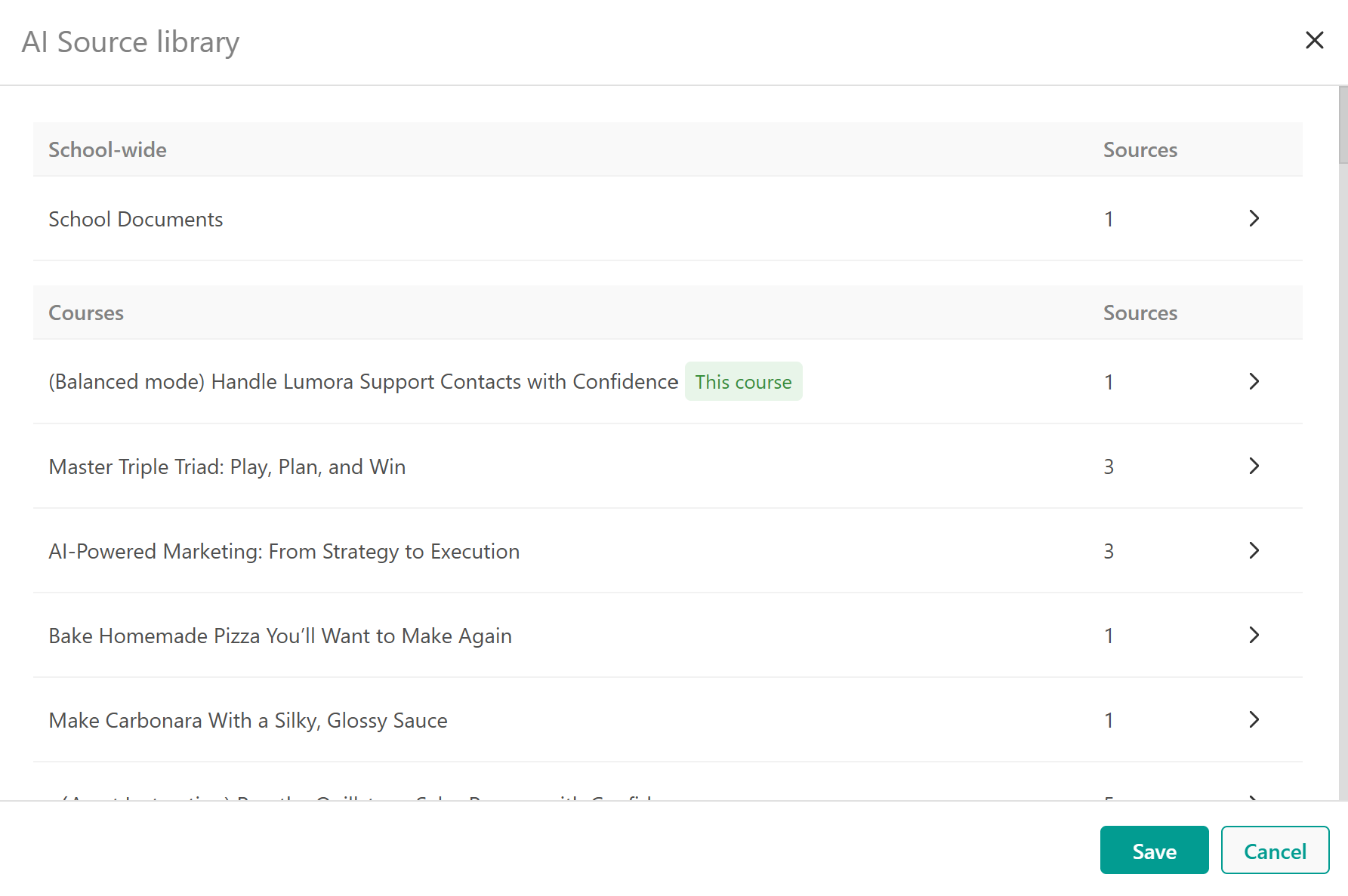
To reuse existing materials,
- Open the AI Source library.
- Select School Documents or the course containing the materials you want to reuse.
- Locate the file you need and click Add to course to include it in your current course's reference materials.
- If needed, click Add instructions next to the file to specify how AI should use its content.
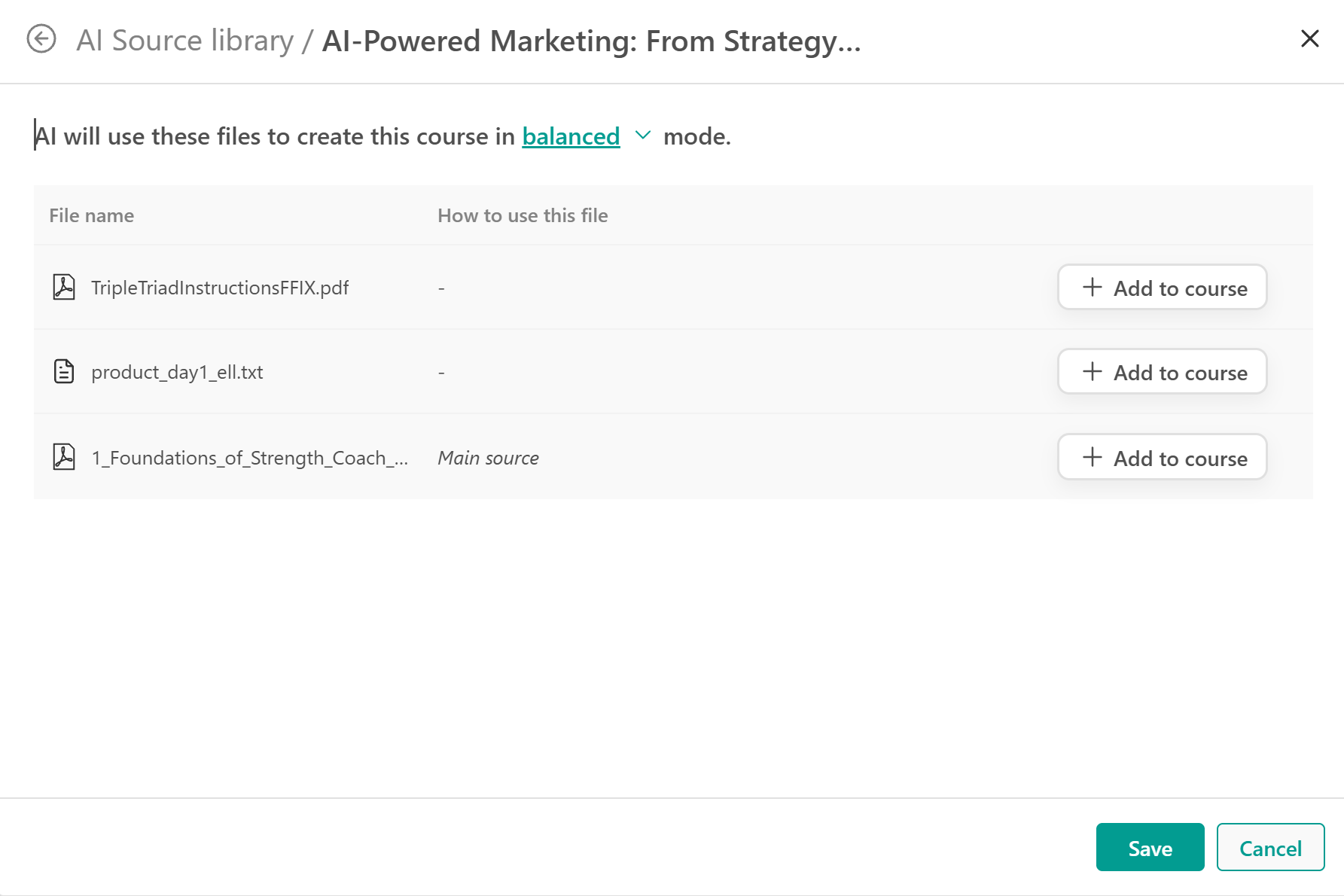
- Click Save to apply your changes and confirm your selections.
For example, when adding a customer service handbook, instruct AI to use it as the main reference for creating realistic customer support scenarios.
Manage your course's reference materials
After adding resources to a course, manage which files AI should use and how closely it should follow their content.
Open the course's Source library to review its reference materials. Each file includes an ON/OFF toggle that controls whether AI uses it when generating content. Use Deactivate all to turn off all listed sources at once.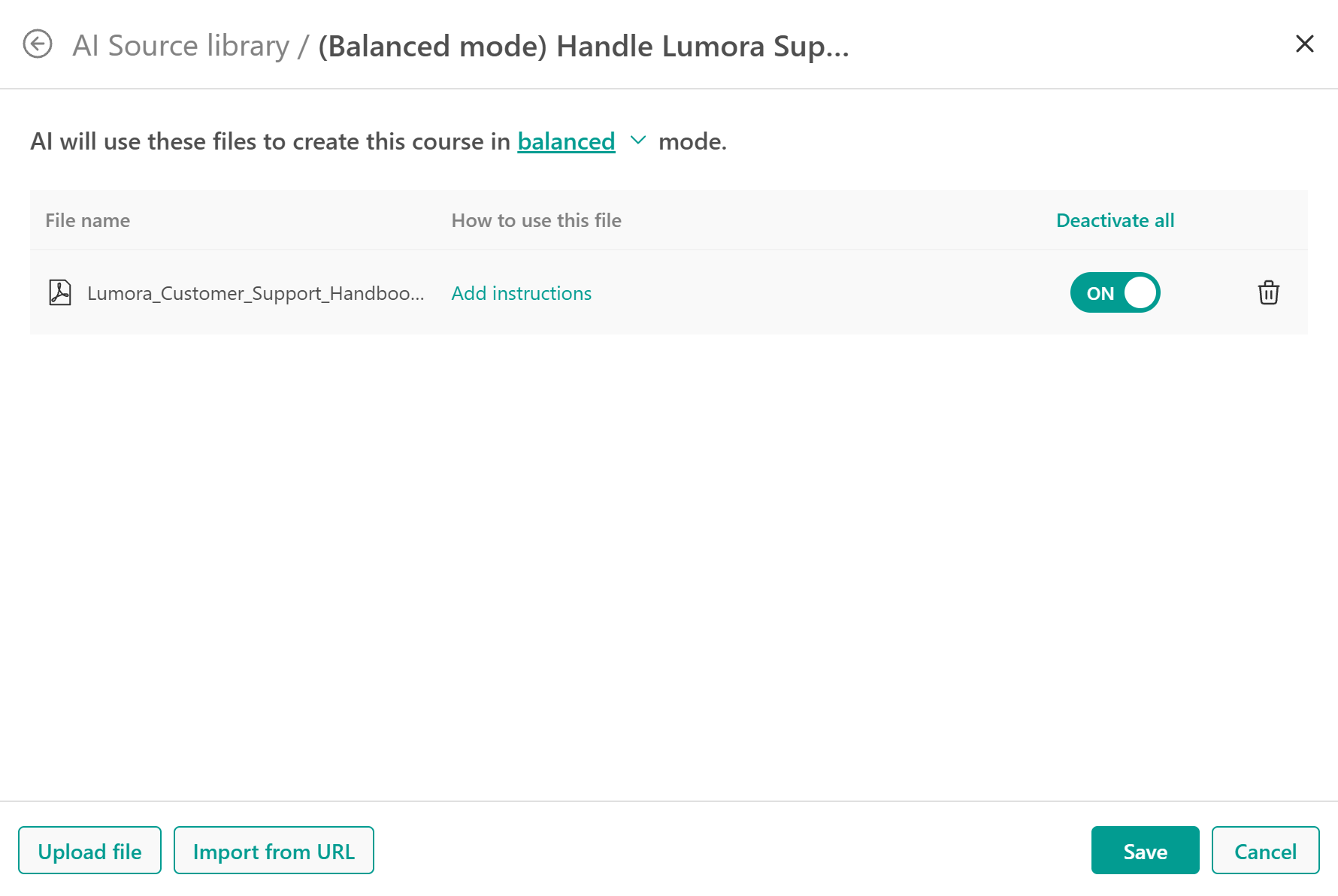
To provide more specific guidance, click Add instructions next to a file and describe how AI should use it. You can also select the source mode from the dropdown menu at the top of the library.