


Launching your LearnWorlds school is an exciting milestone! Before you go live, make sure everything is set up correctly so your learners enjoy a smooth experience from day one.
This checklist walks you through the essential steps to prepare your school for launch.
 Make sure to upgrade to a paid plan before you start selling your products.
Step 1: Set Up Your Payment Gateway
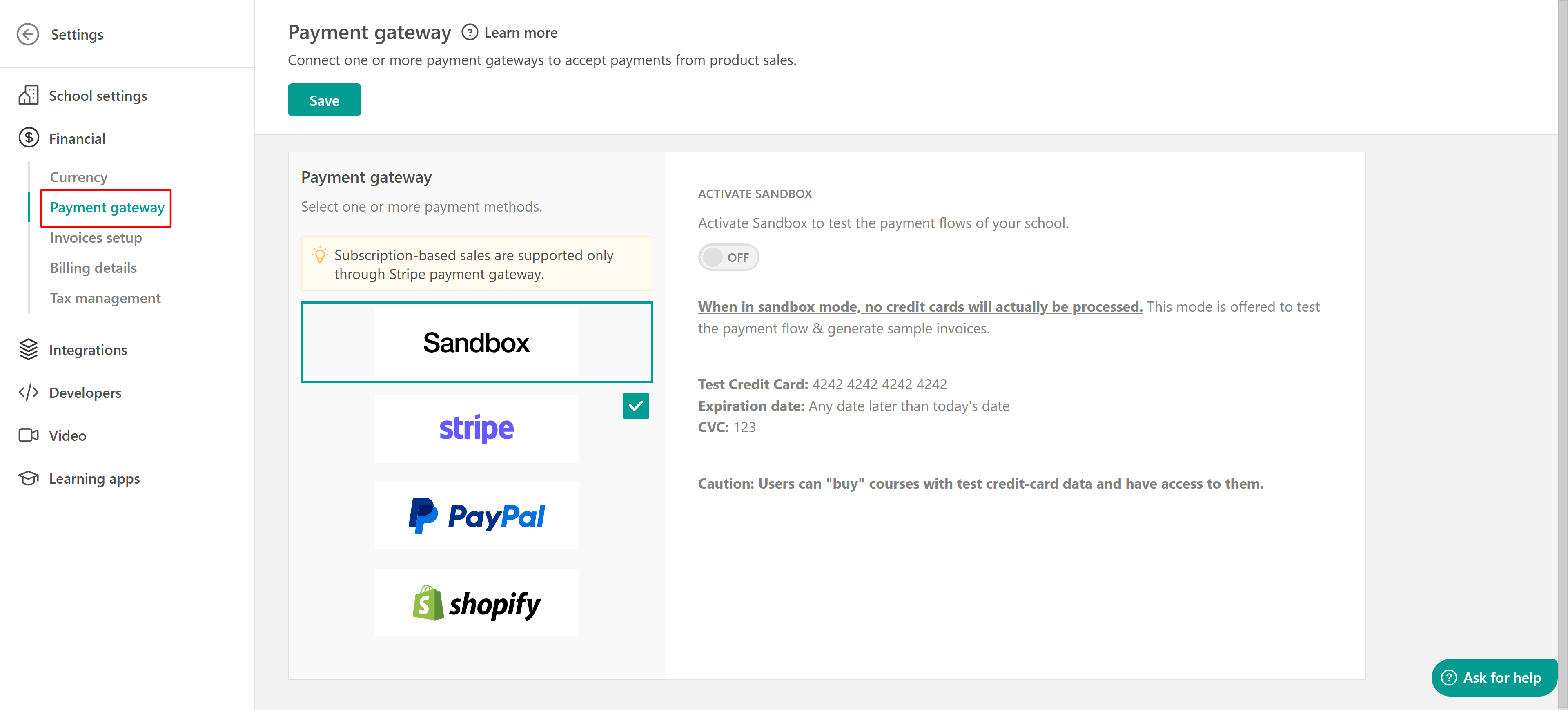
Navigate to Settings → Financial → Payment Gateway.
What to do:
- Deactivate Sandbox Mode.
- Connect your preferred payment gateway (e.g., Stripe, PayPal) to accept real payments for your products.
Advanced Tip: Run a test purchase after setup to ensure everything works correctly.How to Make a Test Purchase (Sandbox Mode) »
Step 2: Review Your Product Settings
Navigate to Courses & programs → Courses
What to do:
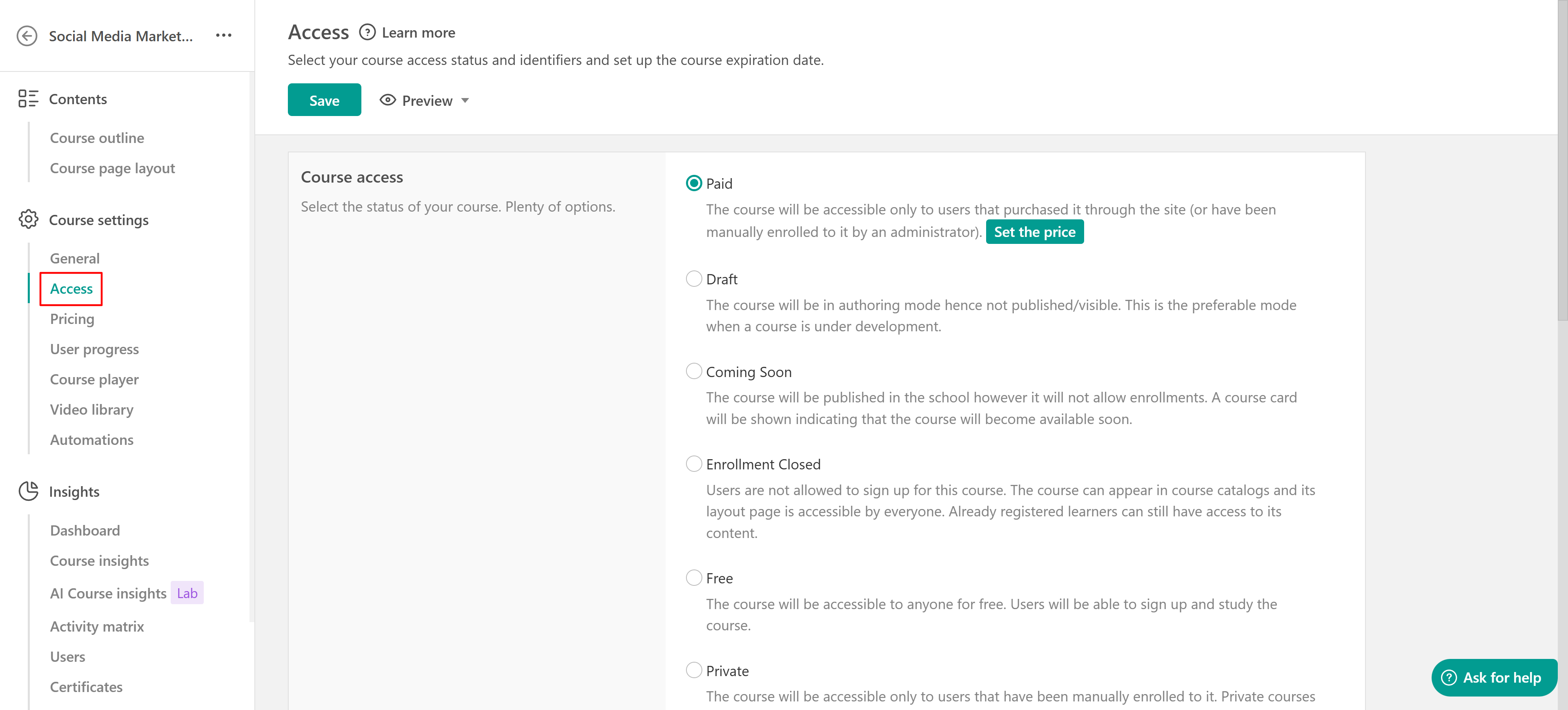
- Make sure your courses or learning programs are published (not in Draft).
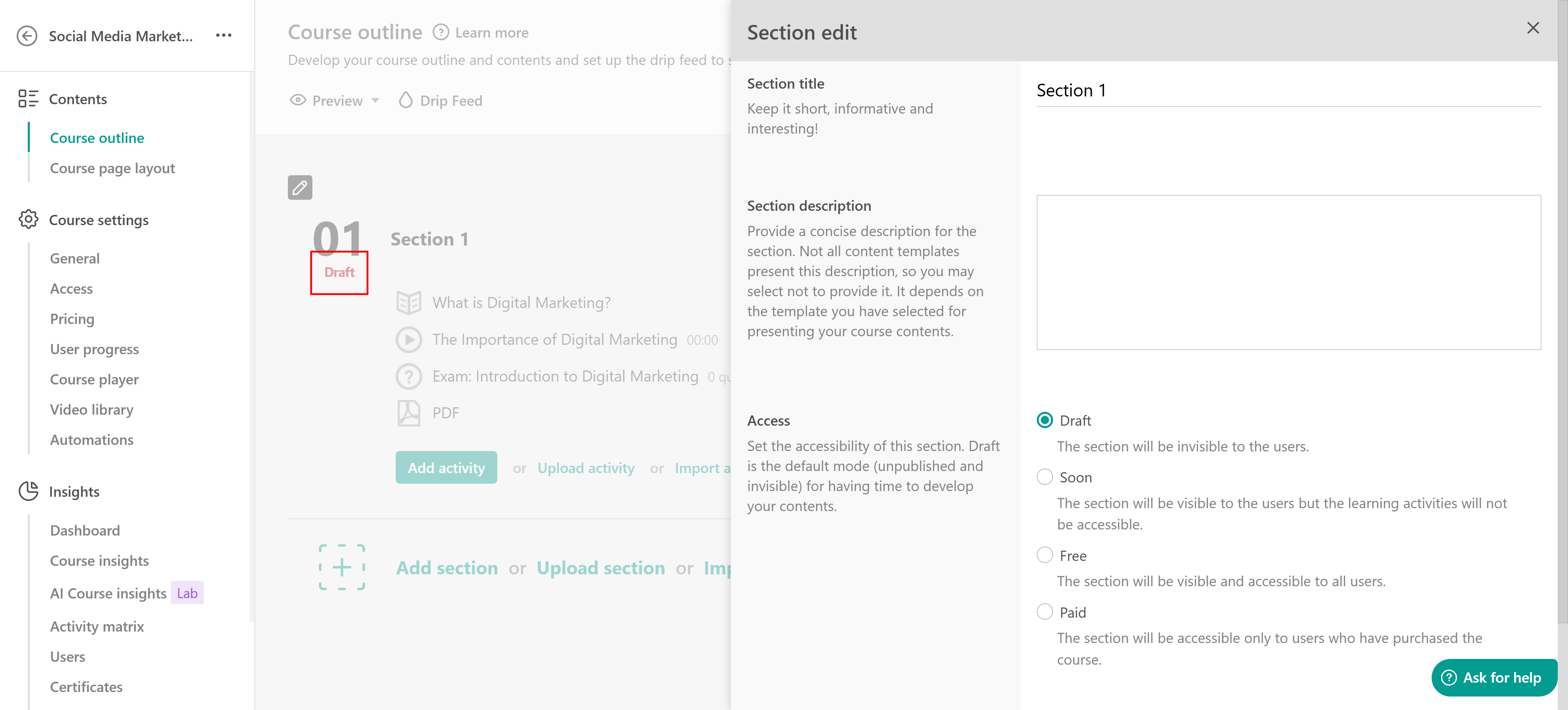
- Check that course sections are not set as Draft.
- Open the course player to confirm all activities work as intended.
General Overview: Creating Courses »
How to Create Learning Programs in LearnWorlds »
How to use Sections to Organize your Course Content »
How to Preview your Course and Program Player »
Step 3: Finalize Your Pages
Where to go: Website → Design → Edit Website.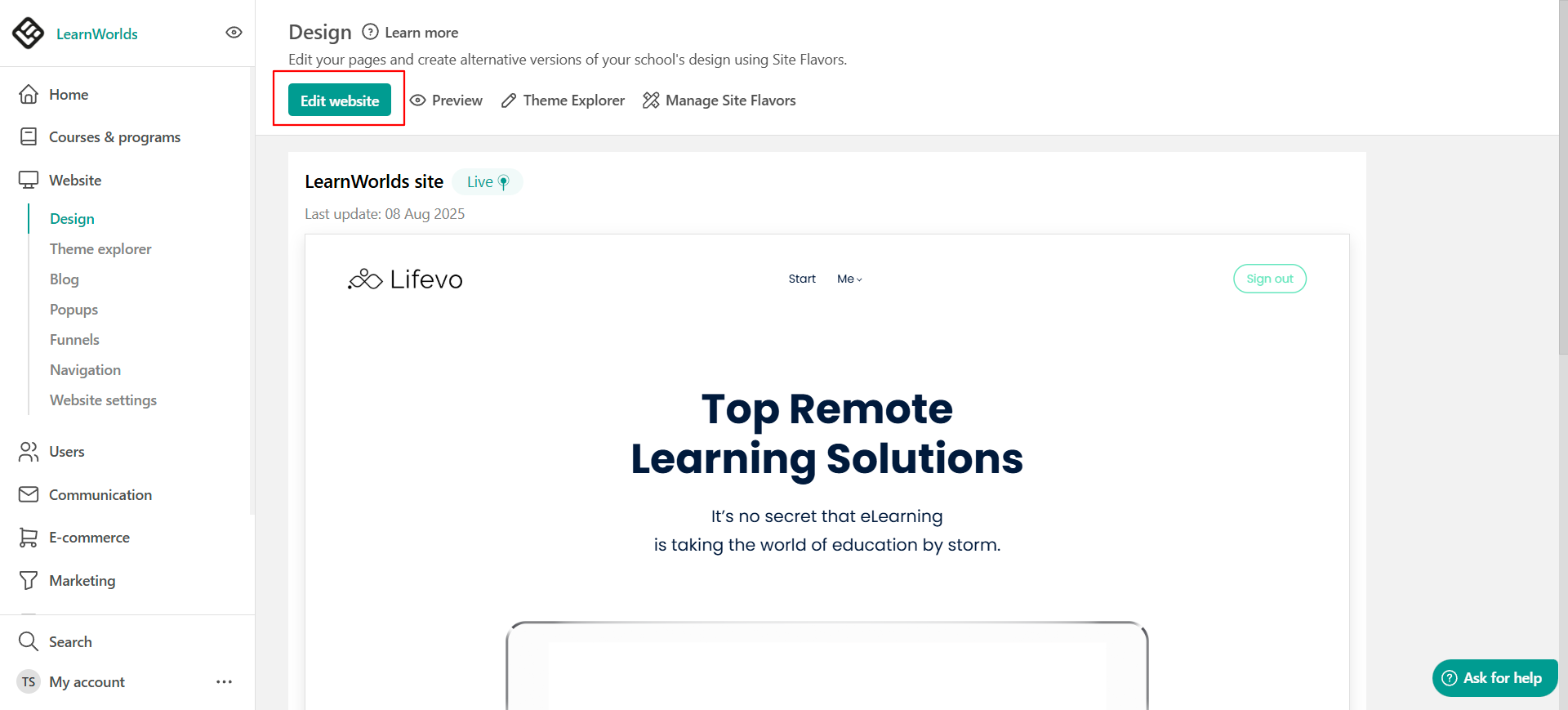
What to do:
- Publish all pages you want learners to see.
- Remove any prelaunch pages or sections.
- Delete countdown timers if no longer needed.
How to Add and Customize the Prelaunch Section »
How to Publish and Un-Publish your Pages »
How to Add a CountingDown Clock to your Pages »
Step 4: Configure School Navigation
Where to go:
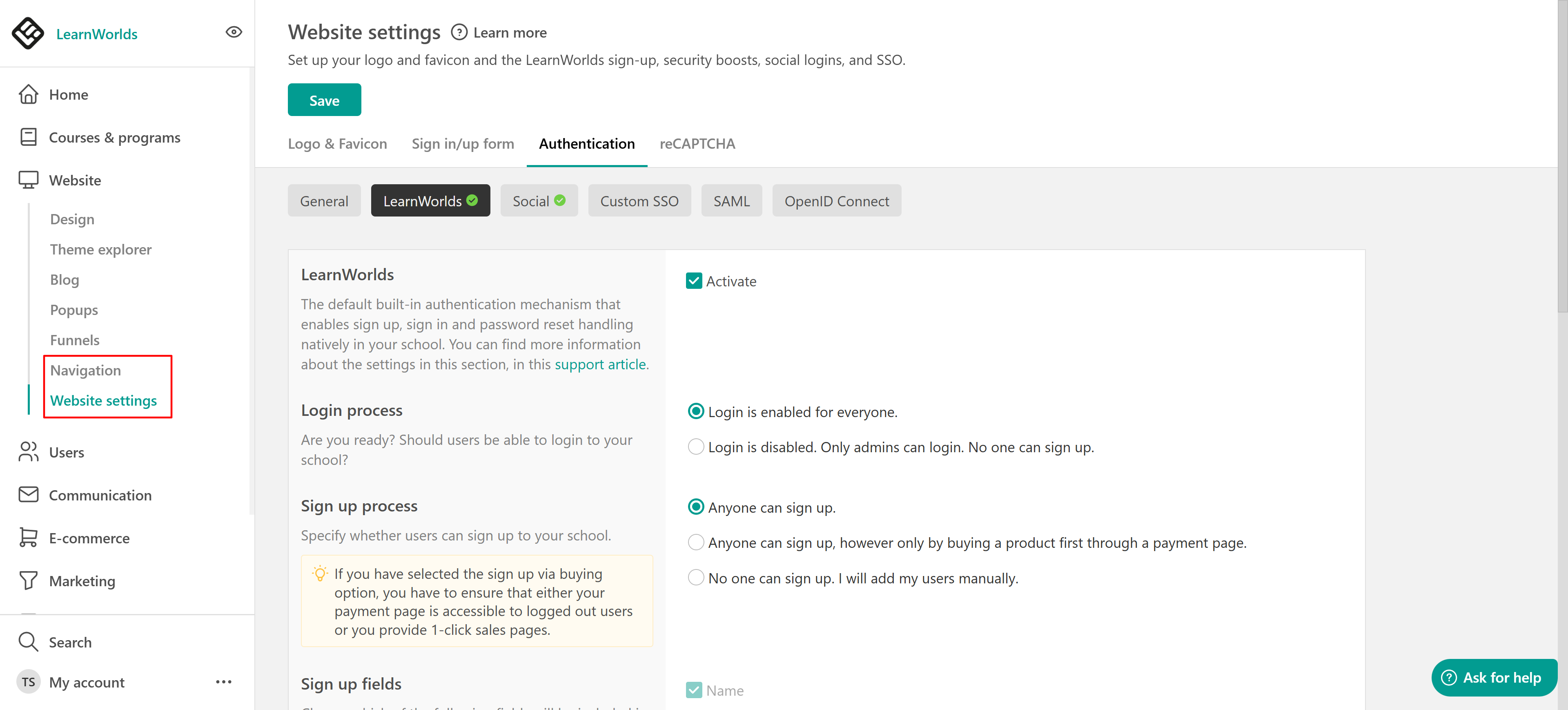
- Go to Website → Website Settings → Authentication → LearnWorlds and ensure that you have enabled the Login & Sign-up process for your users (unless you want to add all of your users manually ).
- Navigate to Website → Navigation and make sure you have selected the option Un-enrolled users can navigate through your school's pages, apps, and free course contents , in case you have free courses in your school (otherwise, your users will not be able to register).
How to Manage your Sign in/up Settings »
How to Add a New User - Search Users »
Site Navigation: How to Manage the Non-Paying Users & Payment Flow »
Step 5: Set Up Notifications
Navigate to Communication → School Emails → Admin settings and add your email to receive email notifications upon certain events, and keep track of your school's activities.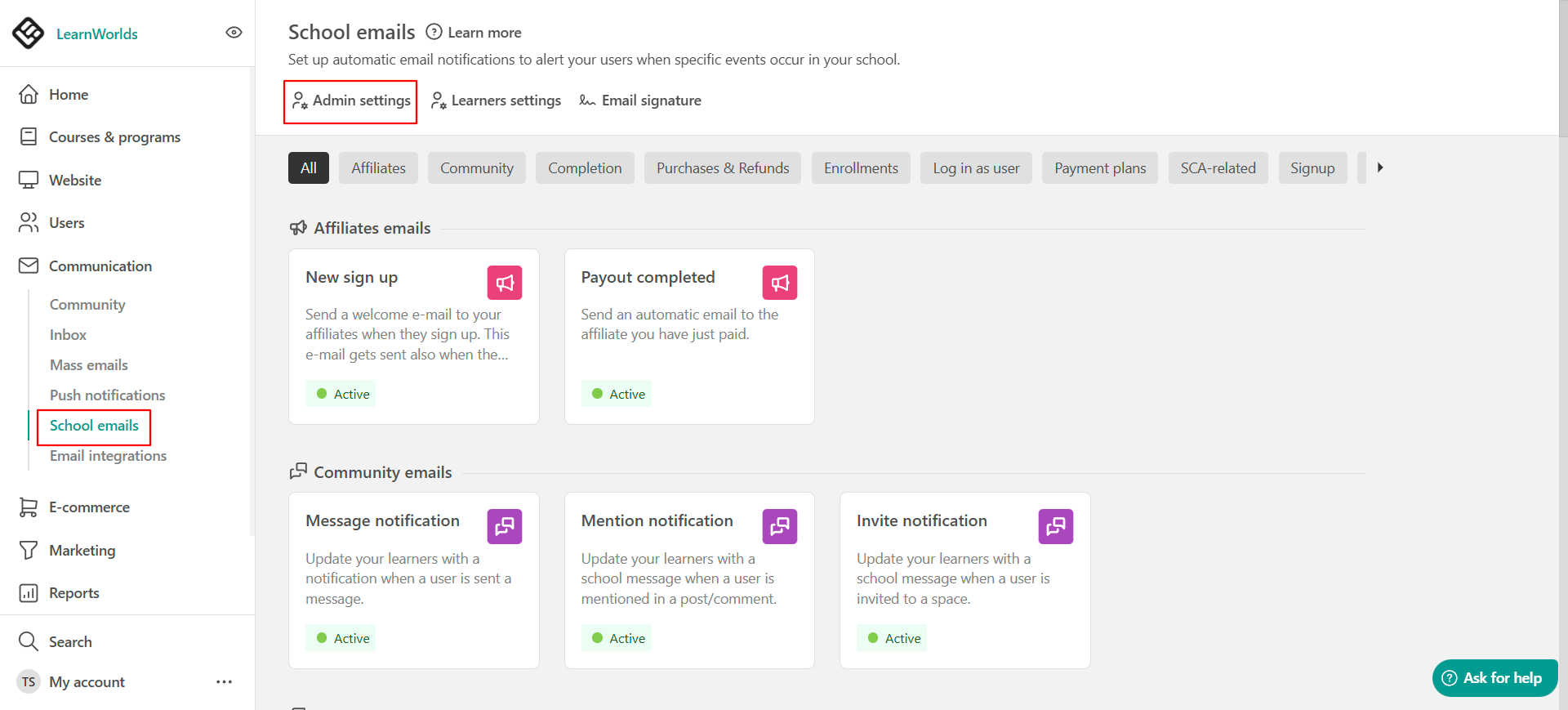
How to Edit your Admin Notification Email Settings »
Step 6: Connect Your Custom Domain
Navigate to Settings → Site Domain & Email.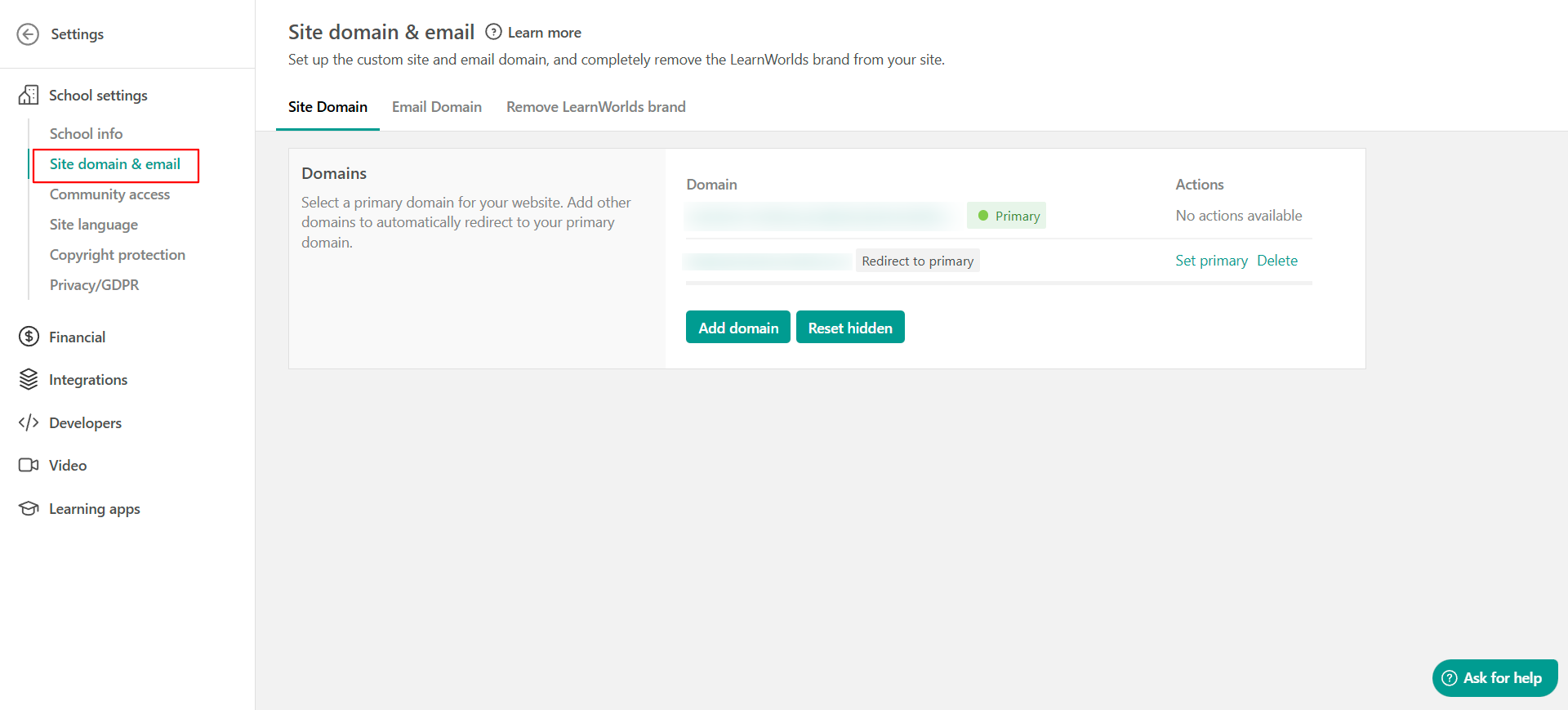
What to do:
Link your custom domain (e.g., www.yourschool.com) to improve SEO and give your school a professional look.
SEO (Search Engine Optimization) Recommendations »
Step 7: Test the Learner Experience
What to do:
- Create a test user account.
- Log in as the test user to:
1. Navigate through the school.
2. Purchase a product.
3. Access course content as a learner.
This ensures everything works before your real users join.
How to Create a Test User Account »
Quick Recap Checklist
| Setup Tasks | |
| Payment Gateway connected | ✔️ |
| Products published and tested | ✔️ |
| Pages finalized and published | ✔️ |
| School navigation configured | ✔️ |
| Notifications set up | ✔️ |
| Custom domain connected | ✔️ |
| Test user experience completed | ✔️ |
What’s Next?
Congratulations! Your school is ready to launch.
Up next: Quick Start Guide 8: Understand Your Dashboard & Reports, learn how to track sales, sign-ups, and learner activity in real-time.