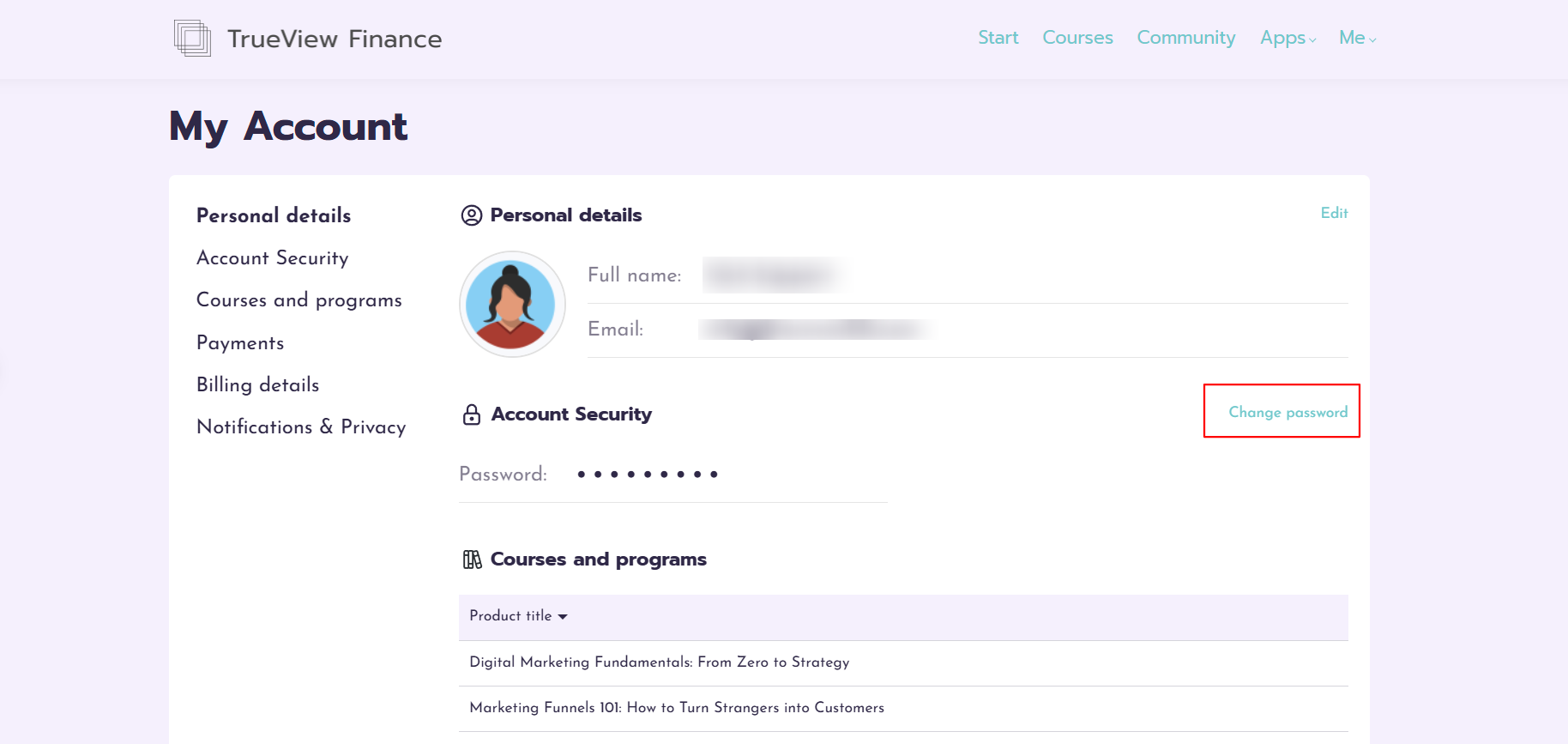
This feature enables users to reset or update their passwords through the login/sign-up form or their profile page. It provides a seamless password management experience while ensuring account security.
In this article, we will learn how users can change or reset their passwords using two methods.
Password reset via Login/Sign-up form
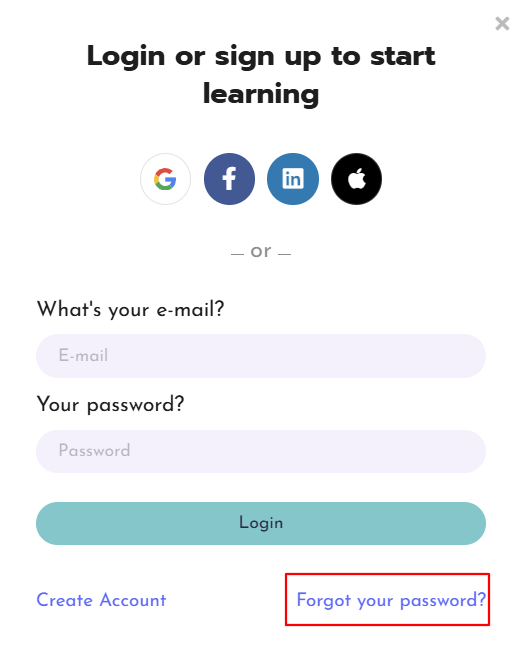
1. On the login form, click the Forgot your password link.
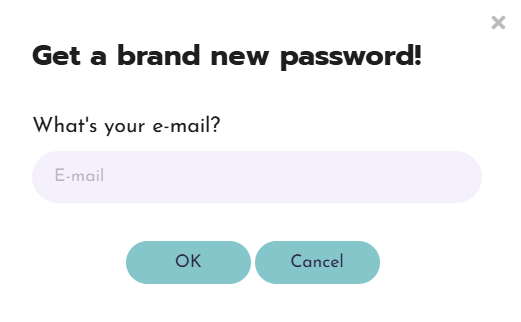
2. A new form will appear, prompting users to enter their email address. This is needed to receive the reset password link.
3. Users will receive an email containing a link to reset their password. This email can be customized by going to Communication → School emails → Signup → On password reset.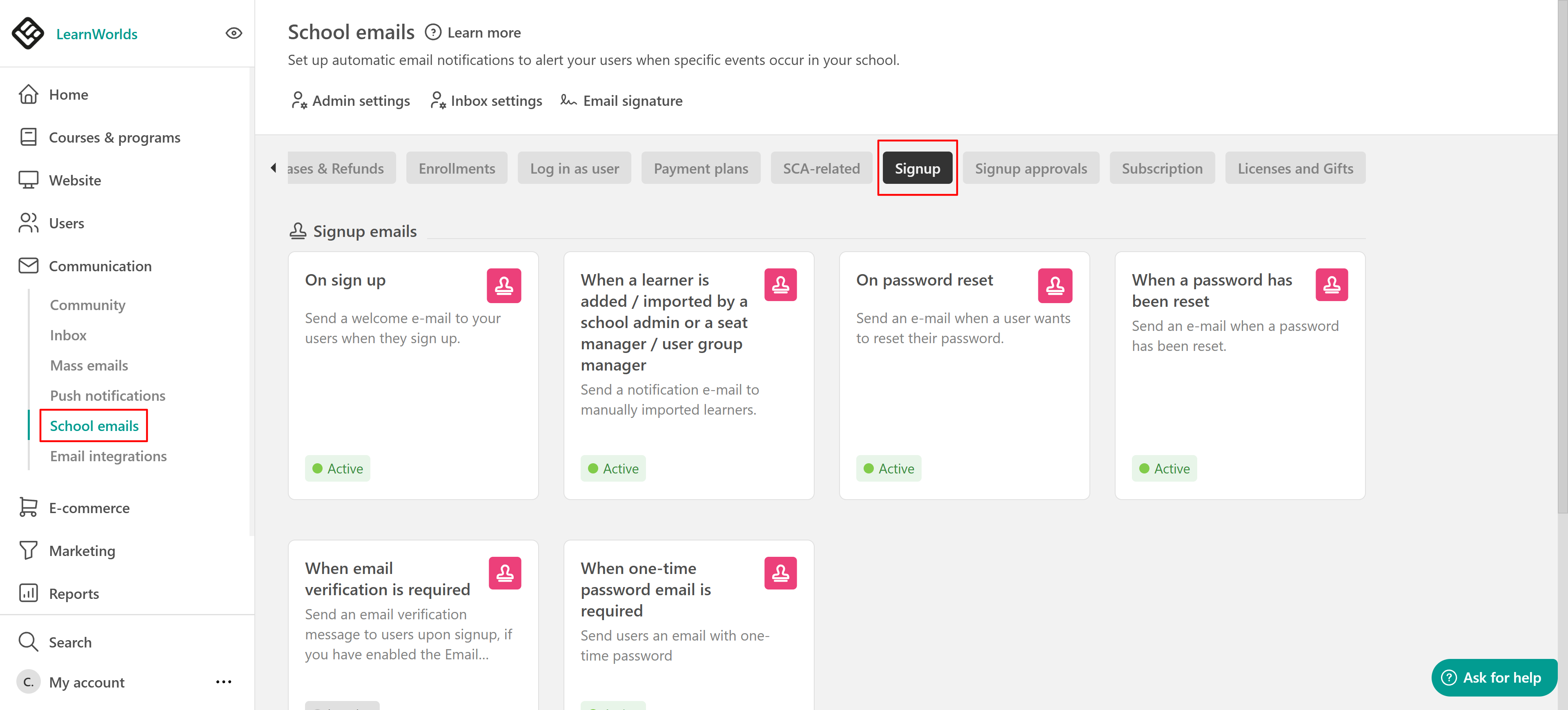
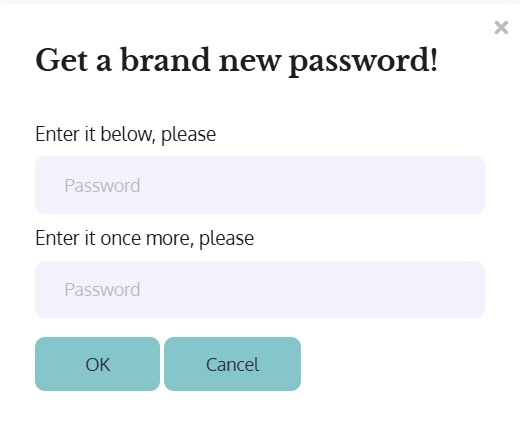
Clicking the link will redirect the user to a form where they can set a new password. After completing the form, they will be automatically logged into the school.

- The Password link received in the Notification email is valid for 24 hours.
- If a user requests multiple links, any previously generated links will expire, and only the most recent ones will remain valid.
- If the admin initiates a "Reset password" email from the User Management page, the link is again valid for 24 hours.
- Make sure that you are following the password rules (if uppercase, lowercase, special characters, or one number is needed)
- If multiple password reset emails are requested, either by the user or an administrator, only the most recent reset link remains valid. All previous links are automatically invalidated. If a user clicks on an older link, they will receive a "Not Found" error message.
Password change via account page
All users, apart from LearnWorld's admins, can change their password through their Account page, by clicking Account Security→ Change password.