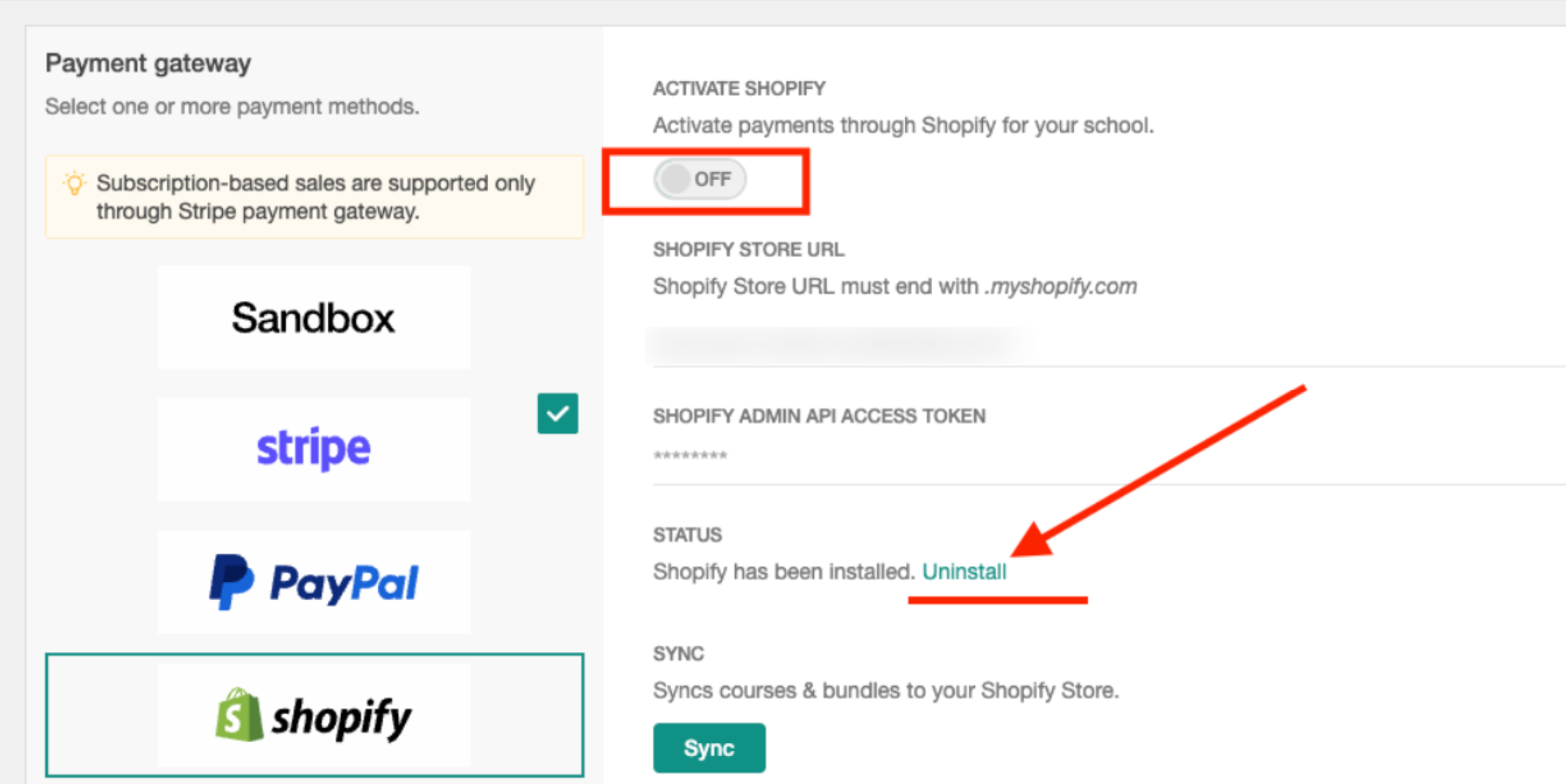
This guide explains how to connect Shopify to your LearnWorlds school as the payment gateway. The setup process consists of two steps. First, you'll create a custom app in the Shopify Dev Dashboard and generate and copy the required API credentials to complete the connection. Once connected, your school can accept payments through Shopify and automatically sync products with your Shopify store.
Follow the steps below to connect Shopify to your LearnWorlds school and learn how to get the most out of the integration.
 Before you start, have your Shopify store ready and know whether it is a standalone store or belongs to an Organization. If you see an “Organization” link in the bottom-left of the Dev Dashboard, your store belongs to an organization and the optional Partner dashboard section below applies to you.
Create the app in the Shopify dev dashboard
First you need to create a new Shopify app from the Dev Dashboard.
1. Log in to the Shopify Dev Dashboard.
2. Create a new app by choosing Create App and giving it a name (for example, your school name).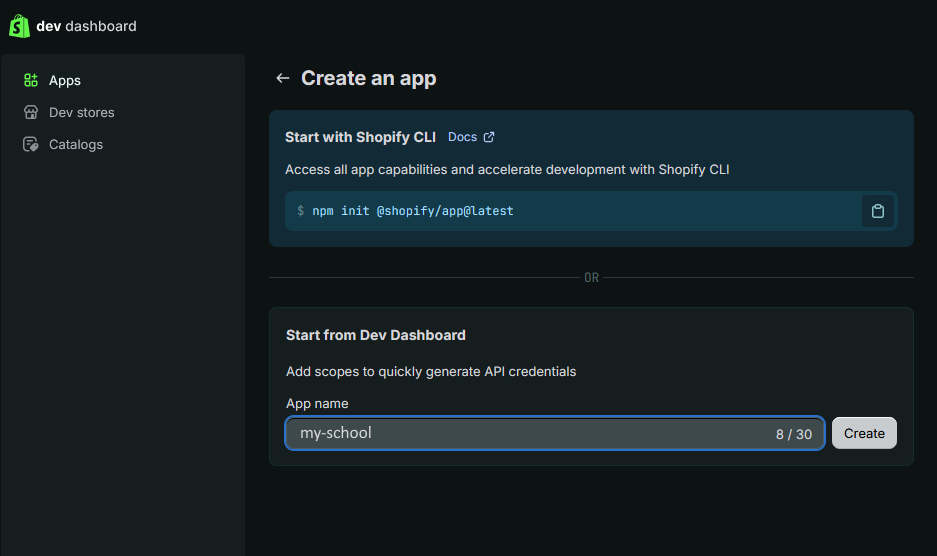
3. In URLs, add your platform URL as the App URL.
4. Uncheck Embed app in Shopify admin.
5. Leave the Webhooks API version at the latest pre-selected version.
6. Add the required Scopes. You can copy these directly from the Scopes field in your school at Settings → Financial → Payment Gateway → Shopify using the Copy button. The current scopes are:
Always copy the scopes from your school rather than typing them by hand. If the integration is updated, the school field will reflect the correct, up-to-date list, so copying guarantees you never miss a scope.7. Add the Redirect URL. You can find this also inside your school under Settings → Financial → Payment Gateway → Shopify. Use the Copy button, then paste it into the Redirect URLs field of the app.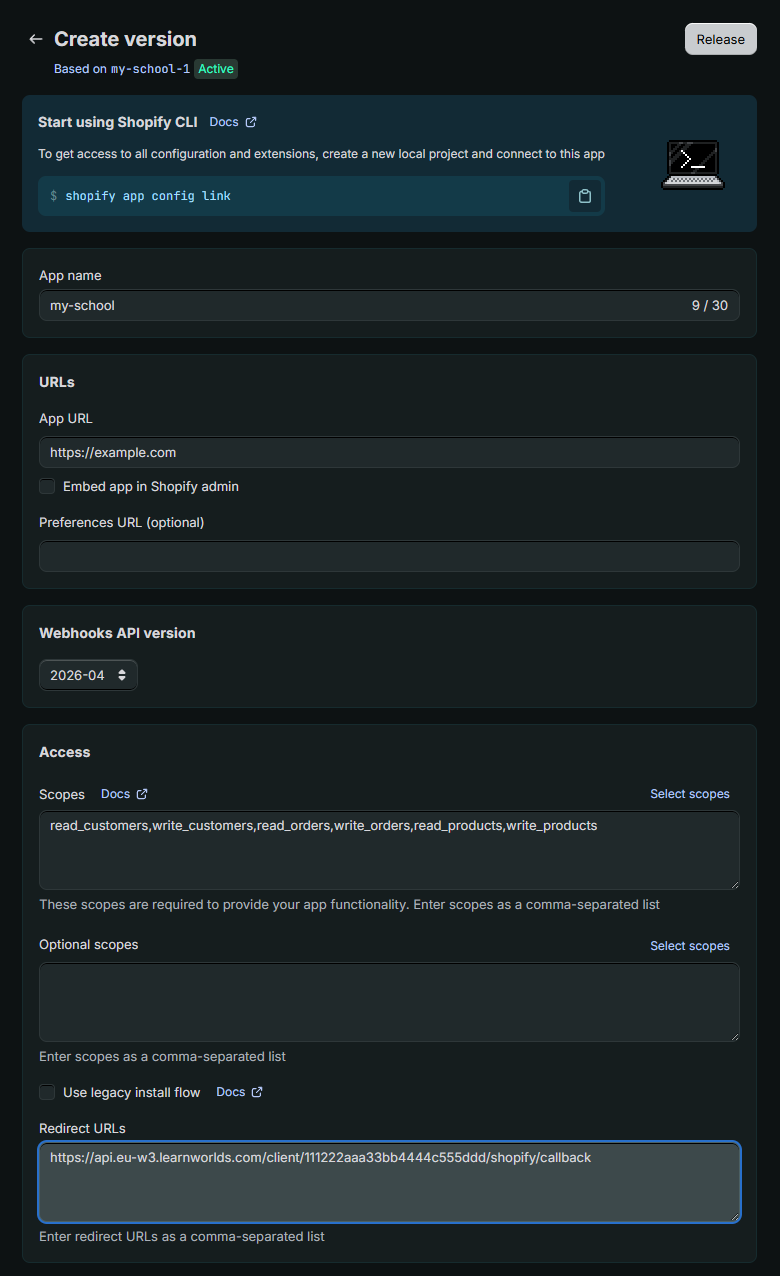
8. Click Release. Optionally type a Version name, then Click Release.
After releasing, you may see a “review pending” notice. This is informational only, because this is a private app, Shopify does not review it. You can proceed to install it right away.Grant protected customer data access (Partner dashboard, optional)
Complete this section only if you are setting up the app through the Shopify Partner Dashboard. If your store is standalone and you do not see an Organization link in the bottom-left corner of the Shopify Dev Dashboard, skip this section.
To grant access to protected customer data:
1. Log in to the Shopify partner dashboard.
2. Go to App Distribution → All Apps and select your newly created app.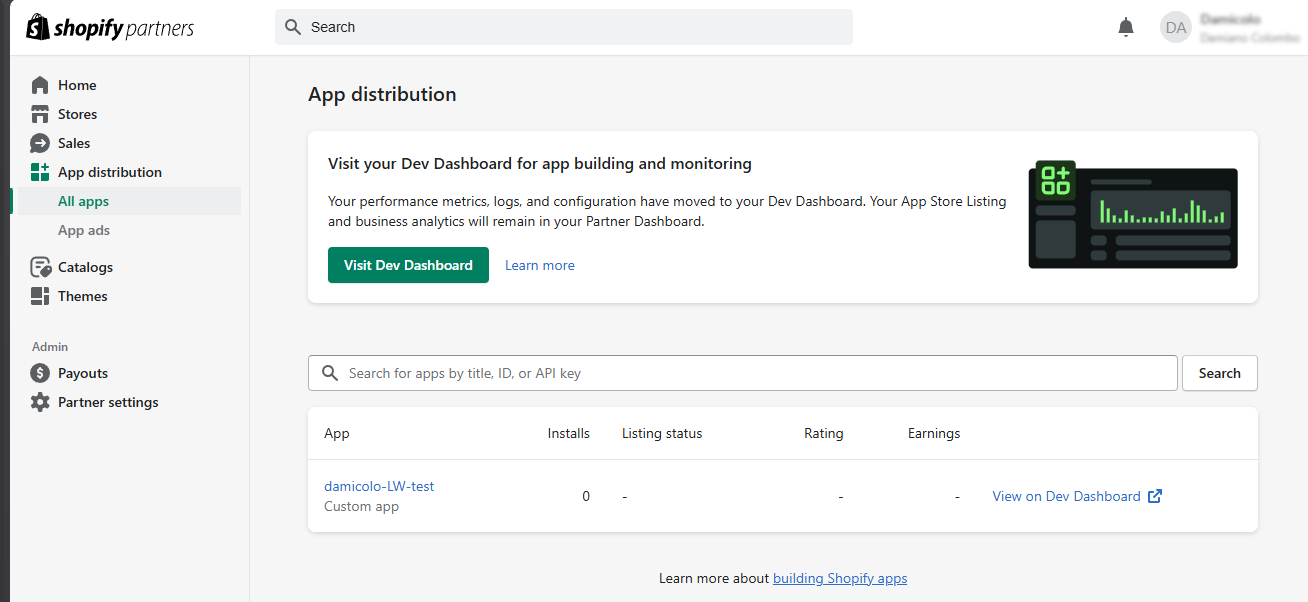
3. Go to API access requests.
4. Under Protected customer data access, click Request Access.
5. In the Protected customer data section, click Select, check App Functionality, then click Save.
6. In Protected customer fields (optional) → Name, click Select, check App Functionality, then Save.
7. In Protected customer fields (optional) → Email, click Select, check App Functionality, then Save.
Shopify's interface changes frequently, so the labels and options you see may differ from the screenshots in this guide. Access to Protected Customer Data is also available only as a paid add-on for production stores. Regardless of any interface differences, the goal is to grant your custom app App Functionality access to customer data, including names and email addresses.Custom distribution (only if needed)
This step is only required if you are a Shopify Organization Admin creating the app for another user or store within your organization. Most customers can skip this section and return to it only if they encounter an installation error later in the setup process. To configure custom distribution:
- In the Shopify Partner Dashboard, go to App Distribution → All Apps.
- Select your app.
- Open the Overview tab.
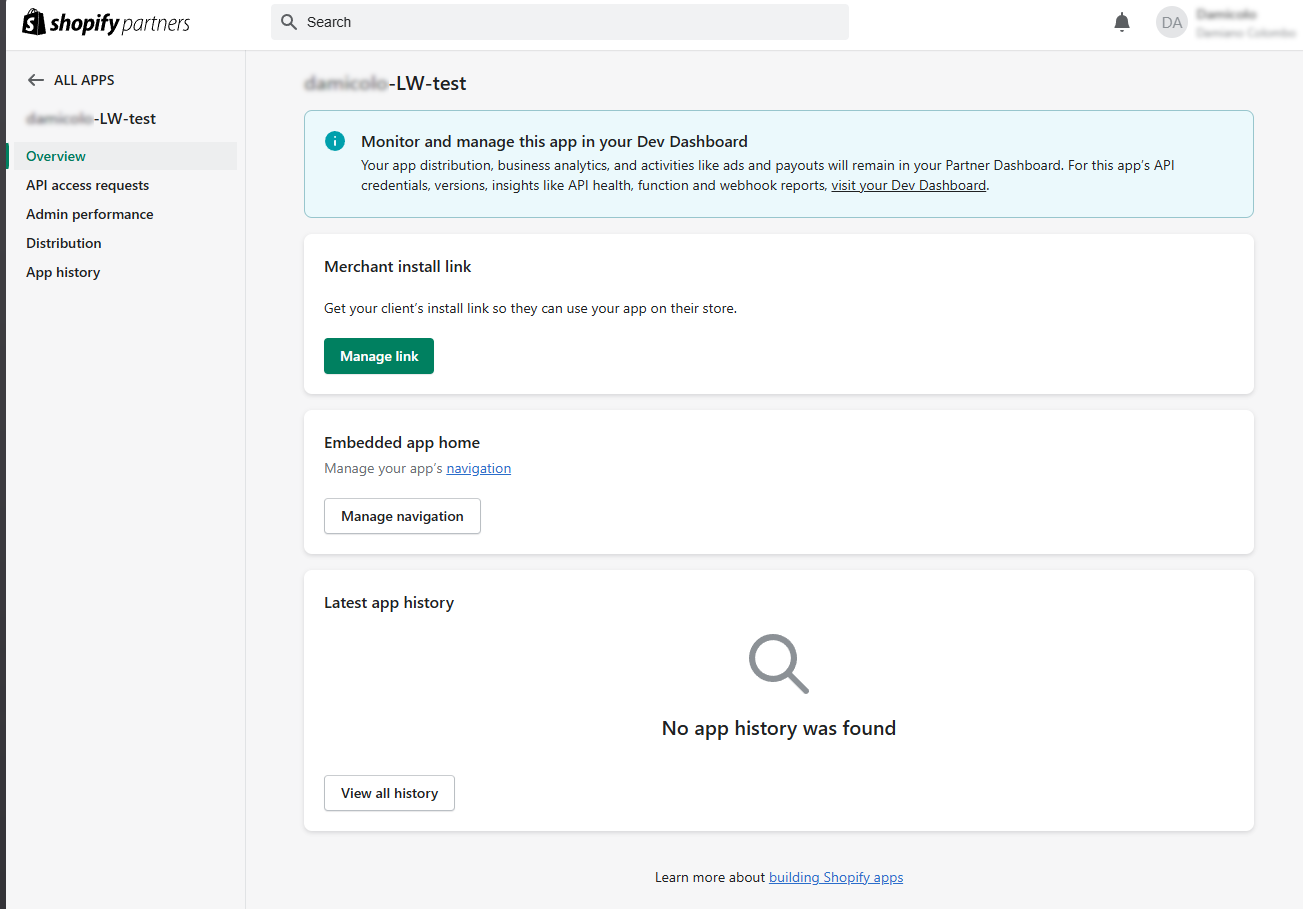
- Under Get ready for production, click Choose Distribution.
- Select Custom Distribution.
- Enter the URL of the store you want to install this app to.
- Click Generate link.
- Copy the generated link and open it in a new browser tab.
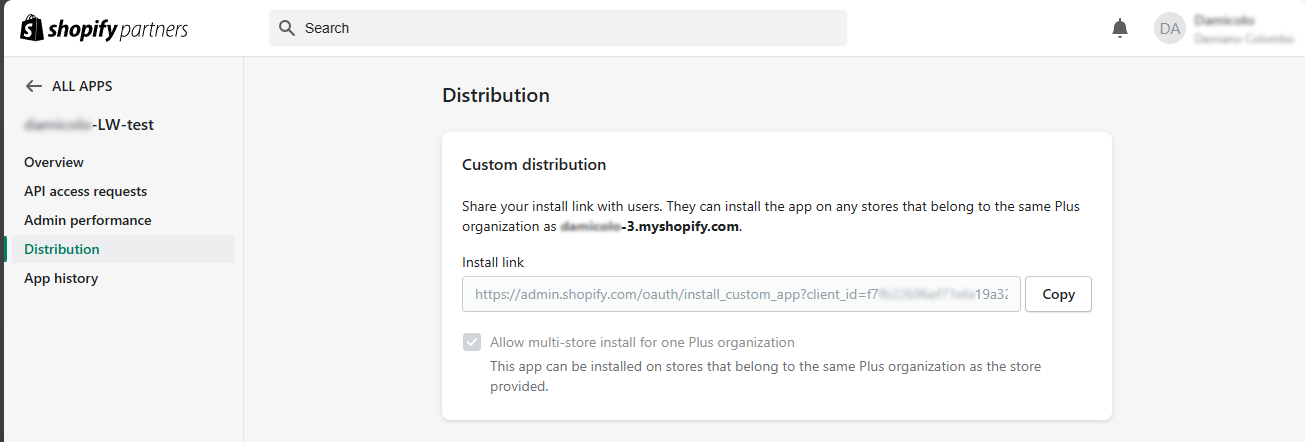
- Follow the installation prompts.
- Proceed with the normal installation flow through your school (next section).
During installation, you may encounter a browser redirect error. If this happens, you can safely ignore it and close the tab. The app has already been installed in the target store.Connect Shopify in your LearnWorlds school
After creating your Shopify app, you'll need to copy its credentials into your LearnWorlds school to complete the connection.
- In the Shopify Dev Dashboard, select your app and go to Settings.
- In the Credentials panel, copy the Client ID and the Secret.
- In your school, go to Settings → Financial → Payment Gateway and select Shopify.
- Toggle Activate Shopify to ON.
- Enter your Shopify Store URL. It must end with .myshopify.com (for example, learnworlds.myshopify.com).
- Paste the Shopify Client ID and Client Secret.
- Click Save, then click Connect with Shopify.
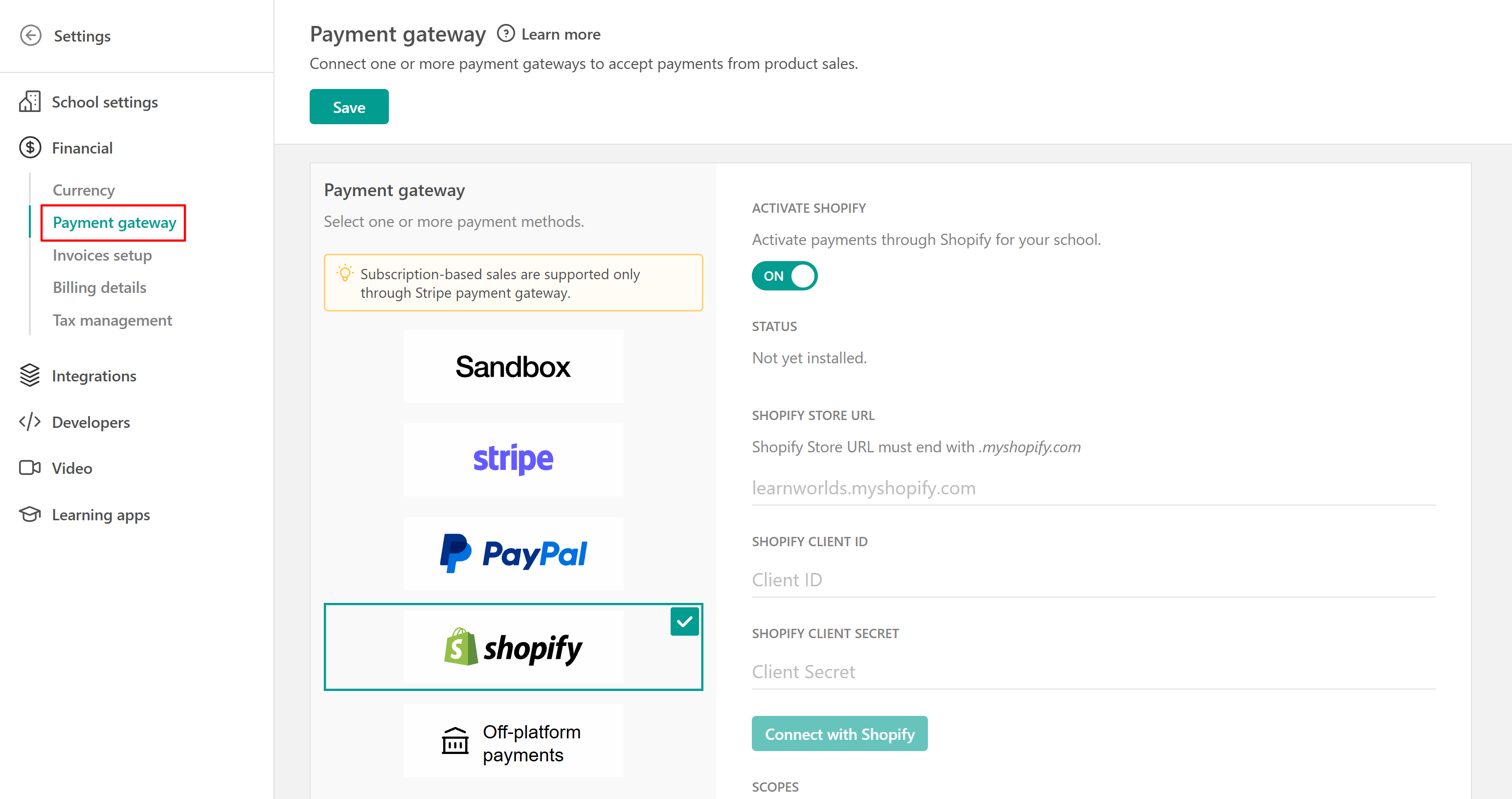
You will be redirected to Shopify to install the app in your store. During installation, you may see the message "This app hasn't been reviewed." Click Install to continue.
Once the installation is complete, you'll be redirected back to your LearnWorlds school. The Client ID and Client Secret will be saved automatically, and the status will change to Shopify has been installed.
Make sure the Store URL matches the store where the app is installed. A common cause of connection failures is using the URL of a different Shopify store. If you have multiple stores (for example, a development store and a trial store), verify that you're using the correct store URL.The Shopify integration relies on information exchanged between your Shopify app and your LearnWorlds school. Keeping track of which values belong in each platform can make the setup process much easier.
| Value | Source | Destination |
| Scopes | LearnWorlds school (Scopes field) | Shopify app (Access → Scopes) |
| Redirect URL | LearnWorlds school (Redirect URL field) | Shopify app (Redirect URLs) |
| Shopify Store URL | Your Shopify store | LearnWorlds school |
| Client ID | Shopify app (Settings → Credentials) | LearnWorlds school |
| Client Secret | Shopify app (Settings → Credentials) | LearnWorlds school |
Sync your products
After connecting Shopify to your LearnWorlds school, sync your catalog to make your products available in Shopify.
- In your LearnWorlds school, open the Shopify tab.
- Click Sync.
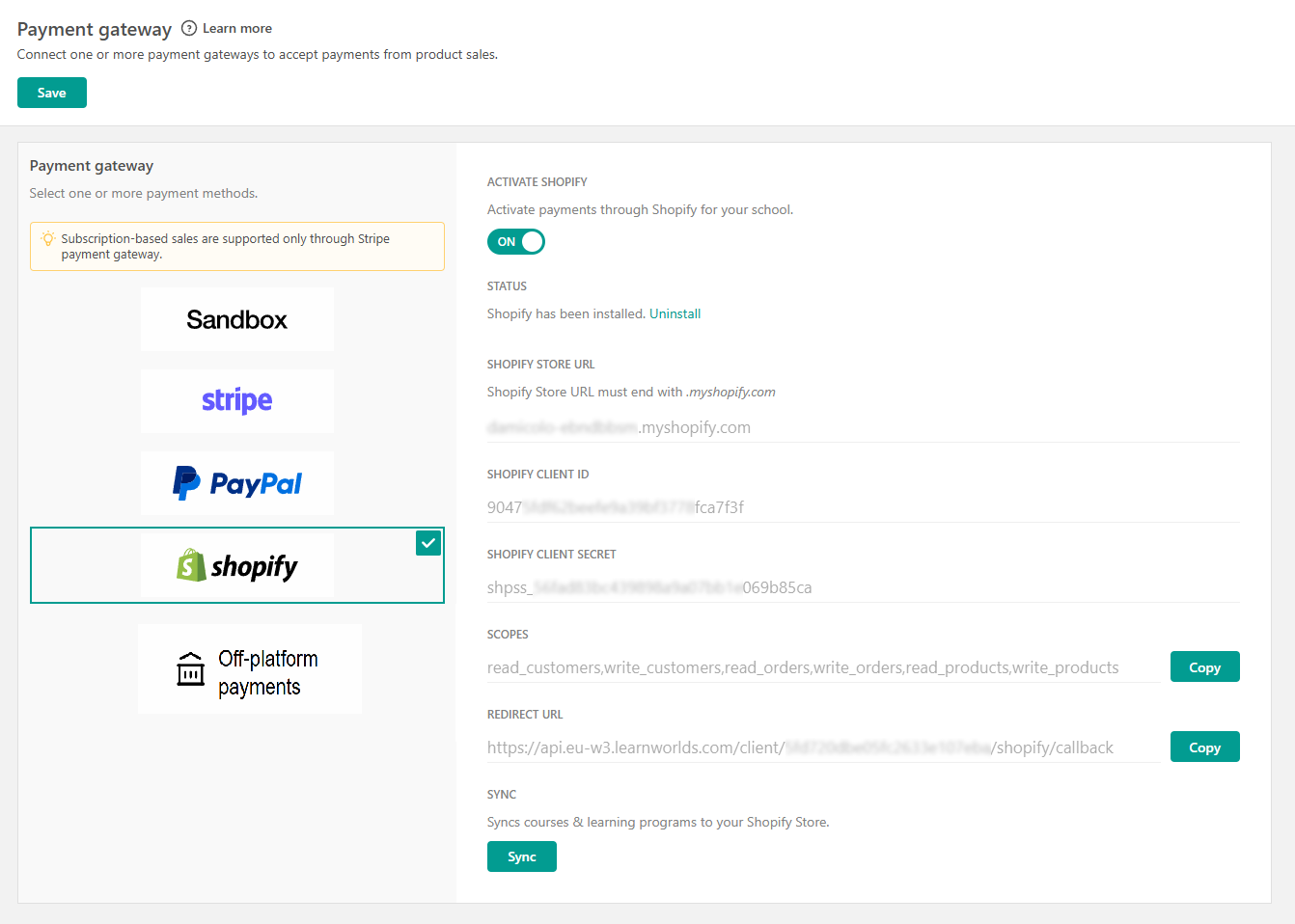
- Wait for the confirmation message.
Once the sync is complete, your eligible products will appear in the connected Shopify store.
Product synchronization is performed manually. Whenever you create a new course or learning program, or update an existing product's title or price, click Sync to ensure the changes are reflected in Shopify.Product sync guidelines
Keep the following in mind when managing synced products:
- Do not delete LearnWorlds products from Shopify. Deleting synced products will break the connection between LearnWorlds and Shopify. If you no longer want a product to be available in Shopify, change its status to Draft instead.
- Synced LearnWorlds products are created in Shopify without product options or variants.
- Product variants are not supported for LearnWorlds products. Adding variants in Shopify can break the synchronization process.
- If variants are added, only the first variant (identified by its SKU) remains synced with LearnWorlds. Deleting this variant will break the sync.
- You can edit product descriptions and media in Shopify. However, these changes are not reflected in your LearnWorlds school
- Free courses cannot be synced
- Private courses do notsync to Shopify
- Draft courses without a price do not sync
- Draft courses with a price added will sync and appear as Active in Shopify
- Courses set to Paid or Coming Soon will sync normally and appear as Active in Shopify
- If you later switch a course to Private or Draft in LearnWorlds, it will remain Active in Shopify, but it will no longer be available to users in your LearnWorlds school. If you also want to deactivate it in Shopify, you must do so manually from your Shopify admin.
Every time you upload or change a course in your LearnWorlds school, you must synchronize it with your Shopify Store. If you publish a new course or make any changes to the title/price of an existing course, click on Sync for the changes to reflect in your Shopify store. Removing LearnWorlds products from your Shopify account is not advisable because the sync will fail.Test the checkout
To verify that the integration is working correctly, complete a test purchase. If you're using a Shopify development or test store, Shopify provides test payment credentials:
- Card number: Enter 1 to simulate a successful payment.
- Expiration date: Enter any future date.
- Security code (CVV): Enter any value.
- Cardholder name: This field can be left blank.
The billing information entered during checkout is used to create a user account in your school and will be visible in the learner's profile.After completing the payment, you won't be automatically redirected back to your LearnWorlds school. Return to your school manually using your browser. To confirm that the purchase was processed successfully:
- Open the learner's profile in your school.
- Verify that the order has been created.
- Verify that the corresponding invoice has been generated
Shopify settings: After purchase navigation
In your Shopify account:
1. Customer contact setting:

LearnWorlds uses the user’s email as an identifier to link their purchase in Shopify to their LearnWorlds account. You will need to check the second option of the Customer contact setting, Customers can only check out using email.
2. Order processing: After an order has been paid setting:

If you want to fulfill a paid order automatically, you can achieve it by selecting the Automatically fulfill the order’s line items option.
Once this setting is selected, it will be applied to all of your Shopify products. You will need to be careful about using this setting when your store also provides products of different kinds, e.g., physical, etc., external from LearnWorlds.
Shopping cart
It is feasible for users to add multiple LearnWorlds courses to their Shopify cart check out the total amount, and then they will be automatically enrolled in these courses in LearnWorlds.
Promotions (Coupons)
Shopify supports its coupon codes (the ones that you have created in your Shopify account), and the built-in coupon codes of your school are not valid - you need to share the Shopify coupon codes with your users.
Important notes
- One Shopify account can be used for more than one school, and all products from all schools can sync in one Shopify account, even if the course slug is the same.
- The language of the school is independent of the default language of your Shopify store; so if the LeanWorlds school is in Spanish, but the Shopify Store is in English, then the user will view the checkout and the Shopify Store in English. The admin could install a translation app within their Shopify account to add multiple languages. Thus, after the checkout, the user could manually switch to the preferred language.
- We suggest you always make a test purchase after setting up your payment method to see that everything is working as expected.
- Subscriptions in LearnWorlds are supported through Stripe. If you’re using Shopify as your payment gateway, it will be used for one-time payments, while Stripe is required for subscription plans.
- When Shopify is enabled as your payment gateway, all other payment gateways must be disabled. Because payments are processed through Shopify, any applicable taxes (including VAT) are automatically calculated based on the learner's location.
Subscription-based sales are supported only through the Stripe payment gateway. Shopify can be used for one-time product sales only.
- If you want to disconnect the Shopify integration from your school, make sure to both deactivate and uninstall it from LearnWorlds; otherwise, purchases of LearnWorlds products in Shopify will still trigger payment webhooks and users will be manually enrolled in courses.