


Creating a course outline with our AI (Artificial Intelligence) assistant can save a lot of time in terms of generating a course structure that can organize the learning material and facilitate the learning process of the students. This process can become otherwise challenging, as you will need to consider what kind of course chapters to create while simultaneously keeping your students engaged with the course syllabus.
This article will guide you through the process of crafting a course outline with the aid of the powerful AI assistant. By doing so, you can optimize efficiency and save valuable time.
Understanding AI course creation in LearnWorlds
Before you get started, it’s helpful to understand how AI is used across different parts of your course creation process. AI can assist you at three different levels:
- Course outline → builds the overall structure of your course
- Sections → creates or expands individual chapters within your course
- Activities → generates specific learning units inside a section (e.g., videos, eBooks, quizzes)
 The process is very similar across all three levels. In each case, you interact with AI through a chat interface, describe what you need, and refine the results using prompts, parameters, or references. The main difference is where you use AI and what you’re trying to create.
When to use each option
- Use “Create outline with AI” to generate the full course structure from scratch
- Use “Create with AI” at the course level to add new sections
- Use “Create with AI” within a section to generate specific learning activities
This allows you to either build a course from the ground up or enhance specific parts of an existing course.
For example, you might enter the following prompt: “Create a beginner course on digital marketing with videos and quizzes.”
AI could generate:
- Sections like Introduction to Digital Marketing, SEO Basics, and Social Media Marketing
- Activities within each section, such as videos, quizzes, or eBooks
You can then refine any part of the result, edit sections, change activity types, or ask AI to improve specific elements, until it matches your needs.
Create your course outline - Start with AI
To kickstart the course content creation process, utilizing AI:
1. Go to Courses and open or create a course.
2. Click on "Create outline with AI".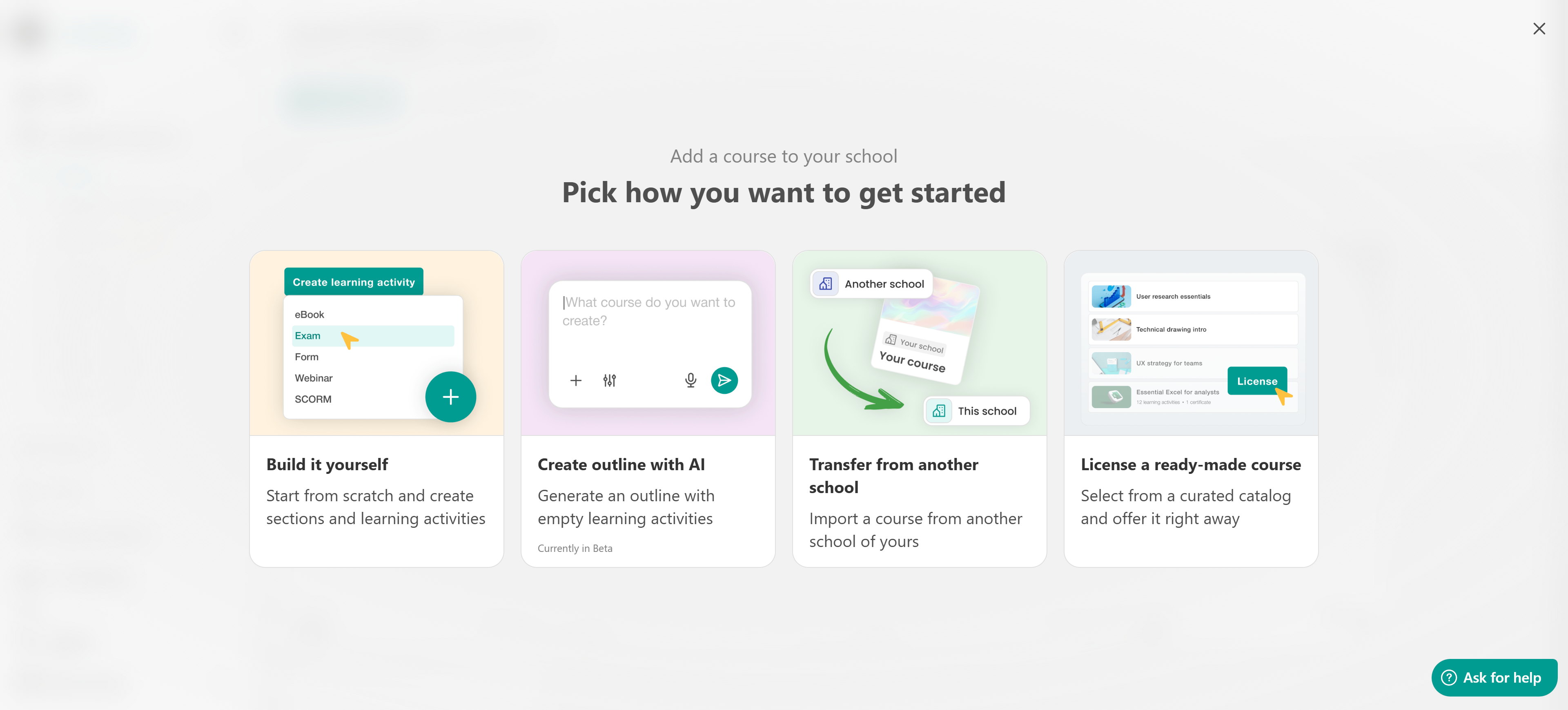
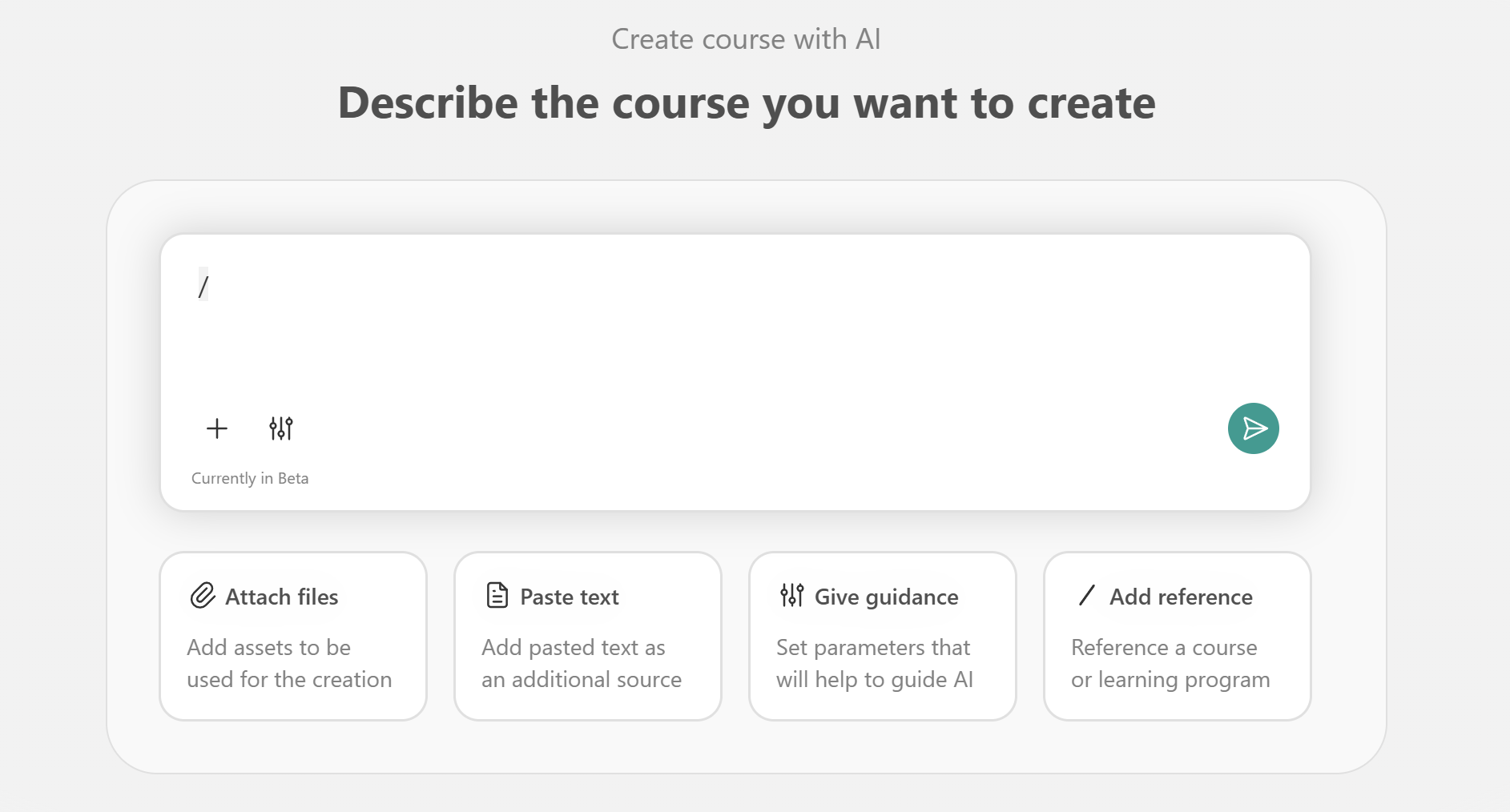
3. In the chat box, enter a description of your course. Example: “Create a course on finance fundamentals for beginners.”
4. Enhance your prompt. You can:
- Attach files to upload resources
- Paste text to add content
- Add reference to use existing courses or programs
- Give guidance to define parameters, e.g. Learning activity types (e.g., video, eBook, exam), objectives, audience, tone of voice, instructional approach.
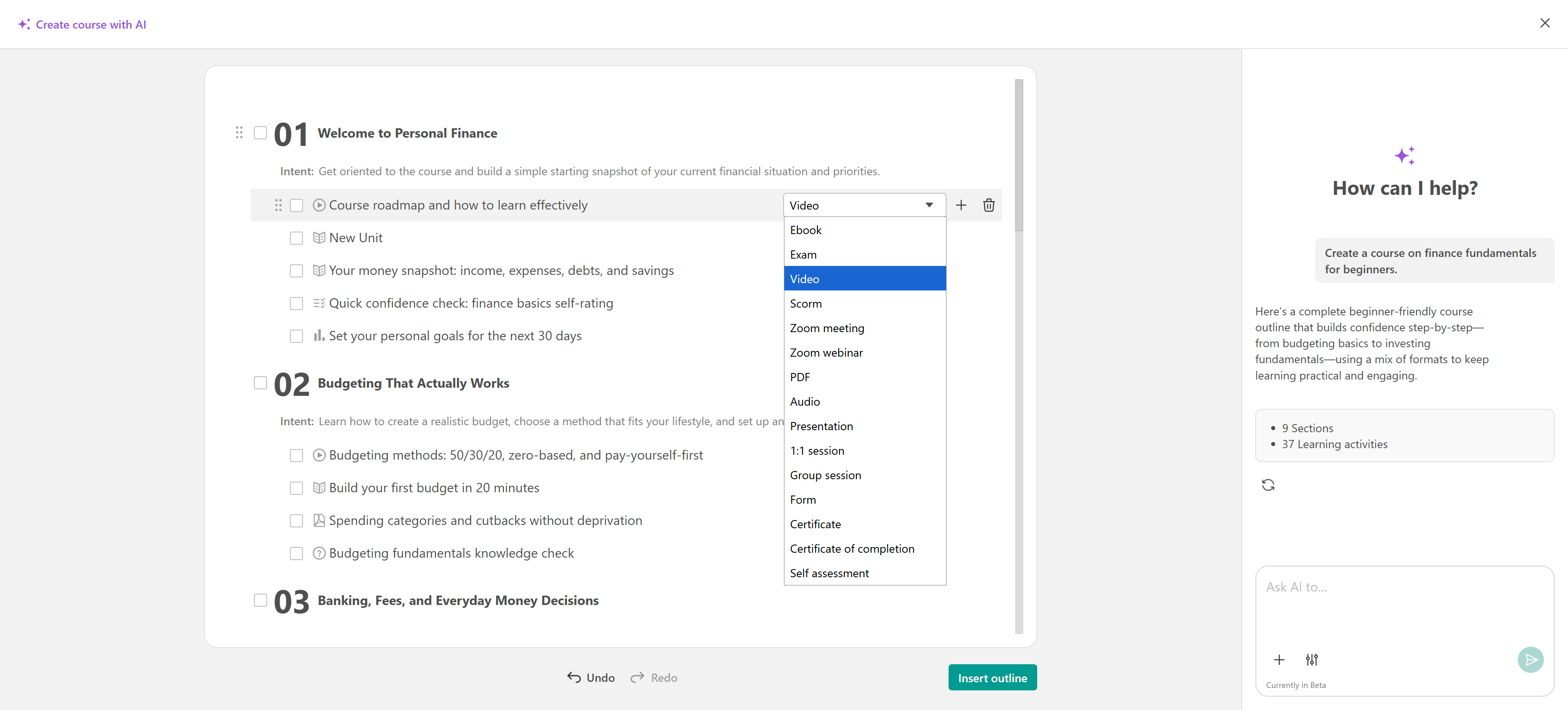
5. Click the send icon and review the generated course outline. You can:
- Add or reorder sections and activities
- Delete a section or learning activity
- Change activity types (e.g. If AI generates a video activity but you’d prefer it to be an eBook, simply select a different option and the change will populate automatically.
You can make adjustments by interacting with the AI through the chat box on your right. You can reapply parameters to further customize your results. You can select specific activities or sections and ask the AI to assist you with them individually.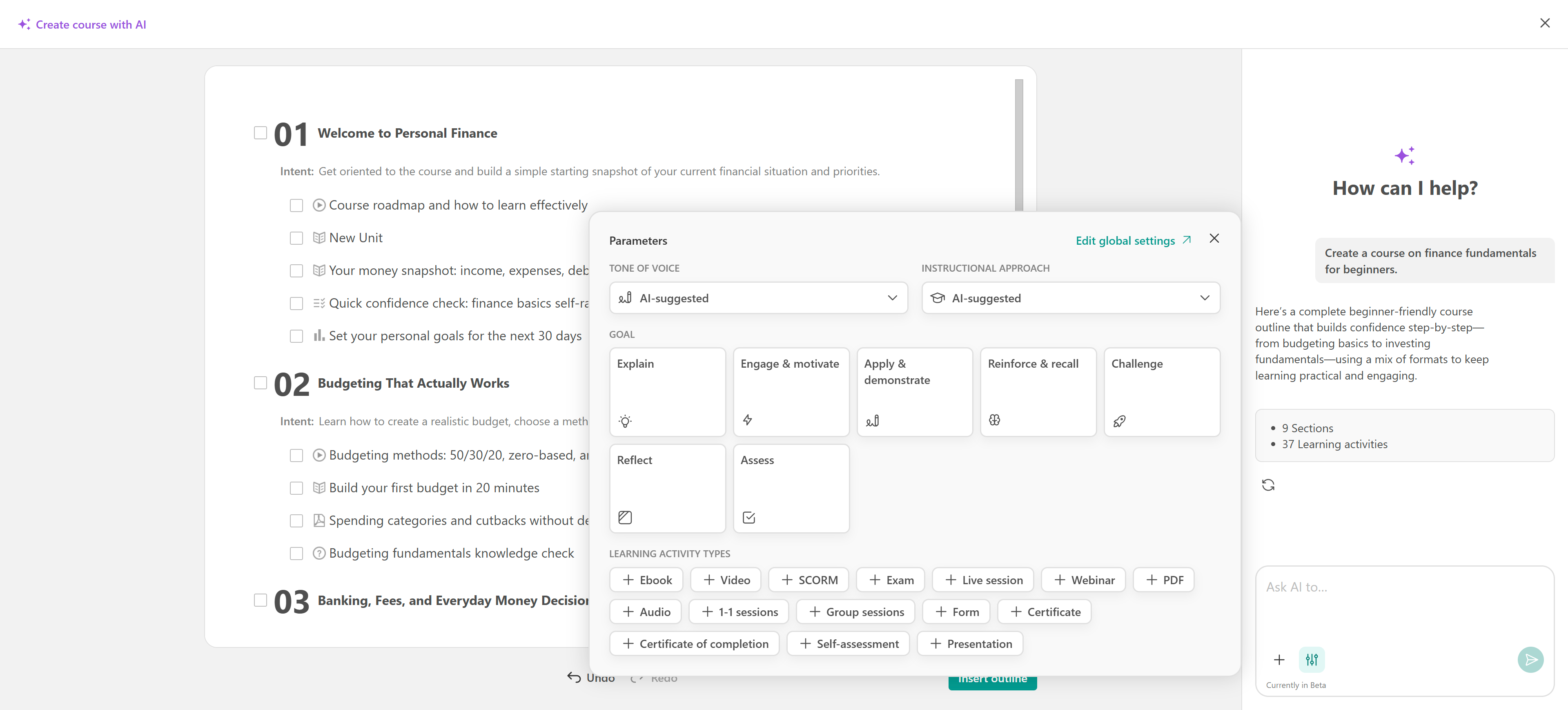
You can click the Edit Global Settings button if you want to customize general AI setup about your school. You can find more details here.
Once you are ready you can click the insert outline button to view your course.
Section creation/Editing with AI
You can generate additional sections by scrolling at the end of the page and clicking "Create with AI". 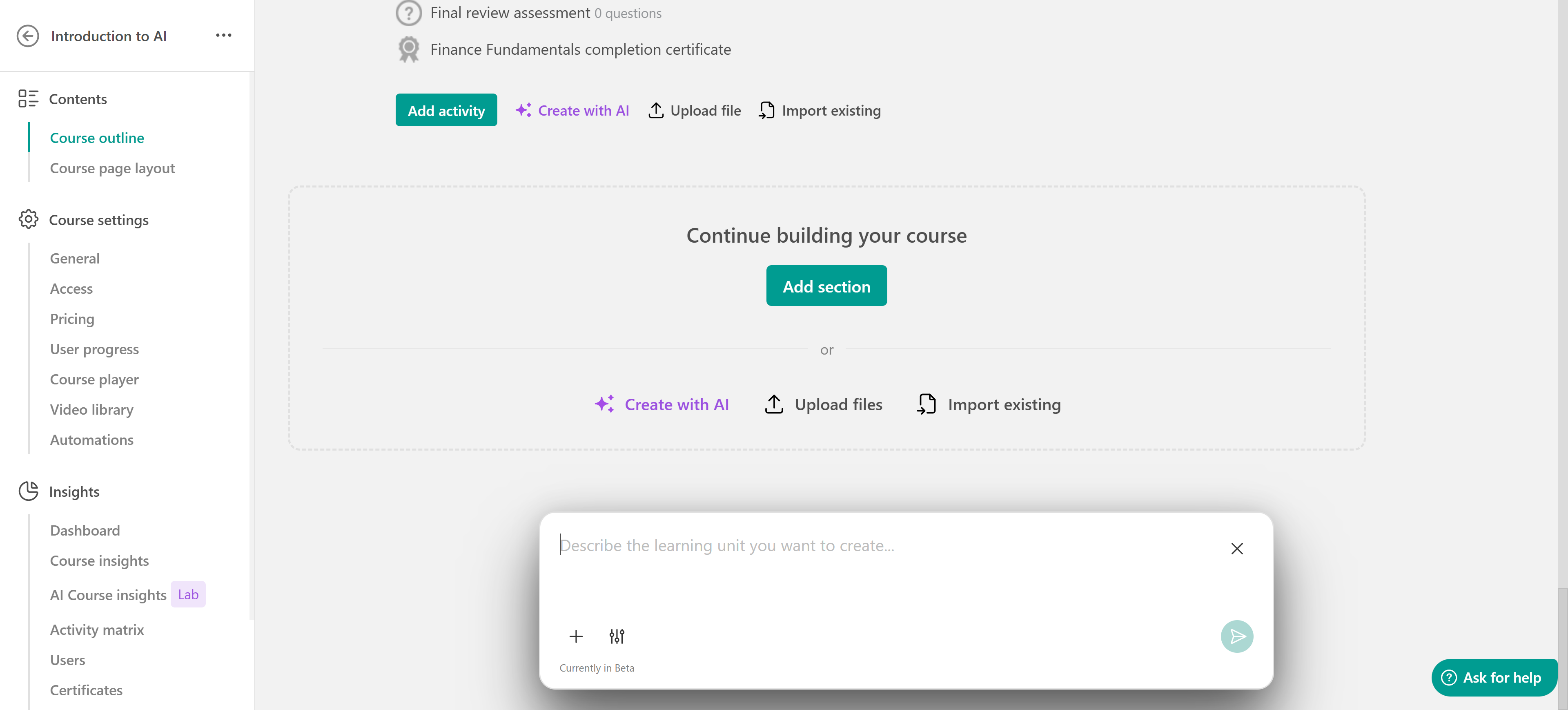 The process is similar to the one described above. In this case, you define the type of section you want, what it should include, and its purpose. You can also use references, text resources, and parameters to further customize the result.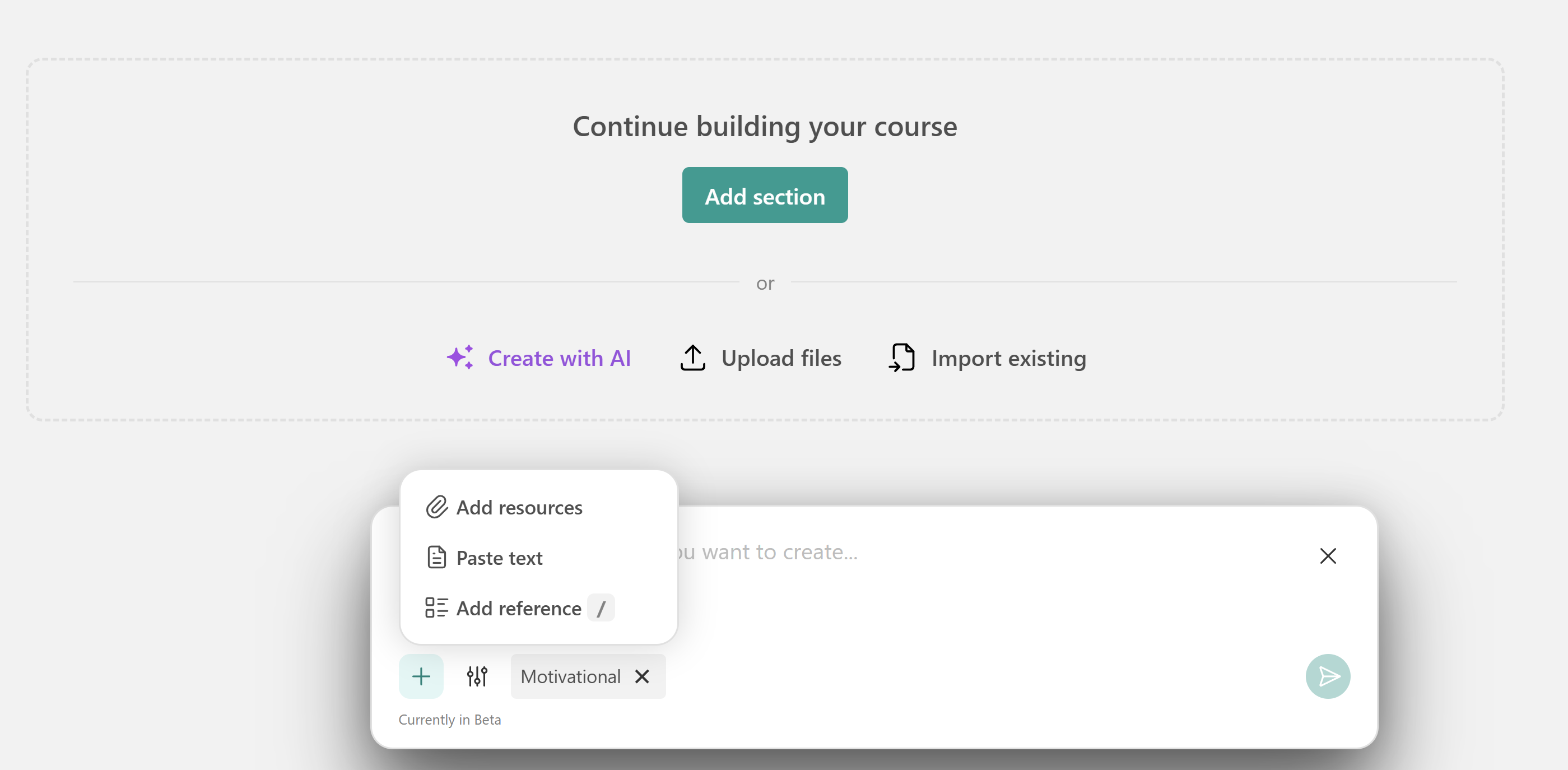
You can also Suggest more activities for a section.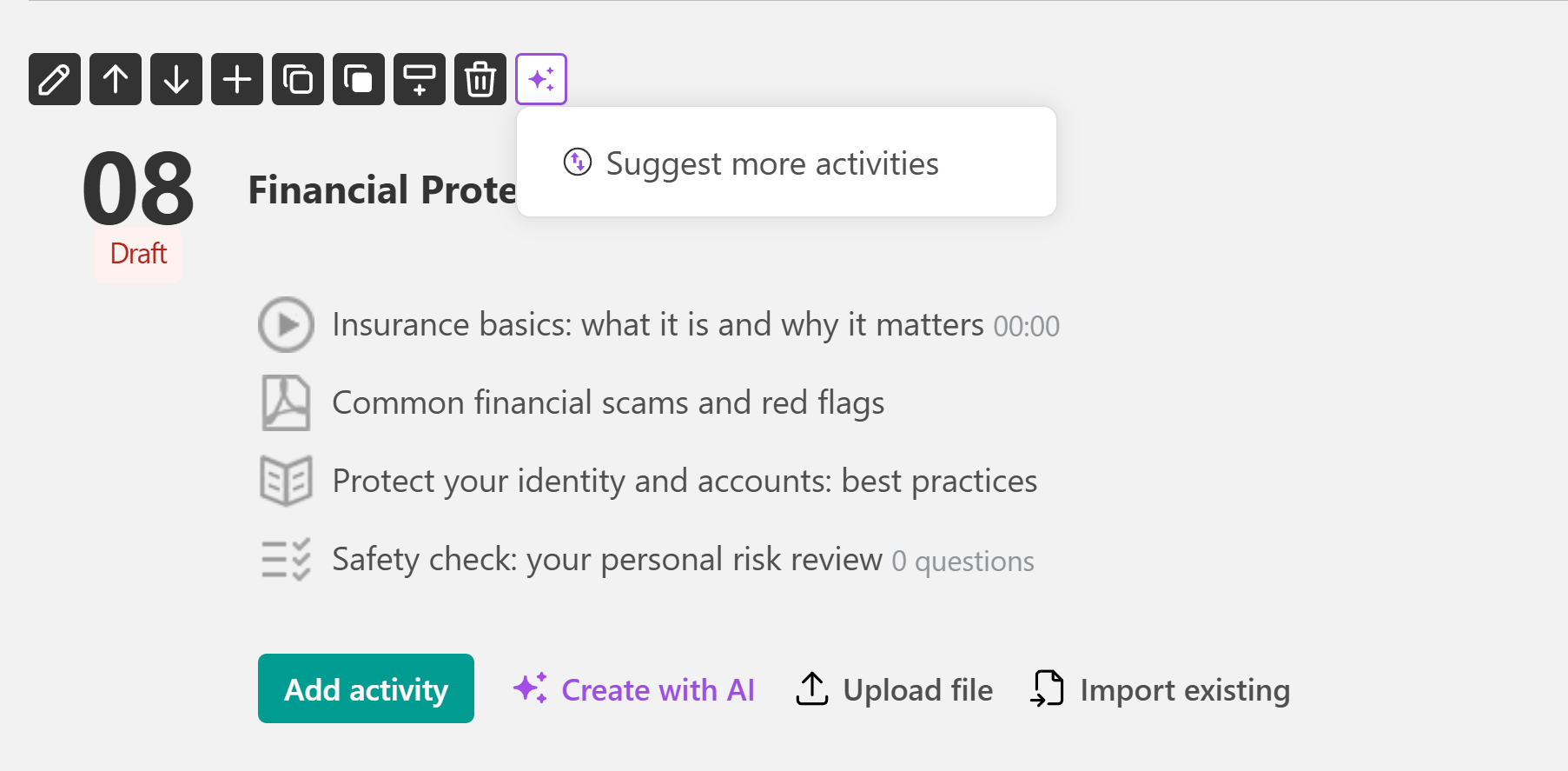
Activity creation/Editing with AI
Another option is to generate specific activities using AI. In this case you can click the "Create with AI" at the end of any section. A chat will open where you can describe the activity you’d like to create.
AI will then provide a suggestion, which you can either confirm and add to your course or refine by submitting a new prompt until you get the desired result.
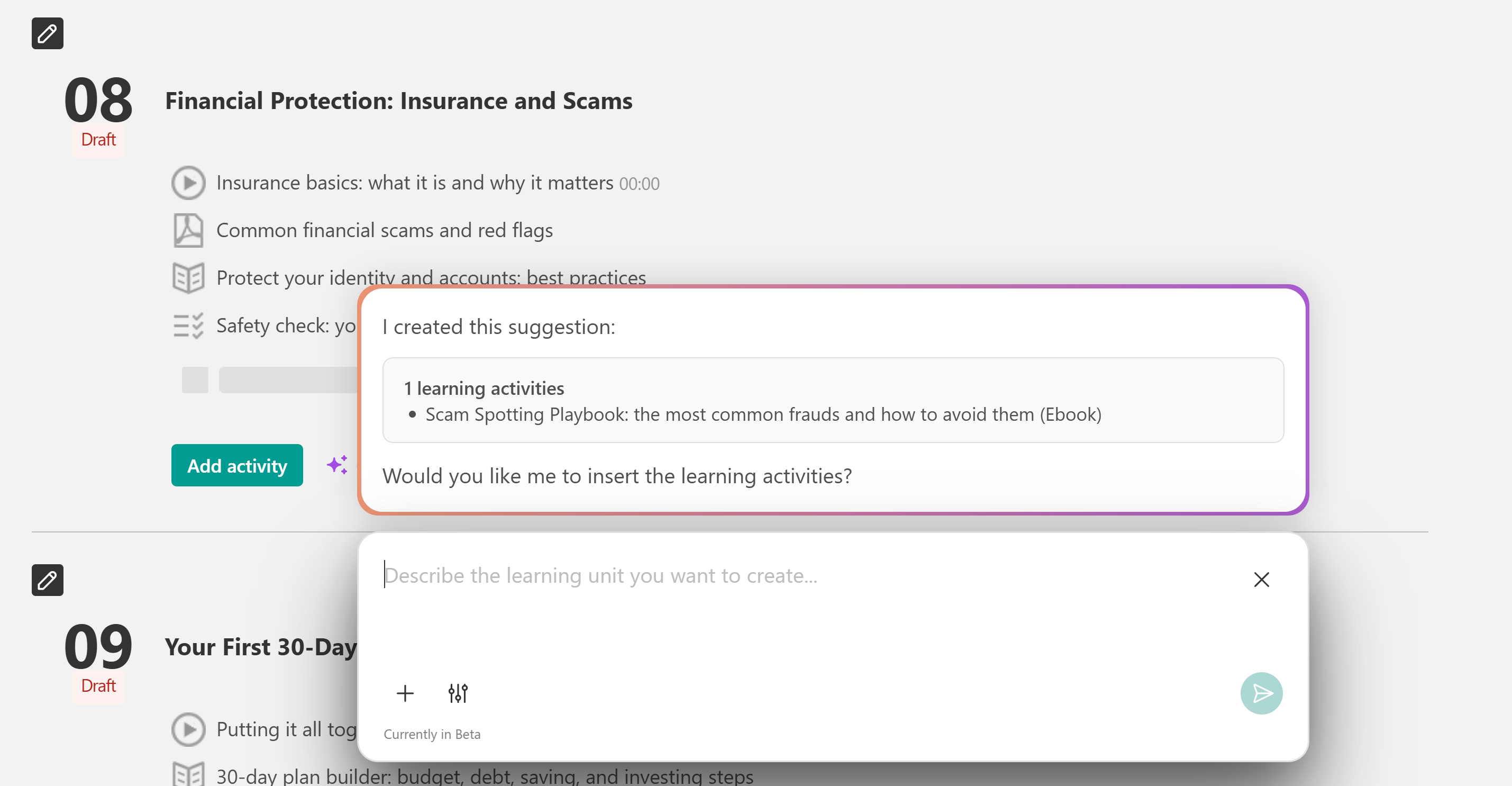
In this case too, you can suggest activities below an existing one.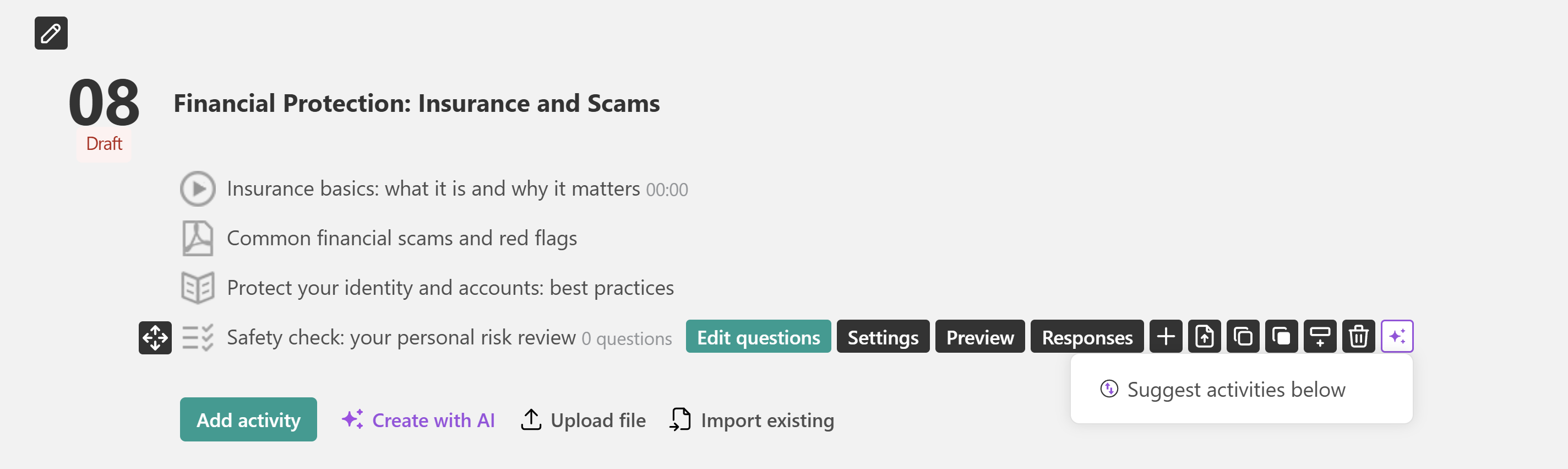
AI credits per plan
Trial - 100/month
Starter - 300/month
Pro trainer - 500/month
Learning Center - 1000/month
High Volume - Custom
Responsible use of AI
To make the most of this advanced technology, it's important to keep ethical considerations and limitations in mind.
Navigate Ethical Considerations: When using AI to assist with any topic, bear in mind the ethical aspects involved. Always verify suggestions before putting them into practice.
Double-check Accuracy and Reliability: Ensure the information provided is accurate and relevant to your topic, by cross-referencing with trustworthy sources.
Put Privacy and Security First: Be conscious of the data you share while interacting with AI.
Be Aware of AI-based Assistance Limitations: Recognize that AI might not have all the answers for every topic, so use it just as a supportive companion.
The Perfect Balance: Foster a productive partnership between AI and your own knowledge when exploring any subject. Let AI spark new ideas and possibilities while trusting your creativity and intuition for your final decisions.