
In your LearnWorlds school, you can build a Blog where you can publish your content and voice your ideas, thoughts, and feelings. Blogging is great for marketing your school and building relationships that will facilitate your school's growth and bring more traffic to your site.
Blog setup
To enable and configure your Blog, navigate to:
- Website → Blog → Enable Blog, or
- Website → Design → Edit School Site → Site → Blog Setup
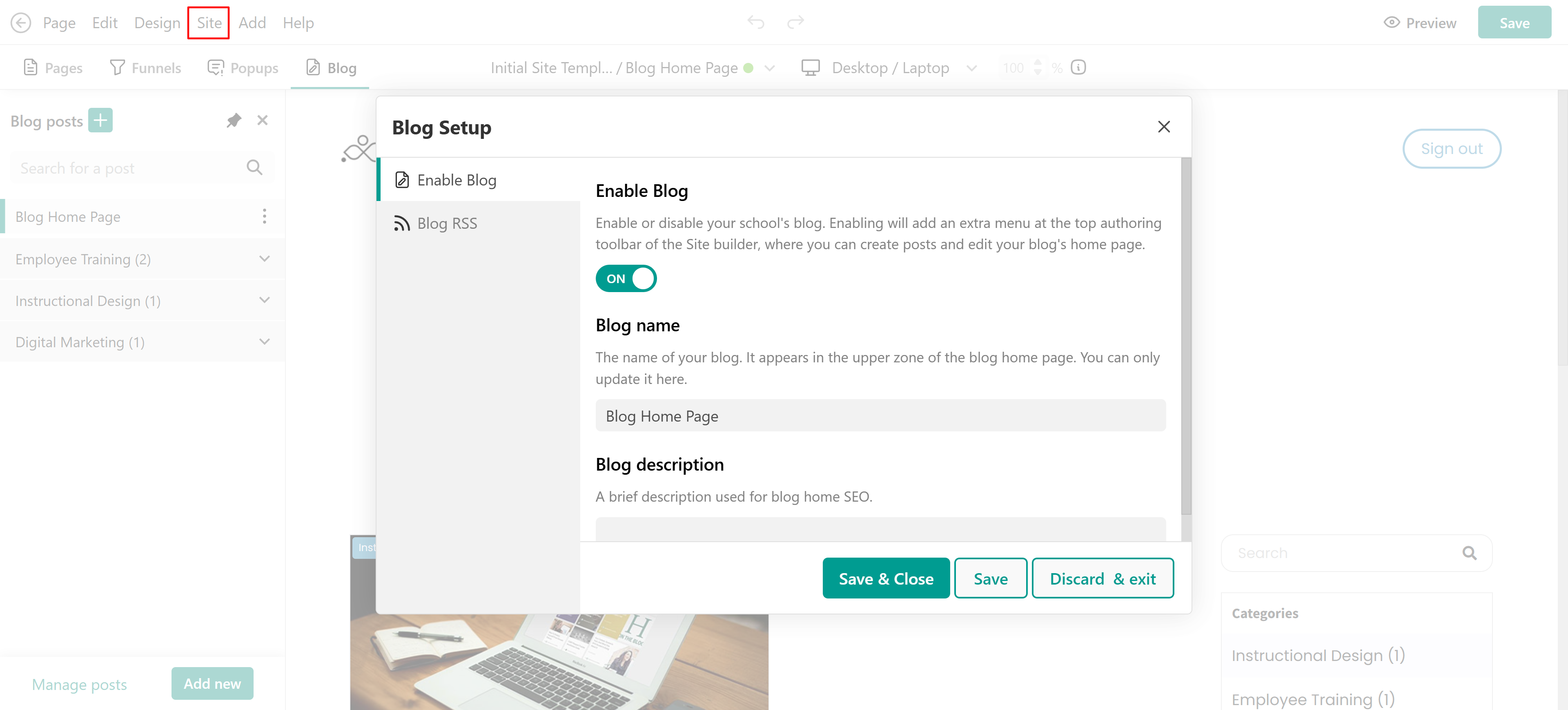
1. Add a Blog Name.
2. Add a Blog Description for SEO purposes.
3. Copy the Blog RSS feed if you want to share your blog externally
4. Click Edit Blog Home Page to customize how your blog posts are displayed.
How to create a blog post
1. Click on Blog → + Icon or add new.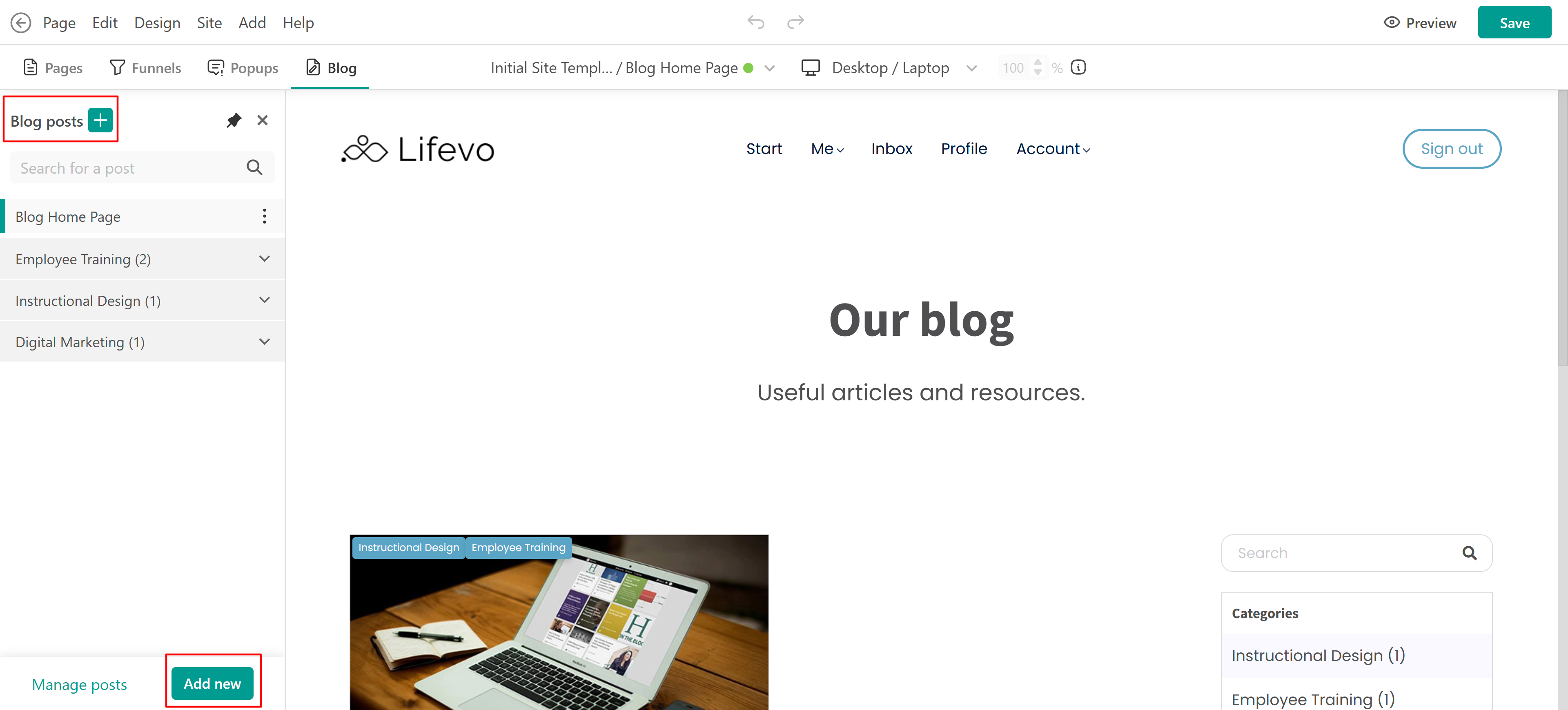
2. Choose how you want to create your post, use a template or create with AI.
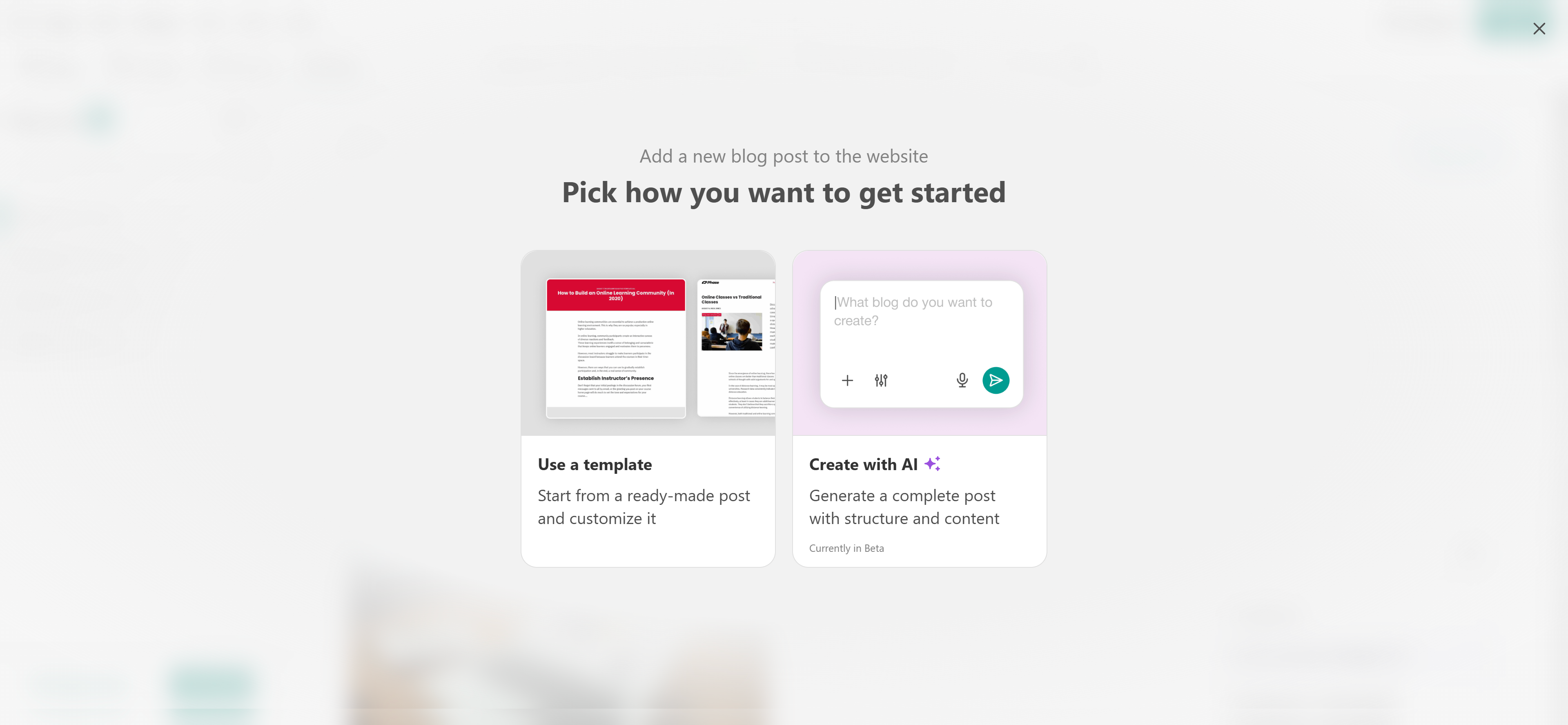
Create a blog post manually
1. Select the use a template option and select a template or blank one.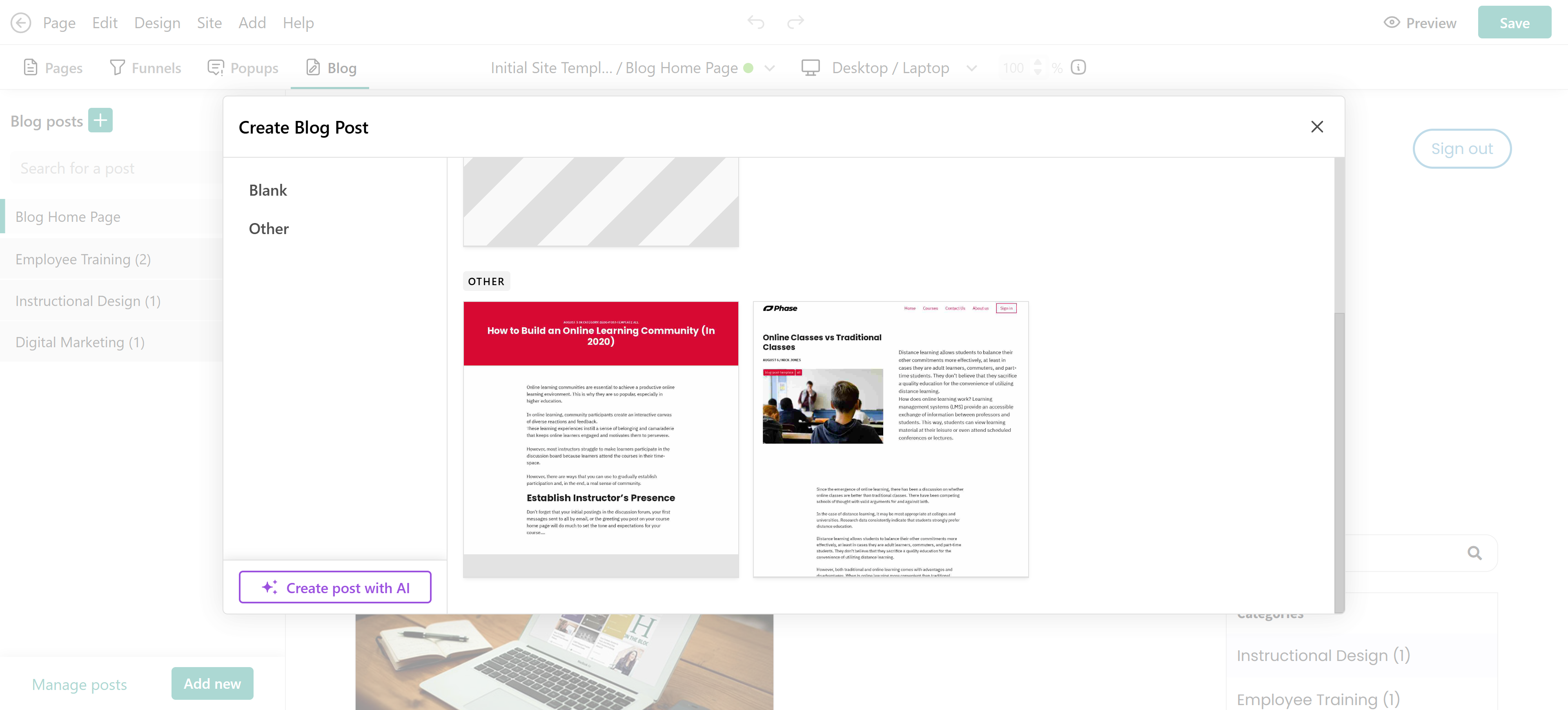
2. Fill in the post details:
- Title
- Slug
- Status (Public/Draft)
- Publication date
- Categories
- Description
- Featured image
- Author
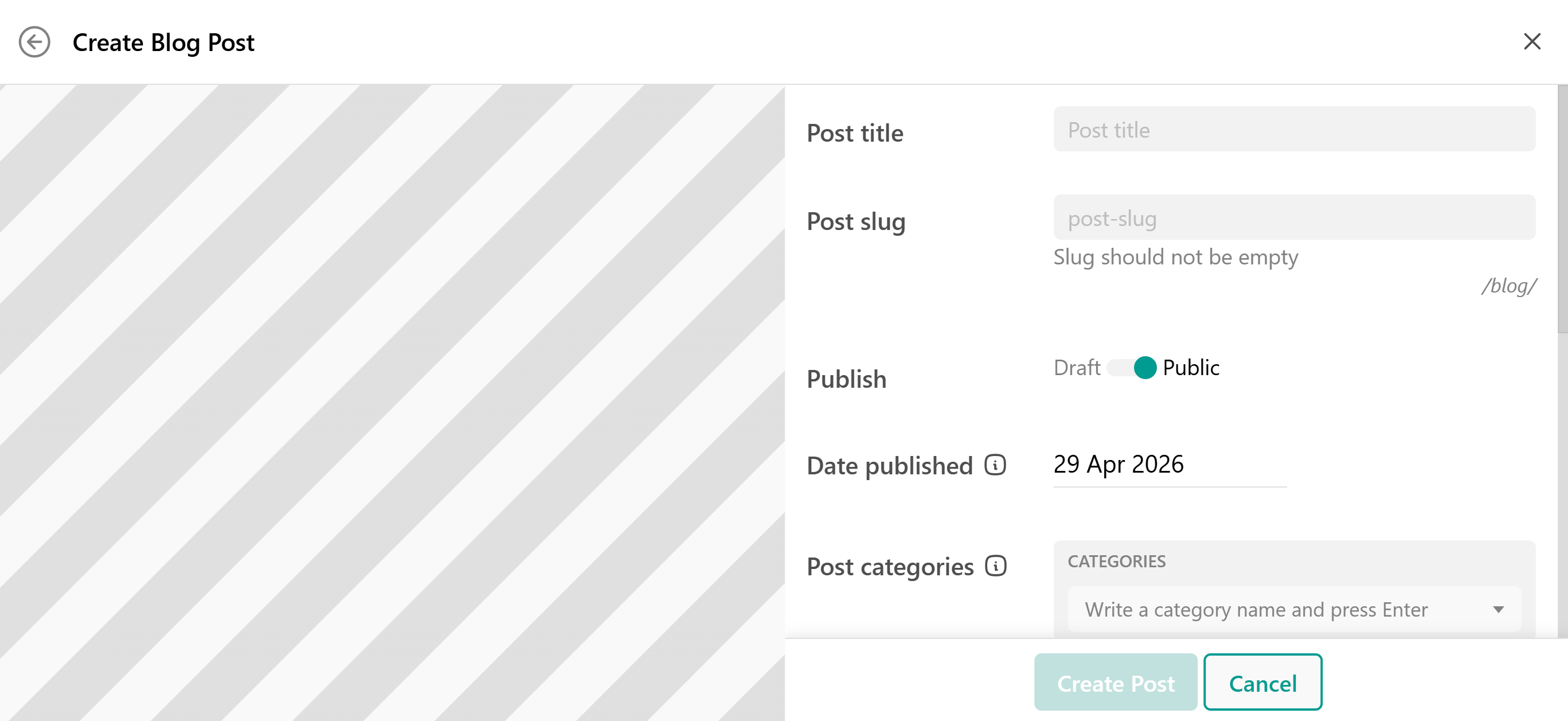
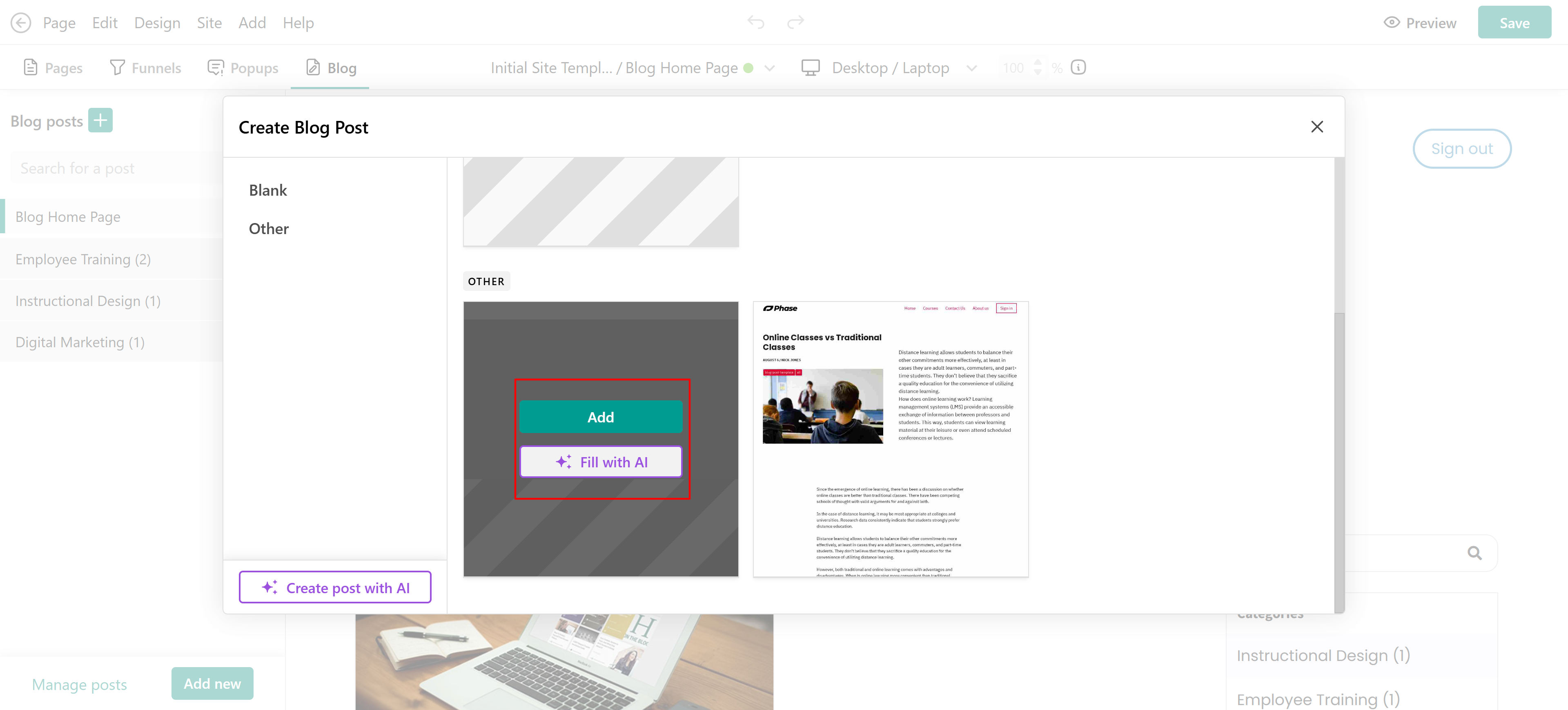
Use a template with AI
You can also enhance a template using AI. Click Fill with AI and enter a prompt describing your blog post.
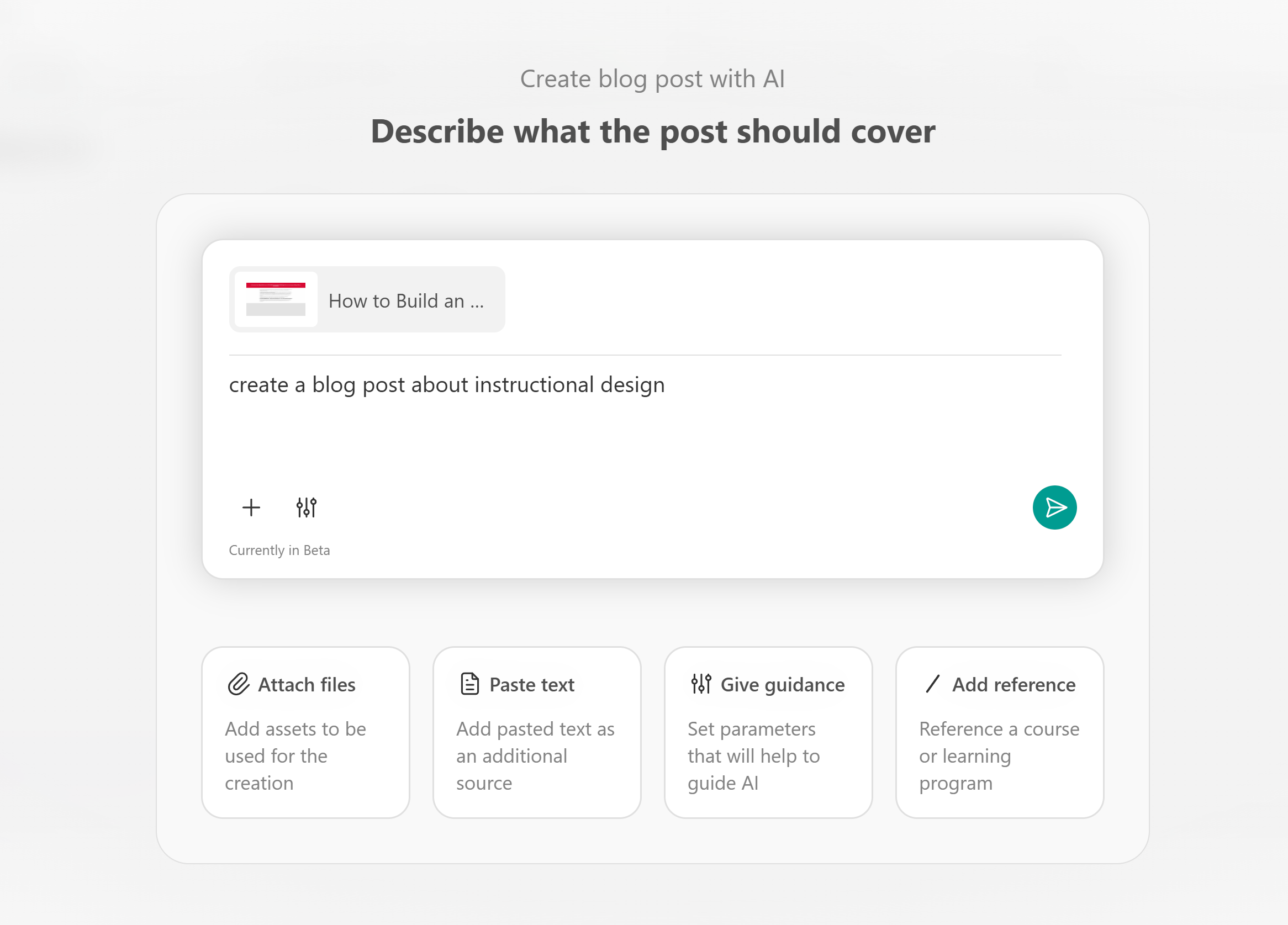
You can also use, parameters (tone, audience, goal), paste text or upload resources, or reference existing content.
AI will generate content based on your input, which you can then edit.
Create a blog post with AI
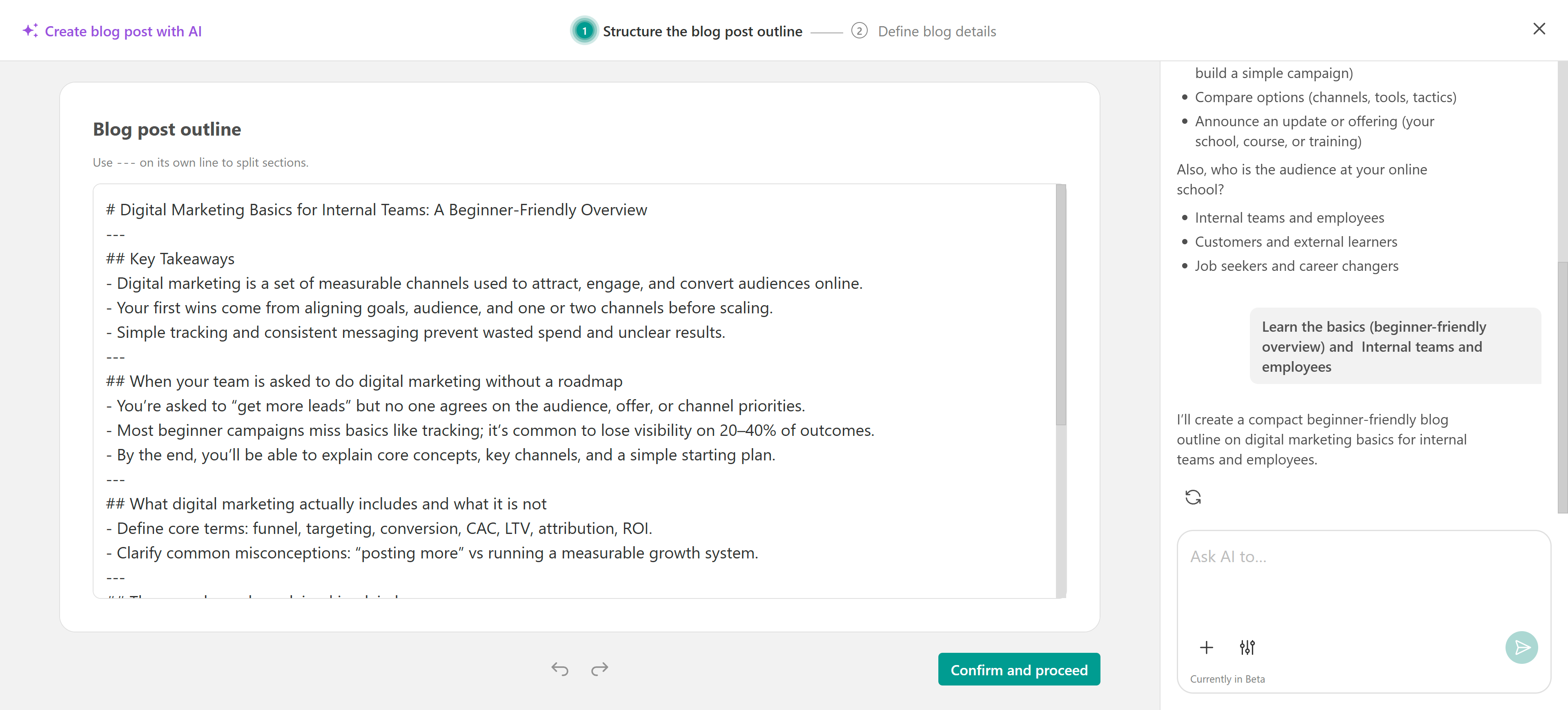
To generate a blog post from scratch, select the create with AI option. In the chat box, describe the post you want to create, Example: “Write a blog post about the benefits of online learning for beginners”
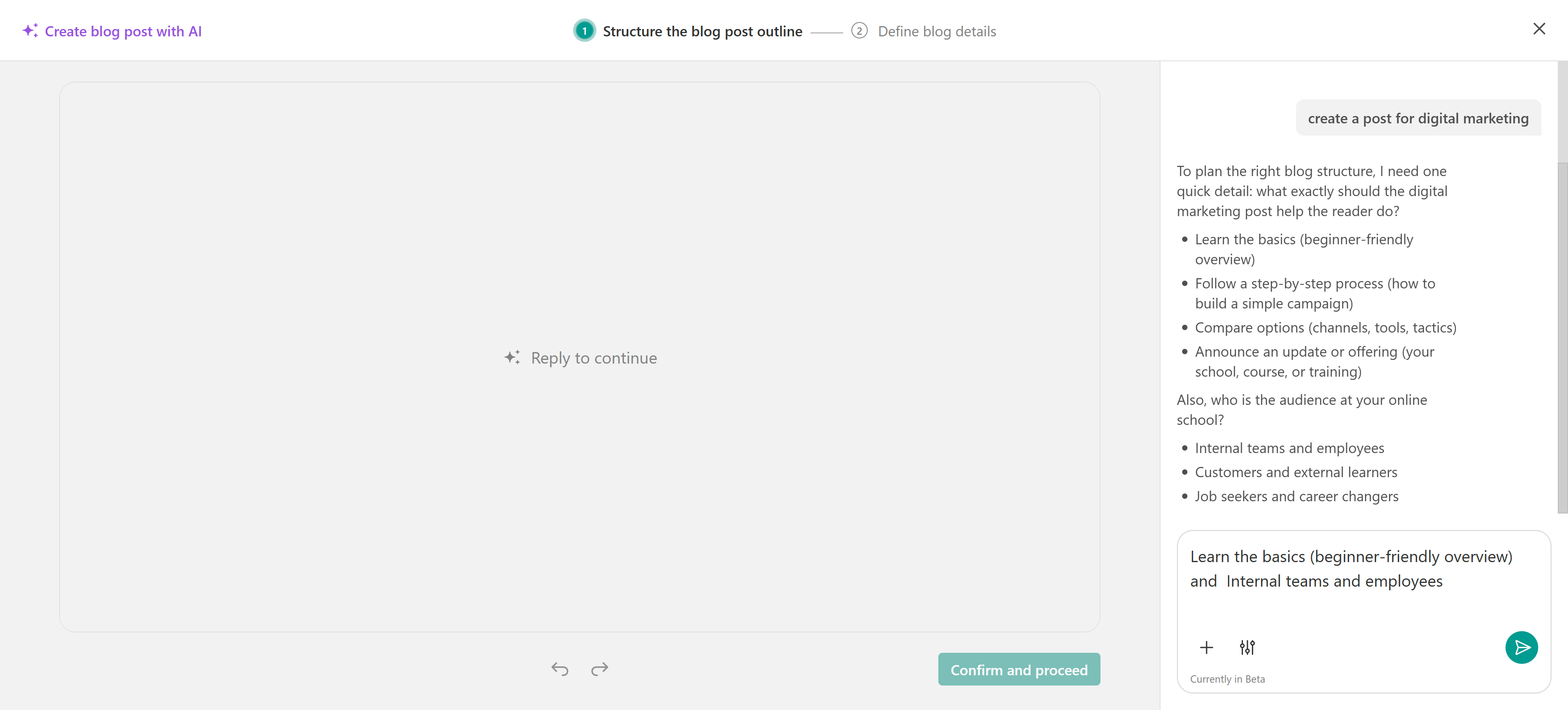
AI may ask follow-up questions, provide more details to refine the result. Once generated:
- Review and edit manually
- Or refine further through the chat
Click Confirm and proceed.
AI will also create post properties like title, description slug, status, categories, author name and SEO details.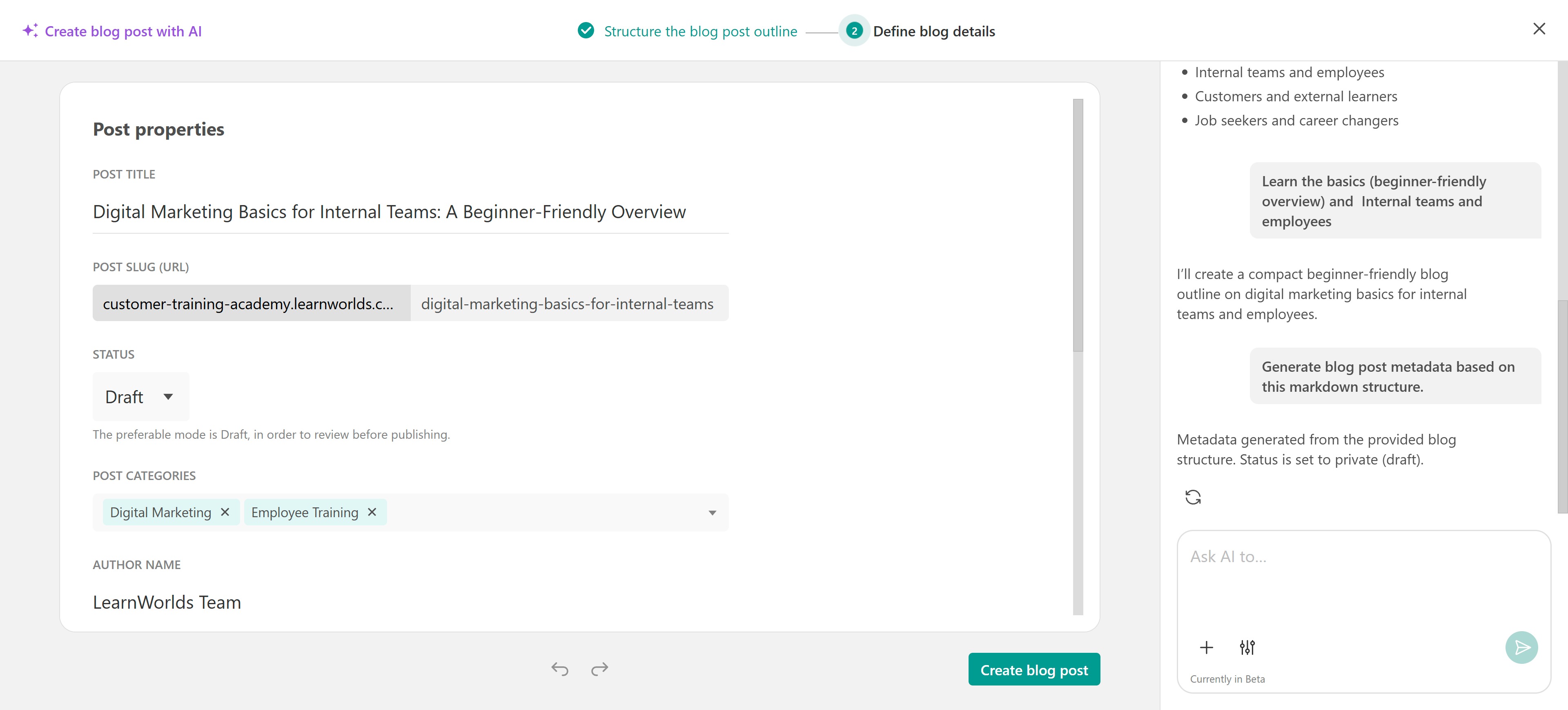 You can also use AI to generate or edit the featured image by clicking the AI image option.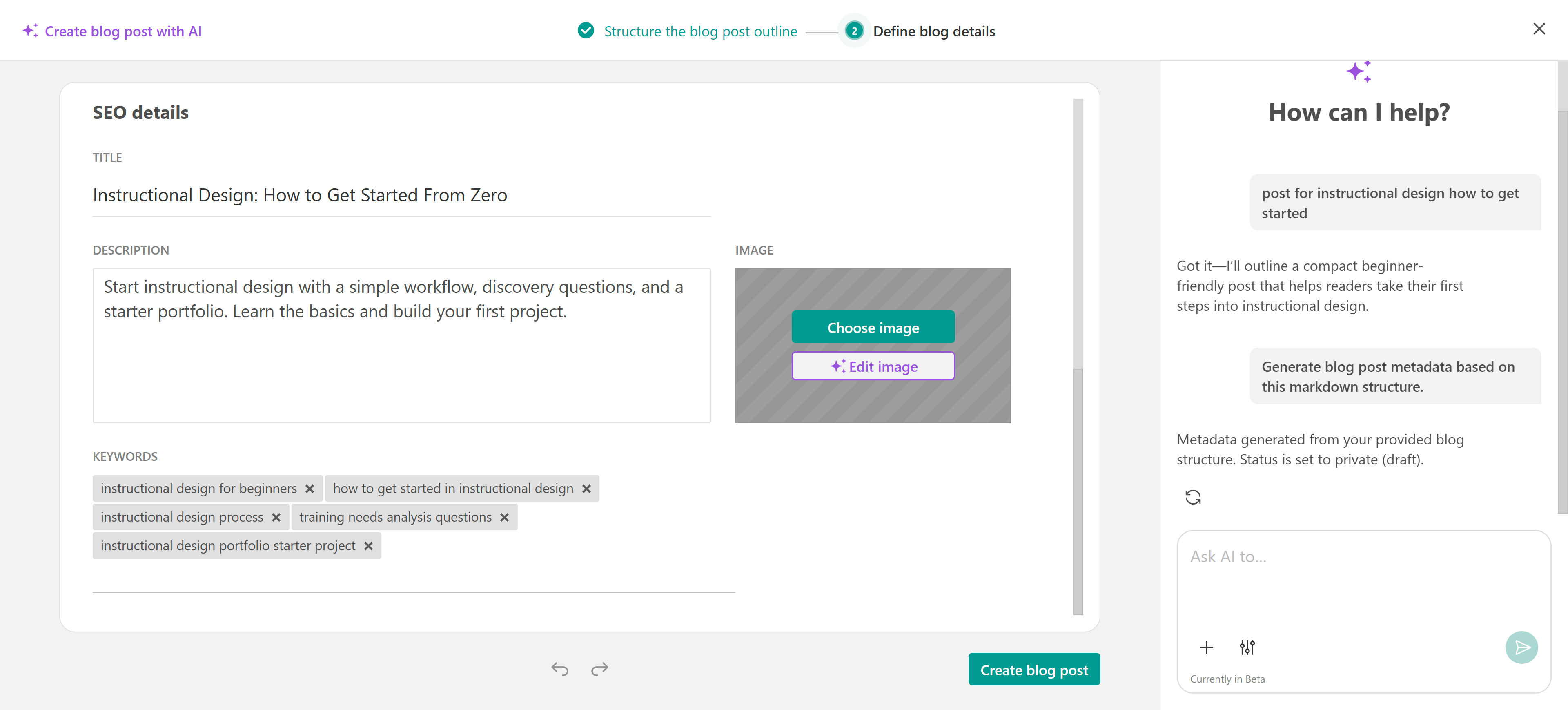
Once everything is ready, click Create blog post.
Notes:
- This date will determine the position of the post in the blog feed. However, this is not the date the post will be published.
- The date format is affected by your School settings. Your selected option of the available Long date formats will be displayed in your blog posts.

Find more details on how to manage your blog posts in this article.
Schedule a blog post for publication
You can schedule a draft blog post to be published automatically at a specific date and time.
When creating a new blog post, set its Status to Draft if you plan to schedule it for later. If the post is already set to Public, open the post and go to Post properties, then change its status to Draft.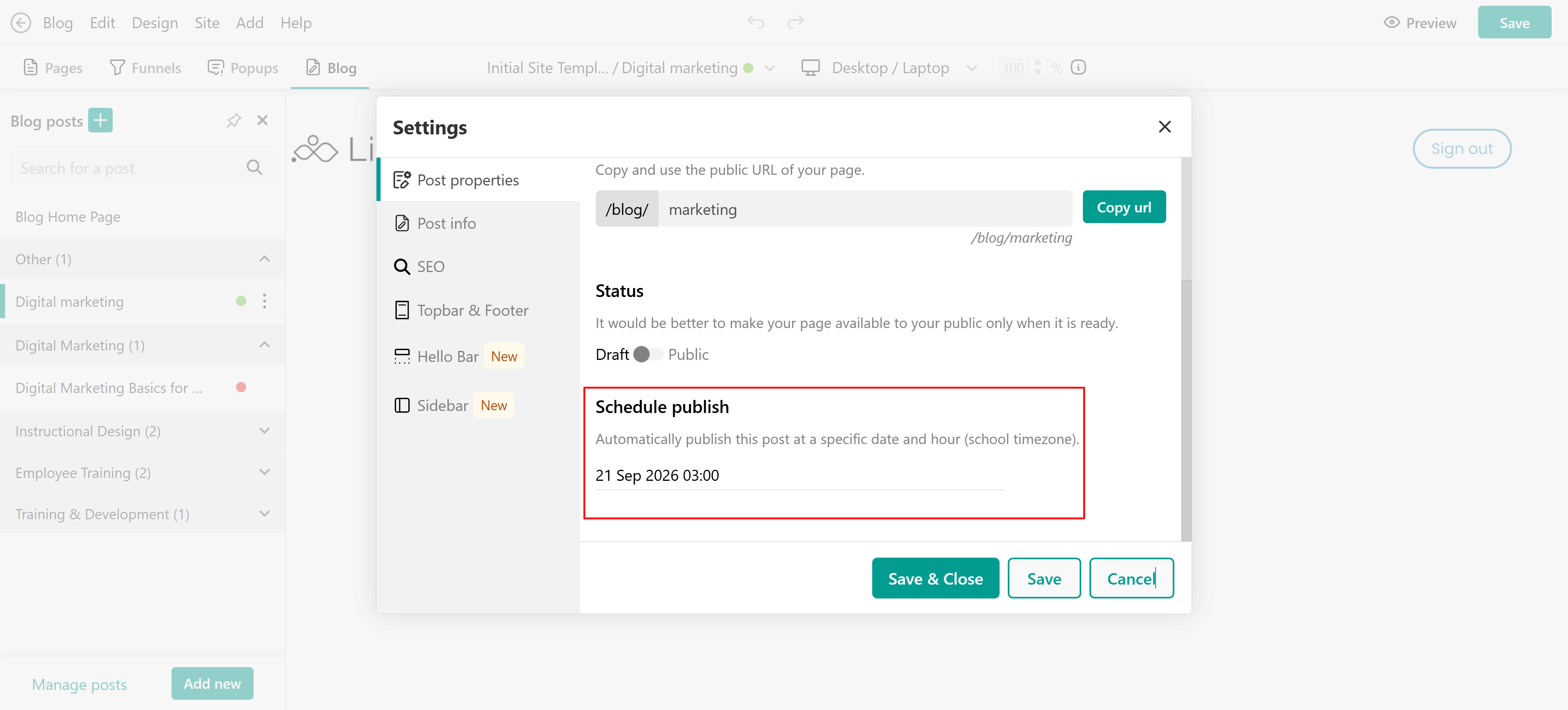
Once the post is set to Draft, the Schedule publish option appears below the status setting.
1. Under Schedule publish, select the date and time when you want the post to be published.
2. Click Save or Save & Close.
The post will automatically become public at the scheduled date and time, based on your school timezone.
Blog home page
To edit the Blog Home Page:
Navigate to Website → Blog and click on Blog Home Page.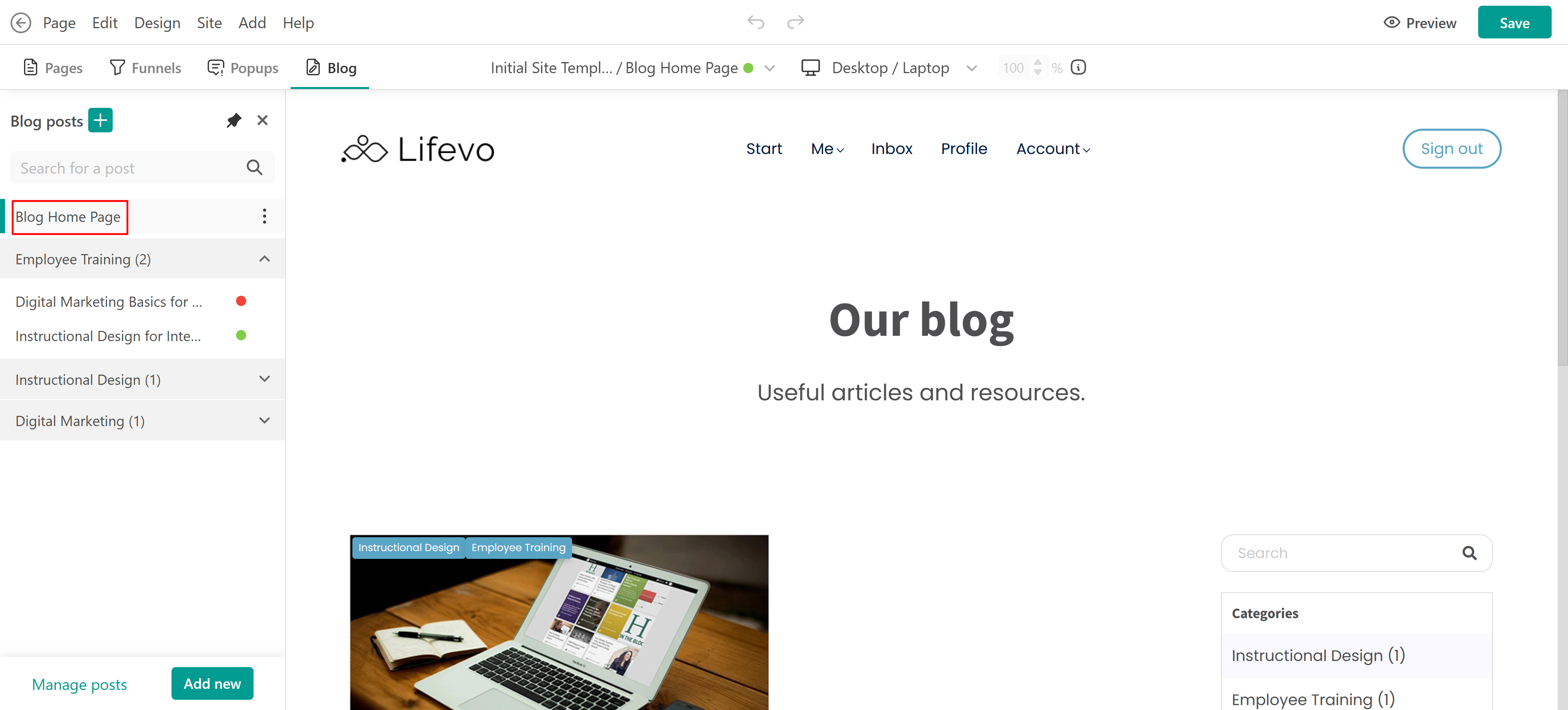
Alternatively, navigate to Site Builder → Blog Setup → Edit Blog Home Page. Here you can edit the blog page like any other, you can add sections widgets, or use ai to edit the content od the pages. For more details about this check this guide.
Add blog sections to your pages
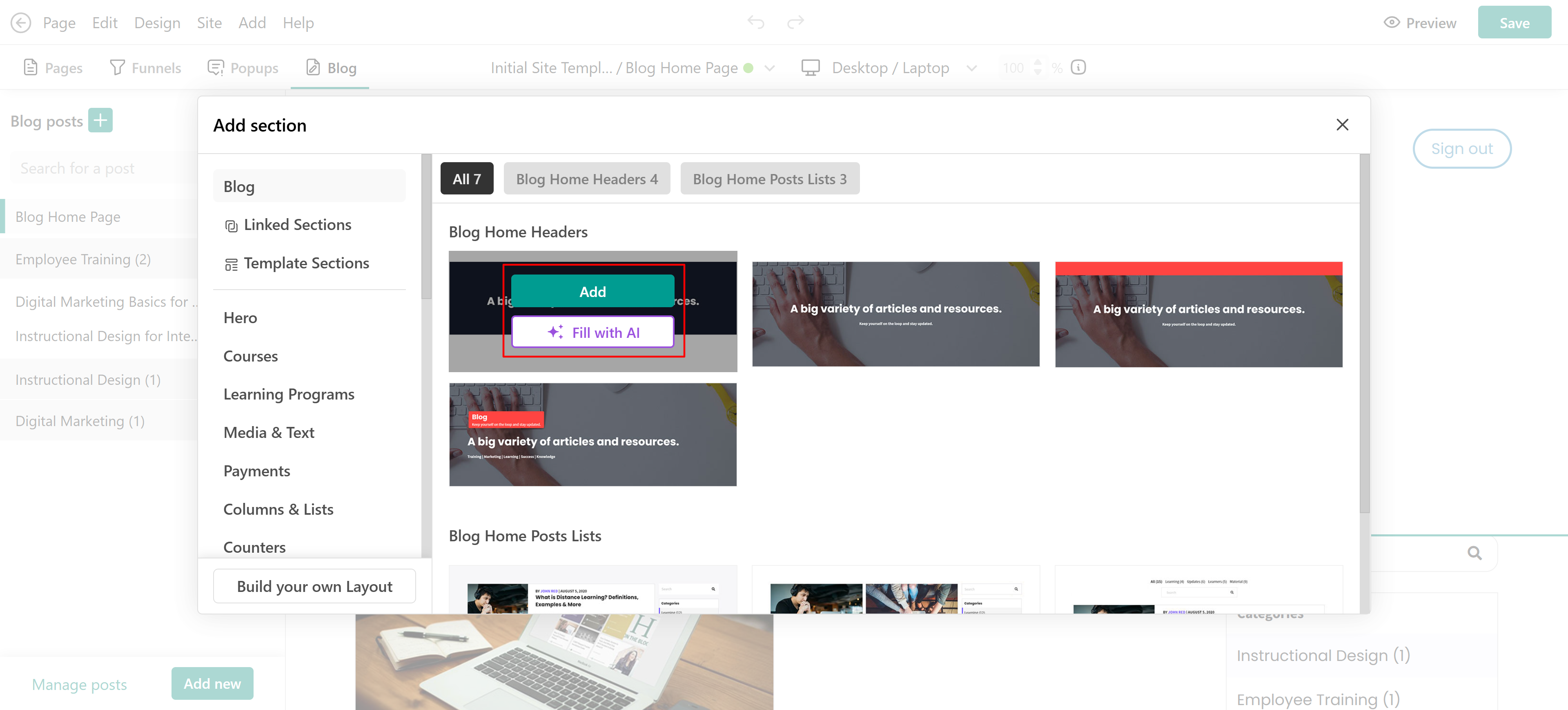
On the Blog Home page of your school, you can click on the +Αdd section and Choose from available Blog sections or create a custom layout. You can use them as they are, or edit them with AI.
You can also add it through Learning Apps → Blog posts section that will display the latest news from the Blog.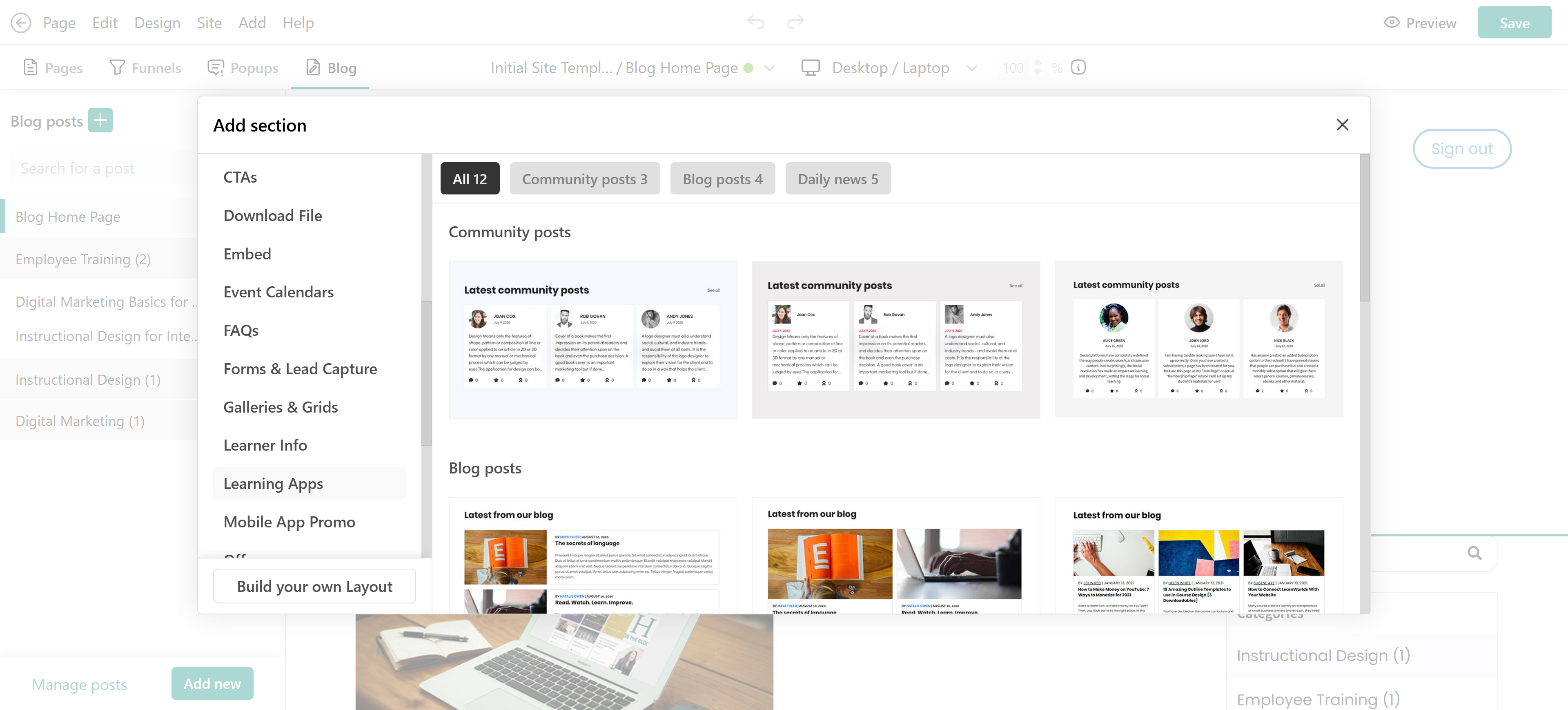
Once you have inserted a Blog post section, click on Edit Blog Postcards to control the cards' appearance and settings. 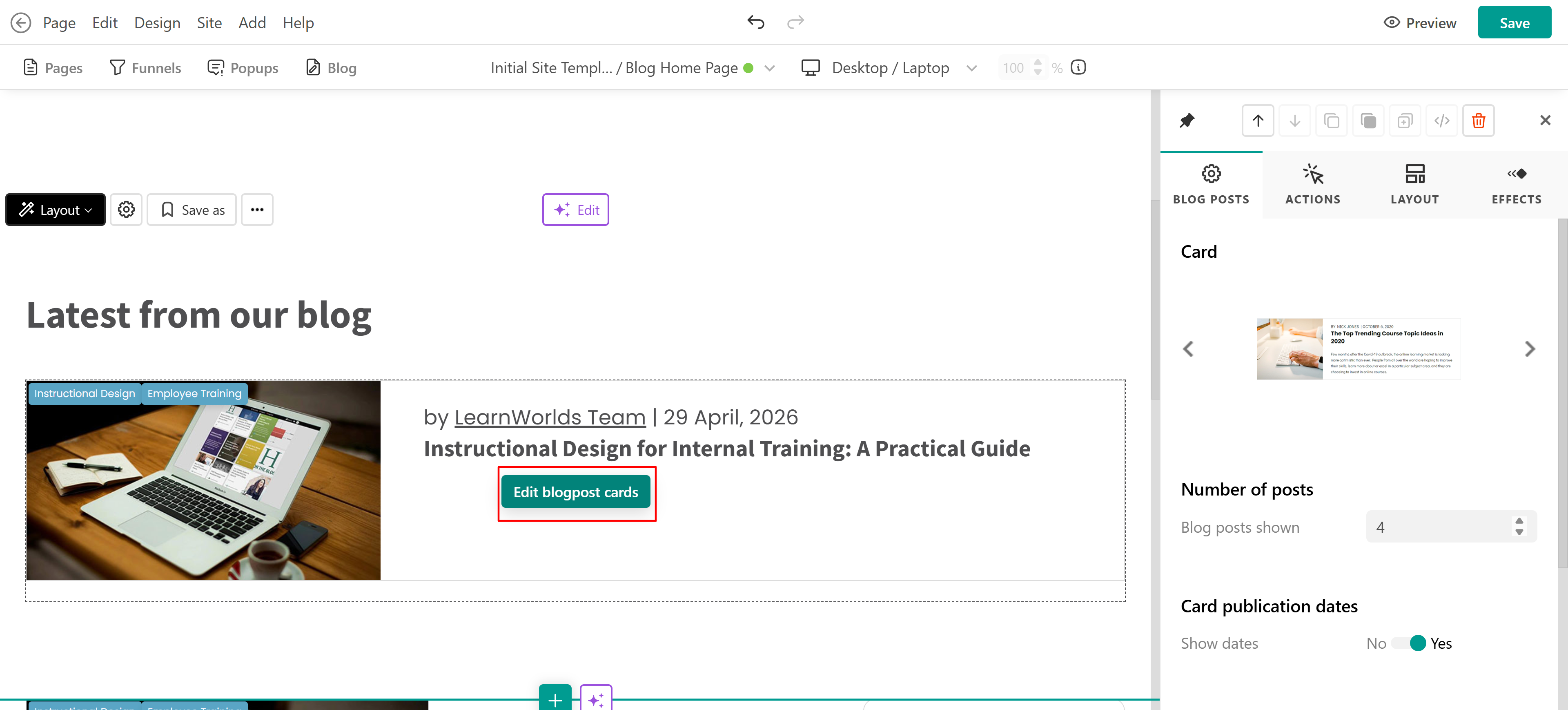
Share your blog in the topbar
We suggest adding a Blog Home page link at your school's topbar for it to be easily accessible.
1. Click Edit Topbar → Edit menu → Signed in users view.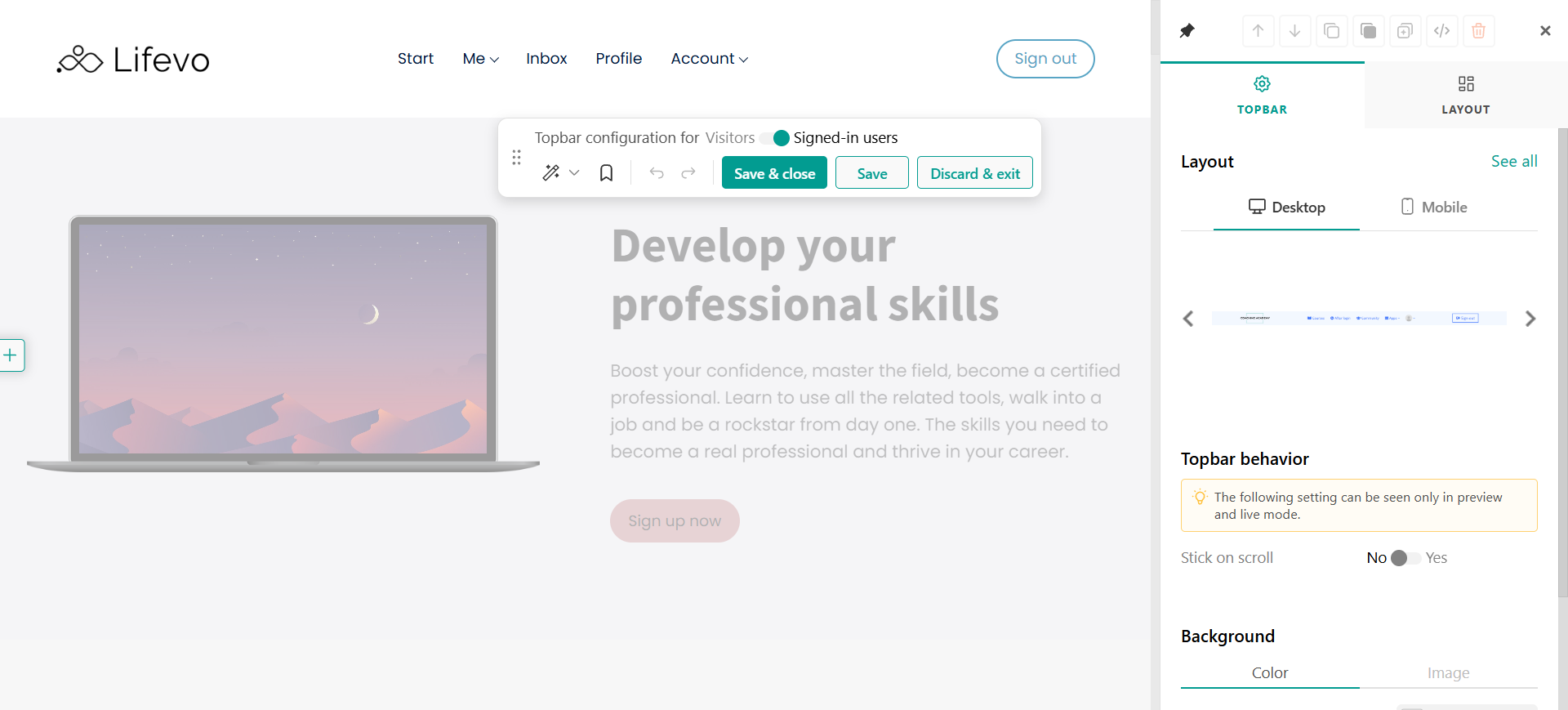
2. Add a new item and name it (e.g. Blog Home Page).
3. Select the new item and under menu item, choose App → Blog from the drop-down menu. You can also choose whether the Blog Home page opens in the same window or a new one.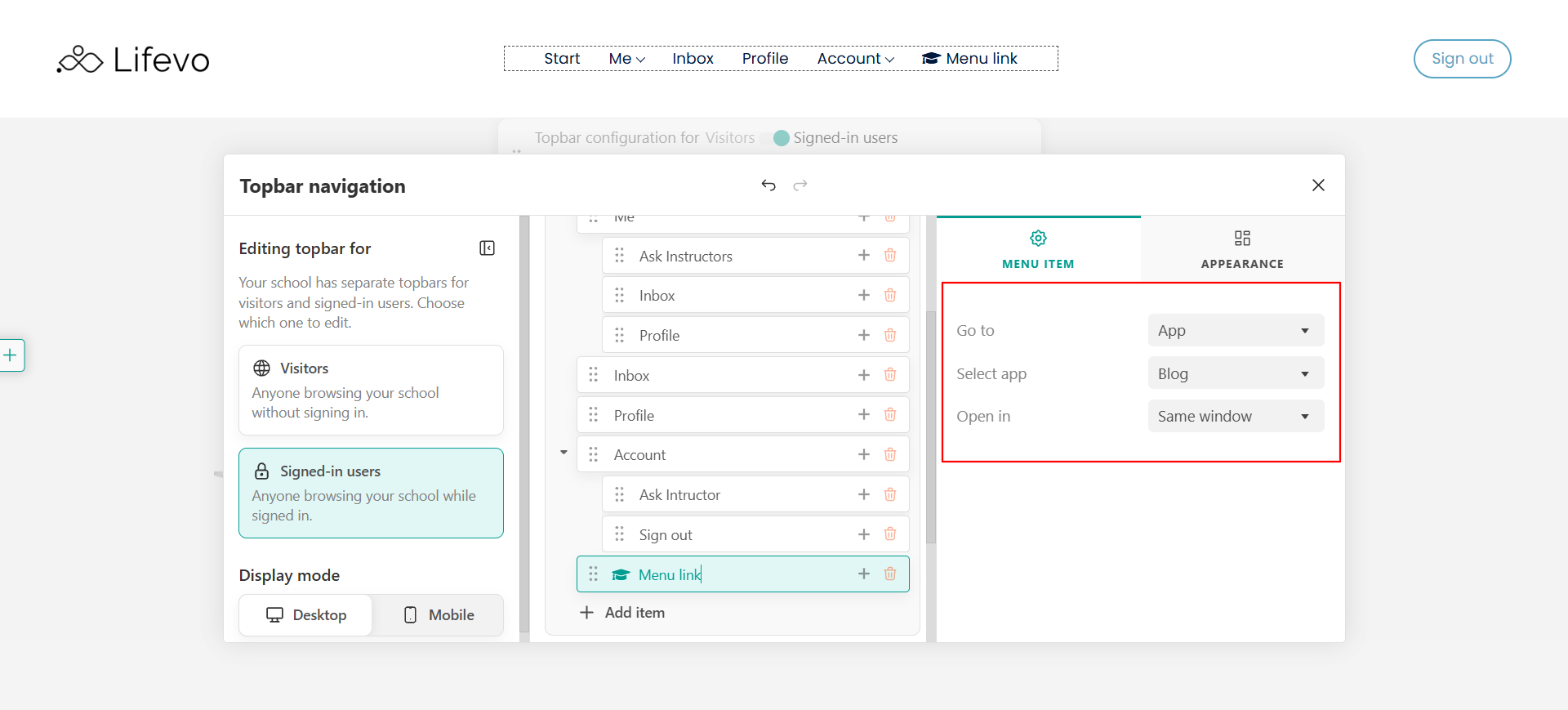
You have now created a navigation link in your (After sign-in) top bar for your Blog Home page that users can anytime click and get directed to your school's Blog.

- If you disable the Blog, you will still be able to add/edit posts with admin permissions; however, your users will not have access to your blog.
- With our Daily news App, you can also promote your Blog in the News Feed.
- The LearnWorlds blog doesn't support a commenting functionality hence there is no possibility for the users to add comments, but mostly they can read your blog articles and have access to a great blog knowledge base. If you wish your users to interact and add comments, you can take advantage of the LearnWorlds community.