
Let your learners celebrate their success! With LearnWorlds, you can allow users to share their certificates on social media platforms, showcasing their achievements with just a few clicks.
In this article, we will go through the necessary configurations in the certificate learning activity, enabling users to effortlessly share their earned certificates on social media platforms.
Enable social sharing for a certificate
First, choose which social media platforms learners can use to share a specific certificate. To enable social sharing:
- Navigate to Courses & programs → Courses and choose your course.
- Create your certificate activity and, while configuring its settings, under Social sharing, select the platforms where learners can share their certificate:
- X
- Save your changes.
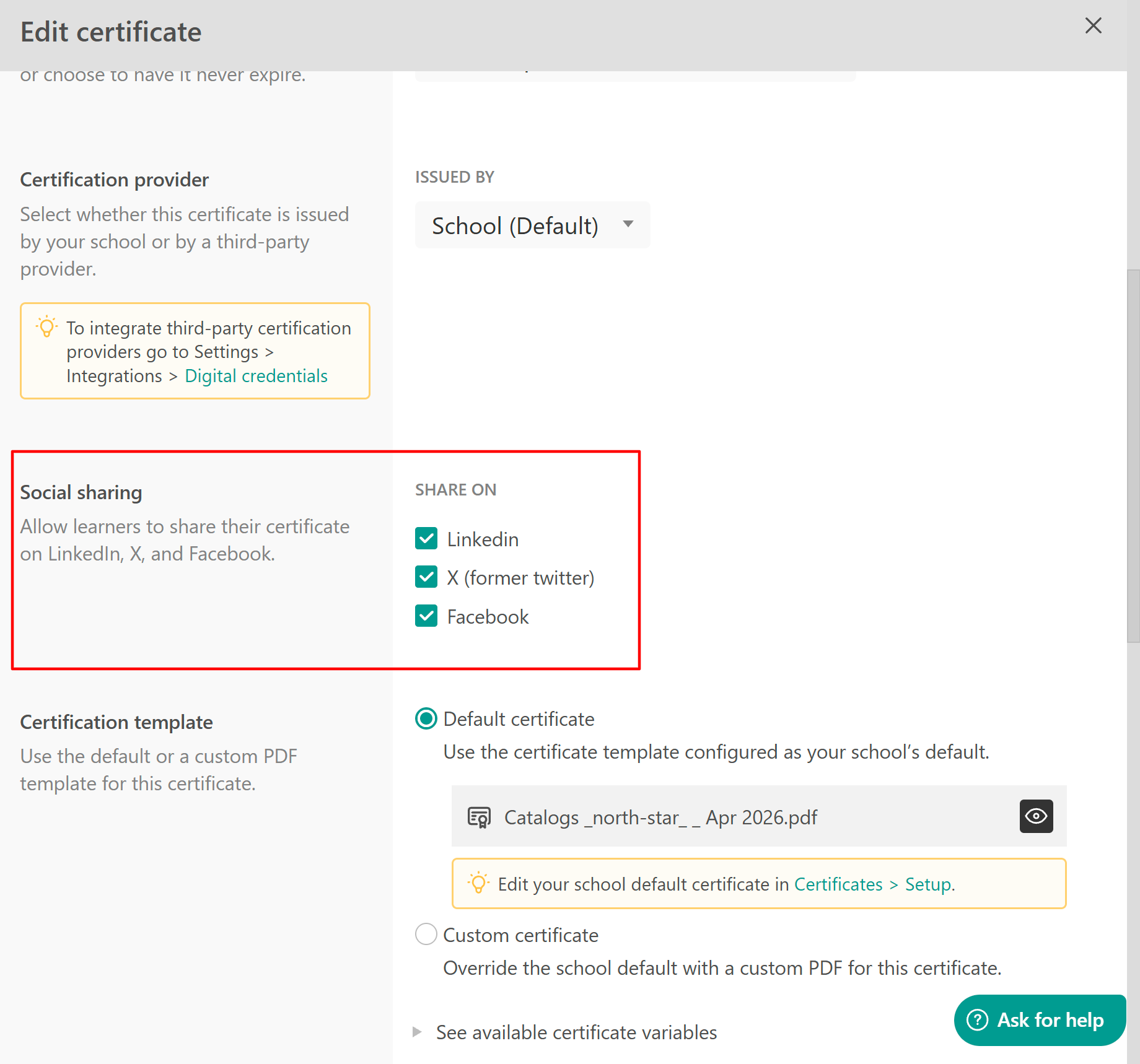
The selected platforms determine which social sharing options are available for that certificate
Configure certificate sharing
After enabling social sharing for the certificate, configure how the sharing options appear to learners on the certificate activity's ending screen.
- Open the certificate activity.
- Select Settings from the toolbar.
- Select Certificate Sharing.
- Under Show social sharing buttons (in ending screen), enable the social sharing buttons you want to display.
- Under Certificate actions (in ending screen), choose whether learners can:
- View certificate
- Copy certificate URL
- Copy certificate ID
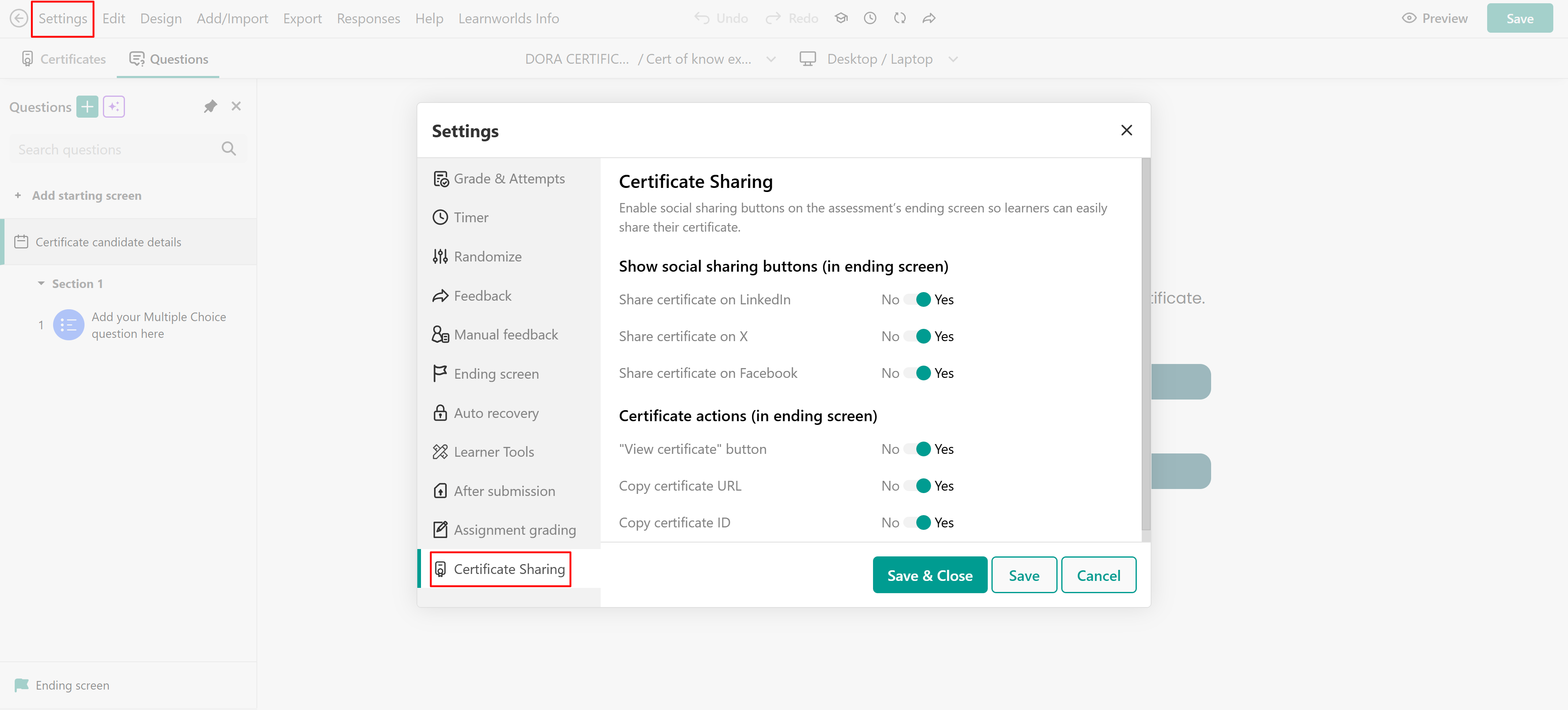
 Social sharing is configured at two levels. The certificate's Social sharing settings determine which social platforms are enabled for that certificate, while Settings → Certificate Sharingin the certificate activity controls the sharing buttons and certificate actions displayed on the ending screen.
Digital credentials
If your school integrates with Accredible or Credly certificates are issued directly through these platforms. Upon receiving their certificate, users are redirected to the respective site, where they can view, manage, and share their credentials.
Accredible
Credly

User experience
When a Certification is awarded, users have the option (if enabled) to download and share their Certificate on Social Media:

Once a certification is awarded, users can choose to download or share it on social media (if enabled). By clicking on a social media button, they are redirected to the respective platform to create a post. For example:

-Clicking a social button (e.g., LinkedIn) opens the platform and auto-fills the post with details.
-For LinkedIn, fields like Credential ID and Credential URL are automatically populated.
-The certificate file itself is not uploaded to the platform. If users want to share the actual PDF, they’ll need to download it and upload it manually in a separate post.